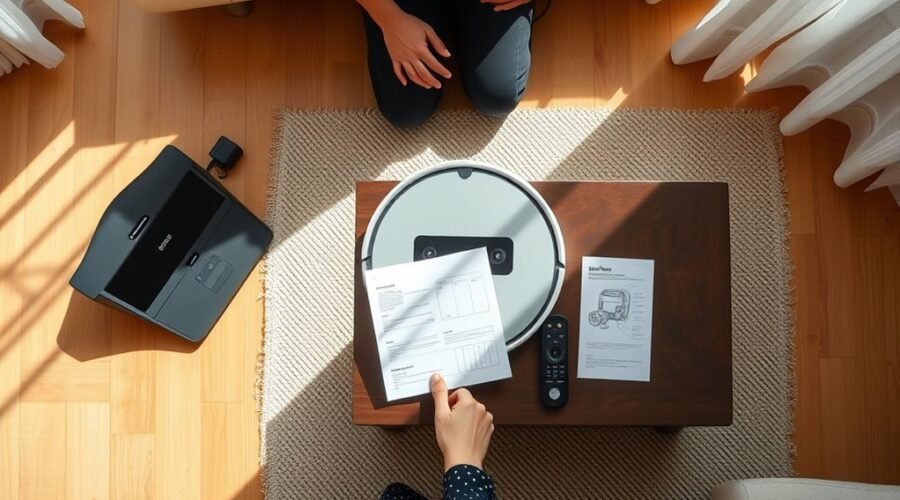
Using a robot vacuum without an app is often simpler than expected, but it depends on the model. Most units can still clean, return to their dock, and avoid obstacles through onboard sensors and physical controls. Setup, however, can vary, and some features remain locked behind Wi-Fi. The next steps show what works offline, how to start a cycle manually, and where common problems tend to appear.
Can a Robot Vacuum Work Without Wi-Fi?
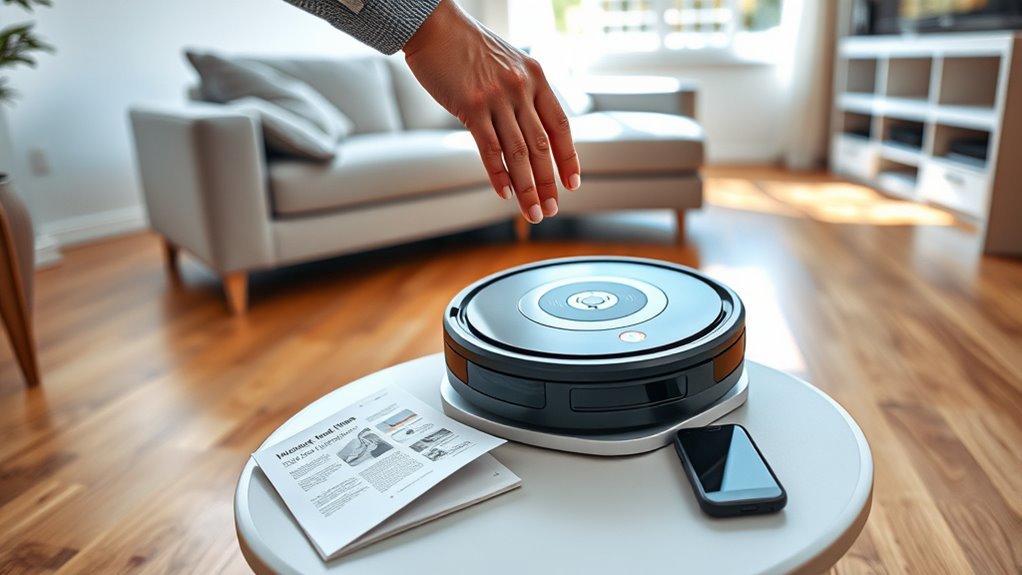
Yes—most robot vacuums can still handle essential cleaning tasks without Wi-Fi. A Robot Vacuum can work without internet because its core cleaning functions are built into the device itself.
On many models, physical buttons start cleaning, pause it, or send the unit back to docking. Built-in sensors support obstacle detection, edge navigation, and basic floor coverage, so offline operation remains practical for daily upkeep.
Physical buttons and built-in sensors let many robot vacuums handle everyday cleaning without Wi-Fi.
Some offline models, including certain DEEBOT units after initial setup, continue to complete basic cleaning cycles without app access. What is lost is not the ability to clean, but the extra control layer: mapping, scheduling, remote control, and app notifications generally require Wi-Fi.
That means users keep essential cleaning while giving up customization. For those seeking liberation from constant connectivity, this arrangement preserves useful automation without demanding internet dependence.
How to Set Up a Robot Vacuum Offline
The robot vacuum should first be fully charged according to the manufacturer’s instructions, then powered on with its physical button to confirm basic operation.
Offline setup usually begins by starting a cleaning cycle in an open area, allowing the sensors to map obstacles without Wi-Fi.
From there, the Clean or Spot controls can be used to pause, restart, or direct the vacuum as needed.
Power On and Charge
Before a robot vacuum can be used offline, it should be fully charged and seated on its charging dock connected to a power source; a solid white or green indicator usually signals that the battery is ready.
Once the unit is fully charged, press the power button to power on the vacuum. This step frees the device from app dependence and prepares it for direct control.
To initiate cleaning, use the physical clean button on the robot itself. The cycle should begin without further setup.
For peak performance, the dustbin should be checked and emptied manually after each run or as needed. Regular charge habits help preserve battery life and keep the vacuum ready for independent operation.
Start Offline Setup
Fully charged and powered on with the physical power button, the robot vacuum can begin its offline setup without connecting to Wi‑Fi. To start, most models require pressing the Clean button on the unit to launch the first cleaning cycle. This physical button sequence frees the user from app dependence and allows immediate operation.
If the model offers onboard controls, any initial configuration, such as selecting a cleaning mode or adjusting basic navigation settings, should be completed there. The user manual remains the best reference for device-specific controls.
During offline use, performance stays strongest when the dustbin is emptied regularly and brushes are checked for tangles manually. Without app alerts, maintenance becomes a direct responsibility, but also a practical form of control.
How to Start a Robot Vacuum With Buttons
The robot vacuum’s control buttons are usually on the top of the unit, and it should be fully charged before use, with a solid white or green light indicating readiness.
Pressing the labeled Clean button starts a full cleaning cycle, while the Spot button focuses on a specific area with concentrated cleaning.
The Home button sends the vacuum back to its dock when cleaning is finished or needs to be stopped.
Locate Control Buttons
Control buttons are usually the simplest way to start a robot vacuum without using an app. The Clean button is typically the main command, beginning a full cleaning cycle with one press.
The Home button sends the vacuum back to its dock after work is complete. For smaller messes, the Spot button starts a focused spiral pass over one area.
Before using any control buttons, the unit should be fully charged, often shown by a solid white or green light. If the buttons do not respond, troubleshooting may require checking the manual.
In some cases, a factory reset is performed by holding specific buttons together. Once the layout is learned, the vacuum can be operated with direct, independent control.
Press Clean To Start
Locate the physical Clean button on the top or front of the robot vacuum, then check that the unit is fully charged before starting; a solid green light usually signals it is ready. With the physical controls identified, press clean once to start a cleaning cycle and let the machine handle the autonomous task.
| Control | Result |
|---|---|
| Clean | Start a full cleaning cycle |
| Spot button | Targeted cleaning in a tight area |
| Dock light | Confirms charging status |
| End of cycle | Return to dock automatically |
These basic cleaning functions free the user from constant supervision. The Spot button supports targeted cleaning when debris is concentrated in one place. After the cleaning cycle ends, the vacuum will return to dock for recharging, preparing it for the next run.
Use Home And Spot
With the robot vacuum fully charged and its indicator light showing white or green, the Clean, Home, and Spot buttons provide the main manual controls.
To use the Home button, press it when cleaning is finished or when recharging is needed; the machine should navigate back to its dock and return for charging.
The Spot button should be used for concentrated debris in one area, where the vacuum usually works in a tight spiral to remove dirt efficiently.
These physical controls give direct control without an app, preserving independence from Wi-Fi or phone setup.
If a model includes an infrared remote, those same functions may also be triggered remotely.
For reliable operation, keep the charging contacts clear and confirm the vacuum is ready before each use.
Which Robot Vacuum Features Work Without Wi-Fi?
Several core robot vacuum functions still work offline, since the machine can be started, paused, and stopped with physical buttons instead of an app.
For Robot Vacuums Without Wi-Fi, basic cleaning functions remain available without needing an internet connection, and a physical start button lets the user control the robot directly.
In many models, navigation and obstacle avoidance depend on onboard sensors, so the unit can move around furniture and avoid drops while cleaning.
Some machines can also return to their dock on their own, keeping automated cleaning practical. Self-emptying stations may still operate through hardware links, and some voice assistants accept basic commands locally.
- Press the button to begin a cleaning pass
- Let onboard sensors guide movement and obstacle avoidance
- Use the dock and self-emptying base without app access
Advanced mapping, scheduling, and remote control generally require Wi-Fi, but the core cleaning functions work independently.
How Robot Vacuum Navigation Works Offline
Robot vacuums can navigate offline because they rely on built-in sensors rather than Wi-Fi to guide movement. In offline use, robot vacuums use LiDAR, infrared, and bump sensors to detect walls, furniture, and open space. The onboard logic turns distance readings into a cleaning path, letting the machine perform basic cleaning with little user input. Obstacle avoidance happens in real time: when sensors sense a nearby object, the vacuum slows, turns, or stops and redirects. Many models also use a bump-and-run method, where contact with an obstacle triggers a new direction. This supports systematic cleaning through pre-programmed routines, even without cloud access.
| Sensor | Function | Result |
|---|---|---|
| LiDAR | Maps room shape | Better navigation |
| Infrared | Measures distance | Obstacle avoidance |
| Bump sensors | Detect contact | Path change |
Advanced mapping features may need internet access, but offline operation still delivers practical, independent cleaning.
How to Dock, Charge, and Empty It Manually
To dock a robot vacuum manually, place it close to the charging base and align the charging contacts so it can connect securely; most models will also return to the dock on their own when a cleaning cycle ends or battery power runs low, often signaled by a solid light on the unit.
After placement, confirm the indicator light shows charging, then leave it connected until fully charged. A stable dock supports consistent performance and reduces interruptions during cleaning.
- Set the charging base on a flat, open surface.
- Empty the dustbin by pressing the release button and lifting it out.
- Clean brushes and filters regularly to protect suction and docking reliability.
To empty the vacuum, remove the dustbin, discard debris, and reseat it firmly.
This simple routine keeps the machine ready without app control, preserving efficient return, charge, and cleaning cycles.
Which Features Need Wi-Fi?
Wi‑Fi is required for features that depend on app connectivity, especially intelligent mapping, precise navigation, and smart home integration. In practice, these advanced features are the ones that separate basic cleaning from flexible automation.
Without internet access, robot vacuums can perform only core tasks, while app-based control stays out of reach. That means cleaning schedules cannot be created remotely, and automated operations are reduced to manual starts and stops. Customization options for suction power, room targeting, and cleaning modes also typically disappear offline.
Without internet access, robot vacuums handle only core tasks, leaving app control, schedules, and customization unavailable.
Remote control capabilities, including real-time alerts and status monitoring, rely on Wi‑Fi as well. For users seeking freedom from unnecessary complexity, the key distinction is simple: essential cleaning works locally, but features need Wi-Fi when convenience, coordination, and precision are expected.
Smart home integration likewise depends on network access, so voice assistants and linked devices cannot coordinate actions without it.
How to Fix Common Offline Setup Problems
When an offline setup does not go smoothly, the first check is usually power: the vacuum should have a full charge, shown by a solid white or green light, before any setup or test run begins.
After that, Check Battery Charge again and confirm the dock is seated correctly. If the unit still fails to respond, use the Physical Buttons to start cleaning or return home; many robot vacuum models also support basic cleaning functions without Wi-Fi.
Before launch, Clear Obstacles from floors and edges so navigation is not blocked. If commands remain ignored, Reset the Device with a factory reset by holding the designated button as directed.
- Confirm the light signal matches the manual.
- Remove cables, loose items, and thresholds.
- Consult the Manual for offline operation instructions.
These steps keep control local and practical, letting the owner start cleaning without dependence on an app.
How to Keep Your Robot Vacuum Running Smoothly
Once the vacuum is running offline, routine upkeep keeps it dependable from one cleaning cycle to the next. For robot vacuums, the first task is simple: empty the dustbin after every cleaning task so debris does not restrict airflow or reduce efficient suction.
Weekly maintenance checks should include brushing off clean brushes and washing or replacing filters when needed, since hidden buildup harms performance. The charging dock should stay free of shoes, cords, and other obstacles so the machine can return and recharge without help.
Weekly maintenance keeps brushes clear, filters fresh, and the charging dock unobstructed for reliable, hands-free operation.
Dust and smudges on sensors should be wiped carefully during scheduled cleaning to prevent navigation errors and missed areas. If the model supports it, an occasional factory reset can refresh stored settings and restore stable operation.
These small steps preserve independence, reduce avoidable repairs, and keep the machine ready to work effectively. Regular attention also supports longer battery life and steadier mapping, allowing cleaning tasks to proceed with less interruption.
Frequently Asked Questions
Can I Run My iRobot Without the App?
Yes, an iRobot can run without the app. It uses robot vacuum basics, manual operation tips, and troubleshooting issues; battery maintenance advice, cleaning scheduling options, sensor navigation methods, surface compatibility guide, noise level comparisons, suction power insights, maintenance cleaning tasks.
How to Start Using a Robot Vacuum?
Start by charging the robot vacuum; it glides like a quiet scout. Robot vacuum basics include cleaning modes, battery maintenance, floor mapping, obstacle detection, scheduling cleanings, dustbin emptying, filter replacement, surface compatibility, and maintenance tips.
Do All Robot Vacuums Need an App?
No, not all robot vacuums need an app; many rely on manual controls for core robot vacuum features, cleaning modes, obstacle detection, and battery life. Brand comparisons show floor mapping, scheduling options, noise levels, and maintenance tips vary.
Can I Use My Robot Vacuum Without Wi-Fi?
Yes, it can. Core cleaning works offline, with battery life, cleaning modes, navigation technology, obstacle detection, surface compatibility, noise levels, and dustbin capacity managed by onboard controls; consult the user manual for maintenance tips and scheduling options.
Conclusion
Using a robot vacuum without an app is entirely practical for basic floor care. After charging, the user can rely on the physical buttons to start cleaning, send the unit home, and handle docking manually. Built-in sensors still support navigation, while routine maintenance keeps performance steady. Although Wi‑Fi enables scheduling and advanced mapping, that limitation is often minor for users who mainly want reliable, hands-off cleaning without extra setup.