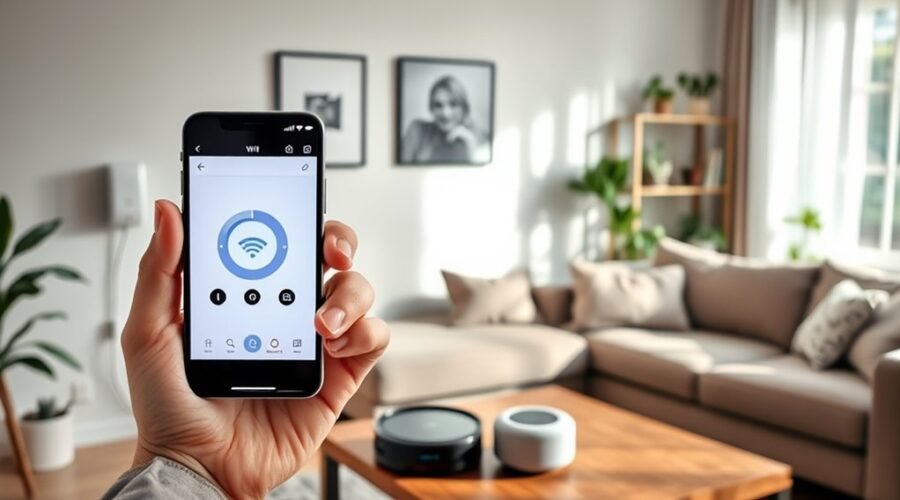
Connecting a robot vacuum to a voice assistant can turn routine cleaning into a simple spoken command, but the setup depends on the model, the app, and the assistant being used. A few quick checks can prevent common issues before linking it to Google Home or Alexa. Once the basic connection is in place, the real convenience begins, especially when room control and custom commands are involved.
What You Need Before You Start
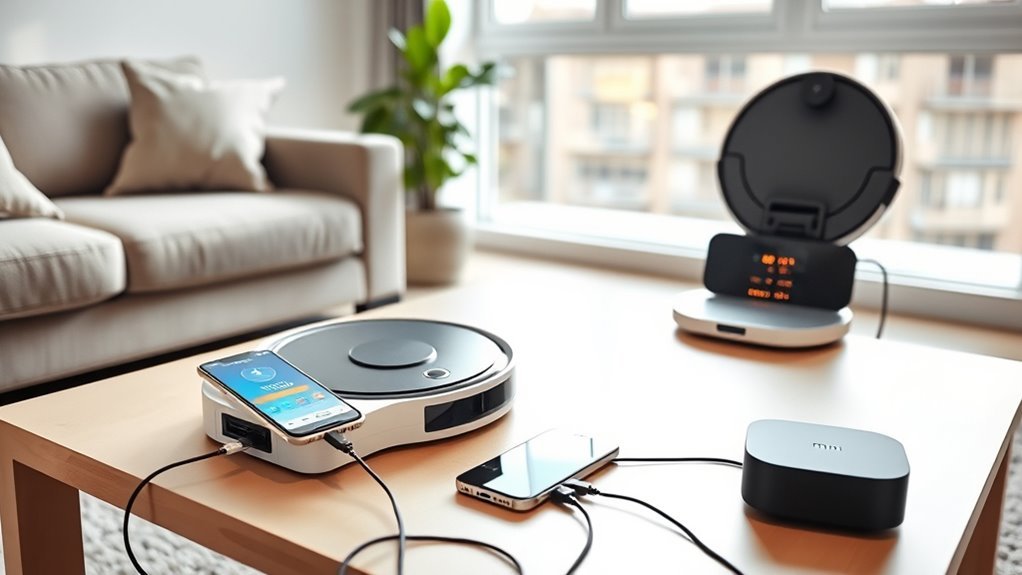
Before linking a robot vacuum to a voice assistant, it is important to confirm that the vacuum supports the chosen platform, such as Alexa or Google Home, by checking the manufacturer’s specifications. This step prevents wasted effort and keeps setup efficient.
A Wi-Fi connected robot also needs the correct companion app, often used for app control, setup, and device registration. The app should be downloaded before any integration begins.
A stable smartphone connection to Wi-Fi is required because both the vacuum and the voice assistant depend on internet access. An account for the voice assistant service must be created if none exists, since device linking and management occur there.
It also helps to review the supported commands in advance. Knowing which phrases the system recognizes allows smoother operation and fewer interruptions.
With these essentials ready, the user can move forward with less friction and more control over home cleaning.
How to Link Your Robot Vacuum to Google Home
To link a robot vacuum to Google Home, the vacuum should first be set up in the Smart Life app and connected to Wi-Fi.
Next, the Google Home app should be installed and opened with a logged-in Google account, creating a clear path to voice control. In Home Control, the user can tap Add, choose Set up device, then select Works with Google to find Smart Life. Linking the Smart Life account enables Google Assistant Enabled operation and helps connect your robot vacuum without extra complexity.
Open Google Home, add Smart Life under Works with Google, and link your account for voice-controlled cleaning.
- Select a room during setup for focused commands.
- Use “Hey Google, start cleaning” for immediate action.
- Use “Hey Google, clean my living room” for room-specific control.
After setup, the vacuum becomes part of a simple, hands-free system that supports freer routines.
With the right link in place, cleaning can begin with a spoken request rather than manual effort.
How to Connect Your Robot Vacuum to Alexa
A robot vacuum can be connected to Alexa by first setting it up in the Smart Life app so it is linked to the home Wi-Fi network. This step guarantees the device is online and ready for remote control.
Next, the Alexa App should be downloaded and signed in with an Amazon account, since account access is required for device integration. The Echo device can then be configured in the Alexa App so it can communicate with other smart devices.
After that, the Smart Life skill should be enabled in Alexa, and the Smart Life account should be linked. This creates the bridge between Alexa and the robot vacuum.
Finally, devices should be discovered in the Alexa App so the vacuum appears in the list of connected devices. It can then be renamed for easier voice recognition, allowing clearer voice commands and more flexible control.
Set Up Voice Control in the Robot App
The robot vacuum’s companion app should be installed and opened so voice control can be configured.
From there, the vacuum can be linked to the chosen voice assistant by following the app’s setup steps.
Any required skills or permissions should then be enabled to complete the connection.
App Voice Setup
With the robot vacuum’s dedicated app installed, users can create an account, confirm the device is connected to Wi‑Fi, and verify that it is fully set up before enabling voice control.
The app should show the vacuum as online and ready, giving users a clean path toward hands-free command. In the app, open settings and enable voice assistant integration. This setup a Wi-Fi connected device for voice control, allowing straightforward access without extra friction.
- Check permissions for voice features
- Turn on assistant integration
- Test with a simple command
After activation, follow the prompts in the app to authorize the chosen service, such as Alexa or Google Assistant.
A quick voice test confirms the connection works, so control feels immediate and effortless.
Link Assistant Skills
Once the robot vacuum is confirmed in its companion app, the next step is to open the voice assistant app and enable the matching skill or service, such as Smart Life for Alexa or Google Assistant.
The user then logs into the account used for the robot vacuum setup and approves the connection. After that, the voice assistant will search for available devices and add the robot vacuum to the list.
A clear name or room label should be assigned during setup to make future commands simple and direct. If the robot vacuum does not appear, refreshing the app and checking updates in both apps often resolves the issue.
This process gives the user hands-free control and a more liberated daily routine through the voice assistant.
Use Voice Commands for Cleaning Tasks
Voice commands make everyday robot vacuum control simple and hands-free. With smart robot vacuums, users can speak to start, pause, or stop cleaning without lifting a finger. Devices from iRobot Corporation and other makers often respond to short, direct phrases through a voice assistant, reducing friction and saving time.
- “Hey Google, start vacuuming” begins a cleaning cycle.
- “Hey Google, start mopping” launches wet cleaning on supported models.
- “Hey Google, pause cleaning” stops the task instantly.
This approach supports a more liberated routine, especially when hands are full or schedules are tight. Some systems also handle multiple robots with distinct names, making control clear and organized.
When compatible with smart home devices, voice commands keep floor care easy to direct and easy to repeat. The result is practical automation that fits daily life without extra effort.
Add Room and Zone Commands
Beyond starting or pausing a full cleaning cycle, many smart robot vacuums can also respond to room and zone commands for more targeted control.
In the Smart Life app, room cleaning assignments are set during setup by selecting which areas the robot should clean. Once the layout is saved, voice commands can direct the vacuum to specific spaces, such as, “Hey Google, clean my kitchen.”
For even finer control, zones can be called out with phrases like, “Hey Google, go clean the entryway zone.” These options depend on mapping features being enabled, since the map tells the robot where each room or zone is located.
If commands fail or only basic cleaning works, a firmware update may be needed to access advanced room and zone support.
With the right setup, cleaning becomes more direct, more independent, and less tied to manual control.
Name Multiple Robots for Easier Control
When multiple robots are in use, giving each one a distinct name makes voice control much easier. To name multiple robots, choose clear labels that match their location or role, such as “Living Room Vacuum” or “Bedroom Mop.” This gives users complete control through simple voice commands and reduces confusion when speaking to Google Home or other assistants.
Consistent naming also supports freedom from guesswork, since each command points to one device only.
- Use short, memorable names
- Match names to rooms or tasks
- Rename devices in the app for clarity
With a stable naming pattern, commands like “start cleaning” or “stop” can be directed at a specific robot without delay. The result is smoother control, faster routines, and a more independent cleaning setup.
Fix Google Home and Alexa Setup Problems
If Google Home or Alexa fails to control a robot vacuum, the setup process should be checked from the start. The robot should first be fully configured in the Smart Life app before any link to Google Home or Alexa is attempted.
Next, confirm that the vacuum and the assistant device share the same Wi‑Fi network; mismatched networks often block connection. When voice commands still do nothing, the Smart Life skill can be disabled and re-enabled in Alexa, or the device can be unlinked and linked again in Google Home.
It also helps to update both the robot and the voice assistant firmware, since newer versions often remove bugs and restore compatibility. If problems remain, the troubleshooting section in the app may show the exact error and guide the next step.
With these checks, users can setup your robot with less friction and regain reliable control through Google Home or Alexa voice commands.
Use Smart Mapping for Room Commands
Smart mapping lets a robot vacuum learn the home’s layout so room-level voice commands can target specific areas with precision.
Once the map is set up in the app, commands such as “vacuum the kitchen” can direct the robot to the right room.
Updates to the map help the system stay accurate as the home changes.
Room-Level Voice Commands
Room-level voice commands let a robot vacuum target specific areas, making cleaning more efficient in busy parts of the home.
With Smart Mapping technology, room-level voice commands let the robot vacuum respond to requests like “clean my kitchen” or “vacuum my office,” giving control without manual effort. This approach supports practical freedom by reducing wasted passes and focusing on high-traffic zones.
- Clean only the room that needs attention
- Save battery by avoiding unnecessary cycles
- Use voice assistants for quick, hands-free control
Some models need an initial home map before they can recognize room names reliably. Once that is in place, room-based requests become simple, precise, and easy to repeat.
The result is a cleaner home with less time spent directing chores.
Smart Mapping Setup
A well-set smart map gives a robot vacuum the room awareness needed for accurate voice commands. Smart mapping technology builds a detailed layout, so the device can recognize rooms and zones instead of moving blindly. To begin, set up your robot in the app, complete mapping, and confirm each room name is clear. Then commands like “Hey Google, clean my kitchen” can direct cleaning exactly where needed, supporting cleaner spaces with less effort.
| Step | Purpose |
|---|---|
| App setup | Enables mapping |
| Room labels | Improves targeting |
| Firmware updates | Boosts accuracy |
Regular firmware updates help preserve map precision and voice assistant compatibility. With a reliable map, users can shape routines around real needs, cleaning only specific areas and reclaiming time and control.
Frequently Asked Questions
Can I Connect My Robot Vacuum to Alexa?
Yes, a robot vacuum can connect to Alexa, offering robot vacuum features, voice assistant benefits, and smart home integration. With setup through the appropriate app, it can respond to simple voice commands for easier control.
How to Connect Voice Assistant?
Connect it through the assistant app: set up smart home integration, enable the skill, then run voice command setup. The robot vacuum features appear after device discovery, allowing simple spoken control and easier household autonomy.
How to Connect Roomba to Home Assistant?
To connect a Roomba to Home Assistant, add the irobot integration, enter iRobot credentials, and guarantee the device is on Wi Fi. Like a 2023 hitch-free launch, Home Assistant setup works best with Roomba troubleshooting tips for Wi Fi connectivity issues.
What Are Some Compatible Voice Commands for Roomba?
Compatible Roomba features include voice command variations like “start vacuuming,” “pause vacuuming,” “stop vacuuming,” “go home,” and “clean my room.” Smart home integration enables direct, hands-free control, freeing household routines from manual interruption.
Conclusion
Connecting a robot vacuum to a voice assistant can feel almost magical, but the process is actually straightforward. With the right app, Wi‑Fi connection, and account linking, Google Home or Alexa can take over routine cleaning with simple commands. Renaming devices, testing voice control, and setting up room and zone commands help make the setup reliable. When everything is in place, hands-free cleaning becomes an effortless part of daily life.