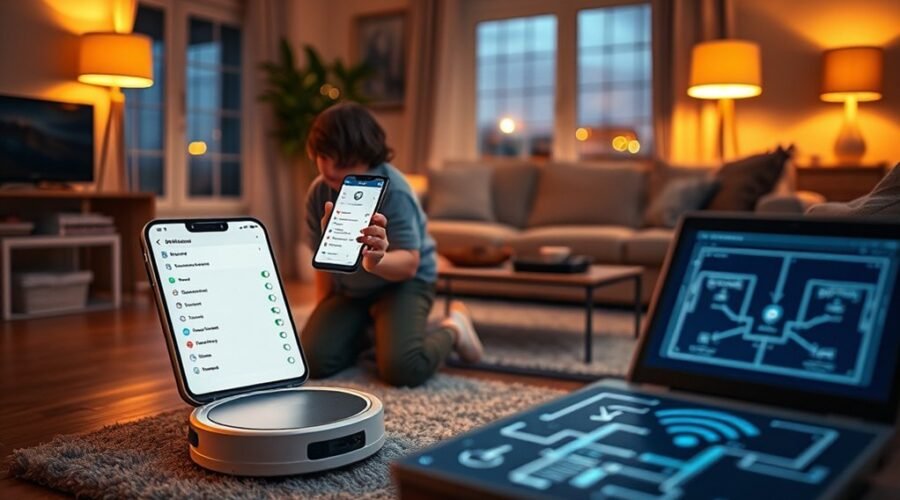
Robot vacuum privacy matters because your cleaner may collect home maps, cleaning routines, device details, and even images or audio. Some of that information may travel through cloud services or connected apps. You can reduce these risks by changing a few security settings, limiting unnecessary data sharing, and choosing a vacuum with suitable privacy controls.
Quick Answer
To protect your robot vacuum privacy, secure your Wi-Fi network, use a unique app password, enable two-factor authentication when available, and disable unnecessary camera, microphone, and cloud-sharing features. Keep the robot’s firmware updated, review app permissions, and check where maps are stored. For greater privacy, consider camera-free navigation or verified local processing.
Last checked: October 28, 2026. Dates and figures were verified against official sources.
At a Glance
| Difficulty | Beginner for app settings; basic router knowledge for network security |
| Tools Needed | Robot vacuum app, smartphone, and access to your Wi-Fi router settings |
Robot Vacuum Privacy Risks
)
Robot vacuums can create privacy risks because they collect information about your home and how you use it. The information depends on the model’s sensors, app features, and cloud services.
A basic vacuum may collect only cleaning and device information. An advanced model may create detailed floor maps, recognize objects, store obstacle photos, or support remote video viewing.
The main types of information include:
- Home maps: Room layouts, walls, furniture locations, cleaning zones, and room names.
- Camera data: Images of obstacles, household objects, people, or pets when supported by the device.
- Audio data: Voice commands or microphone input on models with voice or communication features.
- Usage information: Cleaning times, schedules, battery status, device identifiers, and error reports.
- Network information: Wi-Fi connection details and other technical information used to operate the device.
Not every robot vacuum collects all these types of data. A model without a microphone cannot record audio through a microphone it does not have. Likewise, a camera-free model cannot capture ordinary camera images.
However, even a camera-free vacuum may create a detailed map of your home. That map can reveal room layouts and information about how different spaces are used.
Privacy risks increase when data moves beyond the vacuum. Cloud storage, remote access, shared accounts, and third-party integrations create additional places where information must remain secure.
Encryption helps protect transmitted and stored information, but it cannot prevent every type of exposure. Weak account security, software vulnerabilities, or improper handling by authorized parties can still create problems.
One documented example is the 2022 Roomba image incident documented by MIT’s AI Incident Database. Images captured by development versions of Roomba devices were shared improperly by contractors involved in data labeling.
The incident illustrates the risks of third-party data handling. It does not establish that ordinary consumer Roombas experienced the same exposure.
The best protection is to understand what your specific vacuum collects, where it stores that information, and which settings let you restrict access.
Secure Your Wi-Fi and Accounts
A secure Wi-Fi network and protected app account are essential for robot vacuum security. These controls help prevent unauthorized users from accessing your vacuum, changing settings, or reaching connected data.
Start with your router, then protect the account used to control your robot.
Strong Wi-Fi Passwords
Your robot vacuum usually connects through the same router as your phones, computers, and other smart devices. Protecting that network reduces the chance that an attacker can reach connected equipment.
Use a unique Wi-Fi password with at least 12 characters. A longer, unpredictable passphrase is easier to remember and can provide strong protection.
Also protect the router’s administrator account with a separate password. This matters because the administrator account can change your network’s security settings.
Follow these steps:
- Open your router’s administration interface.
- Replace any default administrator credentials.
- Set a long, unique Wi-Fi password.
- Choose WPA3-Personal encryption if your router and vacuum support it.
- Use WPA2-Personal if WPA3 is unavailable or incompatible with the device.
- Create a separate network for smart home devices when your router supports suitable isolation.
- Keep router remote management disabled unless you genuinely need it.
These measures follow the Federal Trade Commission’s home Wi-Fi security guidance.
A separate guest or Internet of Things (IoT) network can help isolate your vacuum from computers and personal files. However, not every guest network blocks communication between connected devices.
Verify that the router provides actual device isolation. Also confirm that your phone can still connect to the vacuum for setup and control.
Change a password if it becomes compromised, reused, or exposed. You do not need to replace a strong password simply because a fixed number of days has passed.
This follows NIST’s digital identity and password guidance, which discourages arbitrary periodic password changes.
Two-Factor App Login
Two-factor authentication adds another verification step when someone signs in to your robot vacuum account. It helps prevent an attacker from logging in with only a stolen password.
The second step may involve an authenticator app, a security key, or a verification code.
To improve account protection:
- Open the vacuum manufacturer’s account or security settings.
- Look for two-factor authentication, multi-factor authentication, or two-step verification.
- Enable the strongest supported method.
- Secure the email account used for registration and password recovery.
- Review connected devices or active sessions if the service offers that feature.
An authenticator app or security key generally provides better protection than text-message codes.
Not every robot vacuum service offers two-factor authentication. If yours does not, use a strong, unique password and protect the email account that controls password resets.
Never share verification codes with someone who contacts you unexpectedly.
Update Router Firmware
Router firmware is the software that controls your home network equipment. Security updates can fix weaknesses that might otherwise expose connected devices.
Open your router’s administration interface and check its installed firmware version. Use the manufacturer’s update system to install available security patches.
For additional protection:
- Enable automatic router updates if supported.
- Disable Wi-Fi Protected Setup (WPS) unless you need it.
- Disable Universal Plug and Play (UPnP) if your devices do not require it.
- Keep the router’s firewall enabled.
- Replace an unsupported router that can no longer receive necessary security fixes.
These changes reduce potential entry points without requiring you to stop using the vacuum’s normal cleaning functions.
Turn Off Cameras, Mics, and Cloud Sharing
Disabling unnecessary camera, microphone, and cloud features can reduce the amount of information your robot vacuum collects or transfers. The available controls depend on the model and its hardware.
Some robots have cameras for obstacle recognition but do not offer live video. Others support remote monitoring, video calls, or voice commands.
Review each feature separately rather than assuming one privacy switch controls everything.
- Check camera functions. Disable remote viewing, obstacle photographs, or image-sharing features you do not need.
- Review microphone features. Turn off voice recognition or remote audio functions when available and unnecessary.
- Limit cloud synchronization. Disable optional uploads of maps, cleaning history, images, or diagnostic information.
- Restrict remote access. Turn off remote monitoring and unnecessary access by shared accounts.
- Review connected services. Remove unused voice assistants and third-party smart home integrations.
- Test the vacuum. Run a normal cleaning cycle and confirm that essential controls still work.
Disabling a phone app’s camera permission does not necessarily disable the camera built into the vacuum. These are separate controls.
Similarly, turning off optional image sharing does not automatically prevent the vacuum from processing images locally.
Warning: Disabling cloud mapping can remove useful functions such as room cleaning, schedules, favorites, and restricted zones. Confirm which features depend on the cloud before changing these settings. If the app warns that maps or settings will be deleted, review the consequences before continuing.
For example, iRobot’s Smart Map privacy documentation explains that supported maps are stored in the cloud. Disabling Mapping Features stops spatial data transmission but also removes several map-dependent controls.
You should therefore choose the privacy settings that fit your cleaning needs rather than assuming every connected function can operate locally.
Review App Permissions and Data Settings
Your robot vacuum’s companion app can collect information separately from the robot itself. Reviewing its permissions helps reduce unnecessary access to your phone and personal data.
Check both your phone’s permission controls and the privacy options inside the manufacturer’s app.
App Permission Controls
App permissions determine which parts of your smartphone an application can access. A vacuum app may request access to location, Bluetooth, the camera, microphone, photos, or local network connections.
Some permissions are necessary only during setup. Others support optional features such as remote video viewing or voice communication.
For example, the Roborock App Privacy Policy identifies optional permissions for location, camera, microphone, photos, and other functions.
To review permissions:
- Open your phone’s application settings.
- Select the robot vacuum app.
- Review every permission currently granted.
- Disable access that is unnecessary for the features you use.
- Test the app to confirm that cleaning controls and device connections still work.
Location access may be needed during Wi-Fi setup on certain phones. Bluetooth or local network access may also support device discovery.
If disabling a permission prevents a required feature from working, restore that permission and consider whether the feature is worth the additional access.
Review permissions again after major app updates or when enabling new features.
Data Sharing Settings
Data-sharing settings control how information may move from your robot or app to the manufacturer and other services. Limiting optional sharing reduces exposure without necessarily affecting basic cleaning.
Look for privacy options related to:
- Map synchronization: Whether floor maps are stored locally, transmitted to servers, or both.
- Cleaning history: Whether past cleaning activity is retained or shared.
- Product improvement programs: Optional sharing of images, usage details, or other information for development.
- Diagnostics: Error logs and operational data sent for support or troubleshooting.
- Marketing consent: Optional collection and sharing for promotional purposes.
- Third-party integrations: External services allowed to control or receive information from the vacuum.
Disable optional collection that does not benefit you. Keep essential operational settings only when they are required for the features you intend to use.
Use generic room names such as Bedroom 1 or Room A instead of names containing personal information.
Read the manufacturer’s privacy policy for details about data retention, outside service providers, and deletion rights.
Pay attention to whether removing a feature stops future collection or also deletes information already stored.
These are different outcomes. A company may retain existing records even after you disable future sharing.
If you want previously collected information removed, look for account deletion or privacy request options.
Update Firmware Before You Clean Again
Keeping robot vacuum firmware updated helps close known security weaknesses. Firmware controls how the robot operates, communicates, and interacts with its sensors and connected services.
Outdated firmware may leave vulnerabilities that attackers could exploit even when your Wi-Fi password is strong.
Real manufacturer advisories show why these updates matter.
For example, an Ecovacs security advisory updated July 1, 2025 described insecure base-station communication affecting certain DEEBOT products.
The advisory identified corrected firmware versions for affected models, including:
- DEEBOT X1 OMNI: version 2.4.45
- DEEBOT T20 Series: version 1.25.0
- DEEBOT T30 Series: version 1.100.0
These are the patched versions identified in that advisory, not a claim that they are the newest available versions today.
To keep your vacuum protected:
- Open the manufacturer’s official app.
- Find the device information or firmware update area.
- Check the installed firmware version.
- Install available updates using the manufacturer’s instructions.
- Keep the robot powered and connected as required during installation.
- Confirm that the installation completed successfully.
- Review any new privacy options introduced by the update.
Enable automatic update checks when available. You should also keep the companion app updated through your phone’s official app store.
Security updates can improve protection, but they do not guarantee that a connected device has no vulnerabilities.
When a manufacturer stops providing security support, reconsider whether you should keep that vacuum connected to the internet.
Camera vs. LiDAR for Better Privacy
LiDAR-only navigation generally offers a privacy advantage over camera-based navigation because it measures distances without creating ordinary camera images. However, both systems can collect sensitive information about your home.
LiDAR stands for Light Detection and Ranging. It uses reflected laser light to measure distances and build a map of nearby objects.
Camera-based navigation uses visual information to recognize surroundings or identify obstacles. Some advanced vacuums combine cameras, LiDAR, and additional sensors.
| Feature | LiDAR-Only Navigation | Camera-Based Navigation |
|---|---|---|
| Main information collected | Distance measurements and spatial maps | Visual information and potentially spatial maps |
| Identifiable images | No ordinary camera images from LiDAR itself | Possible, depending on processing and storage features |
| Object recognition | May struggle with small objects without additional sensors | Can identify certain objects more precisely |
| Low-light navigation | Works without room lighting | Depends on the camera and any supporting illumination |
| Cloud privacy | Depends on the manufacturer and model | Depends on the manufacturer and model |
LiDAR reduces the risk of visual recording, but it is not entirely free from security concerns.
Academic researchers demonstrated a specialized attack called LiDARPhone, which used laser reflections and signal analysis to recover certain sound-related information.
This was a research demonstration, not evidence that ordinary LiDAR vacuums routinely record conversations.
If your main concern is capturing recognizable images, a model without camera hardware is the simpler option.
If you need advanced obstacle recognition for cables, toys, or pet-related messes, a camera-equipped model may offer useful cleaning advantages.
In either case, review map storage, cloud communication, and remote access separately from the navigation technology.
Pick a Privacy-Focused Robot Vacuum
A privacy-focused robot vacuum should give you clear control over data collection, remote access, and storage. Its design matters more than broad claims that the product is secure or private.
Before purchasing, compare the following features:
- Sensor hardware: Confirm whether the vacuum has cameras, microphones, LiDAR, or a combination.
- Local processing: Determine whether navigation, obstacle recognition, and maps can remain on the device.
- Cloud requirements: Find out which cleaning features stop working without internet access.
- Data-sharing controls: Look for settings that disable optional image uploads, analytics, and remote monitoring.
- Account security: Check for strong authentication, secure connections, and device-sharing controls.
- Data deletion: Confirm whether you can delete stored maps, cleaning records, and account information.
- Firmware support: Review the manufacturer’s security update policy and published vulnerability advisories.
Manufacturers such as iRobot and Roborock publish privacy information that you can review before buying. However, a published privacy policy is not proof that every model provides identical protection.
Matic is another example of a manufacturer emphasizing local processing.
According to the Matic privacy policy, the robot processes visual information locally and streams map data to its app through the home network.
However, some optional features still involve external services. When Matic’s voice-control feature is enabled, spoken commands after the wake word can be sent through an encrypted connection for processing.
This distinction matters: local camera processing does not necessarily mean every optional feature operates without cloud services.
Similarly, legal compliance statements should not be confused with independent security certification. GDPR and CCPA establish data protection obligations and rights; mentioning them does not prove that a product is free from security vulnerabilities.
Compare actual device behavior, available controls, security support, and privacy documentation before choosing a model.
The strongest choice for your household is the vacuum that provides the cleaning features you need while collecting and sharing the least unnecessary information.
Daily Habits That Reduce Privacy Risk
Good privacy settings work best when you maintain them over time. Small habits can prevent unnecessary data collection and help you notice changes to your vacuum’s security.
Use this checklist as part of your regular smart home maintenance:
- Review privacy settings: Check whether optional data-sharing features have changed after major updates.
- Watch account activity: Investigate unfamiliar sign-ins, shared users, or unexpected device behavior.
- Protect sensitive rooms: Avoid camera-based cleaning in bedrooms, bathrooms, or other private spaces when appropriate.
- Use room restrictions: Set physical boundaries or supported restricted cleaning zones where needed.
- Remove unused integrations: Disconnect services and accounts that no longer need access.
- Review stored information: Delete unwanted maps or cleaning records when the manufacturer provides that option.
- Maintain software: Keep the vacuum, app, and home networking equipment supported and secure.
Remember that a virtual restricted zone may itself become part of a stored map. If avoiding map collection is your priority, consider using a physical boundary instead.
Before selling, donating, or disposing of a robot vacuum, remove it from shared accounts and use its factory reset or data removal procedure.
Also review the manufacturer’s account deletion options. A factory reset may clear local information without deleting records stored in the cloud.
Uninstalling the companion app is not necessarily enough to remove stored maps or account data.
These habits help you retain control while keeping your robot vacuum useful for daily cleaning.
Key Takeaways
- A camera-free vacuum can still collect detailed floor maps and cleaning activity.
- Disabling cloud mapping may also remove room-specific cleaning, schedules, and other smart features.
- Phone app permissions and the vacuum’s built-in camera or microphone controls are separate.
- Security support and published firmware advisories matter when comparing manufacturers.
- A factory reset may not erase information already stored in a manufacturer’s cloud account.
Frequently Asked Questions
Are Robot Vacuums a Privacy Concern?
Yes, robot vacuums can create privacy concerns because they may collect floor maps, cleaning routines, camera images, and account information. The risks depend on the model, its security features, cloud storage practices, and app permissions. Strong passwords, firmware updates, and limited data sharing can reduce exposure.
What Are Some Creative Ways to Hide My Robot Vacuum?
You can conceal a robot vacuum with an open furniture nook, a suitable shelf, or a custom cabinet designed around its dock. Decorative furniture may help it blend into your room. Avoid covers, plants, or enclosures that block sensors, airflow, charging access, or the robot’s exit path. Hiding the vacuum does not protect its digital privacy.
Which Robot Vacuum Is the Most Privacy Friendly?
No single robot vacuum is proven to be the most privacy friendly in every situation. Matic emphasizes local visual processing and limited cloud dependence, but some optional voice features use external processing. Camera-free LiDAR models may suit people who want to avoid visual capture. Compare each model’s data collection, privacy controls, and security support.
What Are the Most Common Problems With Robot Vacuums?
Common robot vacuum problems include weak suction, tangled brushes, poor battery life, navigation errors, inaccurate maps, and unreliable app connections. Noise, pet hair clogs, and difficult maintenance can also affect performance. Connected models add concerns about account access, firmware support, cloud availability, and privacy settings.
Can a Robot Vacuum Work Without Wi-Fi?
Yes, some robot vacuums can clean without Wi-Fi, although their available features vary. Roborock states that supported models can perform basic cleaning and return to the dock using physical controls. Advanced scheduling, remote commands, map editing, and certain smart features may require a connection. Confirm offline capabilities for your exact model.
How Do I Delete My Robot Vacuum’s Map Data?
You can usually delete supported map data through the manufacturer’s app or device settings. Look for saved maps, map management, privacy controls, or account data options. Cloud copies may need a separate deletion request. Deleting the app or resetting the vacuum does not always remove information already stored on manufacturer servers.
For model-specific offline capabilities, see Roborock’s official explanation of cleaning without Wi-Fi.
Conclusion
Protecting robot vacuum privacy requires more than choosing a particular navigation sensor. Strong network security, limited cloud sharing, controlled app permissions, and regular firmware updates work together to reduce exposure.
Start by reviewing your vacuum’s current privacy settings and turning off features you do not use. Then confirm where your maps and other data are stored. The goal is to keep your floors clean without sharing more information about your home than necessary.
Sources
- MIT AI Incident Database: Documents the Roomba development-device image disclosure incident.
- Federal Trade Commission, How To Secure Your Home Wi-Fi Network: Supports router passwords, Wi-Fi encryption, guest networks, and security settings.
- NIST Special Publication 800-63B: Supports password security recommendations and avoiding arbitrary password rotation.
- iRobot, Imprint Smart Maps: Data Privacy: Explains cloud map storage and the effects of disabling mapping features.
- Roborock App Privacy Policy: Describes app permissions, collection practices, and information controls.
- Ecovacs Security Advisory: Documents DEEBOT base-station communication vulnerabilities and affected firmware versions.
- LiDARPhone Research, KAIST Academic Repository: Describes the experimental acoustic side-channel attack involving robot vacuum LiDAR.
- Matic Privacy Policy: Explains local visual processing, map handling, optional voice services, and data collection.
- Roborock Support, Can the Robot Vacuum Work Without Wi-Fi?: Confirms basic offline cleaning functions and connected-feature limitations.