A robot vacuum map can disappear after a software update, a dock move, or a sensor problem that breaks navigation. Dirt, reflections, clutter, and being carried during a run can also confuse the device and wipe out stored rooms. Some maps can be recovered, while others need a new scan. The next step is to check the app, the dock, and the home layout before deciding on a reset.
Why Did Your Robot Vacuum Map Disappear?
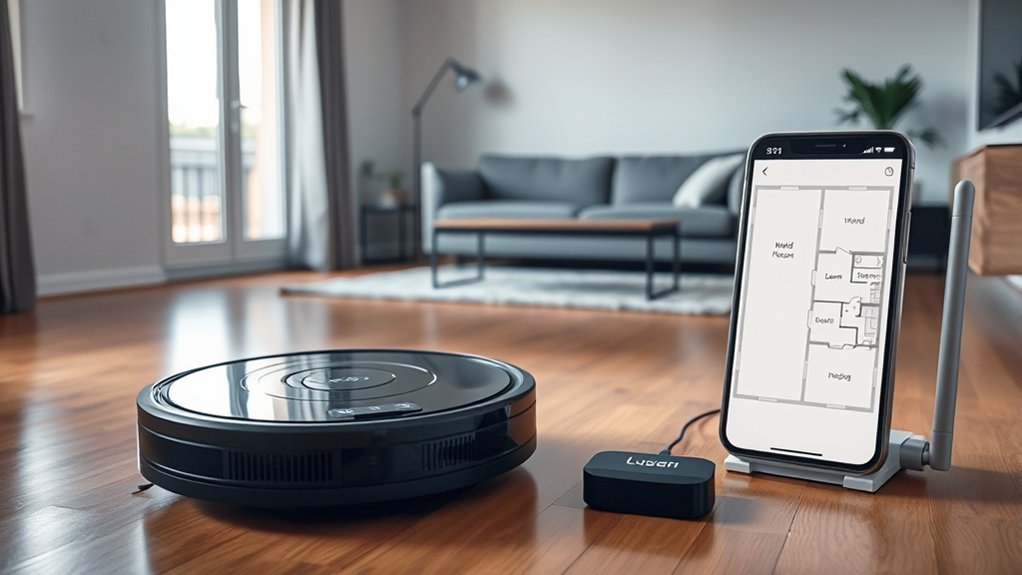
A robot vacuum map can disappear for several common reasons. Software updates sometimes reset saved layouts or alter navigation settings, causing the map to vanish without warning.
App failures and sync errors can also block access to stored data, leaving robot vacuum mapping incomplete or unavailable.
Changes in the charging dock’s position may shift the robot’s reference point, which can corrupt the map and force a fresh start.
Dirt on sensors, bright reflections, or other environmental interference can weaken navigation accuracy and make the vacuum lose track of where it is.
If the robot is manually moved during a cleaning cycle, its localization can break, and the map may not be preserved.
Each issue limits control and reduces user freedom, especially when the system depends on stable conditions.
Understanding these causes helps identify whether the problem comes from software, sensing, or movement, rather than assuming the map is gone forever.
Check the Dock, Sensors, and Starting Point
A robot vacuum’s dock should sit flush against a straight wall with proper clearance on both sides and in front, so it can return and map reliably.
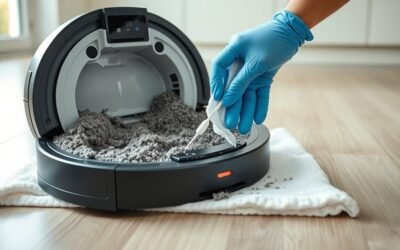
Its navigation sensors should be kept clean, since dust can interfere with accurate mapping and movement.
It also helps if the robot begins each cleaning run from the same spot and is not moved by hand during operation.
Dock Placement Check
If the robot vacuum’s map keeps disappearing, the dock should be checked first. Proper dock placement lets the machine begin each run from a stable reference point, which supports reliable mapping and free movement.
The charging dock should sit flush against a straight wall, with at least 20 inches on both sides and 40 inches in front.
- Verify the dock is not shifted or angled.
- Confirm the robot starts from the same spot each cycle.
- Remove nearby obstacles that could trap the unit.
- Note strong light or reflective surfaces that may disrupt sensors.
When the starting point changes, the robot may lose its sense of direction and the map can vanish.
Correct placement helps the device work with clarity and independence.
Clean Navigation Sensors
With the dock correctly placed, attention should turn to the navigation sensors, since dirt or dust on these parts can weaken mapping and make the robot lose its route.
Regular clean navigation sensors help preserve accurate movement and support a reliable robot vacuum map. The robot should also begin each run from the same spot, so the system can recognize its environment without confusion.
During early cleaning cycles, obstacles and closed doors should be removed or opened, because blocked paths can interrupt mapping and create gaps. A quick inspection before each session gives the machine a fair path and reduces errors.
When sensors stay clear and the route remains open, the robot can map more consistently and serve the home with greater freedom.
Stable Start Position
A stable start point keeps the robot vacuum’s map consistent from one run to the next. A stable start position supports the mapping process by helping the robot recognize where its journey begins.
- Place the dock flush against a wall.
- Keep at least 20 inches on each side and 40 inches in front.
- Clean navigation sensors regularly so dust does not weaken spatial awareness.
- Start cleaning from the dock, and avoid lifting or manually moving the robot during a cycle.
When the dock shifts, or the vacuum begins elsewhere, its internal navigation can lose context. That confusion may create gaps, overlaps, or vanished maps.
A fixed starting point gives the robot a reliable reference, reducing errors and preserving the route it learns.
Did an App or Firmware Update Break the Map?
An app or firmware update can sometimes trigger map loss by resetting saved layouts or causing the vacuum to stop recognizing them.
Reports of firmware sync glitches and update-related bugs make it worth checking recent release notes and update history first.
If the problem began right after an update, rolling back firmware or waiting for a patch may help restore the map.
Update-Linked Map Loss
App and firmware updates have been known to disrupt map storage, causing robot vacuum maps to vanish unexpectedly. This update-linked map loss can leave saved maps missing even when they were present before the upgrade.
Reports often show a direct timing link: the map exists, the update lands, then the layout disappears. Changes in settings or added features may alter how the robot preserves memory. Network interruptions during installation can also break synchronization and remove stored layouts.
- Check release notes before updating.
- Back up maps when the app allows it.
- Confirm stable Wi-Fi during installation.
- Review map status immediately after updates.
A careful update routine helps users keep control and protect their home-cleaning freedom.
Firmware Sync Glitches
Firmware sync glitches can cause a robot vacuum to lose access to saved maps after an app or firmware update, even when the layout was stored correctly beforehand. When firmware updates alter communication paths, sync issues may hide or drop the map from the app.
| Possible trigger | Effect |
|---|---|
| firmware updates | map access fails |
| app crash | stored map seems gone |
| sync issues | vacuum and app mismatch |
| restart | temporary access restored |
Users often report the vacuum “forgetting” maps after a glitch, yet the data may still exist. Checking for the latest firmware updates can reduce instability. If the map disappears, restarting both the vacuum and the app often restores the connection and returns control.
Can You Recover a Lost Robot Vacuum Map?
Recovering a lost robot vacuum map is often difficult, since most models do not offer a way to restore a previous map after it has been deleted or lost. A true robot vacuum map restore option is uncommon, so the path to relief is usually indirect, not automatic.
- Check the app for hidden floor plans or mismatched rooms.
- Run a cleaning cycle from the robot itself; the map may reappear.
- Confirm the dock is placed correctly and the sensors are clean.
- If the map remains absent, contact support; remapping is often the advised solution.
This approach keeps the user focused on practical recovery rather than frustration. When the map returns, the system may simply have needed a fresh navigation pass.
If not, the vacuum may need a new map to regain accurate control and free movement.
What to Check Before You Remap
Before starting a full remap, it helps to confirm that the charging dock has not shifted and still has enough open space around it, since an off-center dock can throw off navigation. The dock should keep at least 20 inches on each side and 40 inches in front, giving the robot a stable home base for mapping.
The active map preview in the app should then be checked to confirm it matches the current room layout. Saved room names and no-go zones should also be reviewed for accuracy, because outdated labels can mislead the robot’s route planning.
Cleaning sensors matters as well; dirt on navigation sensors can weaken mapping performance and create false errors. During routine cleaning, the robot should not be manually moved, since that can disrupt localization and blur the map.
These checks help restore order before remapping and support a more independent, reliable cleaning routine.
How Your Home Layout Can Confuse the Vacuum
Even when the robot is working properly, the home layout itself can confuse its navigation. A robot vacuum depends on a clear floor plan, yet many homes contain obstacles that distort its view and interrupt mapping.
Mirrors and large windows can reflect sensor signals, making the machine read false boundaries. Furniture can also create trouble: low couches, high thresholds, and tight gaps may trap the unit or block its route.
- Reflective surfaces can create misleading signals.
- Furniture placement may prevent full room coverage.
- Closed doors can hide entire spaces from mapping.
- Rugs and cables can slow movement and break navigation.
When rooms change often, the stored map may no longer match reality. Moving furniture or opening new paths can force the robot vacuum to relearn the space.
A stable layout supports cleaner runs and fewer mapping errors, helping the home remain open and manageable.
When to Reset the Robot Vacuum
When layout changes and troubleshooting no longer restore proper mapping, a reset may be the next step. A robot vacuum should be reset if it repeatedly fails to recognize saved maps, shows no active maps in the app, or acts as if it is new after being moved manually.
This also applies when software glitches block syncing, especially after a firmware update. If navigation becomes erratic, or the unit gets stuck often, a reset can help recalibrate internal sensors and restore steadier movement.
Before any reset, important settings and maps should be backed up, because a factory reset erases saved configurations. The goal is not to start over casually, but to remove persistent errors that limit reliable cleaning.
For users seeking freedom from constant map loss and confusion, the reset option offers a clean break when every other fix has already failed.
How to Prevent Map Loss in the Future
To reduce the chance of future map loss, the robot vacuum should be kept in stable operating conditions and maintained on a regular schedule. Regular care preserves the map in the app and supports steady navigation.
- Clean sensors and wheels every few days so dust does not distort movement or mapping.
- Keep the dock flush against a wall, with clear space on both sides and in front for reliable charging and return.
- Avoid lifting or manually moving the robot during cleaning cycles, since sudden relocation can break orientation and erase stored routes.
- Update the firmware and app promptly, and use no-go zones in the app to steer the robot away from confusing areas.
These habits give the robot vacuum a stable path and help maintain accurate maps over time.
When to Contact Eufy Support
If the map keeps disappearing after repeated troubleshooting, including sensor cleaning and dock checks, Eufy Support should be contacted for further help.
When a robot vacuum loses its map after software updates, the issue may involve firmware behavior that only support can review.
If the app no longer recognizes saved maps, or the display shows mismatched rooms and boundaries, contact Eufy Support to clarify app functions and next steps.
Repeated failures after setup recommendations also justify reaching out, since tailored guidance can uncover hidden causes.
Repeated failures after setup recommendations also justify reaching out, since tailored guidance can uncover hidden causes.
If a factory reset or remapping still does not restore stable mapping, support can investigate deeper problems and advise on recovery.
Contacting Eufy Support gives users a direct path to answers, reducing dependence on guesswork and restoring control over the cleaning system.
Frequently Asked Questions
Why Did My Roomba Map Disappear?
The Roomba’s map likely disappeared due to common issues: software updates, dock or room changes, dirty sensors, manual relocation, or app/network errors. Map recovery tips include checking sync, resetting the app, and re-mapping if needed.
What Is the Average Lifespan of a Robot Vacuum?
A robot vacuum typically lasts 5 to 7 years, like a lantern fading slowly. Strong robot vacuum maintenance can extend that span, while robot vacuum upgrades and battery replacements often help budget models survive longer, cleaner, freer.
My Shark Robot Vacuum Map Has Disappeared. What Can I Do to Fix It?
They can restore the Shark vacuum map by checking dock placement, cleaning sensors, restarting robot and app, updating firmware, then using map restoration techniques and troubleshooting steps. If needed, a factory reset and support may help.
Why Does Roborock Forget My Map?
Roborock often forgets its map because app or firmware updates, dock movement, dirty sensors, reflective surfaces, or network glitches disrupt map retention. These mapping errors can confuse localization, especially when the robot is moved mid-clean.
Conclusion
A robot vacuum map can vanish for simple reasons, like a moved dock, dirty sensors, or a failed app update. For example, a homeowner may think the map is permanently lost, only to find it stored as a hidden plan in the app after a reboot. The fastest fix is to check the dock, clean sensors, and confirm firmware status. If the map still will not return, remapping or Eufy support may be needed.