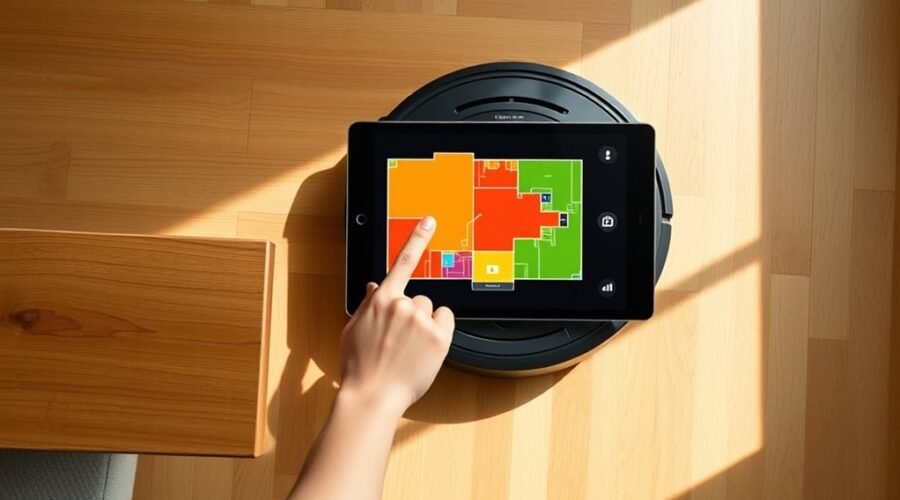
Merging rooms on a robot vacuum map starts with a full mapping run and the app’s editing tools. From there, the process is usually straightforward: select the room partition feature, choose the areas to combine, and confirm the change. The real challenge comes with layouts that are not simple. A few small steps can make the difference between a clean map and a frustrating one.
How to Merge Rooms on Your Robot Map
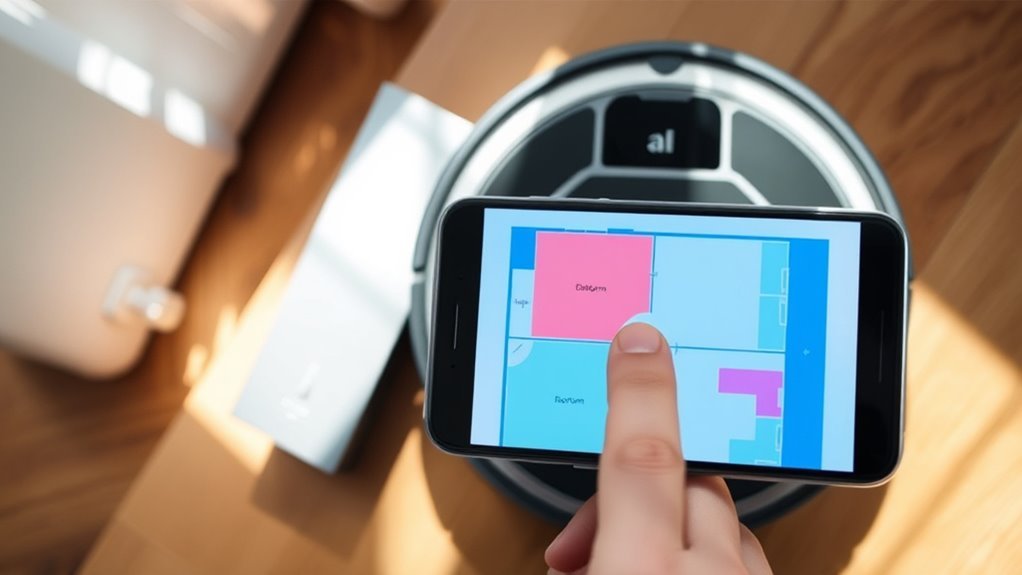
To merge rooms on a robot vacuum map, the user should open the map editing tools in the corresponding mobile app, such as the iRobot Home App or the app for their device series.
From there, the path to merge rooms is straightforward and controlled by the app’s Room Partition section. The user selects the rooms intended for combination, then chooses the merge option to unite them into a single area on the map. This step reduces clutter and gives the vacuum a clearer plan for cleaning.
After the selection is made, the user confirms the change by tapping the checkmark symbol. That action saves the updated layout.
Once the merged room appears, the map should be reviewed to verify that the boundaries reflect the intended space. If needed, additional settings can be adjusted to support efficient, accurate cleaning and greater autonomy in daily upkeep.
Get the Map Ready
Before any rooms are combined, the map should be prepared so the vacuum can read the layout accurately. The Robot Vacuum should first complete a full mapping run of the home, since a reliable map gives the clearest base for merging.
Prepare the map first with a full run, giving the vacuum a clear foundation for merging rooms.
Any doors between the rooms should be opened to allow free movement and a cleaner scan. If one room is already mapped and another is not, placing the Robot Vacuum near the doorway can help it detect the adjoining space more effectively.
The software should also be current, because updates often improve mapping stability and room recognition. Virtual walls, no-go zones, and other barriers deserve review as well; any settings that block access may need adjustment before the merge works well.
With the layout clear, access open, and software ready, the map becomes easier to shape without unnecessary friction or wasted effort.
Merge the Rooms in the App
Open the robot vacuum app and go to the map editing section to access the Room Partition feature. From there, the user can merge the rooms in the app with a few direct taps.
Each room to be combined should be selected by tapping its icon on the map. Once the desired areas are highlighted, the Merge option can be chosen to join them into one larger space.
This step gives the map a cleaner structure and removes unnecessary divisions that limit control. After merging, the checkmark (√) should be tapped to confirm and save the new layout.
The updated map should then show the combined room clearly. A correct merge supports better cleaning efficiency, smoother route management, and greater freedom from rigid room boundaries.
Handle Non-Adjacent Rooms
When two rooms are not directly adjacent on the map, they can still be prepared for a merge by first confirming that each space is correctly identified in the vacuum app.
If the layout separates them, use the Divide Room feature to create a temporary split that helps the software treat both areas as one cleaning zone. A Virtual Wall can then mark the intended boundary on the map without changing the home itself.
This visual guide supports a cleaner merge and keeps the process under user control. After the boundary is set, open the map editor, select both rooms, and choose Merge. The app should consolidate them into one area.
This method is useful for people who want flexible control over their cleaning routes and less friction from rigid room layouts. Keep the boundary clear and intentional so the map reflects the desired arrangement.
Save and Test the New Layout
After the rooms are merged, the user should click the checkmark (√) to save the new layout and apply the changes in the map editor. This step locks in the updated floor plan and helps the robot move with greater freedom across the joined space.
Next, it is wise to save and test the new layout by starting a cleaning session. During the run, the robot should be observed to confirm that it enters the merged area, follows a smooth path, and avoids confusion at former boundaries. Any missed spots, pauses, or obstacle errors should be noted.
If the machine struggles to identify the merged rooms, remapping the area or adjusting virtual boundaries may restore order. Regular updates to the map also support cleaner routes and better efficiency.
With a stable layout, users can customize cleaning more confidently and keep control over how each space is serviced.
Frequently Asked Questions
How Do I Edit Rooms on My Roomba Map?
Room customization begins in the iRobot Home App: select the map, tap Edit Map, then merge, split, or rename rooms. Save changes afterward. Accurate edits work best after a full cleaning cycle.
How to Do Mapping for Robot Vacuum?
Mapping Techniques for robot vacuums start with a full initial cleaning to create a complete map. Then the device should explore adjoining spaces, while the app is used to edit, divide, merge, save, and refine rooms regularly.
Can You Remap Just One Room With Roomba?
Yes, one room can be remapped with Roomba. Like a lantern isolating one shadowed corner, Room Customization in the iRobot Home App lets the user clean, then edit that room’s boundaries or labels independently.
Can I Remap Only One Room on My Ecovacs Appliance?
Yes, one room can be remapped on an Ecovacs appliance through Room Adjustment in the app. The robot should start inside that room, then the user selects it, saves changes, and keeps the map intact.
Conclusion
In the end, merging rooms on a robot vacuum map is less a technical feat than a quiet act of order, a small domestic cartography worthy of Theseus and his thread. Once the map is ready, the rooms are joined in the app, non-adjacent spaces are handled with care, and the layout is saved and tested. With each adjustment, the vacuum moves more surely, as if the house itself had been made a little simpler to navigate.