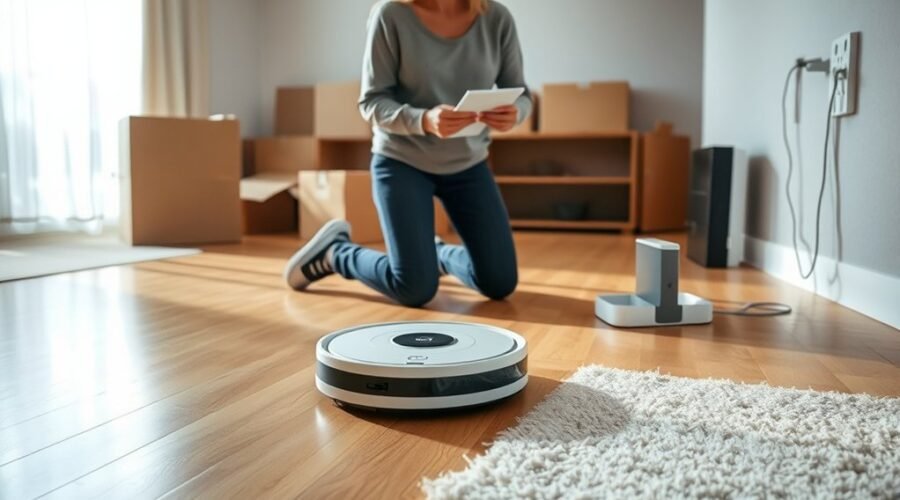
To set up a robot vacuum in a new home, you need to prepare the dock, reconnect Wi-Fi, and create a map of the new layout. Moving the vacuum without updating its settings can cause navigation problems, missed rooms, or failed docking. Follow these steps to help your robot vacuum clean reliably after moving.
Quick Answer
Place your robot vacuum’s dock against a wall with enough clearance. Remove floor obstacles, check the vacuum’s parts, and charge its battery. Connect it to the new Wi-Fi network using the manufacturer’s app. Create a new map, review room boundaries, set cleaning preferences, and test whether the robot returns to its dock.
At a Glance
| Difficulty | Beginner-friendly with model-specific instructions |
| Tools Needed | Robot vacuum, charging dock, power adapter, smartphone, manufacturer’s app, and compatible Wi-Fi for connected models |
Choose the Best Spot for the Dock
)
Place the charging dock against a wall near a power outlet. Choose a hard, flat surface where the robot can enter and leave without hitting furniture.
A stable dock helps the vacuum charge properly and find its way home after cleaning. Avoid thick carpets, loose mats, stairs, ledges, and crowded corners.
Many models need open space around their charging stations. For example, Roborock’s dock placement guidance specifies:
- At least 0.5 meters (1.6 feet) of clearance on each side.
- At least 1.5 meters (4.9 feet) of open space in front.
- At least 1 meter (3.3 feet) of clearance above the dock.
These measurements apply to the models covered by that guidance. Other robot vacuums have different clearance requirements, so follow your model’s instructions.
Keep the dock away from direct sunlight if your vacuum uses an optical docking beacon. Bright light or a blocked beacon may interfere with its return.
Also, make sure the dock has good Wi-Fi coverage if your vacuum connects to an app. Keep excess power cable secured behind the station.
Choose a permanent docking location before creating your new home map. Moving the dock afterward may affect navigation.
Prep the Floor Before First Run
Before starting your robot vacuum in the new home, remove items that could block its path or become tangled in the brushes. Open the doors to rooms you want included in the initial map.
A clear floor helps the robot explore more space without getting stuck. You can return suitable rugs and other movable items after the initial mapping run.
Clear Floor Obstructions
Walk through each room and check the floor at the robot vacuum’s height. Pay special attention to areas beneath furniture and around doorways.
Prepare the cleaning area with these steps:
- Remove shoes, toys, clothing, and small loose objects.
- Move pet bowls and other items that could spill or block the robot.
- Pick up large debris that the vacuum cannot safely collect.
- Open doors to rooms you want the robot to map.
- Check that the vacuum can pass under furniture without becoming trapped.
- Inspect thresholds and flooring changes for possible clearance problems.
If the vacuum cannot cross a high threshold, it may treat the next room as inaccessible. You may need to map that space separately if the model supports multiple maps.
For models with camera-based navigation, provide enough light to recognize room features. Robots using LiDAR can generally navigate without room lighting, although other sensors and obstacle-detection features may have different requirements.
During the first run, watch for tight corners, narrow spaces, and places where the vacuum repeatedly stops. These are useful locations for future no-go zones, which are virtual boundaries that tell compatible robots where not to clean.
Warning: Do not rely only on cliff sensors or virtual boundaries near dangerous drop-offs. Keep stairways and unsafe areas physically blocked during initial testing, especially until you have confirmed that the robot detects their edges correctly.
Manage Cables And Rugs
Loose cables and fringed rugs can stop a robot vacuum or damage its brushes. Secure them before starting the first mapping or cleaning cycle.
Use cable organizers to lift charging cords and appliance wires away from the floor. Tuck loose rug fringes out of reach or remove the rug temporarily.
Flat rugs can often remain in place if the robot supports their thickness. However, rugs that curl, slide, or bunch up should be secured or removed.
| Item | Action | Result |
|---|---|---|
| Hanging cables | Lift or remove them | Lower entanglement risk |
| Stationary cords | Secure with organizers | Clearer cleaning paths |
| Fringed rugs | Tuck fringes or remove rugs | Less brush entanglement |
| Flat rugs | Keep if compatible | Easier floor transitions |
| Initial run | Monitor obstacles | Identify problem areas |
After mapping, return suitable rugs to their normal positions and test whether the robot can clean or cross them safely.
Assemble the Robot Vacuum
If you moved an existing robot vacuum, inspect its parts before using it. If the robot is new or was disassembled for transport, complete the manufacturer’s assembly steps.
Check the side brushes, main brush, dustbin, filter, charging contacts, and any removable attachments.
- Unpack the robot. Remove protective packaging and transport materials. For a new unit, remove any shipping films or tabs identified in the manual.
- Attach the brushes. Fit the side brushes if they were removed. Make sure each brush clicks or locks into place as designed.
- Install the dustbin. Check that the debris container and filter are seated properly.
- Prepare the dock. Connect its power adapter and attach the ramp or slope base if the model includes one.
- Check optional functions. For compatible self-emptying or mopping stations, inspect the dust bag, water tanks, mop attachments, and other required parts.
- Power on the vacuum. Use the main switch or power button specified in its instructions.
- Charge the battery. Place the robot on its dock and confirm the charging indicator or app status.
Allow the battery to reach 100 percent before a full initial cleaning run when practical. Charging time depends on the vacuum model and battery level.
Some robots take about four hours to charge. However, eufy’s RoboVac charging guidance gives approximately 5–6 hours for a full charge from empty.
Use the charging indicator or battery percentage rather than assuming a fixed charging time.
If the vacuum does not begin charging, check that the dock is powered and the robot’s charging contacts are correctly aligned.
Download the App and Pair the Robot
Install the manufacturer’s compatible app on your smartphone before changing the robot’s network connection. The app provides access to mapping, cleaning schedules, room settings, and supported maintenance features.
If you already used the vacuum in your previous home, sign in with your existing account first. Your device may still appear in the app, even when it is offline.
Follow these steps:
- Download or open the manufacturer’s app from your phone’s app store.
- Create an account or sign in to your existing account.
- Check whether your robot vacuum already appears in the device list.
- If it is already listed, look for an option to reconnect or change its Wi-Fi network.
- If it is not listed, select the app’s device-adding option and choose the correct model.
- Grant Bluetooth, local network, or location permissions when the app requires them for device discovery.
- Follow the pairing instructions until the app recognizes the robot.
Not every robot vacuum uses Bluetooth during setup. Some create a temporary Wi-Fi connection that your phone joins during pairing.
Keep your smartphone, vacuum, and router close enough for a stable connection during the setup process.
If you cannot find your robot in the app, make sure it is powered on. Check that you selected the correct model and that any required phone permissions are enabled.
Connect the Robot Vacuum to Wi-Fi
After moving, your robot vacuum may still remember the Wi-Fi network from your previous home. If the new network has a different name or password, you will usually need to update its connection settings.
A network reconnection is different from a full factory reset. Use the manufacturer’s Wi-Fi setup process rather than erasing the entire robot unless necessary.
For example, eufy’s instructions for connecting RoboVac to a new router explain that affected models must be set up again when their saved Wi-Fi credentials change.
How to Connect to the New Network
- Power on the robot vacuum and keep it near the router.
- Open the manufacturer’s app and select the robot.
- Choose the Wi-Fi reconnection or setup option available for your model.
- If prompted, activate the robot’s Wi-Fi pairing mode using the specified button combination.
- Wait for the app or indicator light to confirm that the robot is ready for pairing.
- Select a compatible home Wi-Fi network and enter its password.
- Complete the app prompts and confirm that the robot shows as connected or online.
Many models show a blinking Wi-Fi indicator during pairing. Once connected, the indicator may become steady or show another confirmation pattern.
The exact lights and button combinations vary by model.
Check Wi-Fi Band Compatibility
Many robot vacuums use 2.4 GHz Wi-Fi. For example, Roborock’s Wi-Fi compatibility guidance states that its supported robots use the 2.4 GHz band rather than 5 GHz.
However, Wi-Fi support is not identical across brands and models. Some newer robots support both bands.
If your router combines 2.4 GHz and 5 GHz under one network name, try the normal setup first. If pairing fails, use a separate compatible band when your router supports that option.
Also, check the following:
- The Wi-Fi password is correct, including uppercase and lowercase letters.
- The router provides a compatible wireless band and security mode.
- The app has its required phone permissions.
- The robot has enough battery power to complete pairing.
- The Wi-Fi signal reaches the dock and the main cleaning areas.
If your phone’s mobile data or automatic network switching interrupts the pairing process, follow the app’s instructions for managing those settings. Cellular data is not universally required during setup.
Set Cleaning Preferences in the App
Once the vacuum is connected, configure its basic cleaning settings. You can set general preferences immediately, then customize individual rooms after creating the new map.
The available controls depend on your model. Common options include suction power, cleaning passes, schedules, and mopping water flow.
- Choose a cleaning mode. Select an available suction level or automatic cleaning mode.
- Set the mopping level. If your robot has a mop, choose an appropriate water-flow setting for suitable floors.
- Review cleaning passes. Select single-pass or repeated cleaning where supported.
- Configure scheduling. Choose days and times that work for your household.
- Save favorite routines. If the app offers Favorites, save commonly used cleaning settings for later use.
After mapping, you can assign different settings to carpet, tile, and hardwood rooms if your robot supports room-specific preferences.
For example, a high-traffic entryway may benefit from stronger suction or extra cleaning passes. Bedrooms may need quieter cleaning settings.
If the robot supports vacuuming, sweeping, and mopping in one device, select the appropriate functions for each floor type.
Make sure the mop is removed, lifted, or restricted from carpets according to your model’s design.
Finally, check any automatic dust-emptying or water-refilling options in the app. Enable only the features supported by your dock and accessories.
Run the First Mapping Clean
A new home map helps a compatible robot vacuum understand the rooms, walls, doorways, and cleaning areas in its new environment.
Some models have a dedicated mapping mode that explores without vacuuming. Others create a map while performing a full cleaning cycle.
For example, iRobot’s Imprint Smart Maps guide explains how supported Roomba models create new maps through a mapping run.
Choose Whether to Keep the Old Map
Before creating a new map, review the existing map list in the app. You may want to preserve the old floor plan if you expect to use the vacuum in that space again.
Some models can store several maps. Others can store only one, so creating a new map may require deleting or replacing an existing one.
For example, the Roomba i3 through i5 models covered by iRobot’s Imprint guide support one Smart Map, while other compatible models can store additional maps.
Similarly, Roborock’s multiple-map instructions explain how supported models create maps for different floors without moving the charging dock every time.
Check whether your robot supports multiple maps, map backups, or map restoration before deleting anything.
Start the New Mapping Run
With the dock in its permanent position and the battery charged, start the mapping process.
- Open the manufacturer’s app and select the robot vacuum.
- Choose its new-map, mapping, or full-home cleaning option.
- Make sure the doors to the rooms you want included are open.
- Start the robot from its charging dock if the model requires it.
- Allow the vacuum to explore the floor without moving or interrupting it.
- Let it finish the mapping or cleaning cycle and return automatically where required.
- Open the map in the app and confirm that the rooms and connecting paths appear correctly.
A dedicated mapping run may finish faster than a full cleaning cycle because it does not need to vacuum every section of the floor.
Avoid carrying the robot to another room during mapping. Manual movement can confuse its position and cause an incomplete or inaccurate map.
Also, avoid changing the dock’s location in the middle of the process.
Review and Edit the New Home Map
Once mapping is complete, check whether the app shows the expected rooms and doorways. The first map may need small adjustments before regular use.
Depending on your model, you can:
- Rename rooms, such as the kitchen, bedroom, or living room.
- Adjust room boundaries and dividers.
- Create no-go zones around cables, pet bowls, and problem areas.
- Add no-mop zones for carpets and other surfaces that should remain dry.
- Save room-specific cleaning settings.
- Back up the map if the app supports that feature.
For a home with multiple floors, create separate floor maps if the robot supports them. Remember that a robot vacuum cannot climb stairs, so you must carry it between floors.
After saving the new map, run a regular cleaning cycle and confirm that the robot covers the expected rooms.
Pro Tip: After a successful mapping run, test one room at a time before relying on an automatic whole-home schedule. This makes it easier to spot incorrect room boundaries, missed doorways, and cleaning areas that need adjustment.
Troubleshoot Docking and Connection Issues
If the robot vacuum does not work correctly after moving, start with the simplest possible fix. Many problems come from dock placement, weak Wi-Fi, incomplete mapping, or obstacles rather than a hardware failure.
Identify the specific problem before changing settings or deleting saved data.
Robot Vacuum Cannot Find Its Dock
If the vacuum stops searching for its charging station or repeatedly approaches it from the wrong direction, inspect the dock and its surroundings.
- Make sure the station is plugged in and powered.
- Confirm that it sits flat against the wall.
- Remove objects blocking the approach path.
- Check that charging contacts and docking sensors are clean.
- Start another test from the dock rather than carrying the robot into another room.
If you moved the docking station after mapping, return it to its previous position or use your model’s supported map-recovery process.
Robot Vacuum Will Not Connect to Wi-Fi
If the app shows the robot as offline, check the router connection before resetting the vacuum.
- Confirm that your phone can connect to the home network.
- Check the robot’s battery level and power status.
- Move the robot closer to the router during pairing.
- Verify the network name, password, and supported Wi-Fi band.
- Restart the app or reboot the robot using the manufacturer’s instructions.
- Repeat the model-specific Wi-Fi pairing procedure if necessary.
A blinking Wi-Fi indicator may mean the robot is waiting for a connection or trying to connect. Refer to the model’s indicator meanings if it never reaches the connected state.
Robot Vacuum Keeps Losing Its Map
An incomplete mapping cycle, misplaced dock, or positioning error may prevent the robot from saving or recognizing its map.
For example, ECOVACS’ mapping guide advises users not to move the robot during mapping or relocate the dock after the map has been created.
Try these steps:
- Check whether the correct map is selected in the app.
- Return the robot to its expected starting location.
- Confirm that the dock has not moved.
- Look for a saved-map backup or recovery option.
- Repeat the complete mapping cycle if the map cannot be recovered.
If rooms are missing, make sure the vacuum can physically enter those areas. A closed door or high threshold may prevent the robot from discovering a room.
Do not delete a usable map just because its position looks temporarily incorrect.
When Should You Factory Reset the Robot Vacuum?
A factory reset should be a last troubleshooting step, not the normal procedure for moving to a new home.
A restart usually leaves your saved settings in place. A factory reset returns the device to its original configuration and may erase maps, schedules, account connections, and cleaning preferences.
According to iRobot’s factory reset guidance, the reset process can remove stored information, although some compatible models offer map-saving options.
Warning: Before performing a factory reset, review whether your robot can back up its maps and settings. Reset procedures and data recovery options vary by model. A full reset may permanently remove information you wanted to keep.
Use the app’s support instructions for your exact model. If the vacuum still cannot charge, connect, map, or dock after the recommended steps, contact the manufacturer’s support team.
Key Takeaways
- Dock clearance requirements vary by model. Manufacturer measurements take priority over general recommendations.
- If your Wi-Fi credentials change, update the robot’s connection before considering a full reset.
- Some robot vacuums can save several floor maps, while others replace the previous map.
- A complete mapping run may require the robot to return to its starting dock automatically.
- After mapping, test individual rooms and no-go zones before enabling a regular cleaning schedule.
Frequently Asked Questions
How Do I Set up My Robot Vacuum?
Place the charging dock on a flat surface, remove floor obstacles, and charge the robot vacuum. Install its compatible app and connect it to Wi-Fi if supported. Next, create a map of your home, set cleaning preferences, and test whether the robot cleans and returns to its dock correctly.
How to Get a Robot Vacuum to Start?
Press the CLEAN, AUTO, or start button provided on your robot vacuum, or start a cleaning cycle through its app. Make sure the robot is powered on and has enough battery charge. If it does not respond, check the charging dock, look for error indicators, and follow the manufacturer’s troubleshooting instructions.
How to Set up Roomba in a New Home?
Place your Roomba’s charging base in a stable location and reconnect its Wi-Fi through the compatible iRobot app if the network has changed. For supported Imprint Smart Map models, open the map section, choose the option to create a new map, and start a mapping run. Review the completed map before setting room-specific cleaning schedules.
How Do You Reprogram a Robot Vacuum?
Reprogram a robot vacuum by changing its settings in the manufacturer’s app. You can adjust cleaning schedules, room boundaries, suction modes, and supported mapping features. If the home layout has changed, create a new map when necessary. A factory reset is usually unnecessary unless standard troubleshooting fails.
Will Moving My Robot Vacuum Erase Its Old Map?
Moving a robot vacuum does not automatically erase its saved map on every model. Some robots can recognize a different floor and store another map. Others support only one saved layout or may replace an existing map. Review your model’s map storage and backup options before creating a new map.
Can a Robot Vacuum Work Without Wi-Fi?
Many robot vacuums can perform basic cleaning without Wi-Fi by using the buttons on the machine. However, app-based schedules, remote control, map editing, and some advanced cleaning features may require a network connection. The exact offline functions depend on the robot’s model.
Conclusion
Setting up a robot vacuum in a new home is easier when you prepare the floor, position the dock correctly, and connect the device before mapping. The most important step after moving is creating an accurate layout without unnecessarily deleting useful settings.
Once the map is saved, test the robot’s cleaning path and docking performance. Then adjust room preferences, schedule regular cleaning, and maintain the brushes, filters, and sensors to keep your robot vacuum working reliably.
Sources
- Roborock Support: Where Should I Position My Device?: Dock placement, clearance measurements, and suitable surfaces.
- eufy Support: Common Charging-Related Questions About RoboVacs: Charging time, charging indicators, and initial battery preparation.
- eufy Support: Setting Up RoboVac After Getting a New Router: Reconnecting a robot vacuum after changing Wi-Fi credentials.
- Roborock Support: 2.4 GHz vs. 5 GHz Wi-Fi Band Support: Wireless compatibility and router setup considerations.
- iRobot Support: Guide to Imprint Smart Maps: New-home mapping, map storage limitations, and room customization.
- Roborock Support: How to Create Multiple Maps for a Multi-Level House: Multi-floor mapping requirements and dock positioning.
- ECOVACS Support: Mapping Guide: First-run preparation, mapping procedures, and avoiding positioning errors.
- iRobot Support: Why Factory Reset Your Robot and How to Do It?: Differences between rebooting and factory resetting, including possible data loss.