When a robot vacuum cannot connect to Wi-Fi, the issue often starts with the network band, an incorrect password, or a temporary router fault. A recent power outage or an app permission problem can also interrupt the link. Simple checks may restore control quickly, but some cases require a reset or deeper troubleshooting. The next steps reveal how to isolate the cause and bring the device back online.
Why Your Robot Vacuum Went Offline
A robot vacuum can go offline after a power outage, app update, or router change because its Wi‑Fi connection may need to be reestablished. When the home WiFi network is interrupted, the device may lose its saved access data and stop reporting status to the app. This is common after brief power loss, because the robot may reboot without restoring the previous link.
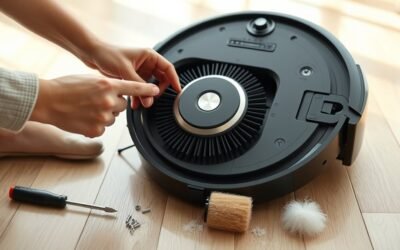
A practical first step is a simple restart. Dock the vacuum, then use the power button to turn it off and on again if the model supports it. This can clear a temporary fault and restore communication.
A simple restart can clear a temporary fault and restore the vacuum’s connection to the app.
If the problem persists, a factory reset may be required. That action can remove stored maps and no-go zones, so it should be used only when other recovery steps fail.
In a system built for autonomy, reliable reconnection is essential for maintaining control over cleaning without unnecessary dependence.
Check the Wi-Fi Band and Password
Verify that the robot vacuum is joining a 2.4 GHz Wi‑Fi network, since many models cannot connect reliably on 5 GHz bands. This band is usually the most compatible path for setup, giving the device a stable route to freedom from repeated drops.
The WiFi password should then be checked with care, because a single wrong character can block access.
- Confirm the network is 2.4 GHz, not 5 GHz.
- Re-enter the password exactly as stored, watching capitals.
- Remove special symbols from the WiFi name or password.
- Ascertain the router uses WPA or WPA2 for the robot vacuum.
If connection failures continue, the network details may need to be cleared and entered again in the app. A clean setup helps the robot vacuum move past avoidable barriers and regain online control.
Restart the Robot, Router, and App
If the robot vacuum still will not connect after the Wi‑Fi band and password have been checked, a full restart of the device, router, and app often clears temporary faults.
Power the vacuum off, wait briefly, and turn it back on so its network module can reinitialize. Then unplug the router for about a minute before restoring power; this can remove transient network glitches that block a stable link.
The app should also be updated to the latest version, because maintenance releases may include fixes for connectivity errors.
Once both the vacuum and router are back online, open the app on a phone joined to the correct 2.4 GHz network and test the connection path again. These steps reduce hidden barriers and restore user control without unnecessary troubleshooting loops.
If the fault remains, the connection settings may need a deeper refresh, but that action belongs to a later stage.
Reconnect the Robot Vacuum in the App
The robot vacuum app should be opened with the device fully charged or docked. Then the Wi‑Fi settings should be refreshed to verify the current network state.
If pairing remains incomplete, the phone should connect to the robot’s network with mobile data disabled, and the app should prompt a fresh entry of the Wi‑Fi password.
When the connection still fails, removing the device from the app and re-adding it is the next practical step to rebuild the link.
Open The Robot App
Open the robot vacuum’s app and confirm the phone is connected to the correct Wi‑Fi network, typically a 2.4 GHz band, since many models do not support 5 GHz. The robot vacuum needs the app to restore its Wi‑Fi connection without friction.
- Open the app and select add device or reconnect.
- Follow the prompts until pairing begins.
- If asked, hold the Wi‑Fi button until the light blinks.
- Enter the password carefully, then verify the device appears online.
This process gives the user direct control over the robot vacuum, replacing guesswork with a clean app workflow.
A successful pairing indicates the network path is stable, and the machine is ready to resume automated cleaning.
Refresh Wi-Fi Settings
Before reconnecting the robot vacuum in the app, it should be fully charged or docked, then removed from the charging station and powered off for at least 30 seconds to clear the existing Wi‑Fi session.
After powering it back on, the app can be used to refresh Wi-Fi settings and start a new connection attempt. The phone should stay on the correct 2.4 GHz network, since many robots reject other bands.
App prompts typically request the Wi‑Fi password and a final confirmation. If the connection still fails, deleting the device from the app and re-adding it may restore control.
Updated app software and enabled location permissions also support smoother setup, reducing friction and helping the device return to reliable, independent operation.
Rebuild The Connection
Rebuilding the connection begins with confirming that the smartphone is on the home Wi‑Fi network, ideally the 2.4 GHz band, and not connected directly to the robot vacuum’s temporary network.
Then the unit can be made ready to reconnect through the app.
- Power off the robot vacuum.
- Wait 30 seconds, then power it back on.
- Open the app and add a new device.
- Enter the correct Wi‑Fi password and approve location and local network access.
If setup fails, the device should be deleted from the app and the process repeated.
This method restores control without guesswork, giving the user a direct path back to a clean, independent routine.
Check App Permissions and Wi-Fi Settings
A successful robot vacuum connection often depends on the app and network being configured correctly. App permissions should be checked first, especially location access on iOS 14 or later, because the connection process may stall without it. The phone must also join the correct home Wi-Fi, ideally 2.4 GHz, since many robots reject 5 GHz signals. Network names and passwords should use only alphanumeric characters; special symbols can disrupt pairing. Router security should be WPA or WPA2, not WEP, to preserve compatibility and user freedom from needless lockouts. If instability continues, DNS can be set to 8.8.8.8 for cleaner routing.
| Check | Why it matters |
|---|---|
| App permissions | Enables device discovery |
| Home Wi-Fi band | 2.4 GHz improves support |
| Wi-Fi characters | Avoids pairing errors |
| Encryption type | WPA/WPA2 is compatible |
| DNS setting | May improve network response |
Try the Fix After a Power Outage
After a power outage, a robot vacuum may lose its Wi‑Fi connection because settings can be disrupted or firmware behavior can change unexpectedly. To reclaim control, the first step is a clean restart. Remove the unit from the charging station, power it off for 30 seconds, then return it to service.
During re-pairing, the smartphone should join the robot’s dedicated Wi‑Fi network, not the home network. This simple sequence often restores communication without further intervention.
- Lift the vacuum from the dock.
- Power it down for 30 seconds.
- Reconnect the phone to the robot network.
- Retry pairing in the app.
If the link still fails, a factory reset may be required, though it can erase saved maps and settings.
After recovery, confirm firmware is current; updated software can reduce future outages from the same power outage.
Factory Reset and Map Backup Options
A factory reset is typically a last-resort step for persistent Wi‑Fi issues, since it can erase saved maps and no-go zones.
Before resetting, the app should be checked for any map backup or export function to preserve configuration data.
After the reset, the user can attempt to restore maps and zones if the model supports recovery or internal map retention.
Reset As Last Resort
If Wi-Fi problems continue after all standard troubleshooting, a factory reset may be the last practical option, though it will erase saved maps and device settings on the robot vacuum.
Before proceeding, the owner should review the manual and confirm whether the model offers backup for mapping data. Some units preserve a digital trace; others do not.
The reset usually requires holding two buttons, such as Clean and Dock, for a set duration. Afterward, the vacuum must be freed from old Wi-Fi settings and paired again in the app.
Steps often resemble:
- Power on the unit.
- Press and hold the reset buttons.
- Wait for confirmation lights.
- Reconnect through the mobile app.
Customer support may advise on retaining mapping data before the reset.
Save Maps Before Reset
Before a factory reset, it is important to confirm whether the robot vacuum offers map backup or export options, since many models store no-go zones and floor plans in the app while others keep mapping data only on the device itself.
Users should look for settings that let them save maps, sync them to the cloud, or export them before proceeding. If the mapping data is local and unprotected, a factory reset can erase every learned area permanently.
Customer support can provide model-specific steps for preserving data and avoiding unnecessary loss. Firmware updates should also be installed regularly, because improved software often strengthens mapping reliability and may reduce the need for a factory reset.
This approach keeps control in the user’s hands and prevents avoidable disruption.
Restore Zones After Reset
After a factory reset, previously mapped zones and no-go areas may disappear, so users should verify whether the vacuum supports map backup or app-based restoration before resetting. If supported, they should backup mapping data in the companion app, then restore zones once pairing returns.
Practical steps often look like this:
- Open the app and check saved maps.
- Confirm firmware updates, since new releases may improve storage and recovery.
- Reapply room boundaries and exclusion strips from the cloud copy.
- Test one room first, then expand coverage.
Community forums can reveal workaround tools, and advanced users may review third-party editors before a reset.
Such preparation reduces downtime and helps preserve control over the home environment without surrendering mapped order.
Contact Robot Vacuum Support
Contacting robot vacuum support can provide model-specific troubleshooting steps for persistent WiFi connection issues. Support staff can review the unit’s firmware, app pairing state, and router compatibility, then guide the user through targeted troubleshooting that addresses the exact connectivity fault.
Most manufacturers offer phone lines and live chat, which can reduce delay when the device remains offline. If available, the model number and log ID should be provided early, since these details help agents access diagnostic records and shorten resolution time.
Support teams may also use internal tools that reveal errors not visible in the app, making recovery more efficient than general advice alone.
Support teams may uncover hidden errors not visible in the app, speeding recovery beyond general troubleshooting.
For users seeking freedom from repeated resets, community forums can add practical field-tested fixes and confirm whether the issue is isolated or widespread.
Frequently Asked Questions
How Do I Get My Robot Vacuum Back Online?
Check the robot vacuum’s 2.4 GHz network, then power cycle it. If WiFi signal issues persist, inspect app connectivity problems, update firmware, and use model-specific robot vacuum troubleshooting; factory reset only if necessary, preserving autonomy.
Why Is My Robot Vacuum Not Connecting to Wi-Fi?
It is usually failing because of weak Wi Fi signal, incorrect App settings, or Network interference; the vacuum may also be on 5 GHz instead of 2.4 GHz, or need rebooting, firmware updates, or reset.
Why Does My Roomba Keep Saying It’s Offline?
It appears offline because common connectivity issues, router changes, or app updates interrupt communication; Roomba troubleshooting tips include checking 2.4 GHz Wi‑Fi and smart home compatibility, restarting the unit, and resetting only if necessary.
My iRobot Robot Isn’t Connecting to the Wi-Fi. What Can I Do?
It should be placed on 2.4 GHz Wi‑Fi, then restarted from the dock. Robot vacuum troubleshooting usually resolves WiFi signal issues and app connectivity problems by checking permissions, re-adding the device, and confirming firmware updates.
Conclusion
When a robot vacuum drops offline, the fix is often as methodical as resetting a clock after a power outage: small steps restore order. Restart the robot, router, and app; verify the 2.4 GHz band and password; then reconnect in the app. If the outage left the device confused, a factory reset may be necessary, though maps can be lost. For persistent failures, model-specific support can help bring the vacuum back online.