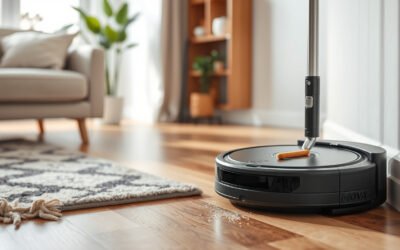
When a robot vacuum shows offline, the cause is often simple: low power, weak Wi-Fi, or a router issue. The first step is to check whether it is charged, seated properly on its base, and within range of a stable 2.4GHz network. If those basics do not solve it, the next fixes can be more involved than expected.
Check Power, Range, and Wi-Fi First
Begin by confirming the robot vacuum is powered on and seated correctly on its charging base, since a low battery or improper docking can make it seem offline.
From there, check whether it has enough power to respond normally and start a cleaning cycle.
Next, verify its range from the router; if it sits too far away, the connection may weaken and drop. The device should remain within a reliable range for steady operation.
Keep the robot vacuum within reliable range of the router to maintain a steady, usable connection.
After that, review the wi-fi network’s current status. A stalled or interrupted network can make the vacuum appear unavailable even when the unit itself is fine.
If the app was set up with changed SSID or password details, re-enter the correct credentials so the device can reconnect.
When needed, restart both the robot and the router to clear temporary glitches and restore a more stable, usable connection.
Fix Your Router and Wi-Fi Settings
If the robot vacuum still appears offline after power and placement are confirmed, the next step is to check the router and Wi-Fi settings.
First, the router should be connected to the internet and working normally, because no internet service can leave the vacuum stranded.
Next, the Wi-Fi network should be stable; brief dropouts can break the connection and keep the device from reporting online.
The router should also be set to 2.4GHz, since many robot vacuums cannot join 5GHz bands.
If the Wi-Fi network name or password was changed recently, the vacuum must be reconfigured with the updated details.
After long periods of use, restarting the router can refresh the connection and clear persistent faults.
These steps restore control, reduce dependence on guesswork, and help the vacuum reconnect with less frustration.
Confirm the Vacuum Is on the Right Network
Next, the vacuum should be confirmed on the correct home Wi-Fi network. If the router’s Wi-Fi name or password was changed, the vacuum will need to be set up again with the new details.
It should not be attached to a guest network or a secondary network, since those connections often block app access and leave the device stranded. On dual-band routers, the vacuum should join the 2.4GHz band, because many models cannot use 5GHz.
The network name and password should also be checked for special characters that may prevent a clean connection. Simple, standard settings often work best and keep the machine free to move without digital obstacles.
After the correct network has been confirmed, both the vacuum and the router should be restarted so the connection can refresh and settle properly.
Reset and Reconnect the Vacuum
A factory reset may be needed if a brief power cycle does not restore the vacuum’s connection, and the model’s user manual should be followed for the exact steps.
After resetting, the vacuum should be rejoined to the home Wi‑Fi through the app with the correct SSID and password, while keeping it close to the router during setup.
It is also important to confirm that the app has the required permissions before checking whether the device is back online.
Factory Reset Steps
To restore a robot vacuum that remains offline, a factory reset is often the most effective step.
The process begins by finding the reset button on the device or inside the app settings. Press and hold it for a few seconds until a confirmation sound signals completion.
After the factory reset, place the vacuum on its charging base so it is ready for setup.
Next, reinstall the companion app on a smartphone and follow the on-screen prompts to add the vacuum as a new device. During setup, enter the correct Wi-Fi details and use a 2.4GHz network, since many models reject 5GHz.
Once connected, check the app status and review firmware updates for stable performance.
Rejoin Wi-Fi Network
If the robot vacuum still appears offline, it should be placed powered on and kept within range of the router before rejoining the Wi-Fi network. From there, the app can guide the owner to rejoin wi-fi network settings and restore control. If the name or password changed, the new details should be entered; if a reset occurred, the vacuum must be paired again.
| Step | Action |
|---|---|
| 1 | Open the app |
| 2 | Select Wi-Fi |
| 3 | Enter password |
| 4 | Wait for light |
A factory reset may be needed if status remains offline. After the app process finishes, a steady connection light signals success. That small return to connection helps the device serve without interruption.
Confirm App Permissions
Once the vacuum has been rejoined to Wi‑Fi, the app permissions should be checked to make sure communication can continue. The app must have location access enabled, since many robot vacuums rely on it to establish a proper link.
On iOS 14 or later, local network access should also be allowed so the app can reach the vacuum directly. The Wi‑Fi network should be verified as compatible; some models will not connect on 5GHz bands.
After changing permissions, both the robot vacuum and the app should be rebooted to refresh the link. If the device still appears offline, reinstalling the app can clear broken settings and reset permissions, giving the user a cleaner path back to control and reliable operation.
Check App Permissions and Connectivity Settings
The app’s permissions should be checked first, including location access and, where needed, Wi‑Fi, Bluetooth, and local network permissions on iOS 14 or later.
Its network settings should then be reviewed to confirm it can communicate properly with the robot vacuum.
After any changes, the app should be restarted and updated if a newer version is available.
App Permissions Check
A quick permissions check can often resolve an offline robot vacuum issue. If the app says the vacuum is unavailable, permissions may be blocking the link.
Location access should be enabled so the app can read needed network information on the device. On iOS 14 or later, local network access should also be granted, allowing smoother communication with the robot.
The app should have every required permission; any restriction can weaken control and leave the machine disconnected. Updates should be installed regularly, since developers often fix connectivity bugs that cause offline status.
If cellular data or a VPN is active, it can be disabled briefly to rule out interference. This small review helps restore access and keeps the user in command.
Network Settings Review
Next, a network settings review can clear up an offline robot vacuum by checking both app permissions and connectivity details.
The app should have location and local network access, especially on iOS 14 and later, so it can communicate freely. The vacuum must join the home Wi-Fi, not its own setup signal.
If the connection still fails, the Wi-Fi name and password should be stripped of special characters that may block pairing. Security settings matter too: WPA or WPA2 is preferred, while WEP may leave the device stranded.
For advanced users, changing DNS to 8.8.8.8 in the router can sometimes restore access. This network settings review removes obstacles and helps the vacuum return to service.
Use Model-Specific Offline Fixes
Model-specific offline fixes often begin with simple checks tailored to the device, such as confirming the robot vacuum is powered on and within range of the Wi‑Fi router, since weak signals can cause it to drop offline.
If the vacuum is offline, a model like the Tapo RV20 Max may simply need a stronger signal or a better placement to reconnect. When the home network name or password has changed, the device usually must be reset and set up again in the app so it can join the new network without friction.
If the problem persists, rebooting both the robot and the router can clear temporary glitches and renew the connection.
App permissions also matter: location services should be enabled, especially on iOS 14 or later, so the app can communicate properly.
Finally, model-specific error alerts should be watched closely, because they can reveal issues that need targeted troubleshooting.
Contact Support If the Vacuum Still Appears Offline
If the robot vacuum still shows as offline after troubleshooting, customer support should be contacted for further help.
When users contact support, they should note any error messages, app behavior, and connection failures. Clear records help the support team identify the blockage faster and avoid repeated steps that waste time.
Before the call or chat, the owner should have the vacuum model, app version, and all troubleshooting already tried. This simple preparation gives support a stronger base for advanced guidance.
Have the vacuum model, app version, and troubleshooting steps ready before contacting support.
In many cases, representatives can walk through deeper checks, reset procedures, or network settings that restore control. If the issue cannot be resolved quickly, they may escalate it for additional review.
Community forums may also offer practical insights from others facing the same problem, but official support remains the most direct path when the device refuses to reconnect and full use of the vacuum remains out of reach.
Frequently Asked Questions
How Do I Get My Robot Vacuum Back Online?
They should check power, charging base placement, and Wi‑Fi range first. Connectivity Issues often clear after restarting vacuum and router. If SSID or password changed, they must reconfigure the app, then factory reset if needed.
Why Does My Robot Vacuum Keep Going Offline?
Power problems, poor Wi-Fi, and changed settings cause repeated offline drops. Connection Issues arise when the vacuum is out of range, the router is unstable, or permissions fail. Restarting devices often restores steady status.
How Do I Put My Roborock Back Online?
Resetting Connectivity begins with docking the Roborock, confirming Wi‑Fi and internet, then restarting robot and router. If credentials changed, rebind the device in the app, and enable location plus local network permissions for a liberated, stable connection.
Why Is My Shark Robot Vacuum Showing as Disconnected?
It shows disconnected because the Wi-Fi shifted, the password changed, or the vacuum fell out of range—connection troubleshooting matters. Power, placement, and router stability restore control, while inactivity or resets may free it again.
Conclusion
To conclude, a robot vacuum that shows offline usually comes back online after a few practical checks: power, charging dock placement, Wi‑Fi stability, and router settings. Most models still rely on 2.4GHz networks, so confirming the correct band matters. One useful statistic is that many connectivity issues are resolved after a simple router and device restart. If the vacuum remains offline, resetting the device and contacting support are the next logical steps.