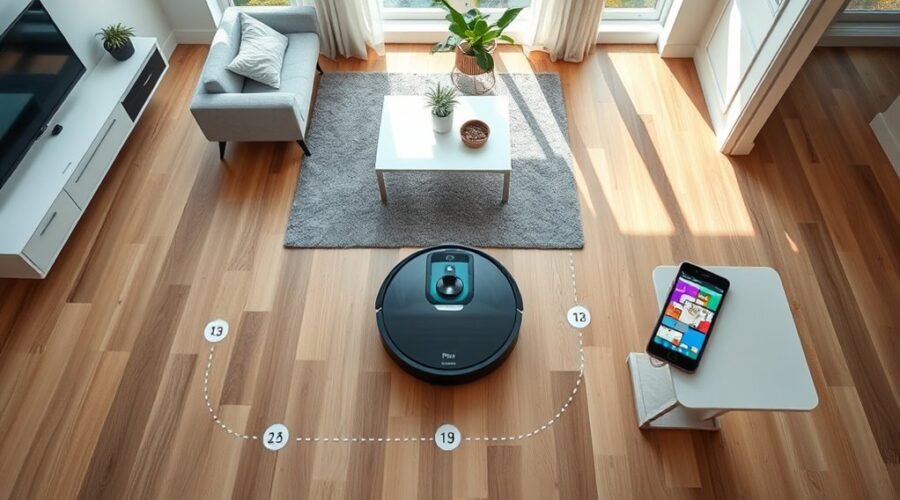
Setting a robot vacuum cleaning order begins with checking whether the model supports room sequencing or only zone cleaning. The app usually provides a room list, a custom order option, and a save function for future use. Once the sequence is stored, it can often be linked to a schedule for automated runs. If the order does not behave as expected, the next step is to inspect the app settings and common setup issues.
See Which Cleaning Order Options Your Robot Vacuum Supports
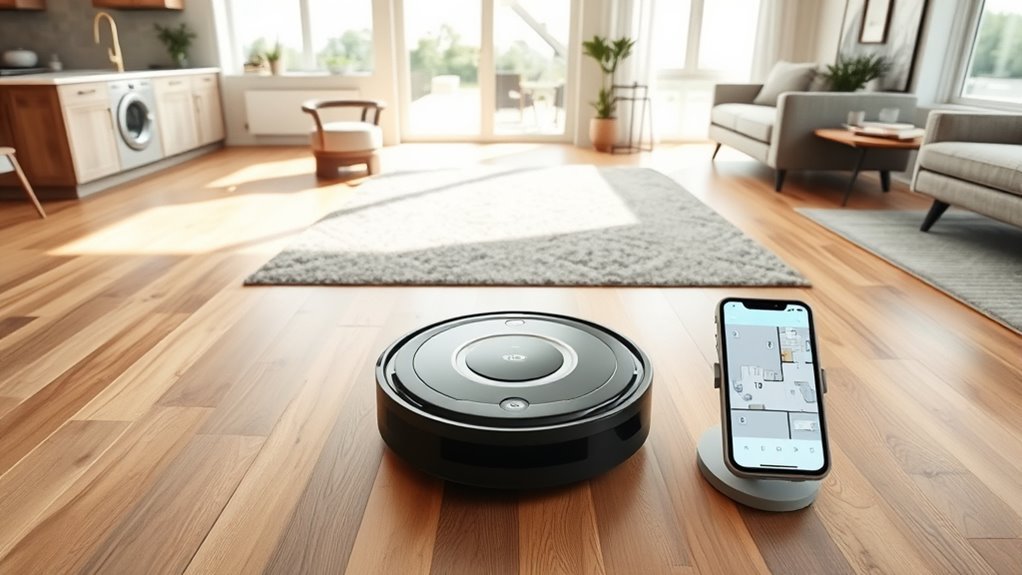
Before setting a cleaning sequence, users should check which ordering controls their robot vacuum model supports. Tapo Robot vacuums offer a flexible cleaning order for RV20/30 Max and RV50 series units, but the available controls differ.
On RV20/30 Max, Rooms mode provides a custom order option through a drag icon, allowing rooms to be arranged before cleaning begins. On the RV50 series, the order control appears left of the Start Cleaning button, where rooms can be dragged into the preferred sequence.
Both platforms support Everywhere cleaning and Room cleaning, so users can choose full-area coverage or direct the Robot toward specific zones.
Saved settings can be reused in a schedule through the Schedules menu, which reduces repeated setup and keeps cleaning aligned with daily routines. This structure gives users control over where the vacuum goes first, without forcing unnecessary manual intervention.
Set a Custom Cleaning Order in the App
After confirming the supported ordering controls, the custom sequence can be created in the Tapo app. The user should open the menu bar, select Rooms mode, and tap +Custom to start a new cleaning order.
From there, each room can be arranged by using the drag icon to move items into the desired sequence. This lets the system set a custom plan that follows the preferred path, rather than a fixed preset.
For Everywhere Cleaning, the same control is available in Advanced Cleaning mode, where rooms can also be dragged before execution. Before saving, it is practical to review cleaning preferences, since settings affect the final run.
Once the order is confirmed, the user can save the configuration in the app. Later, the saved preset is accessible under the Rooms tab, making future cleanings faster and easier to control.
Save Your Room Sequence for Later
To save a room sequence for later use, the user should open the cleaning order settings in the robot vacuum app, finalize the custom arrangement, and store it as a preset. On a Tapo Robot Vacuum, this preserves a Custom Order for repeat use and reduces manual setup. For Tapo RV20/30 Max, select Rooms mode, tap +Custom, adjust preferences, and save the room sequence under the Rooms tab. For Tapo RV50 Series, open Room, tap the icon beside Start Cleaning, reorder rooms, and confirm configuration.
| Action | Result |
|---|---|
| Open app | Access cleaning order |
| Set rooms | Build room sequence |
| Save preset | Create saved presets |
| Reuse later | Enable future cleanings |
| Update app | Keep features current |
Saved presets keep the cleaning order ready for future cleanings. Updated app versions improve storage, retrieval, and control, helping the user maintain a precise, liberated routine without rebuilding the sequence each time.
Add Your Cleaning Order to a Schedule
Open the app’s More Settings section and select Schedules to assign the cleaning order to an automated routine. From there, the user can add a new schedule or open an existing one and tune cleaning preferences without friction.
If the goal is whole-home coverage, Everywhere Cleaning keeps the robot vacuum moving through all zones. If a custom sequence is preferred, Room Cleaning applies the saved room order exactly as arranged.
- Open Schedules in More Settings
- Choose or create a schedule
- Set Cleaning Preferences for the mode
- Confirm and save to automate
Before confirming, the custom cleaning order should already be saved as a preset, so it is easy to recall at the right time.
After selection, the schedule can be saved to automate repeat cleaning on the desired days and times. This keeps the robot vacuum aligned with personal cleaning preferences and reduces manual intervention.
Fix Custom Cleaning Order Problems
If the robot vacuum does not follow the saved cleaning order, the first step is to verify that the firmware is up to date, since software bugs can affect custom routines.
Next, inspect the app settings and confirm the correct save preset is selected in scheduling. A valid custom cleaning order can fail if the wrong profile is active.
Review room mapping to ascertain each room is defined accurately; then adjust order as needed so the robot can move with precision.
If the unit still reverts to default behavior, delete the routine and re-save it to reset glitches. This often clears corrupted data without extra labor.
Persistent faults call for disciplined troubleshooting: consult user manual instructions for the model, then contact customer support if the issue continues.
Careful verification restores autonomous control and reduces dependence on repeated manual edits.
Frequently Asked Questions
How to Program a Robotic Vacuum Cleaner?
Programming a robotic vacuum cleaner requires app integration, robot settings, and mapping technology for room customization. They adjust cleaning modes, scheduling options, obstacle detection, battery life, and maintenance tips, with optional voice commands for convenience.
What Is the Cleaning Procedure for a Vacuum Cleaner?
Cleaning procedure is a galaxy-sized routine: map floors, set suction power, navigate obstacles, then sweep in paths matched to floor types. Smart features optimize cleaning efficiency, battery life, and noise levels; maintenance tips, filter replacement, user reviews guide upkeep.
How Do You Set up a Robot Vacuum Cleaner?
Charge the robot vacuum, enable app connectivity, and complete floor mapping. Then configure robot vacuum features, cleaning modes, scheduling options, obstacle detection, battery life, noise levels, maintenance tips, and filter replacement.
Should You Run Your Robot Vacuum Every Day?
Yes, daily use offers daily benefits by limiting dust accumulation and pet hair. Cleaning frequency should reflect home size, floor types, smart features, battery life, and user preferences, with schedule optimization improving efficiency and maintenance.
Conclusion
To conclude, setting a robot vacuum cleaning order is straightforward when the app supports room sequencing, custom presets, and scheduling. The user should verify available options, arrange rooms in the preferred order, save the sequence, and attach it to an automation if needed. If the order does not work, checking app permissions, firmware, and room mapping usually resolves the issue. As the adage says, “measure twice, cut once,” careful setup prevents repeated cleaning mistakes.