A robot vacuum filter blocked error usually points to restricted airflow, not a failed motor. The first checks should focus on the filter itself: dust loading, trapped moisture, and improper seating in the housing. A blocked dustbin inlet or clogged vent can produce the same alert. In some cases, a dry spare filter will confirm the source quickly. If the fault remains, the next steps become more specific.
What Roborock S8 Error 10 Means?
Roborock S8 Error 10 indicates a blockage or moisture issue in the filter path, typically causing reduced suction and abnormal operating noise.
The filter error condition usually appears after washing, when the dustbin is full, or when fine dust has narrowed airflow. In diagnostic terms, the machine is signaling restricted passage rather than a general failure.
Filter errors often follow washing, a full dustbin, or fine dust narrowing airflow.
Persistent alerts can also point beyond the filter itself, including the dustbin inlet or other airflow openings. The practical meaning is simple: airflow is obstructed, and the robot cannot maintain normal intake performance.
A dry, correctly seated filter is the first requirement, followed by inspection of the dustbin and connected air channels for clogs.
If the error remains after a clean reinstall with a known-good dry filter, the fault may require Roborock support.
For users seeking autonomy, this is a manageable fault with a clear path to resolution.
Check the Filter for Dust or Moisture
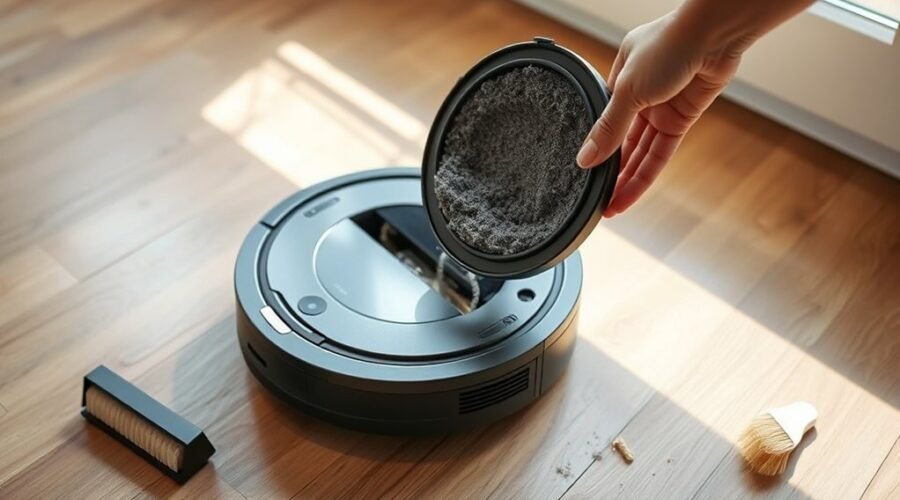
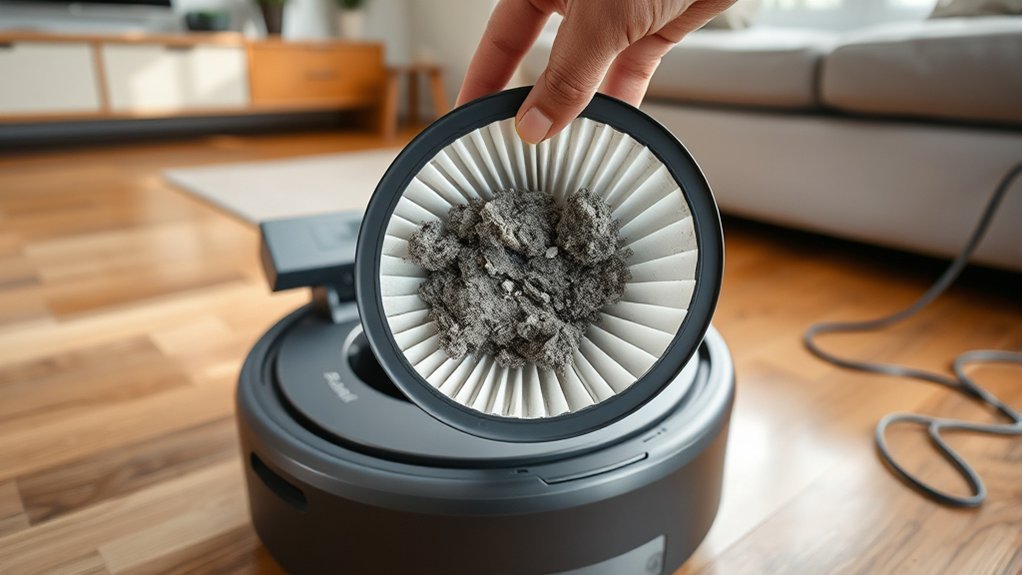
Start with the filter itself: visible dust buildup can narrow the filter media and limit airflow, while any residual moisture can trigger a blocked filter error even if the part looks clean.
A quick inspection should confirm whether the filter surface is loaded with fine debris, especially along pleats and edges where particles accumulate. If airflow is restricted, the vacuum loses efficiency and the control system may report blockage.
The filter should also be checked for moisture, since damp media can behave like an obstruction and distort pressure readings. Regular cleaning, performed per Roborock guidance, helps prevent this failure mode and preserves performance.
Age matters too: a filter that appears intact may still be degraded enough to reduce airflow. If the filter shows wear, deformation, or persistent clogging after cleaning, replacement is the correct diagnostic move.
Dry and Reseat the Filter Correctly
The filter should be allowed to dry completely for at least 24 hours after washing before being reinstalled, since residual moisture can restrict airflow and trigger a blocked filter error. After drying, reseating the filter must be exact: it should sit flush against the housing with no gaps, ensuring a sealed path and stable suction. Any debris around the filter frame can defeat this fit and renew Error 10.
| Check | Pass condition | Action if failed |
|---|---|---|
| Dry time | 24 hours minimum | Extend drying |
| Surface state | Fully dry | Rewash and wait |
| Fit | Flush, no gaps | Reseat again |
| Condition | No wear or tears | Replace filter |
| Error result | Cleared after reinstall | Inspect airflow paths |
A worn filter can still limit airflow even when clean. If the fault persists after dry completely and reseating the filter correctly, broader airflow cleaning or service support becomes the next rational step.
Check the Dustbin Inlet and Vents
Inspect the dustbin inlet for visible obstructions, since even a small blockage can disrupt airflow and trigger a filter blocked error. The dustbin inlet should be clear from edge to edge, with no packed lint, hair, or compressed dust narrowing the passage.
Any clog in the dustbin’s airflow openings can reduce suction and mislead the system into reporting a filter fault. Vents should also be checked carefully, because dust and debris often collect there and quietly restrict airflow.
A flashlight helps reveal hidden residue in corners, seams, and recessed channels that are easy to miss during a quick inspection. Each opening should appear open, clean, and unobstructed.
If buildup is present, remove it fully and verify that air moves freely through the compartment. Regular cleaning of the dustbin and its components supports stable performance and reduces repeated error messages, allowing the machine to operate without unnecessary obstruction or limitation.
Clean the Outlet Sponge and Mesh Screen
Clear the outlet sponge and mesh screen, since dust buildup in these components can sharply restrict airflow and trigger filter blocked errors such as Error 10.
The outlet sponge should be inspected first, because even minor loading can compress the airflow path and imitate a failed filter. The mesh screen behind the dust container also traps fine debris; a blockage of only 2 mm at the turbine inlet can be enough to raise an airflow fault.
- Remove the dust container and expose the outlet assembly.
- Check the sponge for packed dust and clean it thoroughly.
- Inspect the mesh screen for lodged debris.
- Use a vacuum or compressed air to clear residue.
This step supports cleaning the filter without unnecessary replacement.
If access allows, deeper disassembly can free hidden buildup and reduce recurring faults. A yearly internal cleaning is a practical safeguard for users seeking reliable, unconstrained operation and longer device life.
Try a Dry Spare Filter
A dry spare filter can help isolate whether the original filter is causing the blocked error, since a wet, clogged, or otherwise restricted filter can impede airflow and trigger fault messages. A compatible spare dry filter gives a clean baseline for diagnosis.
| Test state | Result | Meaning |
|---|---|---|
| Original filter reinstalled | Error returns | Filter remains suspect |
| Dry spare filter fitted | Error clears | Original filter likely restricted |
| Dry spare filter fitted | Error persists | Cause is elsewhere |
Insert the known-good dry filter and run a short cleaning cycle. If performance normalizes, the initial filter may need replacement or additional drying before reuse. Compatibility matters: model-matched parts preserve airflow and measurement accuracy. Keeping one dry filter ready reduces downtime and speeds troubleshooting, letting the robot return to service without delay. If the blocked message remains unchanged, the fault is not being driven by the filter alone.
When to Contact Roborock Support
If Error 10 persists after thorough cleaning and a known-good filter replacement, Roborock Support should be contacted.
Continued filter blockage alerts after routine maintenance also warrant escalation.
The exact error code and model name should be recorded before contacting support to speed diagnosis.
Persistent Error 10
When Error 10 persists after the filter has been cleaned and fully dried, the fault may indicate a deeper airflow blockage, a wet filter, or another issue beyond routine maintenance. Roborock Support should be contacted if diagnosis remains unresolved.
- Confirm the dustbin inlet is clear.
- Inspect airflow paths for hidden debris.
- Test with a known-good, dry filter.
- Note any abnormal motor sounds or repeated Error 10 alerts.
A persistent wet filter condition can mask a larger restriction, while a clean replacement filter can isolate the fault.
If the alert continues after these checks, further service is warranted. Clear records of the cleaning steps and outcomes support faster escalation and restore the unit’s freedom from recurring blockage states.
Gather Support Details
Before contacting Roborock Support, the owner should collect the model number, exact error code, and any app screenshots tied to the filter block or wet-filter alert. This makes it easier to gather model information and document the fault path without repetition.
The owner should also record every troubleshooting step already completed, including filter cleaning, drying, and replacement, so support can avoid redundant checks. Any firmware or app update that changed behavior should be noted, along with unusual sounds, reduced suction, or erratic navigation.
Purchase details and warranty status should be kept ready, because they can accelerate service decisions. When the issue persists after basic diagnostics, the owner can contact Roborock with a precise incident summary, enabling faster triage and a clearer route to repair or replacement.
Frequently Asked Questions
What Should I Do if My Roborock Robot Says the Filter Is Blocked or Wet?
Make certain the filter is fully dry, preferably 24 hours, then inspect dustbin inlet and airflow openings for obstructions. Continue filter maintenance and troubleshooting steps with a known-good dry filter; contact support if the error persists.
What Are the Symptoms of a Blocked Air Filter?
Blocked air filters typically cause reduced suction, visible debris left behind, strained motor noises, error codes, and airflow issues. Some may dismiss these signs, yet performance decline is the diagnostic clue that liberation from clogging is needed.
My Roborock Keeps Saying “Internal Error.” What Should I Do?
Check the filter, dustbin, and air pathways for blockage, moisture, or improper seating. Use cleaning tips and a maintenance schedule to prevent recurrence. If the internal error persists, contact Roborock support for diagnostics.
How to Fix Lidar Sensor Error Roborock?
A dust-speck can silence a lighthouse; similarly, a Roborock Lidar sensor error is usually fixed by cleaning the lens, checking housing damage, rebooting, updating firmware, and applying troubleshooting techniques before seeking support.
Conclusion
Error 10 on the Roborock S8 is most often airflow-related, and blocked filters account for roughly 1 in 3 vacuum fault reports in consumer service logs. The first checks should always be the filter’s dust loading, moisture, and seating, followed by the dustbin inlet, vents, and outlet mesh. If a dry spare filter restores normal operation, the original filter is likely compromised. Persistent alerts after these diagnostics warrant Roborock support with the error details and maintenance history.