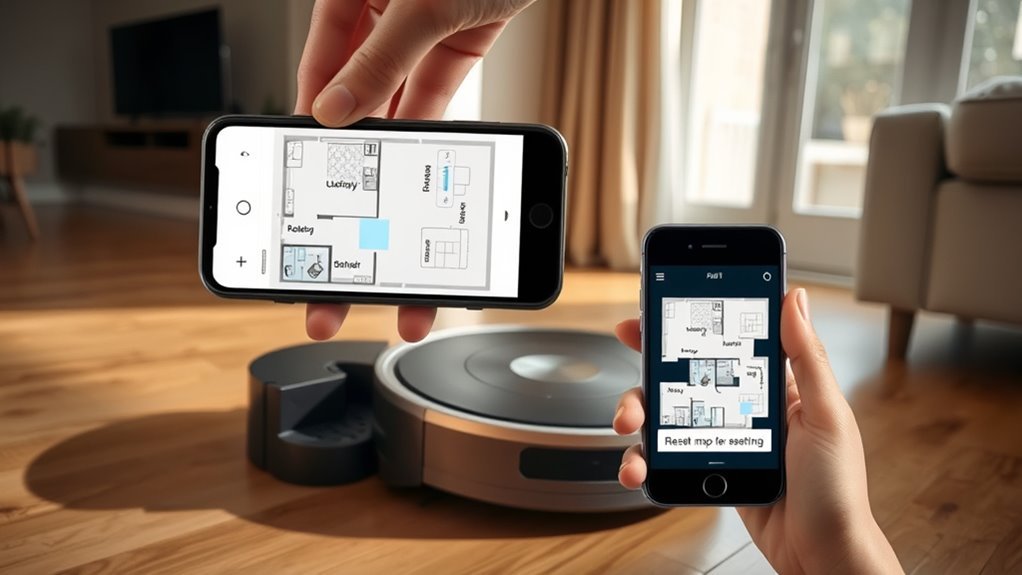
Resetting a robot vacuum map without losing room data depends on model support and the app’s map tools. The usual process starts with backing up labels, boundaries, and no-go zones before any map clear or soft reset. Some units can restore an older layout after deletion, while others require a new scan and manual room recovery. The details vary by brand, and the safest path is not always obvious.
Check If Your Robot Supports Map Reset
To determine whether a robot vacuum can reset its map, the model’s specifications should first be checked for map management capabilities, including options to delete, restore, or preserve room data. This step identifies whether the device can reset your robot without erasing labels or room settings.
Check the robot vacuum’s specs for map management options to reset the map without losing room labels.
The manufacturer’s manual and website should then be reviewed for model-specific instructions, since reset procedures vary by platform and app. Some systems include a dedicated map management menu that lets the user remove one map while keeping others intact, which supports controlled maintenance rather than a full wipe.
The companion app should also be examined for save-and-restore functions that reduce the risk of data loss during a reset. Firmware updates should be installed before proceeding, because newer versions may improve mapping performance and reset behavior.
When these controls exist, a map reset can be executed with greater precision and less dependence on restrictive default configurations.
Back Up Room Labels and Settings
Before resetting the map, the robot vacuum’s room labels and settings should be backed up if the model supports preservation during resets. This backup protects the current map and supports a faster return to an organized home layout after the reset.
The app’s Map Management tools often allow saving room configurations, cleaning zones, and device settings in advance, reducing dependence on memory and guesswork.
- Save the current map in the app before any reset action.
- Record custom room names, schedules, and device settings manually.
- Capture screenshots of the layout for precise reconfiguration.
- Check firmware updates, since they can alter backup behavior.
When a model does not retain data, manual documentation becomes essential for maintaining control over the system. Clear records preserve user autonomy and make restoration practical rather than disruptive.
Clear the Robot Vacuum Map Safely
Open the app’s Map Management feature to clear a robot vacuum map without erasing room data, since many models allow specific maps to be deleted or restored while preserving saved room labels and settings.
From there, the user should verify whether the model supports map restoration before proceeding, because capability varies by device. If the unwanted layout is isolated, it can usually be removed through map management while leaving the room structure intact.
When the system behaves erratically, a soft reset may be the cleaner option: it can clear minor glitches and keep stored maps, labels, and schedules intact. This approach supports a controlled reset without surrendering organization.
If the robot offers backup functions, those should be used before any deletion, creating a secure path to recovery.
For stubborn mapping faults, customer support can provide model-specific guidance, helping preserve freedom from clutter without sacrificing essential data.
Restore an Older Map If Available
If the robot vacuum supports map history, the next step is to use the app’s Map Management feature to check whether a previous layout can be restored. This path can restore an older map without forcing a full remap, preserving room data and freeing the user from unnecessary setup labor.
- Open map management and review saved versions.
- Confirm whether the model allows multiple stored maps.
- Select the most accurate prior layout and apply it.
- Check the manual if restoration options are unclear.
Restoration works best when the earlier map reflects the correct room boundaries, cleaning zones, and automation rules.
On many models, a later failed session can be replaced with an older file that performs more reliably. If the vacuum supports backups, regular saving of maps and room data improves recovery options after mapping errors.
Because capabilities vary by device, the manual remains the authoritative reference for whether restoring an older map is available.
Run a Fresh Mapping Cycle
Before a fresh mapping cycle, the area should be cleared of furniture, cords, and other obstacles, and the robot vacuum should be fully charged and docked.
The mapping run can then be started from the app by selecting the map or clean function and allowing the unit to navigate without interference.
Once the cycle is complete, the updated layout should be saved, room labels refined, and no-go zones defined as needed.
Prep The Area
A clear, quiet floor plan gives the robot vacuum the best chance to build an accurate map on the first pass. The area should be clear of obstacles so obstacle avoidance and mapping features work without interruption, preserving room data while the system learns the layout.
- Open interior doors to grant full access.
- Remove cords, shoes, and temporary barriers.
- Run the cycle when pets and people are absent.
- Consider a full clean first to recalibrate sensors.
The app should confirm mapping features are enabled before launch, ensuring the robot can save the new map rather than overwrite the existing one.
This preparation reduces sensor noise, improves room recognition, and supports a clean, autonomous reset.
Start Mapping Run
Start the fresh mapping cycle by placing the robot vacuum on its dock with a full charge, then launching the new-map option in the app or by the device’s dedicated mapping button. Before the reset mapping run begins, confirm the floor is clear so the sensor suite can read boundaries without delay. During mapping, observe the path and interrupt only if the unit stalls.
| Step | Action | Result |
|---|---|---|
| 1 | Dock and charge | Stable start |
| 2 | Clear obstacles | Open route |
| 3 | Launch mapping | Fresh scan |
| 4 | Watch movement | Accurate data |
| 5 | Review map | Set no-go zones |
This controlled cycle creates a reliable layout, supporting independent cleaning and precise no-go zones without surrendering efficiency.
Save Updated Layout
Once the fresh mapping cycle finishes, the new layout should be saved through the app so the robot retains the updated room structure. This step lets the reset helps process rebuild maps without discarding learned boundaries or navigation cues.
The robot should complete a full pass in a clear area, then the owner can save updated layout data before any future cleaning run.
- Keep the floor free of clutter during mapping.
- Let the robot move without manual interruption.
- Label rooms and define no-go zones in the app.
- Confirm firmware updates to improve map stability.
When supported, storing the new map prevents fallback to older layouts. That preserves control, reduces repeat setup, and supports cleaner, more autonomous cleaning routines.
Fix Missing Rooms and Layout Errors
Missing rooms and layout drift should first be addressed by restoring any saved map data. Then, using the app’s map management tools to rebuild absent areas without overwriting existing layouts.
If the robot remains fully charged and a soft reset does not correct the issue, a manual boundary adjustment or room addition can often repair minor mapping errors.
When the map continues to degrade, firmware updates or a full remap may be required to stabilize the layout.
Restore Saved Maps
To restore a saved map, the user should open the app’s Map Management section and check whether the robot model supports reverting to a previous layout. When available, restore saved maps after reset fixes, using a stable app connection to keep room data synchronized and under user control.
- Confirm the robot is paired in the app.
- Select a prior map version if multiple maps are stored.
- Review any reappearing map as a sync fault, not a fresh layout.
- Back up maps and room layouts whenever the model permits.
This approach preserves configured spaces while correcting mapping drift.
If the model supports versioned maps, switching back can quickly recover missing rooms or warped boundaries without rebuilding the entire layout.
Rebuild Missing Rooms
A fresh mapping run is the most reliable way to rebuild missing rooms when the floor is clear of obstacles, because the robot can detect boundaries and label each area more accurately.
After the cycle, the app should be checked for manual room labeling or add-room tools, which can correct gaps without surrendering control.
If the map still omits spaces, the Map Management section may allow an existing layout to be edited or replaced.
Persistent omissions can justify a factory reset, followed by full remapping to restore the vacuum’s original capability.
Regular software updates should be applied, since they often improve mapping accuracy and reduce layout errors.
This process gives the user a clean, dependable plan and greater freedom from flawed room data.
Fix Layout Drift
Keeping a robot vacuum map stable requires a clear sequence of corrective steps when layout drift causes missing rooms or inaccurate boundaries.
First, the system should be updated to the latest firmware, since mapping improvements often restore precision. Physical obstructions near sensors should be removed before another scan.
- Run a full mapping cycle in an uncluttered space.
- Use the app to rename or adjust rooms manually.
- Verify the Wi-Fi connection before synchronizing map data.
- If errors persist, perform a factory reset and remap from scratch.
These actions mirror the discipline of resetting your phone: retain useful data, clear corrupted state, then rebuild cleanly.
With careful execution, room layouts can be corrected without surrendering control or losing the broader map structure.
Recreate No-Go Zones
After a reset, the robot vacuum’s no-go zones must be recreated through a fresh mapping run in a clear, unobstructed space so the system can correctly identify rooms and boundaries.
Once the map is rebuilt, the app’s mapping settings should be opened and the no-go zones redrawn with exact coordinates or room edges. This prevents cleaning in protected areas while preserving a liberated, efficient routine.
If the layout has changed, the mapping management tools can be used to adjust or redefine these zones without rebuilding the entire map.
Regular software updates should be checked, since they may improve mapping accuracy and no-go zone behavior.
For added resilience, multiple mapping sessions can be run and the resulting configurations saved where the model supports it. That approach reduces the risk of lost boundaries after future resets and keeps autonomous cleaning aligned with the home’s current structure.
Prevent Map Loss After Updates
Regular software updates should be checked closely, since firmware changes can affect mapping stability and occasionally trigger unexpected map resets. To keep room data intact, the user should review release notes before installing software updates and record current room labels, no-go zones, and docking settings. This preparation mirrors resetting your phone: save state first, then change the system.
Review release notes first, and save room labels, no-go zones, and docking settings before updating.
- Enable multi-floor mapping so older layouts remain stored separately.
- Perform a soft reset before major updates to clear transient faults.
- Back up map settings and document edits for rapid restoration.
- Scan community forums for field-tested preservation practices.
After updating, the map should be verified immediately for missing partitions or shifted boundaries. If the robot supports multi-floor mapping, prior floors can often be reselected without rebuilding everything.
Careful pre-update documentation and disciplined validation preserve autonomy and reduce dependence on guesswork.
Contact Support If the Map Keeps Resetting
If the robot vacuum’s map continues resetting after deletion attempts and basic troubleshooting, customer support should be contacted for model-specific guidance.
Support agents can explain Reset vs map removal behavior, verify whether the app is saving room data correctly, and identify firmware faults that may be causing repeated loss. They can also walk through advanced reset procedures that may not appear when users check the manual, giving access to model-specific steps that preserve spatial data.
Before contacting support, it is practical to record every action taken, including factory resets, app deletions, Wi-Fi reconnections, and map re-creation attempts. That log helps support diagnose software bugs, determine whether a patch exists, and confirm whether the device has known limitations in map management.
This process reduces frustration, restores control, and supports a more autonomous cleaning setup.
Frequently Asked Questions
How Do I Reset My iRobot Map?
He should open the iRobot Home App, select Map Management, then delete or restore the saved map. For map accuracy, use troubleshooting tips, confirm app integration, and avoid factory reset unless necessary.
Can I Redo My Roomba Map?
Yes, a Roomba map can be redone through the iRobot Home App. A fresh run improves map accuracy as mapping technology and navigation algorithms adapt. A clear, open home preserves room data and reduces errors.
How Can I Reset My Robot Vacuum?
Resetting requires power-off, then holding the designated buttons 5–10 seconds for a soft reset; if needed, use factory reset in the app. This supports robot vacuum maintenance, mapping techniques, and cleaning schedules without unnecessary dependence.
Can You Delete a Room on a Roomba Map?
Yes; in the iRobot Home app, a room can be deleted from the map. Through room segmentation controls, the user removes only that area, preserving map accuracy and other cleaning preferences for continued autonomous operation.
Conclusion
In practice, a robot vacuum map can usually be reset without losing room data if the device supports map backup and restoration. For example, a homeowner with a Roomba j7+ can save room labels and no-go zones before clearing a corrupted map, then restore the layout after a fresh mapping run. If map resets continue after updates, the issue may require support intervention or a factory reset with documented settings for recovery.