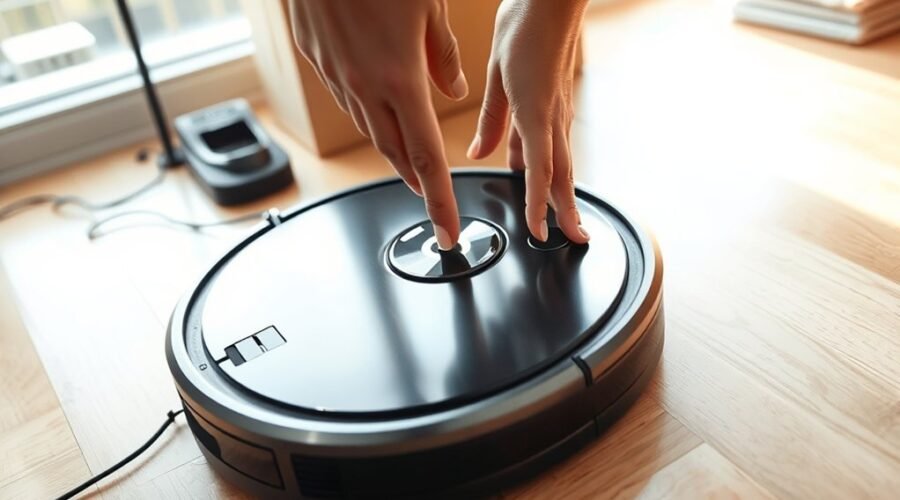
If you plan to sell or give away your robot vacuum, you need to remove your personal data before handing it over. Learning how to reset a robot vacuum before selling helps protect your home maps, Wi-Fi details, and cleaning routines. The process also prevents account conflicts that could stop the buyer from setting up the machine.
Quick Answer
To reset a robot vacuum before selling, save only the settings you still need, then use the model’s factory-reset or in-app remove-and-reset feature. Make sure saved maps, Wi-Fi details, schedules, and account access are cleared. Confirm the device is unlinked, clean its parts, and include the dock and accessories.
At a Glance
| Difficulty | Easy to moderate; reset steps vary by model |
| Tools Needed | Companion app, charging dock, user manual, and a reset pin or paperclip if required |
When to Reset a Robot Vacuum Before Selling
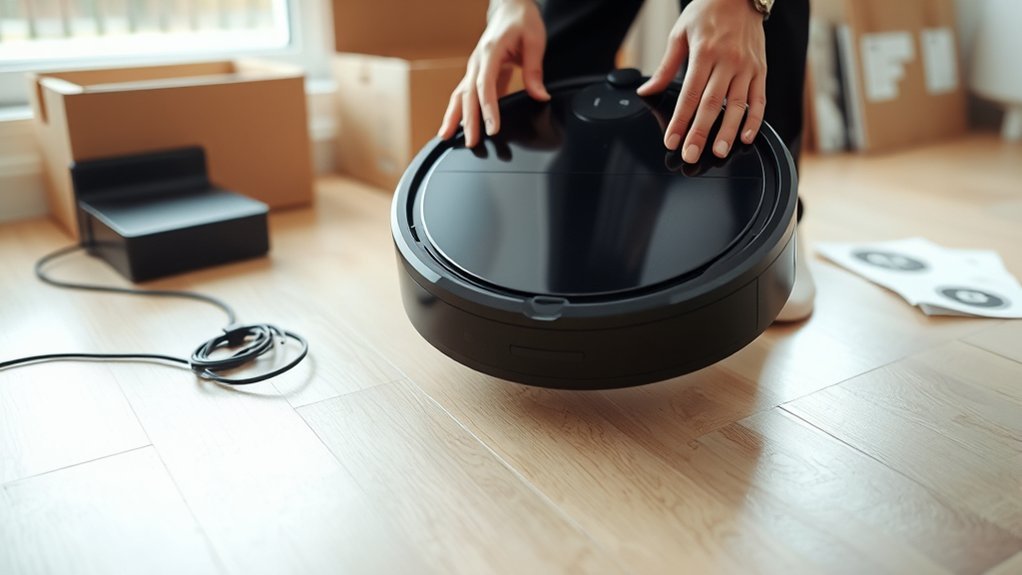
You should perform a factory reset before transferring ownership of your robot vacuum. This includes selling it, giving it to a family member, donating it, or trading it in.
Connected robot vacuums can store information about your home and daily habits. Depending on the model, that information may include:
- Saved Wi-Fi network credentials.
- Cleaning maps showing room layouts.
- Scheduled cleaning times and routines.
- Room names and cleaning preferences.
- Virtual boundaries and no-go zones.
- Cleaning history and account connections.
A factory reset normally removes personal settings stored on the robot. However, it may not automatically delete information stored in the manufacturer’s cloud service or remove the device from your account.
The Federal Trade Commission’s smart-device guidance recommends removing personal information, clearing administrative access, and restoring connected devices to factory settings before transferring ownership.
Complete these steps while you still have the robot and access to its companion app. If the reset fails, you can resolve the problem before shipping or handing over the machine.
Warning: A factory reset can permanently remove saved maps, schedules, room divisions, and other preferences. Save anything you genuinely need before starting. If you are selling the device, avoid retaining or transferring private home maps unnecessarily.
Back Up Maps and Schedules
Before resetting the vacuum, decide whether you need to keep any existing settings. Some robot vacuums support map backups, but others delete their maps permanently during a factory reset.
If you are replacing the machine with another compatible model, a supported backup may save you from mapping your home again. If you are simply selling the old robot, keeping a backup may offer little benefit.
Save Maps First
Start by opening the companion app and checking its map management or factory reset options. Look for a supported backup or save-map feature.
For example, certain iRobot models with Imprint Smart Maps support a Save maps during factory reset option. The saved maps may be available for recovery on compatible robots connected to your account.
However, iRobot states that its newer LiDAR-based models do not support this map backup and retrieval feature. Its Smart Map backup instructions explain which model groups support map transfers.
To preserve your settings where supported:
- Open your robot vacuum’s companion app.
- Select the robot you plan to reset.
- Open its map management or backup settings.
- Check whether map saving is supported.
- Enable the appropriate backup option if you need it.
- Confirm that the saved information remains accessible to your account.
Remember that a map saved to your account is not necessarily transferable to the buyer’s account. The new owner should normally create a fresh map of their own home.
Export Cleaning Schedules
You can preserve cleaning schedules by exporting them if your app supports that feature. Otherwise, record the settings manually before resetting the device.
Useful details to save include:
- Cleaning days and starting times.
- Rooms assigned to each cleaning session.
- Suction levels and cleaning modes.
- No-go zones and virtual boundaries.
- Custom room names and cleaning preferences.
Take screenshots of these settings if you plan to recreate them on another vacuum. Do not assume that schedules automatically transfer between models or accounts.
Once you have saved the necessary information, you can proceed without worrying about losing settings you still need.
How to Soft Reset Your Robot Vacuum
A soft reset, also called a reboot, restarts the robot without intentionally deleting saved maps, schedules, or account links. It is useful when the machine freezes, stops responding, or experiences temporary connection problems.
You do not need a soft reset before every sale. Use it only if the vacuum is behaving incorrectly and you want to confirm that it works before completing the factory reset.
Follow these steps:
- Place the robot on its charging dock if the model requires it, or make sure it has enough battery power.
- Open the companion app and look for its Reboot or Restart option.
- If no app option is available, use the manual reboot procedure specified for your exact model.
- Allow the robot to restart completely.
- Run a short cleaning cycle to check movement, navigation, and docking.
Button combinations are not universal. For example, iRobot’s official Roomba reboot instructions specify different procedures for the i, j, s, and other series.
A Roomba j-series robot can be rebooted by holding its CLEAN button for approximately nine seconds. Other models may require different buttons or holding times.
If the robot works normally after restarting, you can proceed with preparing it for sale.
However, a soft reset does not replace a factory reset. Your saved maps, Wi-Fi information, and account connections can remain intact after a reboot.
How to Factory Reset Your Robot Vacuum
A factory reset restores the robot’s default settings and removes its personalized configuration. This is the main reset procedure to complete before selling a connected robot vacuum.
The safest method is usually the manufacturer’s supported in-app factory reset, especially when it also removes the device from your account.
Follow this general process:
- Charge the vacuum sufficiently to complete the reset without interruption.
- Open its companion app while the robot is still connected.
- Find the Factory Reset, Restore Factory Settings, or equivalent option.
- Choose the option that removes the device from your account as well, if available.
- Confirm the reset and let the robot complete the process.
- Check that the robot has returned to its initial setup state.
If the app is unavailable, you may need to use the robot’s physical controls instead.
Locate Reset Controls
Robot vacuum reset controls vary by manufacturer and model. Some units have a recessed button under the top cover or on the body, while others use a combination of buttons on the control panel.
Do not assume that pressing a small reset button always performs a factory reset. On some devices, a short press restarts the machine or resets only the Wi-Fi connection.
Use the following approach:
- Identify the exact model number.
- Check its manual for the factory reset procedure.
- Locate the specified reset button or button combination.
- Use a paperclip or reset pin only if the instructions require one.
- Follow the stated holding time and confirmation prompts.
For Roomba owners, the official iRobot factory reset guide provides separate procedures for different series.
For example, a Roomba j-series robot, including the j7+, uses the following hardware reset sequence:
- Remove the robot’s dustbin.
- Press and hold the CLEAN button for seven seconds until you hear a tone.
- Tap the CLEAN button twice more to confirm the factory reset.
- Allow the robot to complete its reset.
This is not the procedure for every Roomba or other robot vacuum. Use the instructions for your model rather than trying random button combinations.
Remove Saved Settings
Factory resetting usually removes the stored configuration that links your robot to your home. This commonly includes Wi-Fi credentials, cleaning maps, schedules, room assignments, and customized cleaning preferences.
However, there is an important distinction between data stored on the robot and information stored in your online account.
For example, iRobot explains that a manual reset through the robot’s buttons can leave cloud data and account associations intact. An in-app factory reset can also remove the robot from your account and disassociate its saved cloud data.
Some diagnostic or lifetime usage information may remain after a reset. Therefore, a factory reset should not be treated as proof that every piece of information associated with the machine has disappeared.
If you use a connected account, check the manufacturer’s available privacy and device-removal options as part of the handover.
Confirm Factory Reset
A reset is complete when the robot finishes its reset process and returns to the expected default or setup state. Depending on the model, it may play a sound, restart, display an indicator, or request initial configuration.
Before selling, confirm the following:
- The robot has finished restarting.
- Old cleaning schedules are no longer active.
- Previous Wi-Fi settings have been removed.
- The robot no longer displays your personal maps or preferences where these can be checked.
- Your app no longer provides control of the transferred device.
If the robot still appears connected to your account, complete the account-removal procedure separately.
If the reset fails, charge the robot and retry the exact model-specific procedure. If you cannot remove an account association, contact the manufacturer’s support team before transferring ownership.
Pro Tip: Record the robot’s model number and serial number before removing it from your account. This information can help customer support identify the correct device if the buyer encounters an ownership or registration problem.
Remove It From Your App
Removing a robot vacuum from its companion app helps end your control of the device and prepares it for a new account. The exact steps depend on the manufacturer.
Some apps combine removal and factory reset into one action. Others require separate steps, so you should verify that both the local reset and account unlinking are complete.
For apps with a separate Remove Device option, the process generally looks like this:
| Action | Where | Result |
|---|---|---|
| Open app | Companion app | Access connected robots |
| Select vacuum | Device list | Choose the correct unit |
| Find removal option | Device or account settings | Start account unlinking |
| Confirm removal | Confirmation prompt | Remove device association |
| Verify reset | Robot controls and app | Confirm buyer-ready state |
For Roomba models, the official app reset procedures differ between the two main iRobot apps:
- Classic iRobot HOME app: Open Product Settings, select About for the robot, and choose Remove Device from Account.
- New Roomba Home app: Select the robot, open Robot Settings, choose About Roomba, then select Factory Reset and Remove Robot.
The new app and classic app support different model groups. Use the procedure that matches your robot and installed app.
According to the iRobot account management documentation, changing the primary account owner requires a factory reset and removes prior robot settings, including schedules and Smart Maps.
If you linked the vacuum to a voice assistant or shared its controls with other household members, remove those connections where they still appear.
You do not need to delete your entire app account if you use it for other devices. Remove the robot you are selling while preserving access to products you still own.
Finally, check that the vacuum no longer appears as an active device in your account.
Clean the Robot Before Listing It
A clean robot vacuum is easier to inspect and more appealing to buyers. It also helps you identify worn parts, clogs, or maintenance problems before completing the sale.
Turn off the machine before cleaning removable parts, following its maintenance instructions.
- Empty the dustbin: Remove accumulated dirt, dust, and hair.
- Inspect the filter: Clean or replace it according to the manufacturer’s instructions.
- Clean the main brush: Remove wrapped hair and fibers.
- Check the side brush: Remove buildup and look for bent or damaged bristles.
- Inspect the wheels: Clear trapped hair and debris so they move freely.
- Wipe the sensors: Use a soft, dry cloth to remove dust.
- Clean the charging contacts: Gently remove visible dirt using the recommended method.
Pay special attention to the filter and dustbin. Some filters are not washable, and placing a wet filter back into the robot can damage the machine.
For example, the official Roomba e, i, and j-series cleaning instructions state that their filters should not be washed. These models have dustbins that can be rinsed after removing the filter, provided the bin is completely dry before reassembly.
If your vacuum also mops floors, empty its water tank, clean the mop pads, and allow washable components to dry fully.
Inspect the charging base as well. If it uses a disposable dust bag, check whether the bag needs replacement before handing it over.
Avoid opening sealed electrical components or applying water to motors, charging connections, or electronic sensors.
Once everything is clean, inspect the robot’s exterior for cracks, scratches, loose parts, or other damage. Mention any faults honestly in your sales listing.
Get It Ready for the Buyer
Before handing over the robot vacuum, confirm that it is clean, reset, and ready for the buyer’s setup. A complete handover reduces questions, prevents ownership conflicts, and helps the new owner start using the machine.
Use this final checklist:
- Complete the factory reset using the correct procedure.
- Confirm the robot has been removed from your app account.
- Check that old Wi-Fi credentials and cleaning routines are cleared.
- Make sure the dustbin, brushes, filters, and sensors are clean.
- Inspect the battery, wheels, and charging contacts for visible problems.
- Include the original charging dock and power adapter.
- Gather any included accessories, replacement parts, and manuals.
- Use the original packaging if you still have it.
- Record and disclose any known defects or missing accessories.
Do not give the buyer your app username, password, or saved home maps. They should create or use their own account and connect the robot to their own Wi-Fi network.
The manufacturer’s setup process should guide the buyer through pairing and mapping. For example, the official Roomba Home app setup instructions explain how to register a robot and handle ownership messages when a device is linked to another account.
If the buyer sees an ownership conflict, the previous account association may still need attention. Resolve this through the supported ownership-transfer process rather than sharing your login details.
It is also worth checking whether the robot still receives manufacturer support and whether any remaining warranty applies to a second owner. Do not promise a transferable warranty without confirming its terms.
For your listing, include the exact model number, visible condition, included accessories, and any known performance limitations.
You can take photographs showing the cleaned machine, charging dock, and accessories. Avoid displaying personal information from the companion app or your home map.
Key Takeaways
- A reboot is useful for troubleshooting, but it does not remove the personal settings needed for a safe ownership transfer.
- Hardware factory resets can leave cloud records or account associations intact, so verify the app removal separately.
- Map backups depend on the model and may remain linked to your account rather than the buyer’s account.
- For Roomba j-series models, the factory reset uses the CLEAN button with the dustbin removed, followed by two confirmation taps.
- Clean removable parts according to the manual and give the buyer the correct dock, power adapter, and accessories.
Frequently Asked Questions
How Do I Factory Reset My Robot Vacuum?
Open the companion app and select its factory reset option if available. Otherwise, use the reset button or button combination specified for your model. Allow the process to finish, then confirm that personal settings are cleared and the device is no longer linked to your account.
How to Transfer iRobot to a New Owner?
Factory reset the iRobot through its companion app using the option that removes the robot from your account. Confirm that your maps, schedules, and personal settings are no longer associated with the transferred device. The buyer can then register the robot using their own iRobot account.
How Do I Remove Roomba From My Account?
In the classic iRobot HOME app, open Product Settings, select About for your robot, and choose Remove Device from Account. In the newer Roomba Home app, open Robot Settings, select About Roomba, and choose Factory Reset and Remove Robot. Confirm the removal before selling.
I Bought a Used Roomba. How Do I Factory Reset It?
Use the factory reset procedure for your Roomba model. On j-series robots, remove the dustbin, hold CLEAN for seven seconds until a tone sounds, then tap CLEAN twice to confirm. If the robot remains registered to another account, follow iRobot’s ownership-change process or contact support.
Does a Factory Reset Delete Robot Vacuum Cloud Data?
Not always. A factory reset may remove personal information stored on the robot while leaving some cloud data or account associations unchanged. The result depends on the manufacturer and reset method. Use the supported in-app removal process and review available privacy settings before transferring ownership.
Should I Give the Buyer My Robot Vacuum App Login?
No. The buyer should use their own account instead of your login credentials. Remove the robot from your account and complete the appropriate factory reset first. This helps protect your personal information while allowing the buyer to configure Wi-Fi, maps, schedules, and cleaning preferences independently.
Conclusion
Resetting a robot vacuum before selling protects your personal information and helps the next owner complete a fresh setup. Start by saving any settings you still need, then perform the correct factory reset and remove the machine from your account.
After confirming that old connections are cleared, clean the robot, inspect its condition, and gather the charging dock and accessories. The result is a better-prepared machine that the buyer can register and use independently.
Sources
- Federal Trade Commission: Buying or Selling a Smart Home: Supports removing personal information, administrative access, and stored settings before transferring connected devices.
- iRobot: Saving Smart Maps for Backup and Retrieval: Explains supported map backups, compatible model groups, and map retrieval limitations.
- iRobot: Rebooting Your Robot: Confirms the difference between restarting and factory resetting, including model-specific reboot procedures.
- iRobot: Why Factory Reset Your Robot and How to Do It: Supports in-app reset instructions, hardware reset procedures, and the distinction between local and cloud data removal.
- iRobot: Account Overview: Explains ownership changes, account associations, and data removed during an ownership transfer.
- iRobot: How to Clean or Replace the Robot Bin and Filter: Supports cleaning instructions and filter-washing precautions for supported Roomba models.
- iRobot: Setting Up Your Robot With the Roomba Home App: Explains new-owner registration, Wi-Fi setup, and ownership-conflict handling.