Knowing how to factory reset a robot vacuum can help when it keeps losing Wi-Fi, behaves unpredictably, or needs a fresh setup. However, a factory reset can erase cleaning maps, schedules, and personalized settings. The correct process depends on your model, and choosing the wrong reset method can create unnecessary work.
Quick Answer
To factory reset a robot vacuum, charge the device, save important settings, and stop any active cleaning. Use the factory reset option in its app or the exact button sequence specified for your model. Wait for the robot to restart, then reconnect Wi-Fi and restore your maps and schedules. Reset procedures vary by manufacturer.
At a Glance
| Difficulty | Easy once you identify the correct reset method |
| Tools Needed | Charged robot vacuum, model instructions, and smartphone for app-based resets; some models require a reset pin |
| Cost | Free using the vacuum’s built-in reset controls |
When to Factory Reset Your Robot Vacuum
)
You should consider a factory reset when persistent software problems remain after basic troubleshooting. It can also help when you want to erase old settings, rebuild an outdated configuration, or prepare the vacuum for another owner.
However, not every problem requires a complete reset. A blocked sensor, tangled brush, weak battery, or poor Wi-Fi signal often needs a simpler fix.
Start by checking the error message in your vacuum’s app. Clear any obstructions, clean dirty sensors, and make sure the device charges correctly.
Next, understand the difference between the three reset options.
| Reset Type | What It Does | Best Time to Use It |
|---|---|---|
| Restart or reboot | Restarts the software without normally deleting saved preferences. | Temporary freezing, slow responses, or minor errors. |
| Wi-Fi reset | Resets network settings, although certain models also restore factory defaults. | Changing routers or fixing wireless connection problems. |
| Factory reset | Returns the robot to factory settings and may erase maps, schedules, and account information. | Persistent software problems, a fresh setup, or ownership transfer. |
For example, a robot that stops responding during cleaning may only need a reboot. The official iRobot reboot instructions confirm that restarting supported Roomba models does not delete maps or schedules.
A factory reset makes more sense when repeated errors continue after these steps. It is also useful after moving to a different home, especially if the existing room map no longer matches the new layout.
If you are selling or gifting the vacuum, use the manufacturer’s account-removal process as well. Resetting the hardware alone may not remove cloud data or previous account associations.
What to Back Up Before Resetting
Before resetting your robot vacuum, save any settings you want to use again. These may include floor maps, room labels, cleaning schedules, no-go zones, and custom cleaning preferences.
Some models offer cloud backups, while others require you to create a new map after resetting. Screenshots provide a practical backup when exporting settings is not possible.
Warning: A factory reset can permanently remove saved maps, cleaning history, schedules, and other settings. Some cloud information may also be removed. Confirm what your specific reset method deletes before continuing, particularly if you cannot recreate your current settings easily.
Save Maps and Schedules
Cleaning maps are among the most valuable settings to preserve. They contain the room layout and may include virtual boundaries that stop your vacuum from entering restricted areas.
Before resetting, open the companion app and look for map backup, map management, or export options. Available features depend on the model.
For compatible Roomba models with Imprint Smart Maps, the official Smart Map backup instructions explain how to enable the Save maps during factory reset option.
That option is not available for every Roomba. In particular, the newer LiDAR-based models covered by iRobot’s guidance cannot use the same map backup and retrieval feature.
Save the following information before you proceed:
- Current floor maps, including additional floors where applicable.
- Weekly cleaning schedules and starting times.
- Room names, divisions, and cleaning zones.
- No-go zones, virtual barriers, and no-mop areas.
- Available cloud backup or map export options.
If your app has no backup feature, take screenshots showing the boundaries and room arrangement. Record the cleaning schedule separately so you can rebuild it later.
Note Custom Cleaning Settings
Custom cleaning preferences control how your robot handles different rooms and surfaces. Saving these details helps you restore your usual cleaning routine without guessing.
Record the suction level used in each room, especially if you prefer different settings for carpets and hard floors.
If your vacuum also mops, note its water-flow settings and areas where mopping is disabled.
Other useful details include cleaning patterns, preferred cleaning order, and any custom schedules linked to specific rooms.
Pay particular attention to no-go zones and virtual barriers. These settings may protect delicate furniture, loose cables, or places where the robot regularly becomes trapped.
After the reset, compare your screenshots with the new settings to make sure nothing important was missed.
Record Wi-Fi and App Details
You will usually need your home Wi-Fi credentials to reconnect the robot after a factory reset. Keep the network name and password available, along with the login details for the companion app.
Also record any connected smart home services, voice assistant routines, or third-party accessories that may require setup again.
- Wi-Fi network name, also called the SSID.
- Wi-Fi password and supported network band.
- Companion app and account information.
- Connected smart home services and accessories.
- Important room preferences and schedules.
Keep passwords in a secure password manager rather than an unprotected screenshot or note.
For a robot you intend to sell, do not give the buyer your Wi-Fi password or personal account credentials. The new owner should complete setup using their own information.
How to Factory Reset Your Robot Vacuum
You can factory reset many robot vacuums through their companion app or by pressing specific buttons on the device. The correct method depends on the manufacturer, product series, and model.
Follow the steps below to avoid accidentally restarting the vacuum or resetting only its Wi-Fi connection.
Step 1: Charge the Robot Vacuum
Place the robot on its charging dock and confirm that it receives power. A weak or completely discharged battery may prevent the reset from completing.
If the battery is nearly empty, charge it before continuing.
Step 2: Stop Any Active Cleaning
Pause or cancel the current cleaning task. Wait until the robot is idle before starting the reset.
Make sure it is not installing a firmware update. Interrupting a software update can create additional problems.
Step 3: Identify Your Exact Model
Find the model name or number in the companion app, on the product label, or in the owner’s manual.
This matters because robots from the same manufacturer can have completely different reset procedures. A button sequence intended for one model may only restart another.
Step 4: Perform the Factory Reset
If your robot supports an app-based factory reset, follow these steps:
- Open the robot vacuum’s companion app.
- Select the vacuum you want to reset.
- Open its device or robot settings.
- Find the factory reset option, if available.
- Read the warning about deleted data and account removal.
- Confirm the reset and follow any additional instructions.
For Roomba users, the official iRobot factory reset instructions provide these verified app paths:
- Classic iRobot HOME app: Product Settings > About (robot name) > Remove Device from Account.
- New Roomba Home app: Select the robot > Robot Settings > About Roomba > Factory Reset and Remove Robot.
If the app is unavailable, some models allow a manual factory reset using their physical controls.
The following examples show why you should not use a universal button combination.
| Roomba Model | Manual Factory Reset Method |
|---|---|
| j Series / Combo 10 Max | Remove the dustbin. Hold CLEAN for 7 seconds until a tone plays, then press CLEAN twice more to confirm. |
| i Series and s Series | Hold HOME, Spot Clean, and CLEAN together until the white light ring swirls. |
| e Series | Hold HOME, Spot Clean, and CLEAN together for 20 seconds, then release. |
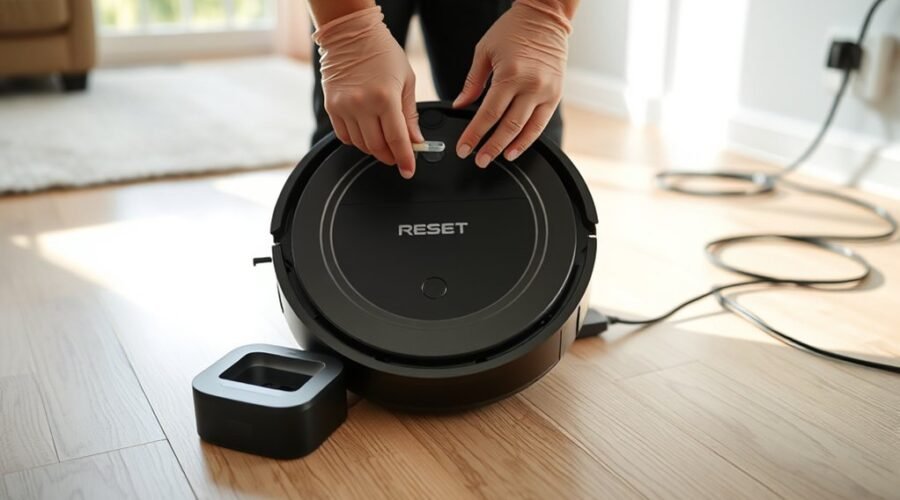
| Roomba Combo | Open the lid and hold the recessed Reset button beside the power switch for 10 seconds. |
| Mini, 100/1000, 200/2000, and specified newer Plus/Max series | Hold HOME for 5 seconds to hear instructions. Then hold HOME and Power together for another 5 seconds. |
These instructions apply only to the listed models. Other Roomba series and robot vacuum manufacturers may use different controls.
Warning: On supported Roomba models, a manual button reset may leave cloud data and account associations intact. If you are transferring ownership, use the manufacturer’s app-based removal process where required. Do not assume that a hardware reset removes all personal information.
Step 5: Wait for the Reset to Finish
After you confirm the reset, the vacuum may play a tone, change its indicator lights, or restart.
Leave the robot powered on until it completes the process. Avoid repeatedly pressing buttons or removing the battery while it is restoring settings.
Some models provide a voice message or other confirmation when the reset is complete.
Step 6: Confirm That the Factory Reset Worked
A successful reset usually returns the vacuum to its initial setup state. You may notice that the app no longer recognizes its previous connection or prompts you to add the device again.
Check these signs:
- The robot has restarted normally.
- The expected reset confirmation appeared.
- The device is ready for initial setup or pairing.
- Previous cleaning preferences are no longer active, unless the model preserves them.
If the vacuum remains frozen or shows the same error, use the troubleshooting steps below rather than repeating random button combinations.
Reconnect Wi-Fi and the App
After a factory reset, you will usually need to reconnect the robot vacuum to its companion app and home Wi-Fi network. The setup process is similar to pairing a new robot.
First, make sure the vacuum has power and your phone is connected to a compatible wireless network.
Many robot vacuums use 2.4 GHz Wi-Fi, although some newer models support both 2.4 GHz and 5 GHz.
For example, iRobot’s Roomba Home App setup guide confirms that supported network bands vary by product series. It lists both single-band and dual-band models.
To reconnect your vacuum:
- Place the robot on its dock and confirm that it is powered on.
- Connect your phone to a Wi-Fi band supported by the vacuum.
- Open the companion app and sign in.
- Select Add Device or the equivalent setup option.
- Choose your robot model and follow the pairing instructions.
- Enter your Wi-Fi password when prompted.
- Wait for the app to confirm the connection.
Some models use Bluetooth during discovery. If the app requests Bluetooth access, enable it and keep your phone close to the robot.
If your router combines 2.4 GHz and 5 GHz under one network name, follow the app’s guidance. Some older models may need a separate 2.4 GHz connection during setup.
Once connected, test the vacuum by starting a short cleaning task from the app.
If the robot responds correctly, continue restoring its maps and schedules.
Fixing a Failed Robot Vacuum Reset
If your robot vacuum does not complete a factory reset, check the reset method, battery, and device condition first. A failed reset does not always mean the robot has a serious hardware problem.
Work through the following checks in order. They help separate power problems, incorrect button sequences, and app connection failures.
Check Reset Steps
The most common mistake is using instructions for the wrong model. Some robot vacuums have nearly identical buttons but different reset functions.
Confirm the exact model number and compare its official instructions with the sequence you used.
- Check that you selected factory reset rather than reboot or Wi-Fi reset.
- Use the correct buttons and holding time.
- Follow any confirmation steps after the initial tone.
- Make sure the robot is not actively cleaning or updating.
If you used a recessed reset control, confirm that you pressed the intended button. Avoid forcing a pin into an opening unless the manual identifies it as a reset control.
Also inspect the robot for physical problems. Dirty sensors, trapped hair, or blocked wheels can cause errors that remain even after a successful reset.
Verify Power and Charge
A robot vacuum needs enough power to complete its reset sequence. If it shuts down during the process, check the battery and charging system before trying again.
Start with the charging station:
- Confirm that the dock is plugged into a working outlet.
- Check the dock’s normal power indicator, if it has one.
- Inspect the charging contacts for dust or debris.
- Clean the contacts using the method recommended for your model.
- Place the vacuum firmly on the dock and allow it to charge.
The original troubleshooting guidance recommends charging the vacuum for at least an hour before another attempt. This can be a useful first check, although the time needed depends on the battery’s condition and model.
If your vacuum displays its battery percentage, confirm that the charge is sufficient for resetting. Some troubleshooting instructions use a level above 20% as a practical starting point, but this is not a universal factory reset requirement.
When the battery has recovered, repeat the correct reset sequence once.
Reconnect App and Wi-Fi
Sometimes the factory reset succeeds, but the robot fails to reconnect to the app. In that case, troubleshoot the network connection rather than resetting the hardware again.
Check that the router is working and that your phone can access the internet.
The official iRobot connectivity troubleshooting guide recommends checking device power, reconnecting Wi-Fi, and restarting the router or phone when connection problems continue.
Try these fixes:
- Confirm that your Wi-Fi password is correct.
- Use a wireless band supported by your vacuum.
- Move the vacuum closer to the router during pairing.
- Enable Bluetooth and required app permissions.
- Restart the router and smartphone.
- Update or reinstall the companion app if necessary.
For compatible Roomba models already registered in the app, Product Settings > Wi-Fi Settings > Reconnect or Change Product Wi-Fi can resolve connection problems without another factory reset.
If your app shows that the robot belongs to another account, follow the manufacturer’s ownership-transfer process rather than repeatedly attempting to pair it.
Once the robot reconnects, check for available firmware updates. Some factory reset procedures can restore older firmware, so an update may be necessary before testing performance again.
If the same fault continues after correct setup and basic maintenance, contact the manufacturer’s customer support. Keep your model number, error message, and purchase information available.
Restore Maps and Schedules
After resetting your robot vacuum, restore any compatible map backup or create a new floor map. Then rebuild your cleaning preferences and schedules.
Whether you can recover an existing map depends on the model and the reset method you used.
Restore a Saved Cleaning Map
If your vacuum supports cloud map recovery, look for the available restore or retrieve option during setup.
For compatible Roomba models, a saved Smart Map may be offered when you reconnect the robot to your account.
Follow the app’s prompts to retrieve the map. Once it appears, inspect room names, dividers, and restricted areas before starting normal cleaning.
A restored map may still need additional cleaning runs to reflect changes in furniture or room layout.
Create a New Map If No Backup Exists
If the previous map cannot be restored, allow the vacuum to learn your home again.
Prepare the space before starting a mapping run:
- Remove loose cables, shoes, and small objects from the floor.
- Open interior doors to rooms you want mapped.
- Make sure the charging dock is accessible.
- Start a mapping run or full-home cleaning task through the app.
- Allow the robot to complete the mapping process.
- Review the finished map and correct room divisions if necessary.
A dedicated mapping run is available on some models, while others build their maps during cleaning.
Do not assume the new map is accurate until you check it. Pay attention to narrow spaces, doorways, and rooms that the robot previously struggled to reach.
Rebuild Cleaning Schedules and Restricted Zones
Once the map is ready, add room names and recreate your preferred cleaning routine.
Use the screenshots or notes you saved before the reset to restore:
- Daily and weekly cleaning times.
- Room-specific suction and mopping preferences.
- No-go zones and virtual barriers.
- No-mop areas and cleaning boundaries.
- Preferred room cleaning order.
Before scheduling unattended cleaning, test the restricted zones and confirm that the robot avoids areas where it could become trapped.
Pro Tip: After remapping, run a supervised cleaning session before restoring every automatic schedule. This helps you identify missing room boundaries, navigation problems, or incorrectly placed no-go zones while you can still correct them.
When everything looks correct, start a normal cleaning cycle and confirm that the robot returns to its dock.
Your vacuum should now be ready to follow its restored routine.
Key Takeaways
- A reboot is the safer first option for temporary software errors because it normally preserves your settings.
- Not all Wi-Fi resets are limited to network settings. Some models also restore factory defaults.
- Roomba factory reset procedures vary significantly by series, so there is no universal button sequence.
- Compatible Smart Maps may be recoverable, but not every robot supports map backup or retrieval.
- Manual hardware resets may leave cloud information or account associations intact, which matters when transferring ownership.
Frequently Asked Questions
How to Perform a Hard Factory Reset?
To perform a hard factory reset, use the physical reset button or button combination specified for your robot vacuum model. Depending on the model, you may need to hold certain buttons until a tone, voice message, or light change confirms the reset. Save your important settings first, because a factory reset can erase maps and cleaning preferences.
Is It Okay to Fully Reset My Roomba?
Yes, you can fully reset your Roomba when persistent software errors remain or you need to transfer ownership. However, try a reboot and basic troubleshooting first. A factory reset can remove settings and stored information, and you may need to reconnect the robot, rebuild its schedules, and restore or recreate its maps.
What Is the Average Lifespan of a Robot Vacuum?
A robot vacuum typically lasts about four to six years, although its lifespan depends on usage, maintenance, and battery condition. Regular brush cleaning, filter maintenance, and timely battery replacement can help keep it working longer. A factory reset may resolve software problems, but it cannot repair worn motors, damaged sensors, or failing batteries.
Can You Factory Reset a Roomba Without the App?
Yes, many Roomba models support a factory reset using physical buttons without the app. The required sequence depends on the series. For example, certain j Series models use the CLEAN button with the dustbin removed. Keep in mind that a manual reset may not remove cloud data or account associations, so additional account removal may be necessary.
Conclusion
A factory reset can give your robot vacuum a fresh start, but it should come after simpler troubleshooting. One study cited in the original guidance reported that nearly 1 in 3 smart-home users lose at least one saved setting during a device reset, although that figure still needs source verification.
Protect your maps and schedules, use the correct reset instructions, and reconnect the vacuum through its app. Once you restore your preferences and complete a successful cleaning test, the robot should be ready for regular use again.
Sources
- iRobot: Rebooting Your Robot: Explains the difference between restarting and resetting, including the effect on saved settings.
- iRobot: Saving Smart Maps for Backup and Retrieval: Confirms compatible model groups, map backup options, and recovery limitations.
- iRobot: Why Factory Reset Your Robot and How to Do It: Provides verified app and manual reset procedures, including model-specific button sequences and account-removal behavior.
- iRobot: Setting Up Your Robot With the Roomba Home App: Confirms setup requirements and differences in 2.4 GHz and 5 GHz network support.
- iRobot: Cloud and Wi-Fi Connectivity Troubleshooting Guide: Supports network reconnection and troubleshooting steps after resetting.
- Dyson: How Long Do Robot Vacuums Last?: Supports the approximate four-to-six-year lifespan estimate and the role of maintenance and battery condition.