Knowing how to clean a robot vacuum LiDAR sensor can quickly fix a vacuum that misses rooms, loses its map position, drives in circles, or stops with a laser sensor error. Dust, pet hair, and fine lint easily block the optical window or jam the spinning turret. Cleaning the exposed surfaces takes about five minutes, provided you use dry, gentle tools that protect the delicate laser optics.
Quick Answer
To clean a robot vacuum LiDAR sensor, power off the vacuum off its dock and locate the top laser turret or recessed optical window. Gently wipe the lens openings with a clean, dry microfiber cloth or dry cotton swab, and brush loose dust from the housing gap. Never spray liquids onto the sensor. Restart the robot to test navigation.
At a Glance
| Time Required | 5–10 minutes |
| Difficulty | Easy for accessible exterior surfaces |
| Tools Needed | Dry microfiber cloth, dry cotton swabs, soft brush, flashlight, and optional canned electronics air |
| Cost | Free with standard household supplies |
Why Clean Your Robot Vacuum LiDAR Sensor?
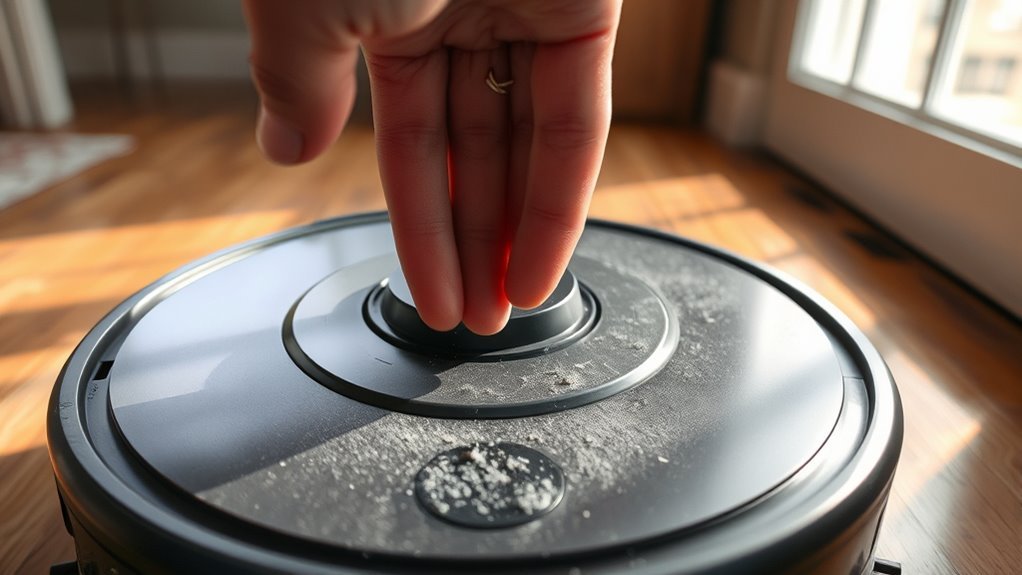
A clean LiDAR sensor allows your robot vacuum to measure room distances accurately and maintain a stable floor map. LiDAR stands for Light Detection and Ranging, often called a Laser Distance Sensor (LDS). It fires invisible laser beams at walls and furniture, timing the reflection to calculate exact distances.
Even a thin film of dust on the optical window scatters the laser beam. Hair or carpet fibers wrapped around a rotating turret can also slow down or stall the drive mechanism.
Common signs of a dirty or obstructed LiDAR sensor include:
- The robot skips rooms or misses areas it previously cleaned without trouble.
- Your app map shifts, tilts, creates overlapping phantom walls, or shows distorted room boundaries.
- The vacuum spins in place, hesitates in open hallways, or loses its position mid-cycle.
- It fails to locate or align with the charging dock.
- An app notification or voice alert announces a blocked laser sensor, such as Roborock Error 1, Tapo Error 7, or eufy Error 18 and Error 19.
However, these symptoms do not always mean the LiDAR lens itself is dirty. Jammed top turret bumper caps, dirty cliff or wall sensors, firmware glitches, and worn turret motors cause similar behavior.
Routine exterior cleaning prevents avoidable navigation faults while keeping the optical window and housing seams clear of buildup.
What Tools Do You Need to Clean a LiDAR Sensor?
You only need a few dry, nonabrasive household supplies to clean a LiDAR sensor safely. A clean microfiber cloth and dry cotton swabs handle nearly all surface dust without scratching the optical lens or leaving lint behind.
Use compact tools to reach recessed laser ports and narrow housing seams. Avoid stiff bristles or sharp objects that could scratch the plastic window or push debris deeper inside.
Essential Cleaning Tools
- Dry microfiber cloth: Lifts static dust and smudges from exposed sensor windows and the outer housing.
- Dry cotton swabs: Reaches recessed laser emitter and receiver holes inside a top turret.
- Soft, clean brush: Sweeps loose dust out of the gap around the turret collar.
- Flashlight: Illuminates the dark recess inside the turret so you can spot tangled hair or lint without poking blindly.
- Canned electronics air (optional): Helps clear the gap around a rotating LiDAR module on brands that permit it, such as Shark.
For example, TP-Link recommends a clean, dry cloth for Tapo RV10 and RV30 models, a dry cotton swab for the LiDAR area on Tapo RV20 and RV20 Max models, and a clean, damp cloth followed immediately by a dry cloth for Tapo RV50 Omni and RV50 Pro Omni sensors. Reviewing TP-Link’s official sensor cleaning instructions shows why checking your exact model manual matters.
Safe Handling Supplies
Always pick a fresh microfiber cloth that has never been used with glass cleaner, furniture polish, or fabric softener. Chemical residue from laundry or household sprays can transfer onto the optical plastic and haze the lens.
Place the vacuum on a flat, stable table or floor away from stairs before you start. Power the unit down completely after moving it off the charging dock so the laser and wheels cannot activate while your hands are near the turret.
Where Is the LiDAR Sensor Located on a Robot Vacuum?
Most robot vacuums house the LiDAR sensor inside a raised circular turret on top of the machine. However, ultra-slim models skip the top dome and recess a solid-state laser sensor into the front bumper or upper body.
Look for the actual optical window or recessed laser holes rather than wiping only the solid plastic cap on top.
LiDAR Position on Top
Traditional LiDAR vacuums from Roborock, Dreame, Shark, eufy, and ECOVACS use a raised top turret that spins 360 degrees to scan the room. Inside the protective cap sits a rotating core with two small openings: a laser emitter and a laser receiver.
On many models, the entire top turret cap also acts as a spring-loaded pressure bumper. If the vacuum drives under a low sofa, the cap presses down on a micro-switch so the robot backs out instead of getting wedged.
When inspecting a top-turret design:
- Locate the raised circular dome on the upper surface of the robot.
- Shine a flashlight horizontally into the slot under the cap to find the two round lens openings on the spinning core.
- Inspect the narrow seam around the base of the turret for hair, dust bunnies, or wedged crumbs.
Common Sensor Housing Locations
Not every laser-guided vacuum has a spinning top dome. To fit under low cabinets and couches, some manufacturers sink a solid-state direct Time-of-Flight (dToF) laser sensor into the front section of the robot.
For instance, TP-Link’s MagSlim LiDAR system embeds a solid-state mini-dToF sensor inside the front body, cutting the robot’s height by 2 cm (down to 7.8 cm compared with about 10 cm on traditional turret models) while scanning distances from 0.03 m to 8 m. Because the sensor has no spinning belt or motor, it avoids mechanical turret jams and relies on a clean front optical window.
Before cleaning a turret-free vacuum, check your owner’s manual to distinguish the recessed LiDAR window from front AI obstacle cameras, infrared bumper sensors, and bottom cliff sensors.
Pro Tip: On brand-new vacuums with recessed front laser sensors, such as the eufy Auto-Empty C10, verify that all clear factory protective film strips have been peeled off the bumper windows before troubleshooting a blocked laser alert.
How to Clean a Robot Vacuum LiDAR Sensor Safely
To clean a LiDAR sensor safely, power down the robot off its dock and wipe the exposed optical lenses and turret seam using dry, lint-free tools. Never pry open the turret cap or spray liquid into the sensor slot.
Follow these seven steps to clear dust and restore accurate room mapping.
Warning: Do not unscrew the LiDAR housing or attempt to disassemble internal optics unless your manufacturer provides specific instructions for your model. Unplugging or forcing the spinning module can snap the drive belt, damage the ribbon cable, or void your warranty.
- Power off the vacuum completely. Stop any active cleaning job, move the robot off its charging dock onto a flat surface, and hold the power or dock button (typically 3 to 7 seconds depending on the brand) until the indicator lights turn off.
- Inspect the sensor opening with a flashlight. Shine a light into the turret slot or front LiDAR window to spot dust film, cobwebs, or wrapped hair. On rotating turrets, locate the two circular holes (the laser emitter and receiver) on the inner drum.
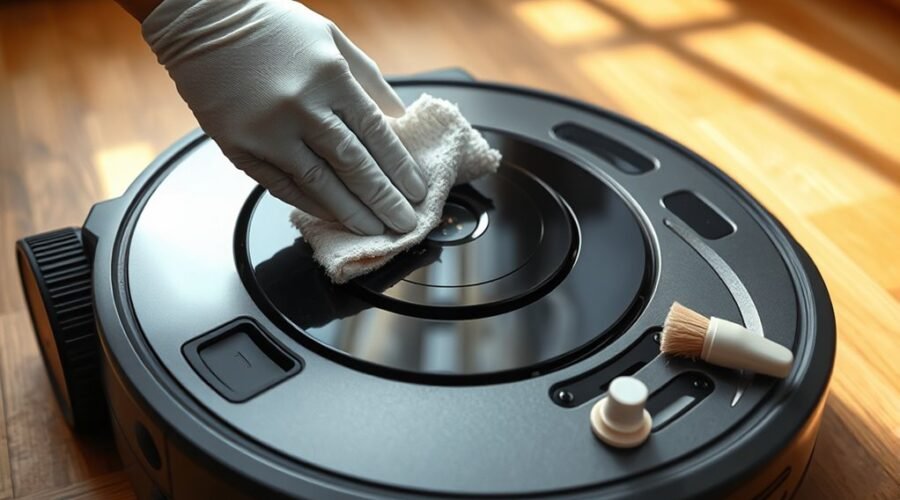
- Wipe the optical window or laser holes. For flat or front-mounted LiDAR windows, wipe gently with a clean, dry microfiber cloth. For recessed turret lenses, touch a dry cotton swab lightly to the emitter and receiver holes and wipe away dust without pressing hard on the lens.
- Brush out the housing seam. Sweep a soft, dry brush around the base of the turret collar and under the cap lip to lift loose lint. Pull out any visible strands of pet or human hair with your fingers.
- Clean the rotating turret ring (if applicable). On spinning LiDAR units, Shark’s Shark PowerDetect maintenance FAQ recommends holding a dry cotton swab gently against the turret edge and manually spinning the LiDAR module 5 times in each direction, then using a short puff of canned air to clear the gap around the module.
- Check the top turret cover movement. Gently tap or wiggle the top LiDAR cover front-to-back and left-to-right. On models with a pressure-sensitive cap, confirm that it clicks and springs back smoothly without sticking.
- Restart the robot and test navigation. Place the vacuum back on its charging dock, power it on, and run a 2-minute spot or room clean to verify the turret spins quietly and the map updates without errors.
Dreame’s robot vacuum maintenance guidance emphasizes removing foreign objects from the laser distance sensor and wiping the sensors strictly with a dry cloth, noting that moisture can damage sensitive internal elements.
If the robot maps normally and completes its route, no further maintenance is needed. If the error returns immediately, skip repeated wiping and move to the mechanical and software checks below.
How to Clean Around the LiDAR Housing
Even when the optical lens is spotless, dust and hair packed around the LiDAR housing can stall the spinning turret or jam its top bumper switch. Cleaning the exterior collar and checking mechanical clearance prevents false obstacle alerts.
Use controlled, outward strokes so you lift debris out of the slot rather than pushing it underneath the rotating drum.
| Housing Area | Safe Cleaning & Inspection Method |
|---|---|
| Exterior dome and top cap | Wipe gently with a dry, lint-free microfiber cloth to remove static dust. |
| Turret collar and tight seams | Use a dry cotton swab or soft brush to sweep loose lint outward; pull out visible hair strands. |
| Spring-loaded turret cover | Tap or gently tilt the cap front-to-back and side-to-side to verify it rebounds freely. |
| Rotating inner drum | If permitted by your manual, nudge the inner wheel gently with a cotton swab to check for smooth rotation. |
Avoid inserting a swab or brush into blind gaps where you cannot see what it touches. If long hair is wrapped around the base of a spinning turret, draw it out slowly so it does not snap inside the spindle.
Many manufacturers include a manual rotation check in their support steps. For example, TP-Link’s LiDAR troubleshooting guide explains how to fix Tapo Error 7 and entangled radar alerts by gently rotating the LiDAR sensor by hand to feel for heavy resistance and removing any trapped hair or dust.
Only rotate turrets on models that use a mechanical spinning assembly; solid-state sensors have no moving parts.
What Should You Avoid Using on LiDAR Sensors?
Never use household glass cleaners, direct liquid sprays, paper towels, or metal picks on a robot vacuum LiDAR sensor. LiDAR modules rely on coated plastic or glass optics that scratch easily and sit right above exposed circuit boards.
According to the ECOVACS sensor cleaning guide, alcohol and harsh chemicals should be avoided on robot vacuum sensors because they can degrade delicate sensor components or leave a cloudy film that disrupts distance readings.
- Isopropyl alcohol and window sprays: Do not apply rubbing alcohol, Windex, or lens cleaner unless your manual explicitly approves it for that specific sensor. Solvents can strip anti-reflective coatings or fog optical plastic.
- Paper towels, tissues, and rough rags: Wood-fiber paper products and abrasive sponges leave micro-scratches on the laser window that permanently scatter the beam.
- Water and direct liquid sprays: Never spray liquid onto the turret or wipe the LiDAR slot with a dripping cloth. Moisture seeps into the motor bearings and electronics board.
- Soaps, detergents, and furniture polish: Leave behind a thin, streaky residue that blinds or refracts the laser signal.
- Shop air compressors: Industrial air lines blast high-pressure air mixed with moisture and oil droplets that can ruin internal optics or unseat the turret drive belt.
- Tweezers, needles, and screwdrivers: Metal tools easily slip and gouge the recessed laser lens.
If your brand allows canned electronics air, hold the can upright at least several inches away and use short, gentle puffs across the outer gap rather than blasting the lens directly.
How Often Should You Clean a Robot Vacuum LiDAR Sensor?
Inspect your robot vacuum’s LiDAR sensor every one to two weeks in busy or pet-friendly homes, and wipe it clean about once a month under normal conditions. Most manufacturers, including Roborock and TP-Link Tapo, specify a monthly sensor maintenance schedule.
Match your inspection routine to how often your robot runs and how much dust or pet hair collects on your floors.
| Home & Usage Conditions | Recommended LiDAR Maintenance Schedule |
|---|---|
| Daily runs or homes with shedding pets | Inspect every 1–2 weeks with a flashlight; wipe dust and remove hair as soon as buildup appears. |
| 1–3 runs per week in a low-dust home | Inspect and wipe with a dry microfiber cloth once a month. |
| Map drift, missed rooms, or laser error alert | Inspect and clean immediately before starting the next cleaning cycle. |
| App maintenance reminder triggers | Wipe all sensors (LiDAR, cliff, wall, and dock contacts) and reset the sensor care timer in the app. |
Note that app maintenance alerts run on a fixed usage timer rather than an actual dirt detector. A quick 10-second visual check tells you whether the optical window needs wiping or is already clear.
What to Do if LiDAR Errors Continue After Cleaning
If your robot vacuum still reports a LiDAR error after cleaning the lens, the problem is usually a stuck turret cover, a jammed rotor, an environmental reflection, or outdated firmware. Work through these targeted checks before booking a repair.
- Read the exact error code or voice alert. Check whether your app specifies a blocked lens, a jammed laser cover, or a non-spinning turret (such as Roborock Error 1, Tapo Error 7, or eufy Error 18/19).
- Recheck both laser holes inside the turret. A spinning LiDAR module has two separate openings—one emits the laser and the other receives the reflection. Make sure neither hole has a speck of lint inside.
- Test the top LDS bumper cap rebound. Gently press and wiggle the top turret cover front-to-back and left-to-right. If a crumb is wedged underneath, the pressure switch stays depressed and triggers a constant laser error.
- Use a manual vacuum for deep lint. For persistent Error 18 or Error 19 alerts, eufy’s eufy Error 18 and Error 19 troubleshooting guide recommends pulling small debris out of the LiDAR slot with a manual handheld vacuum, tapping the top cover so it springs back, and powering the robot off for 5 minutes before restarting.
- Confirm the turret spins when powered on. Start a cleaning cycle and peer into the turret slot (without staring directly into the beam path) to see if the inner drum rotates smoothly.
- Update the robot’s firmware. Open your companion app and install any pending firmware updates, which often include navigation and sensor-calibration fixes.
- Move the robot to an open area and restart. Floor-length mirrors, black matte furniture, hanging curtains, or bright direct sunlight patches can confuse laser distance readings. Start the vacuum in a clear hallway away from floor mirrors to test.
Dreame’s LiDAR error troubleshooting instructions walk through these exact four checkpoints: updating firmware first, nudging the LDS rotor to confirm free rotation, moving the LDS cover in all directions, and cleaning both the laser emission and receiving holes.
Can Poor Lighting Cause LiDAR Navigation Problems?
No—LiDAR itself does not need room lighting to measure distances or map your home. Because a LiDAR sensor emits its own infrared laser signal, a purely laser-guided robot vacuum navigates just as accurately in total darkness as it does in daylight.
However, many hybrid robot vacuums pair top LiDAR with a front RGB camera or visual SLAM (vSLAM) sensor to identify shoes, cords, and pet waste. Those optical cameras require room light to recognize small floor obstacles.
TP-Link’s LiDAR navigation explanation highlights this difference: camera-based vSLAM loses accuracy in dark rooms, whereas laser-based dToF LiDAR operates reliably in both darkness and bright rooms up to 60,000 lux.
If your hybrid vacuum navigates fine with the lights on but bumps into small items at night, its LiDAR sensor is working properly and only its front obstacle camera is affected by the dark.
What if the Robot Still Shows an Error?
Write down the exact error number and observe whether the inner turret drum spins at startup or remains completely still.
Also check whether the error triggers immediately at the dock or only when the vacuum enters a specific room with low furniture or floor-to-ceiling mirrors.
Never force a seized turret wheel or spray lubricant into the housing. Contact manufacturer support if the fault persists after cleaning and a full power restart.
When Does a LiDAR Sensor Need Repair?
A LiDAR sensor needs professional service or module replacement when the inner turret fails to spin, makes grinding noises, or triggers immediate hardware errors despite a clean lens and clear housing. On belt-driven turrets, the small DC motor or rubber drive belt can wear out after thousands of hours of operation.
Stop cleaning and contact customer support if you notice any of these signs:
- A LiDAR error (such as Error 1) returns within seconds of starting a cycle even after you manually free the rotor.
- The inner turret drum will not spin when the vacuum runs, or feels gritty and locked when nudged gently by hand.
- The top turret housing is cracked or pushed out of alignment after wedging under heavy furniture.
- You hear clicking, squealing, or grinding sounds coming from the top dome.
- The robot repeatedly fails to generate a map despite clean laser emitter and receiver holes and updated firmware.
For example, Roborock’s Error 1 support guidance instructs owners to turn on the robot, verify whether the laser unit is spinning, gently rotate the unit manually if it is stopped, and contact Roborock Customer Support if the error continues after a restart.
Before requesting service, check your warranty status in the app or manual. Sharing your robot’s serial number, the exact error prompt, and a short video showing whether the turret rotates will speed up warranty support.
Frequently Asked Questions
How Do You Clean the LiDAR Sensor?
Power off the robot vacuum off its dock and wipe the exposed LiDAR window or recessed laser holes with a clean, dry microfiber cloth or dry cotton swab. Brush loose dust and hair from the turret gap, then restart the robot and run a short cycle to confirm normal navigation.
How Do You Clean a Robot Vacuum Sensor?
Turn off the vacuum and gently wipe each sensor window—including the top LiDAR turret, front obstacle sensors, side wall sensors, and bottom cliff sensors—using a soft, dry microfiber cloth. Check your model’s manual before using any damp cloth, and never spray liquid directly onto the robot.
How Do I Clean the LiDAR Sensors on My Roborock Vacuum?
Power off your Roborock and inspect the top LiDAR turret slot with a flashlight for dust or tangled hair. Gently wipe the two recessed laser openings with a dry cotton swab and clean the outer housing with a soft, dry cloth. If Error 1 appears, gently rotate the laser unit manually and restart the vacuum.
Can I Use Isopropyl Alcohol to Clean My Camera Sensor?
Do not use isopropyl alcohol on a robot vacuum camera or LiDAR lens unless the manufacturer explicitly approves it for your model. Alcohol and harsh cleaners can strip optical coatings or fog plastic sensor windows. A clean, dry microfiber cloth is the safest choice for routine cleaning.
Can I Use Compressed Air to Clean a Robot Vacuum LiDAR Sensor?
Use canned electronics air only if your vacuum manufacturer permits it, such as Shark for clearing the gap around a rotating LiDAR turret. Hold the can upright and use short, gentle puffs rather than blasting directly into the lens. Never use a high-pressure shop air compressor, which sprays moisture and oil.
Why Does My Robot Vacuum Still Say LiDAR Sensor Blocked After Cleaning?
If a blocked LiDAR error persists after wiping the lens, check whether the top turret cover is jammed by debris, hair is wrapped underneath the spinning rotor, or the drive belt and motor have worn out. Wiggle the turret cap to ensure it springs back, gently test rotor movement, and restart the vacuum.
Conclusion
Cleaning your robot vacuum’s LiDAR sensor takes just a few minutes and resolves most mapping drifts and blocked-laser alerts. Power down the robot off its dock, use a dry microfiber cloth or dry cotton swab on the optical openings, and clear any hair from the surrounding turret collar.
If laser errors continue after cleaning, check that the top turret cap rebounds freely and the inner drum rotates smoothly. When a turret refuses to spin after clearing visible debris, contact your manufacturer’s support team for service.
Sources
- TP-Link — How to Clean the Sensors of Tapo Robot Vacuum: Model-specific cleaning tools (dry cloth, cotton swab, and RV50 damp-then-dry method) and monthly maintenance intervals.
- SharkNinja — Shark PowerDetect Robot Vacuum Maintenance FAQs: Power-off instructions, compressed air gap cleaning, and the 5-turn manual cotton swab LiDAR turret cleaning method.
- Dreame — Robot Vacuum Cleaning and Maintenance: Dry cloth cleaning guidance for laser distance sensors and moisture precautions.
- TP-Link — LiDAR Errors and Obstructions: Tapo Error 7 troubleshooting, blocked optical windows, and manual rotation checks for entangled turrets.
- ECOVACS — How to Clean Robot Vacuum Sensors: Why alcohol and harsh chemicals must be avoided on delicate sensor optics.
- eufy Support — Troubleshooting Error 18 and Error 19 Voice Alerts: Clearing stuck laser sensors and covers using a dry cloth, manual vacuum, top-cover rebound check, and 5-minute power reset.
- Dreame — Laser Distance Sensor Error Troubleshooting: Firmware updates, LDS rotor rotation checks, bumper cover movement, and cleaning laser emission and receiving holes.
- TP-Link — MagSlim LiDAR Navigation: Recessed mini-dToF LiDAR placement, height reduction figures, scanning range, and operation in darkness versus camera vSLAM.
- Roborock — Error 1 Troubleshooting: Checking laser unit rotation, manual turret rotation, and when to contact customer support.