A robot vacuum LiDAR error usually signals a fault in mapping or sensor rotation, not always a major failure. Dust, debris, or a stuck turret can interrupt scanning, while firmware issues may produce similar symptoms. Basic checks often restore function, but some cases point to worn parts or damaged connections. The challenge is identifying where routine maintenance ends and hardware diagnosis begins.
What LiDAR Error Means
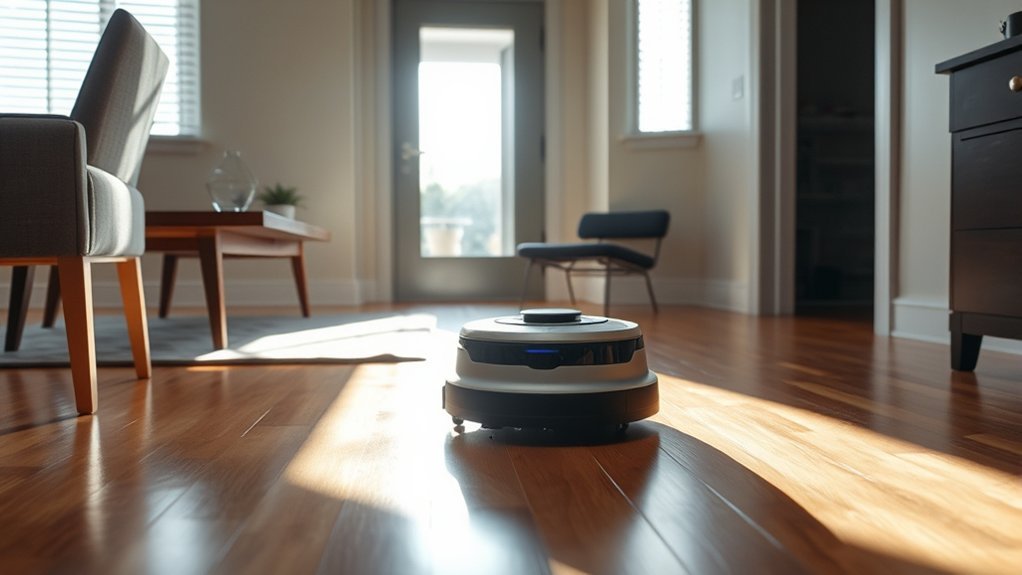
A LiDAR error on a robot vacuum typically indicates a malfunction in the LiDAR system that disrupts navigation and overall performance. The fault may appear as a blockage notice even when the LiDAR sensor is visibly spinning, which means motion alone does not confirm normal operation.
A LiDAR error can halt navigation even when the sensor spins, since rotation alone doesn’t prove proper operation.
In technical terms, the system is failing to read spatial data reliably, so mapping, obstacle detection, and route planning degrade. Common triggers include dust, hair, or other foreign matter on the sensor assembly; consequently, users should clean the sensors on a regular schedule to preserve accuracy.
Some models report different codes, but the underlying condition is similar: the turret must rotate freely and the optical path must remain unobstructed. Persistent errors suggest a deeper hardware issue or calibration failure.
When routine maintenance does not restore function, customer support becomes the practical next step, including evaluation for repair, replacement, or further diagnostics.
Check for LiDAR Blockages
Inspect the LiDAR turret for visible blockages such as dust, hair, or debris, since even minor obstructions can interfere with sensor function. A detached inspection should confirm that LiDAR sensors are unobstructed and free to rotate without resistance.
Manual rotation is useful for identifying foreign objects that may bind the mechanism or distort readings. The surrounding area should also remain clear, because nearby items can prevent accurate environmental detection and degrade navigation.
Any visible contamination on the optical window should be noted as a separate issue, but the immediate focus is blockage removal. After clearing impediments, restarting the robot vacuum provides a functional test of whether the error has been resolved.
This method supports a systematic, liberation-minded approach: removing avoidable constraints restores the vacuum’s performance and allows the machine to operate with greater autonomy, precision, and reliability in ordinary household conditions.
Clean the LiDAR Sensor
Cleaning the LiDAR sensor should begin with removing dust and debris from the optical window using a dry microfiber cloth, since even minor contamination can disrupt navigation and trigger error states. A careful clean of the LiDAR sensor preserves scan fidelity and reduces recurring faults.
| Action | Effect |
|---|---|
| Dry microfiber wipe | Removes surface dust |
| Compressed air burst | Clears fine debris |
| Regular 1–2 week schedule | Limits buildup |
| Visual inspection | Reveals wear or damage |
| Gentle handling | Protects optical integrity |
The optical window should be treated as a precision interface, not a rough-service surface. Hair, residue, and loose particles can attenuate signals and bias mapping. If contamination persists, compressed air may help dislodge material without contact. Maintenance done at short intervals supports autonomous operation and reduces dependence on corrective interventions. Damage or wear on LiDAR components should be noted immediately, because degraded parts can compromise function and require replacement to restore reliable, liberated movement.
Test the LiDAR Turret
After the LiDAR sensor window has been cleared, the next check is the turret itself. The LiDAR turret should be rotated by hand, with attention to smooth motion and any resistance.
Binding, scraping, or intermittent stiffness can indicate dust intrusion, hair wrap, or a mechanical defect that limits sensor freedom. The surrounding recess should be inspected carefully for foreign matter. Fine debris often accumulates at the base and can restrict rotation even when the housing appears intact.
Practical cleaning tips include wiping the turret with a dry cloth and, when particles remain lodged, applying compressed air in short bursts. Excess force should be avoided, since the aim is verification, not correction by pressure.
A properly functioning turret turns evenly and without noise, preserving reliable mapping and autonomous navigation. If movement remains impaired after cleaning, the unit likely needs further diagnosis beyond basic maintenance.
Restart the Robot Vacuum
A full restart can clear transient software faults that trigger LiDAR errors by resetting the vacuum’s control system. To restart the robot vacuum, power it off, wait about 10 seconds, then restore power for a clean boot. This simple reset can resolve common problems, including temporary LiDAR misreads and Error 7 states. After reboot, the sensor should be observed during normal navigation, since persistent faults indicate a deeper cause.
| Action | Expected effect | Decision |
|---|---|---|
| Power off | Stops active faults | Begin reset |
| Wait 10 seconds | Discharges residual state | Prevents carryover |
| Power on | Reinitializes LiDAR logic | Check operation |
Regular restarting can help preserve stable operation after cleaning or obstruction events, supporting a more autonomous and less constrained machine. If repeated restarts fail to restore accurate sensing, additional troubleshooting or professional support becomes necessary.
Try a Software Update
A software update can correct LiDAR-related faults by patching bugs and refining navigation algorithms. Therefore, the manufacturer’s app or website should be checked for model-specific firmware releases.
The robot vacuum should remain connected to Wi‑Fi during installation to guarantee a stable update process. After the update completes, a restart is required for the revised settings and improvements to take effect.
Check App Updates
Checking the robot vacuum’s companion app for software updates can resolve LiDAR-related navigation errors by applying bug fixes, sensor calibration improvements, and general performance enhancements.
To check app updates, the operator should open the app, verify firmware availability, and confirm that Wi‑Fi remains stable during download and installation. Updates often refine LiDAR mapping and may also improve infrared sensors, reducing false obstacle readings and path drift.
Automatic update options, when enabled, lessen dependence on manual checks and support consistent device autonomy. Release notes merit close review because they identify corrected faults and newly added functions.
This disciplined maintenance practice preserves navigation accuracy, limits error recurrence, and strengthens the vacuum’s capacity to operate with greater independence and reliability.
Restart After Updating
Restarting the robot vacuum after a software update is essential because it allows new firmware features, bug fixes, and navigation improvements to initialize fully within the control system.
In Robot Vacuums, this reboot can resolve LiDAR-related issues by loading revised sensor routines and map-processing logic that may correct blockage detection or positioning faults.
The manufacturer’s app should be checked regularly for the latest firmware, since updates often target reliability and navigation accuracy. Frequent updates can improve efficiency and reduce recurring errors, giving the machine more dependable autonomy.
If LiDAR errors continue after the update and restart, additional troubleshooting is warranted, including sensor inspection or support contact.
This sequence restores control, limits dependence on guesswork, and preserves operational freedom.
Move Away Reflective Surfaces
Reflective surfaces should be minimized because mirrors, polished walls, and shiny floors can distort LiDAR returns and trigger navigation faults such as Error 7. These reflective surfaces can also produce false distance measurements, which may provoke erratic route planning and repeated localization loss.
In practice, the robot vacuum should be placed in areas with matte finishes, rugs, or carpets that absorb scan energy more consistently. During mapping, highly reflective walls or objects should be moved out of the operating zone, especially near corners and open corridors where LiDAR Error is more likely to surface.
A regular layout review helps preserve stable perception and prevents the machine from being trapped by misleading geometry. For users seeking liberated, reliable automation, reducing optical interference is a practical environmental correction: it broadens the robot’s usable space without changing the device itself, and it improves scanning fidelity.
Inspect LiDAR Parts for Damage
A careful inspection of the LiDAR assembly should begin with the turret drive mechanism, including the rubber band linked to the motor, since wear, slippage, or detachment can disrupt rotation and degrade scan accuracy.
The LiDAR sensor housing should then be examined for cracks, dents, or deformation that could compromise alignment and motion. Internal connections must appear secure and intact; any loosened cable or connector can interrupt power or data flow and produce erratic mapping.
The optical window should be verified as clear, because dust, hair, and debris can obstruct measurements and increase error. Practical cleaning tips include using a dry, nonabrasive method and removing loose particles without forcing residue into the mechanism.
Visible damage or contamination indicates a mechanical fault, not a calibration issue, and should be treated accordingly. Regular inspection preserves functional autonomy by keeping the sensor responsive, precise, and free from preventable obstruction.
When to Contact Support
Persistent LiDAR errors after repeated cleaning and obstruction checks indicate a fault that warrants support contact.
If navigation and cleaning performance remain degraded, the issue may reflect a hardware failure requiring repair or replacement, especially under warranty.
Because support responses can be delayed, opening a ticket or calling directly with documented error details and prior troubleshooting steps can improve resolution speed.
Persistent LiDAR Errors
When LiDAR blockage notifications continue after thorough cleaning, manual sensor rotation, and standard troubleshooting, the fault is likely beyond a user-serviceable obstruction.
Persistent LiDAR errors commonly indicate internal misalignment, worn bearings, or sensor damage that cleaning tips cannot resolve. At this stage, further disassembly usually adds risk rather than relief.
A support request becomes appropriate when repeated alerts persist after verified maintenance and inspection. Detailed records improve diagnosis: note each error instance, the actions taken, and any change in symptom frequency.
Such documentation allows technicians to distinguish contamination from mechanical failure. For users seeking practical autonomy, timely escalation is the cleanest path to restoring navigation accuracy and preventing unnecessary downtime.
No Response From Support
If no reply has arrived from customer support after 96 hours, escalation is warranted, either through a follow-up message or by switching to phone support for faster resolution.
A no response from support condition should be treated as a process delay, not proof of failure, because response times vary widely.
The user should document all troubleshooting steps, including reset attempts, sensor cleaning, mapping resets, and any error codes, before reopening the case.
Precise records improve triage and reduce repetition. Include the model number, purchase date, and prior communications in a single concise summary.
This disciplined method preserves autonomy, limits dependence on opaque back-and-forth, and increases the probability of timely action.
Persistent, well-structured contact often produces faster outcomes than passive waiting.
Replacement Or Repair Help
Once cleaning and standard troubleshooting fail to clear a LiDAR error, contacting support becomes the appropriate next step for evaluating repair or replacement options.
The user should record the exact error code, observed symptoms, and every troubleshooting action already performed. This documentation helps support assess whether the failure is firmware, sensor, or mechanical.
Warranty terms should be checked before any disassembly, because unauthorized access or damaged components can void coverage and reduce replacement eligibility.
Many manufacturers provide repair paths, but some authorize full replacement when the unit remains under warranty.
Phone contact often produces faster triage than email or ticket systems, although response quality varies.
A direct, documented support request preserves leverage, shortens resolution time, and advances the path to restoration.
Frequently Asked Questions
How to Fix Lidar Sensor Error on Roborock?
He would clean the LiDAR turret, remove dust or hair, manually test for resistance, then apply sensor calibration and troubleshooting techniques. If the fault remains, he would restart, factory reset, and inspect for wear.
My Shark Robot Vacuum Is Displaying an Error Code “Lidar Error”. What Does This Mean and How Can I Fix It?
It indicates a LiDAR technology fault, usually due to obstruction or turret resistance. Proper sensor maintenance—cleaning dust and hair, restarting, and checking movement—often resolves it. Persistent failures suggest support intervention or repair.
How Do You Clean the Lidar Sensor?
Power off and unplug it, then use a dry microfiber cloth for sensor maintenance, and compressed air for cleaning techniques; avoid chemicals, inspect weekly, restart afterward to confirm accurate LiDAR operation and error clearance.
What Are the Most Common Problems With Robot Vacuums?
Common complaints cluster around clogged sensors, connectivity conflicts, declining battery life, reduced suction power, poor mapping accuracy, and weak obstacle detection. These technical failures limit autonomous cleaning, while firmware faults further degrade performance and user independence.
Conclusion
In closing, a robot vacuum’s LiDAR error often signals a small obstruction, a hesitant turret, or software that needs a steadier hand. Simple cleaning, a restart, and updated firmware usually restore its sensing horizon. If the fault lingers, hidden wear in the sensor assembly or its connections may be quietly eroding performance. At that point, support becomes the safer path, allowing the machine’s navigational eye to be examined without unnecessary disturbance.