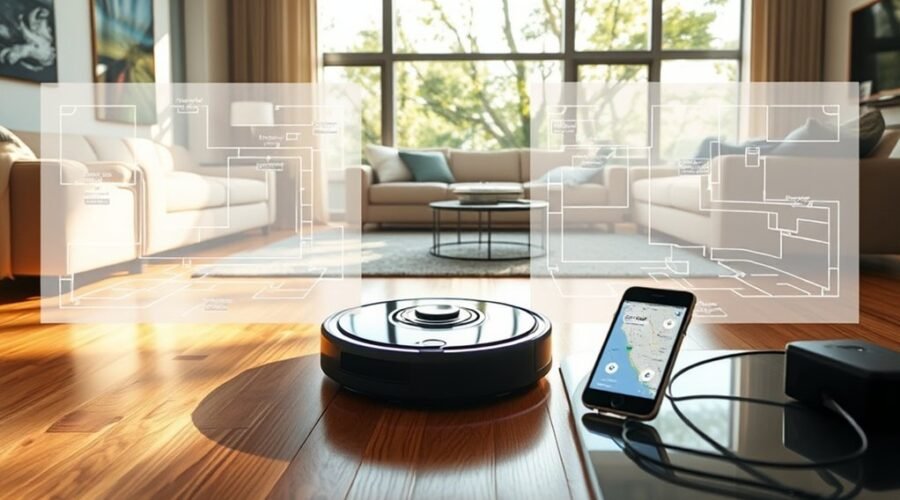
When a robot vacuum creates a new map, the original layout may still be recoverable if action is taken quickly. The first step is to return the unit to its dock and inspect the app for saved map versions. Dock alignment, dirty sensors, or an interrupted cycle often explain the reset. If recovery fails, a controlled remap may be required, but the key checks are more specific than they first appear.
Restore the Previous Map
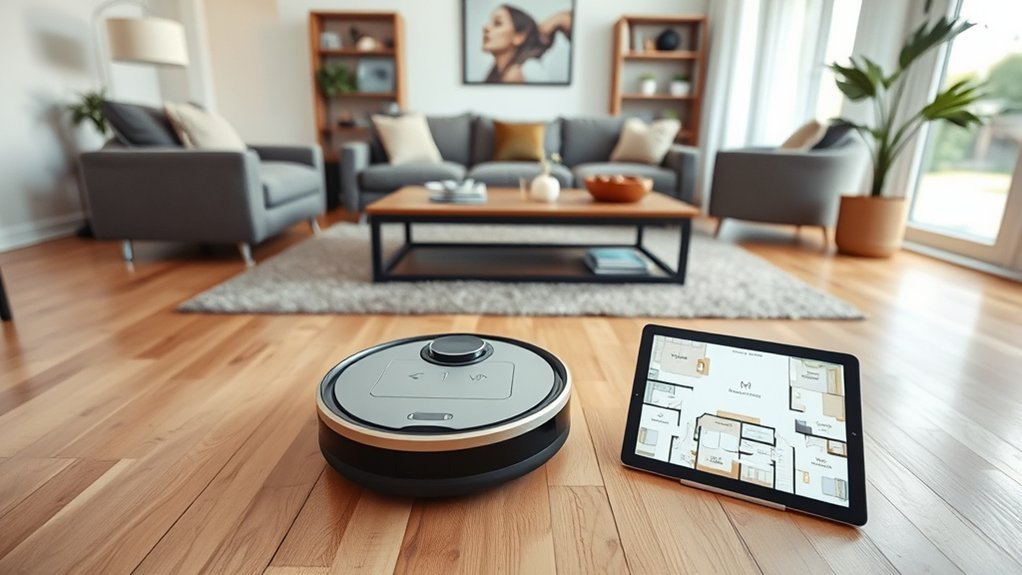
To restore a previous map, the user should first open the robot vacuum app and navigate to the Map Management feature, where saved maps are typically listed for selection.
From there, the user can review available map versions and restore the earlier one if the current layout is inaccurate. Most robot vacuum models preserve two maps, giving a practical reserve when spatial control is needed.
Most robot vacuum models preserve two maps, giving a practical reserve when spatial control is needed.
If the robot has lost its map entirely, returning it to the charging dock can prompt immediate recovery of the prior map on supported systems.
For reliable autonomy, the space should be mapped twice so a backup map exists before disruption occurs.
Model specifications should be checked regularly, since map retention limits and Map Management options vary.
This disciplined procedure reduces dependence on a single map and supports a more liberated cleaning routine.
Why Your Robot Created a New Map
A robot vacuum may generate a new map when the original mapping process is disrupted during cleaning, particularly if the environment changes or sensor data becomes inconsistent.
If the unit is lifted, moved, or otherwise interrupted, it may save its layout under a new position instead of restoring the prior map.
In such cases, the stored map no longer matches the current navigation reference, prompting a fresh map creation.
Map Disrupted During Cleaning
When a robot vacuum is moved, lifted, or otherwise interrupted during an active cleaning cycle, its mapping sequence can break and trigger the creation of a new map.
The device depends on uninterrupted motion to preserve map data and maintain spatial continuity. If it is displaced, encounters blocking obstacles, or is carried away from the floor, it may lose its return path to the dock and fail to save the existing map.
Such disruption can produce warped or overlapping maps, especially when navigation is also affected by reflective surfaces or poor dock placement.
Stable operation preserves mapping integrity and supports reliable autonomy.
For recovery, the robot should be returned to its charging dock after a failed positioning attempt, allowing the original map to be reestablished.
Map Saved Under New Position
A robot vacuum may save a new map after it detects significant movement or a changed environment that prevents recognition of the previously stored layout. In practice, a map saved under new position often indicates that the unit has been relocated, or its dock has shifted, forcing recalibration. The device then builds a temporary map from sensor data and may store it as a separate record if the prior layout cannot be matched.
- Relocation triggers fresh navigation calibration.
- Disturbance during mapping can create overlapping layouts.
- Failed recovery may replace the old map.
For autonomous operation, the system requires stability during cleaning and mapping. When the environment remains fixed, the vacuum can preserve the saved map and avoid unnecessary remapping, supporting user control and operational freedom.
Return the Robot to the Dock
After a failed positioning attempt, the robot vacuum should be returned directly to its charging dock using the standard dock return method.
Docking can trigger restoration from the previously saved map, provided the unit is placed correctly and allowed to complete its cycle.
Once seated on the dock, the system should re-establish positioning before the next cleaning task begins.
Dock Return Method
Returning the robot vacuum to its charging dock is the primary recovery step after a failed cleaning attempt or positioning failure. In the dock return method, the robot vacuum should be sent back immediately after any disruption, allowing the smart home system to preserve the saved map state.
- Let the cleaning cycle finish before relocation.
- Place the unit on the dock without delay after failure.
- Maintain a fixed dock position for reliable map retention.
This controlled return procedure reduces map loss and supports restoration accuracy. Consistent placement at the charging base gives the robot a stable reference, improving recovery outcomes and preserving operational continuity.
For users seeking autonomy, disciplined dock return is a simple, systematic action that protects navigation data and keeps the cleaning system ready for the next task.
Restore From Dock
Restoring a previous map typically requires the robot vacuum to be returned to its charging dock immediately after a failed positioning attempt. The unit should be physically seated in the Charging Dock to initiate map recovery, since the dock provides the reference state used for restoration.
The dock must remain in an unobstructed area so the robot can approach it without interference, preserving operational autonomy. Any lifting of the robot during cleaning can disrupt internal navigation and reduce recovery reliability, so interruptions should be avoided.
The Charging Dock itself should be inspected regularly for correct placement, stable power, and clear access. When these conditions are met, the saved map has a higher probability of being recovered efficiently, allowing the system to resume orderly navigation with minimal constraint.
Positioning After Docking
Once the charging dock has been used to reestablish the robot’s reference position, the unit should remain or be placed back on the dock after any failed positioning attempt to support map recovery. This action initiates restoration of the last saved map and improves positional accuracy for subsequent cleaning cycles.
The robot should not be lifted during operation, because disturbance can disrupt navigation and compromise saved data.
- Place the robot on the dock after failure.
- Keep the dock unobstructed and correctly aligned.
- Let the robot complete recovery before resuming cleaning.
Consistent docking preserves map integrity, reduces positional error, and helps the system recover cleanly. For users seeking control, this procedure keeps the machine oriented, stable, and ready for autonomous work.
Check the Dock and Sensors
The dock and sensors should be verified first, since even minor placement or contamination issues can disrupt mapping. The dock should sit flush against a straight wall, with at least 20 inches of clearance on each side and 40 inches in front, so the robot can dock and undock without confusion.
The dock and sensors should be verified first, since even minor placement or contamination issues can disrupt mapping.
If the dock is skewed, maps can appear distorted and navigation may weaken. The sensors should then be inspected for dust, smudges, or debris, because contamination can degrade detection and route calculation. Clean sensors regularly to preserve accurate perception.
A tidy environment also supports recovery: remove obstacles and clear high-traffic paths so movement remains unobstructed. If the robot is getting stuck or misreading surroundings, the dock, sensors, and nearby space should be reviewed together.
Proper alignment and cleanliness restore operational clarity, allowing the machine to navigate with greater autonomy and less interference.
Remap the Home Correctly
After the dock and sensors are verified, the next step is to remap the home from a controlled starting point. The robot vacuum should begin at the dock or other instructed launch point so the current map has a stable baseline.
All doors should be opened, and loose wires, clothing, or similar obstacles removed to preserve mapping accuracy. The app instructions should be followed exactly when starting the scan, because the sequence determines whether the current map captures every accessible zone.
- Start from the dock to anchor the route.
- Clear rooms to prevent false boundaries.
- Keep the robot stationary during mapping.
Any physical relocation during the run can interrupt path continuity, producing overlap or missing sections.
Once mapping completes, the generated current map should be reviewed in the app and edited where needed to align room outlines and cleaning zones. This disciplined process restores navigational freedom and supports efficient, accurate autonomous cleaning.
Back Up the Map
To preserve the recovered layout, the map should be manually saved in the app after all edits are complete and the map is locked. This step enables users to back up the map with controlled precision, securing a stable reference for the cleaning process. Locked maps remain protected from accidental overwriting during later sessions, which supports operational independence and consistent navigation. Cloud backup should then be enabled in the app so the stored map can be restored without delay if needed.
| Action | Purpose |
|---|---|
| Save and lock map | Prevent overwrite |
| Enable cloud backup | Store map securely |
| Confirm app instructions | Preserve accuracy |
Regular backups maintain map integrity and reduce drift caused by changes in room layout, furniture, or reflective items. The backup procedure should follow the app’s documented sequence exactly, ensuring the recovered environment remains available for future autonomous operation.
When You Can’t Recover the Map
Despite careful saving and cloud backup, some map losses cannot be reversed. If a robot vacuum creates a new map, the prior layout may be overwritten, and restoration ends unless a backup existed before remapping. In such cases, liberation comes from accepting the constraint and rebuilding a cleaner record.
- Verify whether the model supports map recovery; incompatible units cannot restore deleted layouts.
- If loss followed a failed positioning event, return the robot to its charging dock; recovery may still occur.
- Do not move the robot during cleaning, because displacement can disrupt localization and trigger a new map.
Regular app backups remain the primary safeguard. When restoration is impossible, the operator should delete obsolete data, rerun mapping, and remove reflective obstacles such as Floor-to-Ceiling Mirrors that can distort navigation.
This systematic reset protects future autonomy and reduces repeated failure.
Frequently Asked Questions
How to Restore Roomba Map?
They restore a Roomba map through the iRobot Home App’s Map Management, selecting a saved map. Then dock the robot, verify Mapping Accuracy, and remap if needed, because some models preserve only two maps.
How to Restore a Map?
Restoring a map requires opening the app’s Map Management, selecting saved maps, and choosing backup restoration; like a key turning a lock, this preserves Map Accuracy. Returning the robot to its dock aids recovery and continuity.
How Do I Get My Roomba to Make a New Map?
To make a new map, the Roomba should be fully charged, placed in the target area, and started through the iRobot Home App. Clear obstacles, open doors, and guarantee Mapping Accuracy during the full cleaning cycle.
How Do I Delete a Map on a Robot Vacuum?
They should open Map Management in the app, select the saved map, choose delete or the trash icon, then confirm. If supported, they should back up needed maps first; some models allow device-side deletion.
Conclusion
In practice, map recovery succeeds fastest when the robot is returned to its dock immediately, saved maps are verified in the app, and the dock and sensors are cleaned before any new run. For example, if a vacuum finishes a partial clean and then creates a fresh map after being lifted, restoring the prior layout usually prevents room loss. If recovery fails, a controlled remap and regular backups provide the most reliable path forward.