A robot vacuum that keeps cleaning the same area usually signals a navigation fault rather than normal behavior. Low battery, clogged brushes, dirty sensors, outdated firmware, or reflective flooring can all disrupt mapping and movement. In some cases, the machine is working from a damaged map or a blocked path it cannot interpret correctly. The fix may be simple, but the cause is not always obvious.
Why Your Robot Vacuum Repeats the Same Area
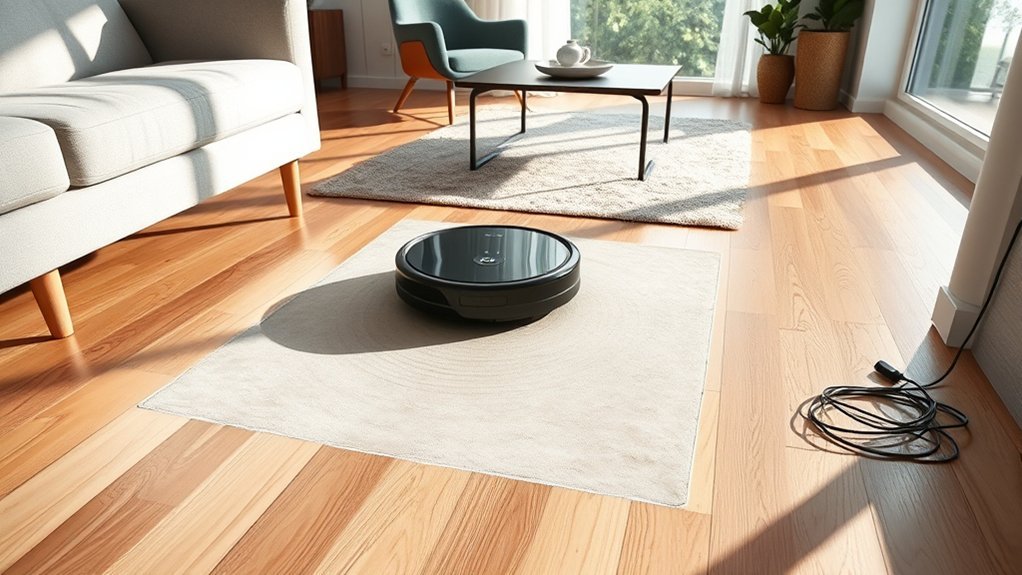
A robot vacuum may repeatedly clean the same area when dirty sensors misread its surroundings, causing navigation errors and inaccurate path tracking. In many cases, the robot vacuum loses orientation because sensors are obstructed, so cleaning cycles become circular instead of efficient.
Outdated firmware can worsen the issue by weakening mapping logic and memory of covered zones. Environmental factors also matter: reflective floors, mirrors, and tight spaces can distort sensor data and push the unit back over the same section.
When the device believes an area is still unfinished, it may keep returning there, limiting practical freedom from manual intervention. Routine maintenance reduces this pattern.
Keeping sensors clear, updating firmware and app software, and preserving open pathways help the robot vacuum distinguish completed areas from active ones. That discipline restores reliable navigation, reduces wasted cleaning time, and supports smoother autonomous operation.
Check Battery, Dustbin, and Brushes
Beyond navigation and mapping faults, repeated cleaning can also stem from basic maintenance problems. A weak battery can force an early dock return, leaving an area only partly covered; the next cycle may revisit it. The dustbin should be checked after each run, because a full bin can interrupt cleaning and reduce efficiency. Brushes also deserve inspection: tangled hair and debris can block rotation, causing missed sections and extra passes. Filter clogging can further cut airflow and degrade performance.
| Check | Effect |
|---|---|
| battery level | Prevents premature dock return |
| dustbin and brushes | Maintains steady cleaning coverage |
| filters and sensors | Supports efficient movement |
A disciplined routine restores control. Empty the dustbin, clear the brushes, and confirm the battery holds a full charge. If the vacuum still circles back, inspect the rest of the path system. Clean components keep the machine moving with purpose, not repetition, and preserve autonomy in the home.
Clean Sensors and Bumper Contacts
Cliff sensors should be wiped with a soft, dry cloth to remove dust or grime that can disrupt navigation.
The front bumper contacts should also be inspected and cleaned regularly to prevent false obstacle readings.
These checks help reduce repeated cleaning and improve overall vacuum efficiency.
Clean Cliff Sensors
Dirty cliff sensors can cause a robot vacuum to misread floor edges, stop unexpectedly, or repeatedly retrace the same area, so routine cleaning is important for stable navigation.
These cliff sensors sit on the underside and should be checked regularly as part of the cleaning process. Dust or debris can trigger false drop-off readings, which interrupts the cleaning path and reduces the robot vacuum’s ability to maintain efficiency.
A soft, dry cloth or gentle brush is usually sufficient; avoid liquids and abrasives that could damage the surface. Many models issue app alerts or indicators when sensor errors appear, making maintenance easier to manage.
Clean sensors restore accurate edge detection, prevent unnecessary backtracking, and support consistent coverage without wasted motion or avoidable stops.
Inspect Front Bumper
Inspect the front bumper for foreign objects, sticky residue, or other obstructions that could limit movement or interfere with obstacle detection. A careful inspect of the front bumper helps preserve navigation accuracy and prevents the robot from treating open floor as obstacles. Dust on sensors or worn bumper contacts can distort distance readings, causing repetitive cleaning in one zone.
| Check | Action |
|---|---|
| Bumper movement | Remove debris and test free travel |
| Sensors | Wipe clean with a dry cloth |
| Contacts | Clear dust and residue gently |
| Path behavior | Verify normal navigation after cleaning |
Regular cleaning supports reliable obstacle detection and reduces false triggers. When the front bumper remains clean and responsive, the robot follows a freer, more efficient path instead of circling the same area.
Rebuild Maps and Adjust Navigation Settings
Rebuilding the robot vacuum’s map can help it recognize areas already cleaned and reduce repeated passes, improving overall efficiency.
When users rebuild maps, the machine can better align its route logic with the home’s current layout, which supports cleaning efficiency and reduces wasted motion.
Adjusting navigation settings in the app allows finer control over path planning, edge handling, and room coverage.
Adjusting navigation settings in the app gives finer control over path planning, edge handling, and room coverage.
If furniture has moved or new obstacles have appeared, regular remapping may restore reliable operation.
Clean sensors are essential; dirty or misaligned sensors can distort map data and trigger loops.
Virtual barriers or no-go zones can further prevent the robot from revisiting specific spaces unnecessarily, giving occupants more control over where work is done.
These steps do not require surrendering time to repetitive cleaning patterns. Instead, they restore autonomy to the device and keep it focused on intended areas.
Clear Obstacles From Problem Rooms
A clear floor layout helps a robot vacuum move without repeated interruptions or backtracking. In problem rooms, the cleaning environment should be inspected for loose cables, small toys, socks, clothing, and cords that become obstacles. These items can trap the robot vacuum, force it to circle, or make it revisit the same spot.
Decorative pieces and plant pots should also be removed or placed securely so the path remains open. A decluttered room gives the machine fewer decisions to make and supports efficient navigation.
When certain sections must stay off-limits, Tapo Magnetic Tape can define invisible walls and reduce unnecessary reentry into trouble zones. Routine floor checks help keep the layout consistent, which prevents confusion from newly left items.
The result is steadier movement, fewer stalls, and less wasted cleaning time.
Update Firmware and the App
After the floor layout is cleared, software maintenance should be checked as well.
To reduce repeated cleaning, users should update firmware in the Tapo app under Robot Vacuum Settings and confirm that the robot has the latest improvements. Firmware updates often correct navigation issues, refine path planning, and close bugs that can cause the unit to pass over the same area again.
Update firmware in the Tapo app to fix navigation issues and reduce repeated cleaning.
The Tapo app should also be kept current through the Play Store or App Store, since an outdated app version can create integration conflicts and limit feature access.
After updating, a manual firmware refresh may help guarantee the changes are applied to the vacuum’s control system. If uncertainty remains, the product support page can provide model-specific instructions and release notes.
Keeping both app and firmware current supports stable operation, cleaner coverage, and greater freedom from avoidable repetition.
Reset the Robot Vacuum and Retest
A reset of the robot vacuum can clear navigation map errors and reboot the system for a clean retest.
After reconnecting the device in the app, a new cleaning route should be created and a test cycle run to verify whether the same area is still being revisited.
Any persistent pattern during the retest should be recorded for further troubleshooting.
Reset Navigation Map
Resetting the navigation map can help the robot vacuum recalibrate its sensors and improve its ability to recognize the room layout, reducing repeated cleaning in the same areas.
The resetting process should follow the model-specific user manual, since navigation map controls differ by brand. After the map is cleared, a test run in a familiar room can reveal whether routing has improved.
During retesting, the cleaning zone should remain free of obstacles and clutter so the machine can move without interference.
If repeated coverage persists, frequent resets may be needed, suggesting mapping errors or sensor misalignment.
This approach gives the robot a cleaner path and the user more control over its movement, helping to free the vacuum from circular, inefficient cleaning patterns and restore efficient coverage.
Reboot And Retest
Power cycling the robot vacuum can clear temporary navigation faults and prompt the sensors and mapping system to recalibrate. The unit should be turned off, removed from the dock, and reset with the reset button or by holding the power button for 10–15 seconds until it restarts.
After resetting, the device should be allowed to settle so its sensors can recalibrate and reduce navigation issues that make it revisit the same zone. The cleaning area should be kept free of obstacles before the next run.
During the first post-reset cycle, the vacuum should be monitored for repeated stuck points or looping paths. If the fault returns, app checks and firmware updates may be needed, since outdated software can still drive navigation errors and limit autonomous freedom.
Recreate Cleaning Route
If a reboot does not stop the vacuum from repeating the same route, a factory reset can clear persistent mapping errors and allow the unit to build a new cleaning path.
To recreate the cleaning route, the unit should be reset, then fully charged and set in a clear area. The app can then be used to remap the space so the vacuum scans fresh boundaries and stores an updated route.
A second test in another room helps determine whether the fault follows the map or stems from an environmental problem.
Before retesting, clean the sensors and wheels to remove debris that may distort navigation.
This process restores control, reduces guesswork, and lets the system operate with a cleaner, freer path.
Prevent Repeated Cleaning With Regular Maintenance
Regular maintenance helps prevent a robot vacuum from cleaning the same area repeatedly. A disciplined service routine reduces navigation errors, preserves sensor accuracy, and keeps the system free to move through a clutter-free environment.
- Clean and untangle brushes after each run. Hair and debris create drag, trap wheels, and force reroutes that repeat coverage.
- Wipe cliff and recharge sensors with a dry cloth. Dust can distort readings, causing false obstacles and unnecessary passes.
- Empty the dustbin and inspect the filter. Restricted airflow lowers suction, increases stalling, and can make the robot revisit the same zone.
- Update firmware in the app and clear loose cables, toys, and small objects. Software fixes improve path planning, while an open floor gives the robot vacuum room to navigate without confusion.
Consistent upkeep is a practical route to reliable coverage and less wasted motion.
Frequently Asked Questions
Why Does My Robot Vacuum Keep Cleaning the Same Area?
It usually stems from robot sensors, navigation issues, or weak obstacle detection. Different floor types and selected cleaning modes can also confuse mapping. Regular maintenance tips include cleaning sensors, clearing debris, updating firmware, and checking the dustbin.
Why Is My Roomba Repeatedly Mapping the Same Area?
Mapping errors usually stem from sensor issues, software glitches, boundary problems, or dirt detection confusion. The device then repeats cleaning patterns. He should clear sensors, update firmware, remove obstacles, and check lighting, rugs, and Wi-Fi stability.
What Are the Most Common Problems With Robot Vacuums?
Most common problems are weak suction power, short battery life, navigation issues, poor app connectivity, neglected brush maintenance, and faulty dirt detection; each limits autonomous cleaning, traps the machine, and leaves users dependent on repetitive intervention.
Why Does My Roomba Keep Cleaning the Same Room?
It keeps returning because sensor issues, dirt detection errors, or an incomplete room layout confuse navigation. Outdated software updates can worsen mapping. Clearing obstacles, adding boundary markers, and reviewing cleaning schedules usually restore autonomous coverage.
Conclusion
In conclusion, a robot vacuum that cleans the same area repeatedly usually has a fixable navigation issue rather than a major failure. Sensor cleaning, brush inspection, map rebuilding, and firmware updates address most cases. One useful benchmark: many users resolve repeated-path problems after completing just one full maintenance cycle. Keeping floors clear and performing regular upkeep helps the robot track space more accurately, improve coverage, and avoid unnecessary retracing over time.