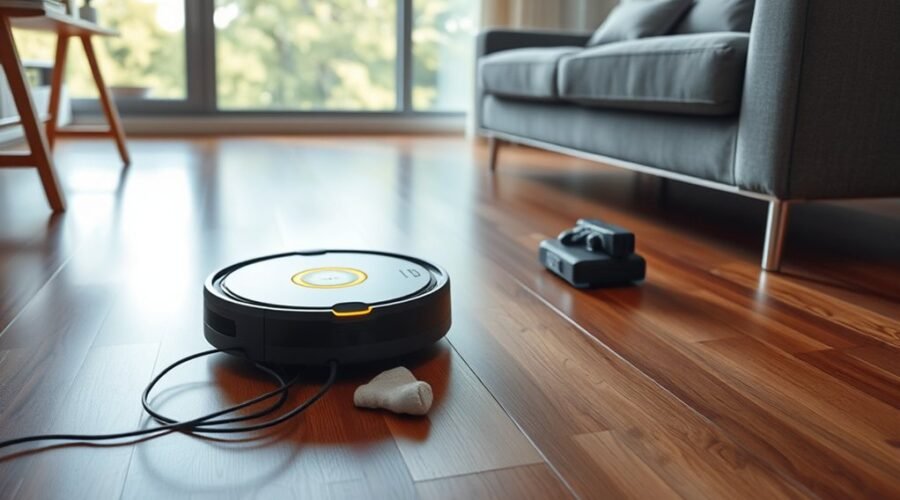
When a robot vacuum heads back to the dock too soon, the cause is often mechanical, electrical, or software-related. Dirty sensors, weak battery performance, or poor dock placement can all trigger early returns. Map errors and firmware glitches can also confuse navigation. A few targeted checks can narrow the fault quickly, but the most useful fix is not always the obvious one.
Why Your Robot Vacuum Returns to the Dock Too Early
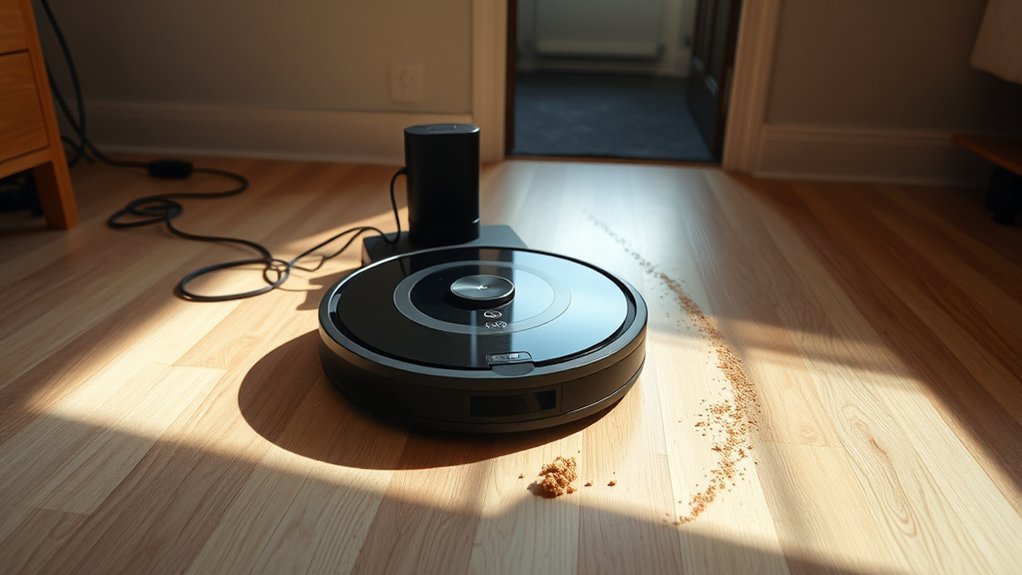
A robot vacuum may return to its dock too early when its battery management system detects a low charge, sometimes near 60%, and initiates recharging before cleaning is complete. This can appear as a robot vacuum not returning to duty, when the real cause is a conservative power threshold rather than failure.
Environmental shifts also matter: moved furniture, relocated docks, or poor dock placement can disrupt navigation and make the unit believe the route is finished. Inadequate dock clearance further weakens alignment, especially when the robot cannot approach squarely.
Moved furniture or poor dock placement can confuse navigation and make a robot vacuum think the route is already complete.
Corrupted maps or software logic errors may trigger premature docking behavior as well. Dirty or obstructed IR sensors can misread position and status, causing early retreat. If the dock or vacuum charging contacts are not recognized correctly, the machine may stop and recharge instead of continuing.
Accurate placement, stable maps, and clear approach space preserve operational freedom.
Clean the Dock Sensors and Charging Contacts
Dirty sensors and charging contacts can make a robot vacuum stop short or misread its dock, so inspection should begin there.
Dust, film, or oxidation on dock sensors can account for a large share of docking failures, blocking accurate base detection. For cleaning, a microfiber cloth should be used on the infrared sensors on both the dock and the robot, with light pressure and no liquid residue.
Charging contacts on both units should then be wiped with isopropyl alcohol and a cotton swab to remove dirt and corrosion that disrupt alignment. This simple maintenance preserves a solid electrical connection and reduces contact-related docking errors.
Each set of contacts and dock sensors should be checked at least once a month, or sooner if returns to the dock recur. Consistent cleaning supports dependable operation and keeps the machine free to complete its path without premature retreat.
Check the Battery and Charging Performance
Battery condition should be verified next, since a fully charged pack is necessary for the robot vacuum to complete its cleaning cycle without an early return to the dock.
The battery runs should be observed for signs of rapid drain, weak retention, or shortened runtime. If the unit leaves service too soon, it may lack the energy needed to finish a full cleaning cycle and will seek the charging dock early.
Test the pack after a complete charge and compare the runtime with the manufacturer’s expectation. Clean charging contacts on both the robot and the charging dock, because residue can limit current flow and reduce charge quality.
If performance remains poor, the battery may be degraded and require replacement. A vacuum that repeatedly returns near 60% may be misreading capacity, indicating a calibration fault in battery settings.
In such cases, a full recalibration or reset may restore accurate power reporting and reliable dock return behavior.
Fix Map, App, and Firmware Glitches
Map and app glitches should be checked next, since corrupted navigation data can prevent a robot vacuum from finding its dock reliably.
To fix a Robot Vacuum, the user should first delete the corrupted map in the app and remap the home, allowing fresh navigation data to load.
Next, check for firmware updates on both the robot and dock, because outdated software can cause inconsistent docking behavior.
App updates should also be installed promptly, as vendors often patch docking bugs and navigation errors.
If the app shows error messages, they should be reviewed for mapping or localization faults.
When misbehavior continues after updates and remapping, a factory reset may be warranted to clear persistent software faults and restore factory settings.
Each step should be completed methodically, with one change at a time, so the source of the problem remains visible and the system can return to dependable, user-controlled operation.
Move the Dock for Better Navigation
The docking station should be placed on a hard, level surface with clear space around it, including at least 1.5 meters on each side and about 3 feet in front, so the robot can approach and align without navigation interference.
A dock moved from corners or narrow passages often restores reliable returning to base by removing route ambiguity and improving signal acquisition.
- Maintain open access to the dock.
- Remove cables, chairs, and loose items.
- Check for walls, cabinets, or tight recesses.
- Relocate the dock if failures persist.
A more open layout supports the robot’s navigation sensors and reduces the chance of early returns caused by misalignment.
After the dock moved, observe whether the vacuum approaches the station more directly and docks with fewer retries. Improved success usually indicates the surrounding area now provides the clear space needed for accurate pathing and a cleaner final approach.
Reset the Vacuum or Contact Support
If docking failures continue after layout adjustments, a factory reset may restore default settings and clear software glitches that interfere with return-to-base behavior.
The user should locate the reset button or app command and perform a Factory Reset only after confirming the firmware version is current. Updating software in the app can remove known bugs and improve docking logic, reducing the need for deeper intervention.
Confirm the firmware is current first; app updates can fix bugs and improve docking logic.
After the reset, the vacuum should be tested through a full cleaning cycle to verify whether early returns stop. If the problem persists, contacting customer support becomes the next practical step.
Support can provide model-specific diagnostics, confirm whether error codes indicate a hardware fault, and advise on calibration or warranty coverage.
Any unusual behavior, beeps, or messages should be documented before contact, because precise records accelerate diagnosis and preserve the user’s freedom from repeated guesswork.
Frequently Asked Questions
Why Does My Roomba Keep Returning to the Dock?
It usually returns early because of roomba battery issues, docking station placement, or navigation obstacles. He should verify sensor cleanliness, clear the dock area, reset maps, and inspect battery health to restore autonomous cleaning.
My Robot Vacuum Isn’t Returning to the Dock. What Can I Do to Fix This?
Check the dock placement, clear cleaning obstacles, clean sensors, verify battery issues, and install software updates. If docking still fails, reset the system and remap the area. This usually restores reliable return-to-dock behavior.
Why Does My Shark Robot Vacuum Keep Returning to the Dock?
Because the machine has lost its way, it may dock early due to battery issues, sensor problems, or navigation errors. A clear dock area, cleaned IR sensors, and updated software usually restore proper cleaning freedom.
What Are the Most Common Problems With Robot Vacuums?
The most common problems are battery issues, sensor malfunctions, and navigation errors. Dirty sensors, blocked docks, poor clearance, corrupted mapping, weak infrared emitters, and dirty charging contacts often cause premature returns, failed docking, or erratic cleaning behavior.
Conclusion
In practice, premature dock returns are often traceable to a small set of faults: dirty dock sensors, weakened batteries, unstable maps, or firmware conflicts. One useful statistic to note is that many navigation complaints are resolved after a simple sensor and contact cleaning, underscoring how often maintenance outperforms replacement. When basic checks fail, remapping, updating software, and repositioning the dock typically restore normal cleaning cycles. If problems persist, a factory reset or support review is the next step.