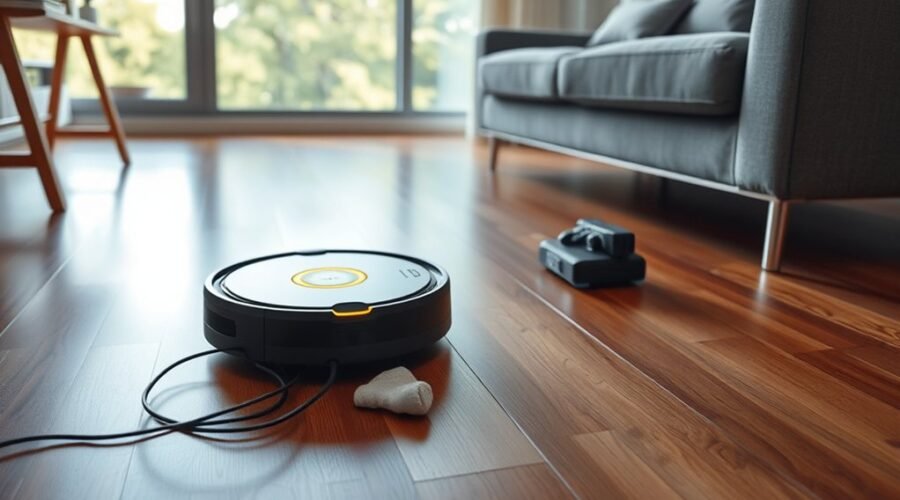
If your robot vacuum returns to dock too early, it may be pausing rather than ending its cleaning cycle. Some robots return midway to recharge, empty dust, or wash their mop pads. However, repeated short runs, skipped rooms, or a job marked complete too soon can indicate a battery, sensor, or navigation problem.
Quick Answer
Check your robot vacuum’s cleaning status and battery level first. If it is recharging or performing dock maintenance, the return may be normal. If cleaning ends with rooms unfinished, check the selected cleaning area, map, and restricted zones. Then clean the sensors and contacts, test battery performance, and inspect dock placement.
Why Your Robot Vacuum Returns to the Dock Too Early
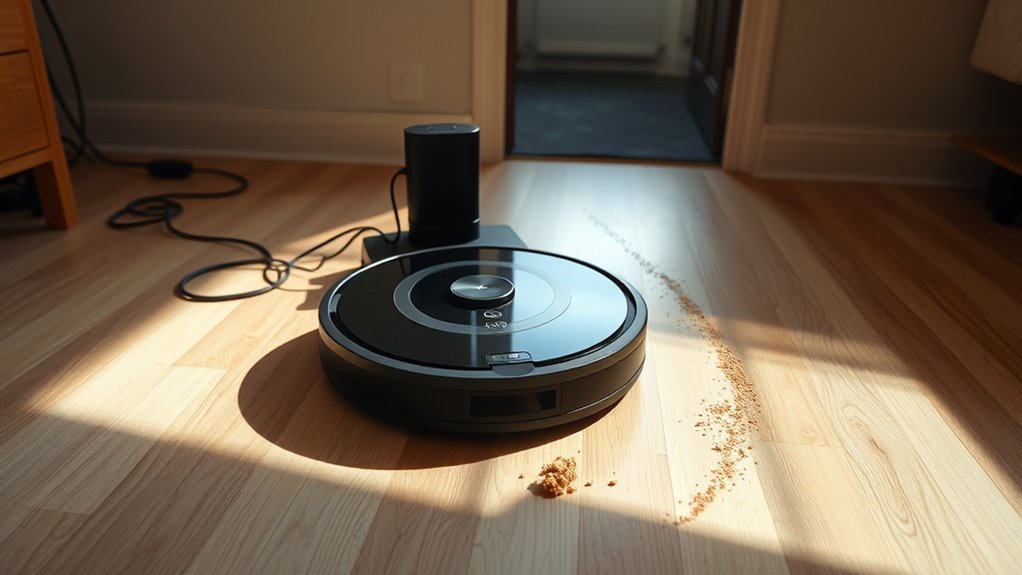
A robot vacuum can return to its dock before finishing because it needs power, has completed its assigned area, or requires dock maintenance. Navigation errors, restricted cleaning zones, and software problems can also make a job end unexpectedly.
The first step is to determine why the robot thinks it should return. A normal recharge pause needs a different fix from a cleaning job that ends after only a few minutes.
Check Whether the Return Is Normal
Open the robot’s app and examine its current status or cleaning history. Look for the following signs:
- Recharging: The battery is low, and the robot may continue cleaning after charging.
- Cleaning completed: The robot believes it has finished the selected rooms or areas.
- Dock maintenance: The station may be emptying dust, washing mop pads, or refilling water.
- Error or interrupted job: The robot may have encountered a navigation, sensor, or mechanical problem.
For example, one documented S1 Pro model returns when its battery reaches 10%. With Resume Cleaning enabled, it continues after reaching 65% charge. The same manufacturer’s early-return troubleshooting guidance also identifies dust collection, mop washing, and water tank conditions as reasons for docking.
These percentages are model-specific. A vacuum returning while its app still shows around 60% battery does not necessarily have a normal low-charge return.
Check Whether Cleaning Will Resume
Many mapping robots support Recharge and Resume. They return to charge during a long cleaning job, then continue where they stopped.
Some models require this feature to be enabled. Manufacturer continuous cleaning guidance explains why a robot may return before covering a large room and how enabling continuous cleaning helps.
If the robot stays on the dock after charging, check whether its cleaning job is paused, completed, or waiting to resume. Also review the schedule and selected rooms.
Furniture moved into a doorway, a closed door, or an outdated map can make the robot believe an area is inaccessible. These problems may cause it to return without cleaning every room.
Clean the Dock Sensors and Charging Contacts
Dirty sensors can interfere with navigation and dock detection. Dirty charging contacts can prevent the robot from charging correctly, potentially leaving it with too little power for its next cleaning cycle.
Start with a soft microfiber cloth. Avoid applying cleaning liquid directly to sensors or electrical contacts.
- Turn off the robot and disconnect the dock: Follow the manufacturer’s instructions before cleaning electrical parts.
- Clean the navigation sensors: Gently wipe accessible infrared sensors, camera windows, and other exposed sensors with a suitable lint-free cloth.
- Clean the dock sensors: Remove dust from the dock’s exposed signal window and surrounding surfaces.
- Inspect the charging contacts: Check the metal contacts on the robot and dock for dirt, discoloration, or oxidation.
- Clean the contacts: Use a dry cloth first. If your manufacturer permits alcohol cleaning, use a small amount of isopropyl alcohol on a cloth or cotton swab.
- Reconnect and test: Let everything dry completely before restoring power and checking whether charging starts normally.
For certain models, the manufacturer’s charging contact troubleshooting instructions specifically allow a cloth moistened with alcohol to remove stains or oxidation.
Check these surfaces about once a month, or sooner in dusty homes.
After cleaning, start a short vacuuming session from the dock. If charging now works consistently but the robot still returns early, investigate the battery and cleaning settings next.
Check the Battery and Charging Performance
A weak battery can make a robot vacuum return to its dock sooner than expected. Poor charging connections and inaccurate battery readings can create similar symptoms.
Before replacing the battery, test whether the robot runs normally after a complete charge.
Test the Battery Runtime
- Charge the robot until its app or battery indicator shows a full charge.
- Select a normal cleaning mode and begin a cleaning cycle.
- Record the starting battery level and the time cleaning begins.
- Watch how quickly the charge decreases during operation.
- Record when the robot returns and whether the app reports low battery or completed cleaning.
- Compare the runtime with the manufacturer’s published expectations for your model.
As one example, the manufacturer’s Roomba battery runtime test uses at least 75 minutes as a benchmark for several 900, i, j, and s series models. It also notes that carpet cleaning can shorten runtime.
Do not apply this benchmark to every robot vacuum. Battery capacity, suction settings, floor type, and cleaning conditions vary.
What If the Robot Returns With 60% Battery?
If your vacuum repeatedly returns while showing around 60% charge, check whether the job was marked complete or interrupted. A maintenance request, navigation problem, or inaccurate battery reading could explain the behavior.
An incorrect charge estimate may also indicate a battery management or calibration issue. However, the displayed percentage alone cannot confirm a faulty battery.
Inspect the brush roll, wheels, and dustbin for trapped hair or debris. Extra mechanical resistance can increase power use and shorten runtime.
You can also compare a normal suction setting with a high-power mode. Higher suction often uses more energy and may cause earlier recharge stops.
If the battery consistently drains faster than expected after a full charge, it may be degrading. Follow your manufacturer’s approved battery diagnostic, recalibration, or replacement procedure rather than repeatedly forcing complete discharge cycles.
Fix Map, App, and Firmware Glitches
Incorrect maps and software problems can make a robot vacuum end a cleaning job before reaching every room. The robot may believe that a room is blocked, outside the assigned cleaning area, or already finished.
Check the current map and cleaning history before deleting anything.
Check the Cleaning Map and Settings
- Review the selected rooms: Make sure the job includes every area you want cleaned.
- Inspect restricted zones: Look for no-go zones, virtual walls, or room boundaries that block access.
- Check the cleaning history: Compare the route shown in the app with the rooms the robot actually reached.
- Inspect the room layout: Open doors and remove obstacles that prevent access to mapped rooms.
- Check the saved dock location: Determine whether someone moved the charging station after the map was created.
For certain Roomba models, official map troubleshooting guidance recommends restoring a previous usable map or creating a new one when localization problems continue.
Update the App and Firmware
Outdated software can contribute to inconsistent navigation, early job termination, and docking errors. Check for available robot firmware and companion app updates.
Some advanced docks also have software managed through the manufacturer’s app. Follow the update instructions for your model.
After updating, restart the robot using its normal reboot procedure. Then run a small cleaning job to check whether the problem remains.
If the map is clearly incorrect, consider remapping your home. Start the mapping run from the dock, keep accessible doors open, and avoid moving the robot during the process.
Warning: Deleting a saved map can remove room boundaries, restricted zones, and customized cleaning areas. Review your map options before deleting it, and use factory reset only after less disruptive fixes fail.
Test cleaning again after remapping. If the robot still reports the job as complete while leaving reachable rooms untouched, continue with the dock placement checks.
Move the Dock for Better Navigation
A poorly positioned dock can interfere with reliable navigation and charging. Place the station on a hard, level surface, preferably against a wall, with a clear route for the robot to approach.
The required clearance depends on your model. For example, one manufacturer’s dock placement guidance recommends at least 0.5 meter on each side and 1.5 meters in front.
Use your robot’s manual for its specific clearance requirements rather than assuming every dock needs the same amount of space.
Check the Dock Area
- Keep a clear approach path directly in front of the dock.
- Remove cables, chairs, loose items, and other obstacles nearby.
- Avoid tight corners, narrow passages, and enclosed spaces that limit access.
- Check that the dock is stable and its power connection is secure.
A dock moved after initial mapping can also create navigation problems. Some robots use the dock as a reference point when locating themselves on the saved map.
After relocating the station, follow the manufacturer’s instructions for updating the map or dock position.
Test Whether the Robot Can Find the Dock
Place the robot a short distance directly in front of its dock and use its return-to-home command. Watch whether it approaches, aligns, and begins charging successfully.
If this test succeeds but the robot struggles to return from another room, the problem may involve navigation or route access rather than charging contacts.
If the robot repeatedly approaches the dock but cannot connect, inspect contact alignment, sensor cleanliness, and the dock’s stability.
Also avoid picking up and repositioning the robot during an active cleaning job. Some mapping models can lose their location when moved manually.
Reset the Vacuum or Contact Support
If the robot still returns too early after the previous checks, try a normal restart before performing a factory reset. A restart can clear temporary software problems without necessarily removing saved settings.
Use the reboot method described in your model’s manual. Then test a complete cleaning cycle from the dock.
When to Try a Factory Reset
Consider a factory reset when persistent software faults remain after updates, cleaning, and remapping. It is a last troubleshooting step, not a routine maintenance task.
A reset may erase saved maps, schedules, Wi-Fi settings, and other preferences. For example, iRobot’s Smart Map guidance explains that a factory reset requires creating a new map for its affected models.
Check that the firmware is current and review the consequences of resetting your specific vacuum. After the reset, complete setup again and test an entire cleaning cycle.
When to Contact Customer Support
Contact the manufacturer’s support team if the robot continues ending jobs early despite a full charge, clear sensors, and a valid map.
Prepare the following information:
- The robot vacuum’s exact model and firmware version.
- The battery percentage when it returns early.
- The approximate runtime before docking.
- Any error messages, warning lights, or unusual beeps.
- Screenshots of cleaning history and missed areas.
- The steps already tried and their results.
Support can help identify charging faults, navigation sensor problems, battery management errors, or hardware failures. They can also explain whether repair or battery replacement is covered by your warranty.
If available, provide an activity log or a short video showing the unexpected return. This can help distinguish a normal charging pause from a genuine malfunction.
Frequently Asked Questions
Why Does My Roomba Keep Returning to the Dock?
Your Roomba may return early because its battery needs charging, its assigned job is complete, or it has a navigation problem. Check the app’s cleaning status, battery level, and map. If it pauses to recharge, a supported Recharge and Resume feature may continue the unfinished job automatically.
My Robot Vacuum Isn’t Returning to the Dock. What Can I Do to Fix This?
Clean the robot’s sensors, check that the dock has power, and remove obstacles around the charging station. Start a cleaning cycle from the dock and avoid moving it during operation. If the robot still cannot find the dock, review its map, check for errors, and try a normal restart.
Why Does My Shark Robot Vacuum Keep Returning to the Dock?
Your Shark robot vacuum may return to the dock because its battery is low, the cleaning task has ended, or navigation was interrupted. Check the cleaning history and battery status first. Then inspect the dock area, remove obstacles, clean accessible sensors, and review the map if your model supports mapping.
What Are the Most Common Problems With Robot Vacuums?
Common robot vacuum problems include weak batteries, dirty sensors, tangled brushes, charging failures, and navigation errors. Blocked routes, outdated maps, poor dock placement, and software faults can also affect cleaning. Regular maintenance and checking app error messages help identify problems before you replace parts or reset the machine.
Conclusion
When your robot vacuum returns to dock too early, first determine whether it is recharging, performing maintenance, or incorrectly ending its job. Many problems can be traced to battery performance, dirty sensors, blocked access, or incorrect navigation data.
Start with cleaning status and simple maintenance before changing maps or resetting the vacuum. If a fully charged robot still ends jobs prematurely after these checks, use its error history to help customer support identify the fault.
Sources
- eufy Support: Early Returns to the Base Station: Explains model-specific battery thresholds, resumed cleaning, and maintenance-related docking.
- ECOVACS Support: Returns Before Cleaning Is Finished: Explains incomplete cleaning, room access problems, and continuous cleaning.
- iRobot Support: Recharge and Resume: Explains how supported robots recharge and continue unfinished cleaning jobs.
- Roborock Support: Charging Contact Error: Provides cleaning and electrical contact troubleshooting instructions.
- iRobot Support: Short Battery Runtime: Provides battery testing procedures and model-specific runtime benchmarks.
- iRobot Support: Map Localization Errors: Explains navigation faults, map recovery, and remapping.
- Roborock Support: Dock Location Troubleshooting: Provides dock clearance measurements and navigation checks.
- iRobot Support: Smart Map Data and Privacy: Explains saved map behavior and the effects of factory resetting a robot.