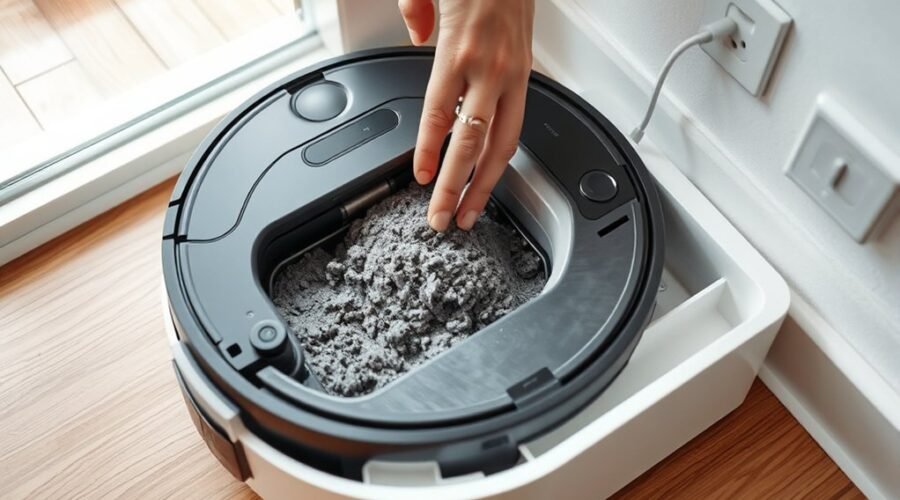
When a robot vacuum dock fails to empty the dustbin, the first checks are usually simple but decisive. The bin must match the auto-empty model and seat fully in the robot, while the dock bag, inlet, and duct must be clear of obstructions. App settings, dock lights, and error codes can narrow the fault quickly. If those basics pass, the issue often shifts to a deeper mechanical or electronic problem.
Start With the Dustbin and Dock Fit
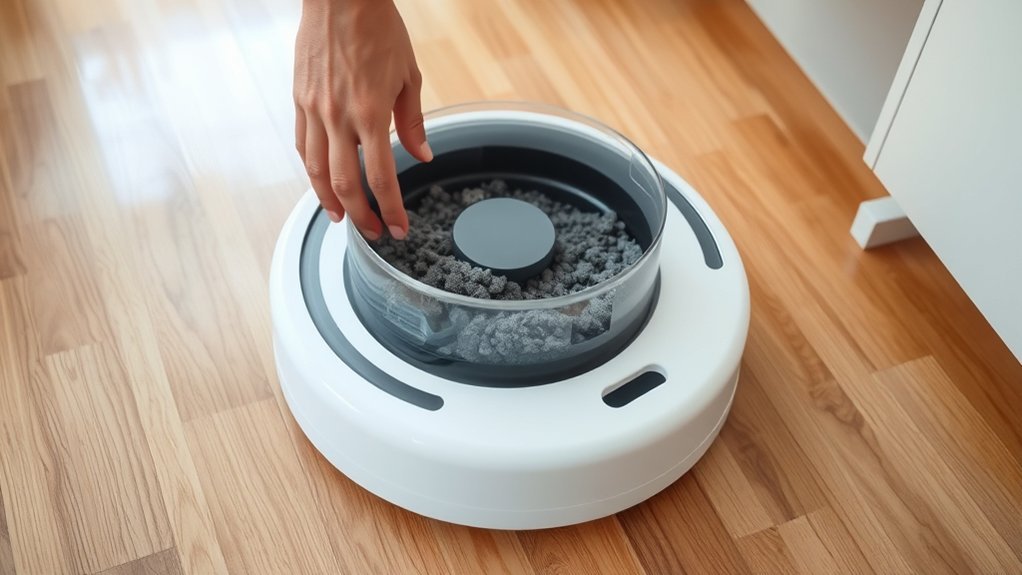
Begin with the dustbin and dock interface: confirm the vacuum is using the auto-empty dustbin, not the standard bin, since only the auto-empty version is designed to engage the dock.
Next, verify that the dustbin seats fully and locks into place; even slight looseness can stop the dock from pulling debris.
Verify the dustbin seats fully and locks into place; even slight looseness can stop the dock from pulling debris.
Inspect the dustbin for packed dust, clumps, or foreign material that could block the emptying path.
Check that the plate covering the air inlet beside the Auto-Empty dustbin has been removed, because retained coverage restricts airflow and weakens transfer.
Then examine the dock contact area and the vacuum base for misalignment, tilt, or debris that could prevent a clean coupling.
A correct fit should feel direct, stable, and unobstructed.
For users seeking liberation from recurring failures, these checks isolate the most common mechanical causes before deeper disassembly or replacement is considered.
Remove Packaging and Check the Dust Bag
All plastic packaging and protective covers should be removed from the robot vacuum and Auto-Empty Dock before operation.
The dust bag in the dock must be seated securely, with no overfilling or visible damage that could impair emptying.
The dock inlet should also be checked for blockages or debris that restrict airflow.
Remove All Packaging
Before operation, all plastic packaging should be removed from the robot vacuum and its dock components to prevent interference with normal function.
Technicians should remove all packaging from the Auto Empty system and inspect the docking station for leftover film, inserts, or protective tabs. Any retained material can obstruct airflow, prevent proper seating, or trigger emptying faults.
The dust bag should then be examined for visible damage, misalignment, or blockage at the inlet path. A clear dust inlet is essential for suction transfer into the dock. If debris is present, it should be cleared before testing.
These checks support reliable release from unnecessary failure states and restore normal autonomous operation. Regular inspection of the bag compartment helps preserve performance and reduces avoidable error reports over time.
Secure Dust Bag
The dust bag should be secured properly and inspected for any remaining packaging before operation, since stray plastic can obstruct airflow or interfere with emptying. In a Robot Vacuum system, a secure dust bag is essential for the Auto-Empty Dock to transfer debris cleanly and without resistance.
- Confirm all plastic sleeves, tabs, and seals are removed.
- Verify the secure dust bag is fully seated and locked in place.
- Check fill level; a full bag can block suction transfer.
- Inspect for tears, gaps, or poor sealing, then consult the manual.
A misfit bag limits performance and keeps the user dependent on preventable faults. Proper installation restores the dock’s intended function and supports operational freedom.
Inspect Dock Blockages
Once the dust bag is secured, the next diagnostic step is to inspect the dock for blockages that may prevent proper emptying. Remove all plastic packaging from the dock and vacuum; residual film can obstruct airflow and limit suction. Then verify the dock dust inlet and air duct are clear of debris. If either passage is restricted, the system cannot pull dust from the bin with enough force.
| Checkpoint | Condition | Action |
|---|---|---|
| Dust bag | Securely attached | Reseat if loose |
| Dock inlet | Free of blockages | Clear debris |
| Main brush cover | Properly attached | Tighten cover |
A loose main brush cover can also reduce performance and contribute to emptying faults. Each component should move toward full function, not constraint.
Clear the Air Inlet and Dock Duct
Clear airflow paths are essential for proper emptying of the robot vacuum dustbin. The air inlet beside the auto-empty station must be open; any plate left over it can choke suction and block transfer.
A detached inspection should verify that the designated auto-empty dustbin is installed, since the standard bin cannot engage the system correctly.
- Remove the inlet cover plate and confirm the air inlet is unobstructed.
- Examine the dust inlet for blockages; compacted debris often resists evacuation.
- Inspect the Auto-Empty Dock air duct for kinks, lint, or packed dust.
- Clean both passages regularly to prevent build-up and preserve full suction.
When these channels are clear, the dock can move dust freely, without resistance or compromise.
If airflow remains weak after cleaning, the obstruction is likely internal and should be isolated through further diagnostic checks.
Check the App Emptying Setting
After airflow paths have been verified, the robot’s app settings should be checked to confirm that automatic emptying is enabled. The app should show the dock and robot as paired, with the emptying option active in the cleaning profile.
After airflow paths are verified, confirm automatic emptying is enabled and the dock and robot are paired in the app.
If the setting is off, the dock will not receive a command to empty the dustbin, even when the robot returns home. The Empty Bin button should also be visible in the app; if it is missing, a connectivity fault may be limiting dock control.
Any alert or notification about communication failure should be treated as a diagnostic cue, not a nuisance. Updating the app to the latest version can restore functions tied to dock emptying and prevent stale settings from blocking automation.
The objective is straightforward: confirm that the app authorizes emptying when the robot is docked, so the system can operate without manual intervention or unnecessary dependence.
Look for Dock Lights and Error Codes
Dock lights provide an immediate diagnostic signal: a steady red LED usually indicates a fault condition, while a flashing red light can point to communication failure or a blockage.
The app should also be checked for error codes, such as Error 36, which may identify an auto-empty malfunction.
Power supply integrity and dock connection should be verified, since inadequate power or a loose connection can interrupt emptying operations.
Dock Light Signals
When the robot vacuum fails to empty properly, the dock’s LED can provide a useful diagnostic signal: a steady red light typically indicates a problem with the vacuum or dock that needs troubleshooting, while a flashing red light may point to a specific fault such as lost communication between the robot and the dock.
- Observe the dock light before restarting; it often reveals whether the robot is receiving a valid emptying command.
- Consult the product documentation to decode the light pattern and restore informed control.
- If the light is off, confirm power, then restart the dock to reset status.
- Check the air duct and dust inlet for blockages that restrict emptying.
Error Code Checks
A steady red LED on the dock signals a fault that warrants inspection, while a flashing red light often indicates a specific error code or communication failure between the dock and the vacuum.
The operator should verify the light on the dock against the manual or support guide to identify the code. If not sure which robot is paired, the reference label or app record can confirm the model.
In a new account setup, unfamiliar indicators may be easy to misread, so documentation matters. A blocked air duct or dust inlet can also trigger the same symptom by limiting airflow and leaving debris in place.
The diagnosis should remain systematic: note the pattern, match it to the code table, and separate electronic faults from mechanical obstruction before further action.
Power And Connection
Steady dock LEDs and specific error codes narrow the fault to power, connectivity, or internal dock function rather than the robot alone. A steady red LED often indicates connectivity issues or an unstable power supply, so the dock should be checked before deeper repairs.
Verify the outlet, cable seating, and adapter output, then confirm the Auto-Empty Dock has unobstructed airflow. If the dock remains unresponsive, restart it to clear temporary faults.
Review the manual for code meaning, since manufacturers map codes to distinct failures. These troubleshooting tips help isolate the defect quickly and restore independent operation.
- Check dock LED color and steadiness.
- Confirm the power supply and outlet.
- Inspect the air duct for blockage.
- Match displayed codes to the manual.
Clean Rollers, Brushes, and Sensors
Clean rollers and brushes are essential for maintaining suction and reliable dustbin emptying, as accumulated debris, tangled hair, and fibers can restrict movement and reduce airflow.
Effective roller maintenance tips include regular removal of wrapped material, visible dust, and compacted lint before each docking cycle. These common obstruction causes can slow brush rotation and weaken the vacuum path.
Remove wrapped hair, dust, and lint before docking to keep brushes turning smoothly and the vacuum path strong.
Sensor cleaning techniques should target the dustbin and dock sensors with a slightly damp cloth, applied gently to remove grime without leaving residue. Dirty sensors may signal incorrect bin status or interrupt dock communication.
After cleaning, the dust inlet and air ducts should be inspected for residual blockage, since even minor restriction can limit evacuation performance.
Brushes, rollers, and sensors work as a control system; when kept clean, the robot operates with less resistance, clearer signaling, and greater independence from avoidable maintenance faults.
Fix the Dock’s Emptying Performance
To restore dock emptying performance, the system should be verified to be using the auto-empty dustbin, and the plate covering the air inlet beside the dock should be removed if present.
Next, a technician should inspect the dust inlet and air duct for blockages, because restricted airflow can prevent debris transfer and reduce operational freedom. The main brush cover should also be seated correctly; a loose cover can interrupt the bin-seal path and weaken suction at the dock.
- Confirm auto-empty dustbin installation.
- Remove the inlet plate beside the dock.
- Clear debris from inlet and air duct.
- Reseat the main brush cover and check for a flashing red light.
A flashing red dock light usually signals a fault condition, so the documentation should be consulted for exact meaning.
A disciplined cleaning schedule and practical maintenance tips improve reliability, while this troubleshooting guide helps isolate the fault before escalation.
Contact Support for Persistent Dock Issues
If the auto-empty dock continues to fail after the basic checks have been completed, the user manual or model-specific support documentation should be consulted for further diagnostics.
Persistent faults often indicate a model-specific defect, a blocked sensor path, or a firmware-related condition that standard troubleshooting tips do not resolve.
At this stage, customer experiences suggest that escalation is justified rather than repeated trial and error.
Contact the manufacturer’s support center by chat, email, or phone, and state the exact symptom, any error codes, and each step already performed.
Clear documentation improves triage and reduces delay.
Support expectations should include guided diagnostics, possible replacement parts, or warranty assessment.
A concise log of tests, dates, and outcomes can accelerate resolution and preserve the user’s autonomy over the repair process.
When the dock remains nonfunctional, formal support is the most efficient path to restoring dependable, hands-free dustbin emptying.
Frequently Asked Questions
My Robot Vacuum Isn’t Emptying the Bin. What Can I Do?
Check the dustbin seating, remove inlet covers, clear blockages, and verify dock LEDs. This robot vacuum maintenance step often resolves dustbin troubleshooting. More cleaning tips: inspect rollers and ducts, then consult the manual or support.
My Roborock Dustbin Isn’t Emptying Properly. What Should I Do?
He should verify the auto-empty dustbin, remove the inlet plate, clear the dust inlet and dock duct, and confirm the main brush cover is seated. Dustbin maintenance tips, Common troubleshooting steps, Vacuum performance issues should follow.
Why Is My Roomba Not Emptying the Bin?
Roomba emptying failures usually stem from dock power faults, blocked airflow, misseated bags, or app communication loss. Roomba troubleshooting tips, dustbin maintenance advice, and vacuum suction issues point first to inspecting LEDs, debris, and connection integrity.
Can I Force My Roomba to Empty the Bin?
Yes—through the iRobot Home App, the Empty Bin command can be triggered. What if the dock hums yet nothing moves? Roomba maintenance tips, dustbin cleaning techniques, and robot vacuum troubleshooting suggest checking power, connections, blockages, and bag fit.
Conclusion
First, the dustbin should match the auto-empty dock and seat fully; second, the dust bag should be installed correctly and all packaging removed. Next, the air inlet and dock duct should be clear, the app’s emptying setting should be enabled, and dock lights should be checked for errors. Then, rollers, brushes, and sensors should be cleaned. Finally, if emptying still fails, the dock’s power, mechanics, and electronics should be tested or support contacted.