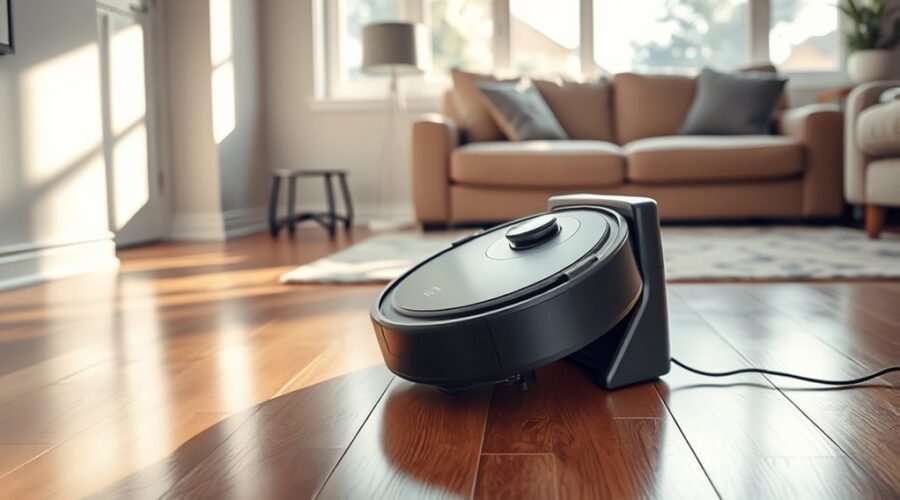
When your robot vacuum won’t dock, the culprit is usually a blocked infrared signal, a shifted base station, or dirty metal charging pads. However, repeated failures can also point to a corrupted floor map, a worn lithium-ion battery, or a deeper hardware fault. Running through a few targeted checks will help you pinpoint what is blocking the return trip and get your vacuum charging reliably again.
Quick Answer
If your robot vacuum won’t dock, first wipe the infrared sensors on the bumper and dock with a dry microfiber cloth, then clean the metal charging contacts using melamine foam or isopropyl alcohol. Next, confirm the dock sits flat against a wall on a hard floor with 1.5 to 3 feet of side clearance and 4 to 6 feet of open space in front.
Why Your Robot Vacuum Won’t Dock
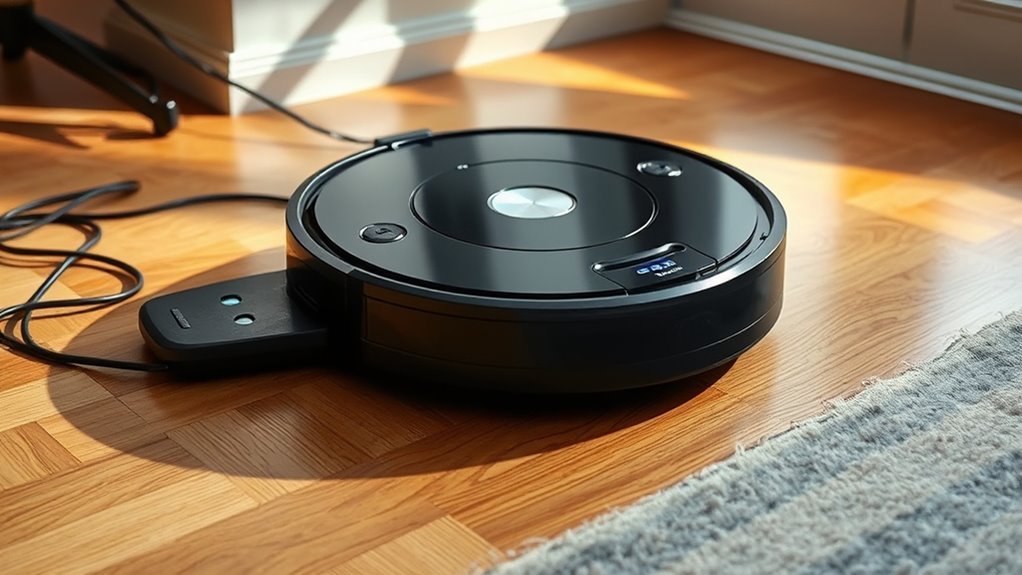
A robot vacuum typically fails to dock because dust blocks its navigation sensors, furniture crowds the approach path, oxidation coats the charging contacts, or the stored floor map becomes corrupted. Weak battery voltage and infrared interference can also cut the return sequence short before the wheels climb the ramp.
Most docking failures fall into two patterns. If the vacuum wanders aimlessly in another room or stops before reaching the base, the issue is usually map corruption, a depleted battery, or a moved dock. If the vacuum finds the dock, bumps into it, and backs away repeatedly, the problem almost always lies in dirty sensors, slipping wheels, or oxidized charging contacts.
Environmental interference also plays a role. Direct sunlight streaming through floor-to-ceiling windows, full-length mirrors opposite the base, and nearby infrared heaters or Virtual Wall barriers can scatter the dock’s homing beam. Checking sensor cleanliness, verifying clearance, and confirming map accuracy resolves the vast majority of return-to-home issues.
Check Dock Placement and Clearance
Proper dock placement requires setting the base flush against a flat wall on a hard, level floor with 1.5 to 3 feet (0.5 to 0.9 meters) of clear space on each side and 4 to 6 feet (1.2 to 1.8 meters) in front. This open corridor gives the robot room to lock onto the homing beam and align its wheels straight onto the charging ramp.
Examine dock placement and clearance: a flat wall, with ample space on each side and in front.
Exact spacing varies slightly by navigation type, though giving the station extra breathing room never hurts. According to iRobot’s dock placement guidelines, Roomba bases need at least 1.5 feet (0.5 meters) on each side, 4 feet (1.2 meters) in front, 4 feet from stairs, and 8 feet (2.4 meters) from Virtual Wall barriers. Similarly, Roborock’s device positioning specifications call for a hard, flat floor with at least 1.6 feet (0.5 meters) on either side, 4.9 feet (1.5 meters) in front, and 3.3 feet (1 meter) of overhead clearance.
Check the immediate docking zone for everyday hazards that trip up alignment:
- Thick carpets and rugs: Placing a dock on plush carpet tilts the base backward, causing the robot’s bumper to miss the infrared window or its contacts to sit too low. Move the dock to hardwood, tile, or a rigid plastic floor mat.
- Reflective surfaces and sunlight: Mirrors, chrome furniture legs, and strong direct sunlight reflect infrared signals and create “ghost docks” that confuse the receiver.
- Loose clutter and cords: Unsecured power cables, pet bowls, shoes, or folded rug corners within the approach lane can spin the front caster wheel off center at the last second.
- Protective shipping film: On a newer unit, peel off any translucent plastic film covering the dark infrared transmitter window on the face of the dock.
Pro Tip: Run the 4-foot diagnostic test to isolate the fault. Place your robot vacuum 4 feet directly in front of the dock, facing the station, and press the Dock or Home button. If it parks smoothly from there, the dock beacon and contacts work fine—your issue is room-level navigation or map corruption.
Clean Sensors, Wheels, and Contacts
Wiping the robot’s optical sensors, clearing hair from the drive wheels, and polishing the metal charging pads restores both signal reception and physical traction. Even a thin film of household dust on the dock’s infrared emitters can blind the vacuum during its final approach.
Cleaning Sensors
Clean every sensor window on your robot vacuum and dock every 1 to 2 weeks using a clean, dry microfiber cloth. Dust and electrostatic grime scatter the infrared beam the vacuum uses to steer onto the charging ramp.
- Wipe the dock’s signal beacon: Buff the dark, glossy plastic lens on the front of the charging base until it is free of smudges and pet hair.
- Clean the bumper and wall sensors: Gently wipe along the front curved bumper and the side wall-following sensors on the robot.
- Clear the cliff sensors and LiDAR turret: Flip the robot onto a flat towel, wipe the 4 to 6 recessed cliff-sensor windows around the bottom edge, and check that the top LiDAR turret spins freely without trapped grit.
Warning: Never spray glass cleaner, water, or rubbing alcohol directly onto optical sensor windows or camera lenses. Liquid can strip protective anti-glare coatings or seep inside the housing and short out the sensor board.
Inspect Wheels And Contacts
After wiping the sensors, inspect the drive wheels, front caster, and charging contacts for mechanical drag or wear. If one wheel loses grip while climbing the dock ramp, the robot will twist sideways and miss the charging pads.
- Pull out the front caster wheel: Pop the small omnidirectional wheel out of its housing, pull away wound hair from the axle, and wipe the cavity clean so it pivots without resistance.
- Check the spring-loaded drive wheels: Press each main wheel up and down to confirm the suspension springs back evenly, and pick out any threads or caked dust from the tire treads.
- Test the dock contact springs: Press down gently on the raised metal pins on the dock to verify they bounce back freely and are not stuck depressed.
Fix Battery and Charging Problems
A degraded battery or oxidized charging pads can starve the vacuum of power before it reaches home or cause it to back off the dock repeatedly because it cannot detect a charging current. Troubleshooting both the battery pack and the electrical contact points ensures the docking cycle actually locks in a charge.
Check Battery Health
A healthy lithium-ion battery typically lasts 2 to 4 years (roughly 300 to 500 charge cycles) before losing significant capacity. When voltage sags prematurely under load, the robot may shut down in a hallway before its low-battery threshold triggers the return trip.
- Track runtime drops: Compare your current cleaning time against normal performance; if a cycle that used to last 90 minutes now dies in under 30 minutes, the battery cells are worn out.
- Verify dock power: Confirm the power cord is pushed firmly into the back or underside of the station and that the wall outlet is active. According to Shark’s Matrix Plus charging FAQs, a powered base displays a steady indicator light and takes 4 to 6 hours to charge an empty battery to 100%.
- Inspect the battery pack: Open the bottom battery compartment and check for physical swelling, leaking residue, or excessive heat. If the pack is swollen or damaged, stop using the vacuum immediately and replace the battery with an official manufacturer pack.
Clean Charging Contacts
Dirty or oxidized charging contacts prevent the robot from sensing voltage when it parks, causing it to back off the base and try docking again in an endless loop. Because different brands plate their contacts with different metals, match your cleaning method to the manufacturer’s instructions.
Unplug the dock before cleaning. Following iRobot’s charging contact cleaning instructions, scrub Roomba and Braava contacts only with a lightly dampened melamine foam pad (such as a Magic Eraser) or a lightly dampened cloth until the metal shines—never use abrasive sandpaper or harsh solvents. If the contacts appear green or copper-colored, the protective plating has worn through and the faulty part must be replaced.
For Roborock, Narwal, and ECOVACS models, Roborock’s Error 13 troubleshooting guide recommends wiping both sets of contacts with a cotton swab or cloth lightly moistened with isopropyl alcohol, or gently rubbing away dark oxidation spots with a clean pencil eraser. Let the metal dry completely before placing the vacuum back on the dock.
Repair Map and App Errors
Outdated firmware or a corrupted map can cause a LiDAR or camera-guided vacuum to miscalculate where its dock sits, sending it to the wrong room when the cleaning cycle ends. Updating the companion app and refreshing your stored floor plan restores accurate home-base coordinates.
- Check the app for map drift: Open your vacuum’s mobile app and inspect the floor map. If walls overlap at strange angles or the dock icon appears in the wrong spot, revert to a saved backup map if your app supports map restoration.
- Start cycles from the dock: Always start a cleaning run with the vacuum parked on its charging base rather than carrying it to another room. Starting from the dock locks in the exact home coordinates before the robot leaves.
- Run a dedicated mapping pass: If you recently moved the dock or rearranged heavy furniture, delete the outdated map and trigger a fresh Quick Mapping run so the vacuum logs the new station location without vacuuming.
- Install firmware updates: Check the app’s settings menu for firmware updates, which regularly patch navigation bugs and “Charge and Resume” logic errors.
Reset the Vacuum and Dock
When sensor cleaning and map repairs do not solve docking failures, rebooting both the robot vacuum and the charging station clears stuck memory states and power-supply glitches. A simple power cycle fixes temporary communication dropouts without erasing your settings.
To perform a soft reboot, remove the vacuum from the base and press and hold the Power button for 10 seconds until the indicator lights turn off, wait 30 seconds, and hold the button for 3 seconds to power it back on. While the robot restarts, unplug the dock’s power cord from both the wall outlet and the back of the station for 60 to 120 seconds to discharge its internal capacitors, then plug it firmly back in.
Note: Only perform a full factory reset if a normal reboot and map rebuild fail. A factory reset permanently wipes your saved floor maps, room labels, no-go zones, cleaning schedules, and Wi-Fi connection, and rolls firmware back to the factory version on many models.
Try Brand-Specific Docking Fixes
Because each manufacturer uses a distinct combination of infrared beacons, LiDAR lasers, and optical cameras, matching your fix to your brand’s specific error code saves time. Use the table and steps below to resolve model-specific docking errors.
Brand-specific docking issues need targeted checks that match each vacuum’s navigation system.
| Brand | Minimum Dock Clearance | Common Docking Error | Approved Contact Cleaner |
|---|---|---|---|
| iRobot Roomba | 1.5 ft (0.5 m) sides; 4 ft (1.2 m) front & stairs | Error 18 (Cannot return to Home Base) | Lightly dampened melamine foam (Magic Eraser) |
| Roborock | 1.6 ft (0.5 m) sides; 4.9 ft (1.5 m) front | Error 13 (Charging error) / Error 23 (Beacon blocked) | Cloth with isopropyl alcohol or pencil eraser |
| Shark | 1–3 ft sides; 2–5 ft front (carpets 4 ft away) | Fails to find dock / Wiggles off base ramp | Dry microfiber cloth or swab with rubbing alcohol |
| Narwal | 1.5 ft (0.5 m) sides; 4 ft (1.2 m) front | Cannot locate base station / Signal blocked | Dry microfiber cloth or lightly dampened alcohol swab |
- Shark robot vacuum: Give the dock 2 to 3 feet of clearance on both sides and 5 to 6 feet in front on a bare floor (or use the official plastic SharkMat if placing it on carpet). Because entry-level Shark models rely heavily on line-of-sight infrared guidance, crowded paths or nearby rugs easily throw off alignment.
- Roborock models (Positioning Failed / Error 23): Wipe the LiDAR turret and the dock’s infrared location beacon, then restore or rebuild the map if the vacuum announces “Positioning failed” or “Error 23.” If it docks but announces “Error 13,” polish the charging contacts and unplug the dock for 2 minutes.
- Narwal Flow and Freo series: Verify that the base station’s infrared transmission window is completely unobstructed and that any factory protective film is removed. High-suction mopping bases require level flooring so the robot can back smoothly into the wash tray.
- iRobot Roomba (Error 18): Per iRobot’s Error 18 docking guide, confirm the Home Base or AutoEmpty dock did not shift or rotate during cleaning, remove any stickers from the bumper, and place the robot manually on the base to verify the LED lights up within 4 seconds.
When to Get Professional Help
If your robot vacuum still cannot dock after cleaning the sensors, polishing the contacts, verifying clearance, and rebuilding the map, the failure likely stems from a failed internal component. Continuing to force charge cycles on damaged hardware can worsen the fault.
Contact the manufacturer’s customer support or an authorized repair technician if you notice any of these hardware symptoms:
- Dead infrared emitters on the dock: The dock’s power LED lights up, yet the vacuum ignores the base even when placed 3 feet in front of it.
- Blown motherboard charging fuse or bad dock transformer: The vacuum parks squarely on clean contacts, but neither the dock nor the robot registers a charging connection.
- Cracked sensors, stripped wheel gears, or sunken contact springs: Physical damage to the LiDAR motor, bumper switches, or spring-loaded charging pins prevents mechanical alignment.
Check your serial number and purchase date before booking a repair, as most major robot vacuum brands provide a 1-year limited warranty that covers defective docking stations and internal navigation sensors.
Frequently Asked Questions
Why Won’t My Robot Vacuum Dock?
A robot vacuum usually won’t dock because dust covers its infrared sensors, clutter blocks the 4-to-6-foot approach path, oxidation coats the metal charging contacts, or the stored floor map is corrupted. Wiping the sensors with a dry microfiber cloth, polishing the contacts, and moving obstacles away from the base resolves most docking failures.
Why Does My Robot Vacuum Dock But Not Charge?
When a robot vacuum parks on the base but refuses to charge, dirty or oxidized metal contacts are almost always preventing electrical flow. Unplug the station and scrub the contacts on both the robot and dock using a lightly dampened melamine foam pad or a swab moistened with isopropyl alcohol, then verify the power cord is seated tightly.
Can I Put My Robot Vacuum Dock on Carpet?
Manufacturers strongly advise against placing a charging dock on carpet because soft pile tilts the station and causes the robot’s wheels to sink below the charging contacts. Always place the dock on a hard, level surface like hardwood or tile, or set a rigid plastic mat underneath the base if a carpeted room is your only option.
What Are the Most Common Problems With Robot Vacuums?
The most common robot vacuum problems are docking and charging failures, tangled brush rolls that reduce suction, corrupted navigation maps, Wi-Fi connectivity drops, and degraded battery runtime. Emptying the bin, cutting hair off the brushes and wheels weekly, and wiping the optical sensors prevents most of these issues.
Why Does My Roomba Keep Having Docking Issues?
A Roomba typically struggles to dock when residue builds up on its charging contacts, the Home Base sits closer than 4 feet to stairs or furniture, or a Virtual Wall barrier sits within 8 feet of the dock. Cleaning the contacts weekly with a melamine foam pad and starting every cleaning job directly from the Home Base stops recurring Error 18 alerts.
What Is the Average Lifespan of a Robot Vacuum?
A well-maintained robot vacuum typically lasts 3 to 6 years, though its rechargeable lithium-ion battery usually needs replacement after 2 to 4 years of regular use. Keeping the charging contacts clean, replacing filters and brushes on schedule, and avoiding full battery drain between runs will maximize the machine’s lifespan.
Conclusion
When a robot vacuum misses its dock, start with the physical basics: place the station flush against a wall on a hard floor with clear space around it, wipe the infrared sensors with a dry microfiber cloth, and polish the metal charging contacts. If the vacuum still loses its way, reboot both units and run a fresh mapping pass in the app. Should the base remain undetectable after a reset, contact manufacturer support to test for a faulty dock emitter or worn battery.
Sources
- iRobot Support: Where to Place the Dock: Official clearance measurements for Roomba Home Base and AutoEmpty docks.
- Roborock Support Center: Where Should I Position My Device?: Minimum side, front, and overhead clearance specifications for Roborock docks.
- iRobot Support: How to Clean the Charging Contacts: Approved melamine foam cleaning procedure and contact damage indicators for Roomba and Braava units.
- Roborock Support Center: What Should I Do When Error 13 Occurs?: Official troubleshooting steps for charging contact cleaning and dock capacitor resets.
- SharkNinja Support: Shark Matrix Plus 2-In-1 Robot FAQs: Base power indicator behavior and 4-to-6-hour recharge duration guidelines.
- iRobot Support: Roomba Error 18 Docking Error: Official diagnostic steps when a Roomba fails to return to the Home Base.