When a robot vacuum refuses to resume after charging, the fault is often basic rather than complex. Dock position, contact cleanliness, outlet power, battery condition, and status indicators can all interrupt the restart sequence. App sync and firmware state may also block recovery. A quick diagnostic pass can isolate the issue before a full reset becomes necessary, but the most telling clue is usually hidden in one of the first checks.
Why Your Robot Vacuum Won’t Resume Cleaning
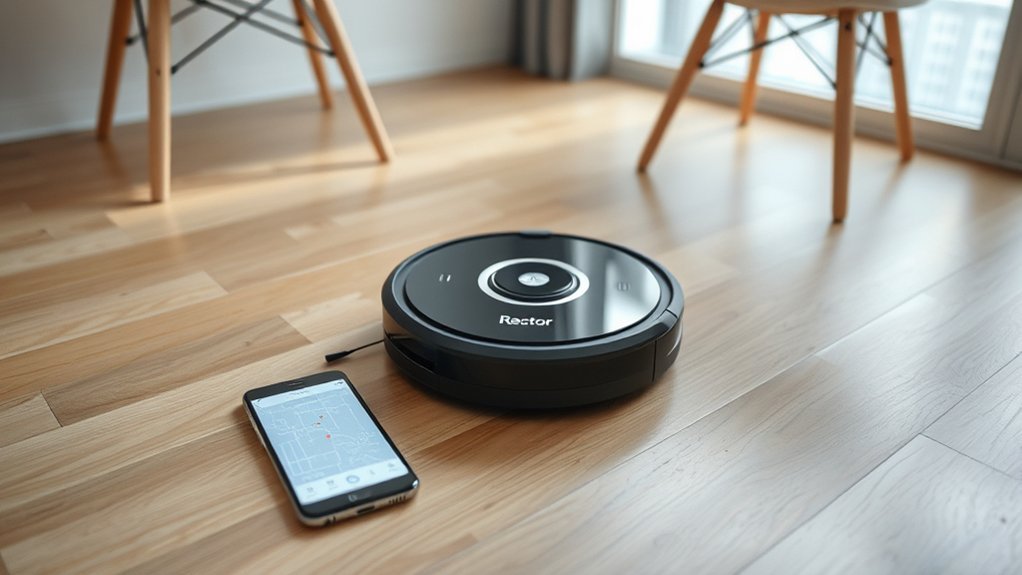
A robot vacuum may fail to resume cleaning after charging when software bugs, connectivity faults, or outdated firmware interrupt its navigation and task scheduling.
In a robot vacuum, the resume cleaning command depends on stable internal state data and a valid map. If firmware is obsolete, recovery routines can break, leaving the machine idle after docking.
Reduced battery life also matters; a degraded pack may reach charge thresholds without enough reserve to restart a session.
Reduced battery life can leave a vacuum charged but unable to resume, with insufficient reserve for a new cleaning cycle.
Airflow faults are another cause: clogged filters or a full dustbin can trigger shutdowns and block automatic continuation after recharge.
Dock placement can contribute when the base is obstructed or poorly positioned, preventing reliable return behavior and corrupting the next task sequence.
A diagnostic check should confirm software version, battery condition, dustbin status, and navigation logs.
Correcting these faults restores autonomous operation and reduces dependence on repeated manual intervention.
Check the Dock and Charging Contacts
Inspect the dock placement first: it should sit in an open area with no obstructions so the vacuum can return and align properly. The dock must remain level, with clear access for the vacuum to approach and seat itself without drift. If the path is crowded, the charging connection can fail before cleaning can resume.
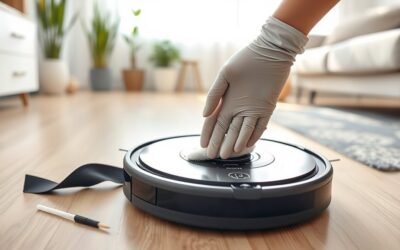
Next, examine the charging contacts on both the vacuum and the dock. Dust, film, or debris can interrupt contact, so a soft, dry cloth should be used to restore a clean surface. Verify that the dock is firmly plugged into a working power outlet; without stable power, the system cannot charge.
Observe the dock’s LED indicators if available. Lit indicators confirm power delivery and normal dock operation.
Finally, inspect how the vacuum settles onto the dock. Poor alignment can leave the contacts mispaired, blocking charging and preventing the unit from resuming its cleaning cycle.
Fix Battery Issues That Stop Cleaning
Battery degradation can cause a robot vacuum to stop cleaning early, show reduced runtime, or fail to resume after charging. When the robot vacuum stops mid-cycle, the battery may need evaluation for age, wear, or incomplete charging.
A unit that returns to dock with a low battery reading after a short run often indicates diminished capacity rather than a cleaning fault. Regular cleaning of charging contacts with a soft cloth can help maintain reliable power transfer, and proper dock alignment should be confirmed before testing again.
Battery health data in the app can help identify whether replacement is due, commonly after 2 to 5 years of service. If the unit still will not resume after charging, a factory reset may clear a minor control error affecting battery behavior.
If symptoms persist, the battery may need replacement to restore longer, independent operation and reduce dependence on the dock.
Fix App, Firmware, and Wi‑Fi Problems
Outdated firmware, app glitches, or unstable Wi‑Fi can prevent a robot vacuum from resuming after charging. Check the firmware version and install any available update, since obsolete code can produce operational issues that block restart behavior.
Then close and reopen the app to refresh the session and clear minor faults in the control link. If the app shows inconsistent status, inspect for integration conflicts, corrupted permissions, or other bugs that interfere with resume commands.
Close and reopen the app to refresh the session and clear minor control-link faults.
Verify Wi‑Fi stability at the dock and throughout the home; weak connectivity can interrupt communication between the robot and the app, leaving the unit unable to continue the cleaning cycle.
For targeted troubleshooting, review the user manual for model-specific error codes and documented app or connectivity steps. This process restores command flow without dependence on unnecessary intervention, helping the machine return to normal operation and preserving the user’s control over the cleaning routine.
Reset the Vacuum and Test Resume Function
A full reset can clear minor software faults that stop a robot vacuum from resuming after charging. To reset, power the vacuum off, hold the power button for 5–10 seconds, then restart it. This procedure can clear transient software errors that block the resume command and restore control.
After the reset, check the companion app for firmware updates; outdated software may still prevent proper charging recognition and resume behavior.
Next, confirm the vacuum sits squarely on the dock. Misalignment can stop full-charge detection and leave the unit inactive.
Test the vacuum in a smaller area after resetting. Observe whether it navigates, leaves the dock, and resumes cleaning without hesitation.
If the unit still will not resume, consult the manual for model-specific error codes. Persistent failure after reset points to a deeper fault that may require customer support intervention and further diagnostic review.
Frequently Asked Questions
How Do I Reboot My Robot Vacuum Cleaner?
To reboot, he holds the power button 5–10 seconds, removes battery briefly, then reconnects. If available, app connectivity offers reboot. This maintenance tips routine supports robot features, battery care, cleaning modes, and floor types.
What Are the Most Common Problems With Robot Vacuums?
The most common robot vacuum failures include weak suction power, shortened battery life, navigation issues, brush jam, sensor malfunction, and app connectivity loss, each reducing autonomy and requiring systematic diagnostics, maintenance, and software verification.
How to Hard Reset Robo Vac?
He hard resets the robo vac by disconnecting it from the charging dock, holding the power button 5–10 seconds, waiting 30 seconds, then restarting; this troubleshooting guide addresses battery issues, sensor problems, app connectivity, and maintenance tips.
Why Does My Vacuum Shut off After a Few Minutes?
It usually shuts off because of battery issues, sensor malfunctions, a full dust bin, or failed obstacle detection. The charging dock may not restore enough power. Firmware updates and inspection of brushes and filters are recommended.
Conclusion
In conclusion, a stubborn robot vacuum often fails to resume because of simple setup snags, such as a skewed dock, soiled charging contacts, weak battery health, or software sync slips. Careful cleaning, connection checks, and firmware fixes usually restore reliable return-to-clean behavior. When those quick checks fail, a reset can reestablish proper power, pairing, and pathing. With systematic scrutiny, the machine can move from mute to motion again.