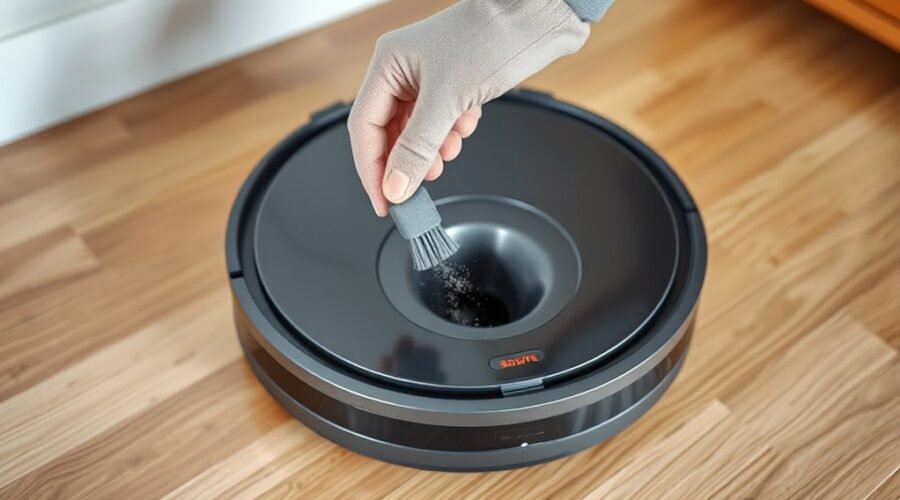
A clogged robot vacuum auto-empty duct can leave dust and hair inside the robot even after it returns to its dock. The problem often comes from compacted debris, a blocked suction port, or a poorly fitted collection bag. You can usually fix a simple blockage with careful cleaning, but the correct method depends on your dock’s design.
Quick Answer
To clean a robot vacuum auto-empty duct, turn off the robot and unplug its dock. Remove the collection bag or bin, inspect the dust inlet, and clear visible hair and debris with a soft brush or dry cloth. Clean accessible duct sections, reinstall the covers and seals, then run a manual auto-empty test.
At a Glance
| Difficulty | Easy for accessible ports; model-specific care needed for duct-cover removal |
| Tools Needed | Soft cleaning brush, dry lint-free cloth, cotton swabs, and a suitable screwdriver if the manual allows duct-cover removal |
Common Reasons the Auto-Empty Duct Fails
)
An auto-empty duct fails when debris blocks the transfer path or the dock cannot create enough suction to move dirt into its collection bag. However, not every emptying failure means the duct is clogged.
Start by identifying what happens when the robot docks.
- The dock runs, but the robot’s bin stays full: Check the suction inlet, dustbin opening, collection bag, and internal air duct for blockages.
- The dock makes unusual noises: Hair, compacted dust, or debris may be restricting airflow. A loose cover can also affect suction.
- The dock does not start emptying: Check power, app settings, dustbin installation, and the dock’s cover before opening the duct.
- Emptying works only sometimes: Look for loose seals, poor docking alignment, or a partly blocked dust transfer path.
- The collection bag fills poorly: A blocked bag opening, incorrectly installed bag, or restricted dock filter may reduce airflow.
Roborock’s official auto-empty troubleshooting instructions identify three key checks for certain docks: the main brush cover, the air duct, and the disposable bag’s installation.
The main brush cover deserves attention because incorrect installation can affect the airflow needed to empty the robot’s dustbin.
Check the easiest causes first. There is no reason to disassemble a dock if replacing a full bag or reseating a cover solves the problem.
Prepare the Robot Vacuum for Cleaning
Before cleaning the auto-empty duct, turn off the robot vacuum and unplug the dock from its electrical outlet. This prevents the dock’s suction motor from starting while your hands or cleaning tools are near an opening.
Gather a soft brush, dry microfiber cloth, cotton swabs, and a container for removed debris. Keep a screwdriver nearby only if your model has a removable duct cover.
Prepare the workspace using these steps:
- Move the robot away from the dock and power it off according to its instructions.
- Unplug the dock and place it on a stable, dry surface.
- Open the collection compartment and remove the dust bag or container.
- Check the manufacturer’s instructions to locate the suction inlet and duct access panel.
- Place the removed parts somewhere clean so their seals and connectors do not collect dirt.
Warning: Never open the dock’s electrical housing or insert metal tools into its suction motor. Remove only maintenance covers identified in your model’s instructions. Do not pour water or cleaning solution into the air duct.
For routine cleaning, use dry tools around the vents and electrical areas. The manufacturer’s cleaning guidance recommends a soft, dry cloth for auto-empty vents and provides a separate procedure for removable duct covers.
Clean the Auto-Empty Duct Step by Step
Cleaning the auto-empty duct means removing debris from the route between the robot’s dustbin and the dock’s collection compartment. Work from the visible openings toward the accessible duct sections.
Do not force a brush into a bend or push a compacted blockage deeper into the dock.
- Open the dust collection compartment. With the dock unplugged, remove the collection bag or bin. Inspect the opening where dirt enters the collection compartment.
- Remove loose debris. Use a dry cloth or soft brush to lift dust, hair, and lint from the opening. Pull out reachable clumps rather than pushing them inward.
- Inspect the suction port. Find the opening where the robot transfers debris into the dock. Remove any trapped hair or dirt around its edges.
- Check the robot’s dustbin. Remove the robot’s bin and inspect its outlet flap or evacuation opening. Clear any buildup that prevents the opening from moving freely.
- Clean the accessible air duct. Use a soft, narrow brush to loosen debris inside the visible passage. If your model permits duct-cover removal, follow its maintenance procedure before cleaning deeper sections.
- Wipe the contact surfaces. Clean the intake edges and accessible seals with a dry lint-free cloth. Check that no fibers remain around the openings.
- Inspect for remaining obstructions. Look through accessible openings to confirm that no visible dust clumps or hair bundles remain.
Some older auto-empty systems require a specially designed dustbin and an uncovered air inlet. The Roborock Auto-Empty Dock troubleshooting procedure specifically identifies these requirements.
If your dock supports compressed-air cleaning, follow its manual and use it sparingly. Do not blow debris into the motor housing or other inaccessible sections. A dry brush and careful manual removal are safer default methods when compressed-air use is not specified.
Once the visible passage is clear, inspect the deeper dock air path before reassembling the system.
Clear the Dock Air Path
The dock air path carries debris from the robot’s suction port into the collection bag or container. A blockage in this passage can stop dust transfer even when the dock motor sounds normal.
Some docks have a removable duct cover underneath the base. Others require access through a different maintenance panel.
For example, certain Clean Base models use a removable evacuation tube beneath the dock. Their official blockage-removal procedure instructs owners to unplug the dock, place it on its side, and remove the tubing cover to clear debris.
Other designs have a separate underside duct cover. The ECOVACS N8 auto-empty station guidance describes checking the underside air ducts and removing their cover when a blockage is present.
Follow your model’s access instructions rather than copying the screw locations or removal sequence of another dock.
| Action | Purpose |
|---|---|
| Inspect the suction opening | Find debris blocking airflow |
| Remove the approved duct cover | Access hidden blockages |
| Clear debris with a soft brush | Remove compacted dust and hair |
| Inspect the duct walls and seals | Identify damage or air leaks |
| Reinstall the cover securely | Restore the enclosed air path |
If the duct is accessible, carefully remove visible clumps and wipe its walls with a dry cloth. Check bends and narrow sections where hair and lint may collect.
Do not scrape the plastic with a screwdriver or pull on internal wiring. If a blockage remains beyond the accessible section, stop rather than forcing a tool farther inside.
Also examine the duct for cracks, loose joints, or damaged seals. These problems can allow air to escape and weaken suction even after cleaning.
Check the Dustbin and Inlet
The robot’s dustbin and the dock’s inlet must be clear for automatic emptying to work correctly. If either opening is blocked, cleaning the deeper duct alone may not solve the problem.
Remove the robot’s dustbin and check it for:
- Compacted dust: Dirt packed around the evacuation opening can prevent debris from moving into the dock.
- Hair and string: Tangled material may hold an outlet flap partly closed.
- Damaged seals: Cracked rubber or distorted edges can reduce the airtight connection.
- Blocked filters: A dirty filter may restrict airflow and reduce cleaning or emptying performance.
- Incorrect installation: A dustbin that is not fully seated may prevent the dock from emptying properly.
Remove loose debris and clean the dustbin according to the manufacturer’s instructions. If its removable parts can be washed, dry them completely before putting them back.
Inspect the dustbin for cracks, warped edges, or damaged seals that could cause leaks and reduce performance.
Next, examine the dock’s dust inlet. Make sure loose debris is not trapped around the opening or preventing a movable flap from opening.
Inspect the collection bag as well. Replace it if full, damaged, or restricted by compacted debris, and ensure its connector fits securely.
If your dock uses a bagless collection container, empty it and maintain its filter according to the model’s instructions.
Dry, Reassemble, and Test the Dock
Once the duct is clear, reinstall every part securely before reconnecting power. A clean air passage cannot work properly if its covers, seals, or collection bag are loose.
Use this reassembly and testing sequence:
- Confirm that all cleaned components are completely dry and free of loose debris.
- Reattach the duct cover or evacuation tubing using the original mounting points.
- Reinstall the dustbin, collection bag, filters, and any removed dock components.
- Close the compartment lid firmly and check that the dock is stable and level.
- Reconnect the power cable and turn on the robot.
- Place the robot on the dock correctly and start a manual emptying cycle using its supported controls.
- After the cycle finishes, inspect the robot’s dustbin to see whether debris transferred successfully.
Successful cleaning should leave the robot’s dustbin substantially emptier without repeated blockage warnings or unusual suction noises.
A small amount of fine dust may remain around the bin’s corners. However, large clumps or most of the collected debris should not remain after a successful emptying cycle.
What If the Dock Still Does Not Empty?
If the motor runs but debris stays inside, recheck the complete suction path. Look for a blockage at the bag connection, an incorrectly fitted cover, or a damaged seal.
If the motor does not start, check the dock’s power and app settings. On supported Roborock systems, auto-emptying may be disabled during Do Not Disturb mode, after a manual return to the dock, or when the robot returns without completing a cleaning task.
You can also check whether the app reports a specific error or whether the dock fails to recognize the installed collection bag.
If emptying still fails despite a clear duct, properly installed components, and correct settings, contact the manufacturer’s support service. A failed fan, damaged connection, or internal electrical fault may require professional repair.
Stop using the dock if you notice a burning smell, damaged wiring, or repeated electrical shutdowns.
Prevent Future Auto-Empty Duct Clogs
Preventing another duct blockage is easier than removing a tightly packed clog. The most useful habits are keeping the collection compartment clear, checking dust transfer openings, and maintaining the dock at the interval recommended for your model.
Hair, lint, fine dust, and damp debris are more likely to collect in narrow passages.
Empty the robot’s dustbin manually if it contains wet or unusually compacted material that the dock cannot transfer. Avoid letting the robot collect large scraps or objects that could lodge in the air path.
Regular Duct Cleaning
Inspect the auto-empty duct regularly, especially when the dock begins leaving debris in the robot’s bin. The correct maintenance interval varies by model and how much dirt your home produces.
The original monthly routine is a reasonable inspection habit for some households, but it is not a universal manufacturer requirement.
For example, the Clean Base maintenance frequency chart recommends cleaning the vacuum path every two weeks for the models covered by that guidance.
Other manufacturers specify cleaning the duct as needed when debris or reduced suction becomes noticeable.
During regular maintenance:
- Inspect the robot’s dustbin outlet for hair or packed dirt.
- Look for debris around the dock’s suction inlet.
- Check that the collection bag is not full or blocking its own opening.
- Clean accessible duct surfaces with a dry cloth or suitable soft brush.
- Inspect the dock’s seals and removable covers for wear.
If you have several pets, check the openings more frequently. Hair can collect around narrow bends and form clumps that trap additional dust.
Unusual emptying noises, repeated blockage alerts, and falling suction performance are reasons to inspect the system immediately rather than waiting for the next scheduled cleaning.
Proper Dock Setup
A stable dock helps the robot align correctly with the suction inlet. Poor alignment can interrupt the transfer of debris even when the duct itself is clean.
Place the dock on a flat, hard surface and leave the clearance specified in your model’s manual. Avoid positioning it where furniture, loose cables, or other objects prevent the robot from docking fully.
Keep the dock’s entry ramp clear so the robot can reach its correct resting position.
Also ensure that:
- The collection bag or container is installed in the correct position.
- The compartment lid closes securely without being forced.
- The main brush cover and dustbin are fitted correctly.
- The dock’s suction inlet is free of loose dirt and debris.
- The charging contacts and docking sensors are clean according to the manufacturer’s instructions.
When these connections remain clear and properly aligned, the dock is less likely to lose suction or interrupt an automatic emptying cycle.
Key Takeaways
- A dock that makes suction noise but leaves debris behind usually needs an airflow-path inspection.
- A dock that never starts emptying may have a power, installation, or app-setting problem rather than a clog.
- Dustbin flaps, bag connectors, and duct bends are important places to check for trapped debris.
- Duct access methods differ between models. Remove only covers identified in the manufacturer’s maintenance instructions.
- Cleaning intervals are model-dependent, so follow your dock’s maintenance schedule and inspect sooner when performance drops.
Frequently Asked Questions
My Roborock Dustbin Isn’t Emptying Properly. What Should I Do?
Check the dustbin opening, collection bag, and main brush cover first. Make sure the robot is correctly aligned with the dock and inspect the air duct for blockages. If automatic emptying never starts, check the app settings and Do Not Disturb mode. Contact support if the problem continues after cleaning.
How Can I Check for Air Duct Blockages on My Roborock Dust Dock?
Unplug the dock and inspect its dust inlet and accessible duct openings. Remove the duct cover only if your specific model’s instructions allow it. Clear visible debris with a dry cloth or soft brush, then reinstall the cover securely. Check the collection bag and perform a manual emptying test afterward.
My Robot Vacuum Isn’t Emptying the Bin. What Can I Do?
Check whether the dock starts its suction motor. If it runs, inspect the dustbin outlet, suction port, collection bag, and air duct for clogs. If it stays silent, check power, docking alignment, and automatic-emptying settings. A manual emptying test can help determine whether the problem is related to airflow or automatic activation.
What Are the Most Common Problems With Robot Vacuums?
Common problems include clogged filters, reduced suction, tangled brushes, poor navigation, charging failures, and dustbin-emptying errors. Battery wear and dirty sensors can also affect performance. Routine brush cleaning, filter maintenance, sensor care, and software updates help reduce these issues. Persistent mechanical or electrical faults may require professional service.
Can I Use Compressed Air to Clean a Robot Vacuum Duct?
Use compressed air only if your robot vacuum’s manufacturer allows it for that specific duct. Directing air into a narrow passage can push debris farther inside or toward sensitive parts. For routine cleaning, a soft brush and dry cloth are safer default choices. Never spray liquids into the duct or motor housing.
Why Does My Auto-Empty Dock Run but Leave Dust Behind?
The dock may have restricted airflow, a partially blocked dustbin outlet, or an air leak around a loose cover or damaged seal. A full collection bag can also reduce emptying performance. Inspect these areas, clear accessible debris, and test again. If suction remains weak, the fan or another internal component may need service.
Conclusion
A clean auto-empty duct helps your robot vacuum transfer debris reliably and reduces interruptions during routine cleaning. Focus on the dustbin outlet, dock inlet, collection bag, and accessible duct before considering deeper repairs.
After removing blockages, reinstall all components securely and run a controlled emptying test. Keep the duct dry, follow your model’s maintenance schedule, and inspect the system whenever suction weakens or unusual noises appear.
Sources
- Roborock Support: Auto-Emptying Dock Not Emptying Effectively: Main brush cover, air duct blockages, and disposable bag installation.
- Dreame Support: Robot Vacuum Cleaning and Maintenance: Dry cleaning of vents and procedures for accessing blocked air ducts.
- Roborock Support: Auto-Empty Dock Troubleshooting: Auto-empty dustbin compatibility, air inlet cover, and duct inspections.
- iRobot Support: Clean Base Clog Removal: Evacuation port inspection and removable tube cleaning.
- ECOVACS Support: Auto-Empty Station Troubleshooting: Dustbin openings, airflow obstruction, and underside duct-cover access.
- Roborock Support: Why Auto-Emptying Is Not Working: Automatic-emptying settings, dock cover installation, and Do Not Disturb behavior.
- iRobot Support: Clean Base Maintenance Frequency Chart: Vacuum-path cleaning intervals and collection bag replacement guidance.