When your robot vacuum keeps going in circles, something is usually interfering with its movement or navigation. A dirty sensor, stuck bumper, tangled wheel, or incorrect map can cause repeated turns instead of normal cleaning. The pattern of movement can help you find the cause before you attempt a reset or repair.
Quick Answer
A robot vacuum usually goes in circles because of dirty sensors, a stuck bumper, blocked wheels, or navigation errors. Start by cleaning the sensors and checking that both drive wheels move freely. Then remove nearby obstacles and restart the robot. If the problem continues, inspect its saved map and check for firmware updates.
Why Your Robot Vacuum Keeps Circling
A robot vacuum uses sensors and movement data to decide where to go. When these inputs become unreliable, it may turn repeatedly, drift sideways, or return to the same spot.
The problem may come from the robot itself or something in the room. For example, hair wrapped around a wheel creates uneven movement, while a dirty obstacle sensor may make the robot detect a barrier that is not there.
The way your vacuum moves provides useful clues:
- Tight circles in one spot: Check the drive wheels, bumper, and navigation sensors.
- Curving instead of driving straight: Look for resistance in one drive wheel or the front caster.
- Backing up and turning repeatedly: Inspect the bumper and cliff sensors for false obstacle readings.
- Circling in one particular room: Check the flooring, reflections, clutter, and saved map.
- Erratic movement after an update or layout change: Investigate software and mapping problems.
These patterns help narrow the search, but they do not confirm a particular fault on their own.
According to ECOVACS troubleshooting guidance, sensor contamination, wheel problems, navigation glitches, software issues, and unsuitable floor conditions can all contribute to circular movement.
Also, not every circle means something is broken. Some robots deliberately follow a spiral during spot cleaning or repeat a small area when they detect extra dirt. Check whether the robot is in a special cleaning mode before troubleshooting.
How to Stop Your Robot Vacuum From Circling
Start with simple checks before deleting maps or opening the robot. The goal is to determine whether the problem comes from the cleaning area, mechanical resistance, or navigation software.
- Stop the cleaning cycle. Place the robot on a clear, level section of floor away from stairs.
- Check the bumper. Press it gently and make sure it returns to its normal position.
- Clean the sensors. Remove dust from the cliff, obstacle, and navigation sensor windows.
- Inspect the wheels. Remove visible hair, thread, and debris from both drive wheels and the front caster.
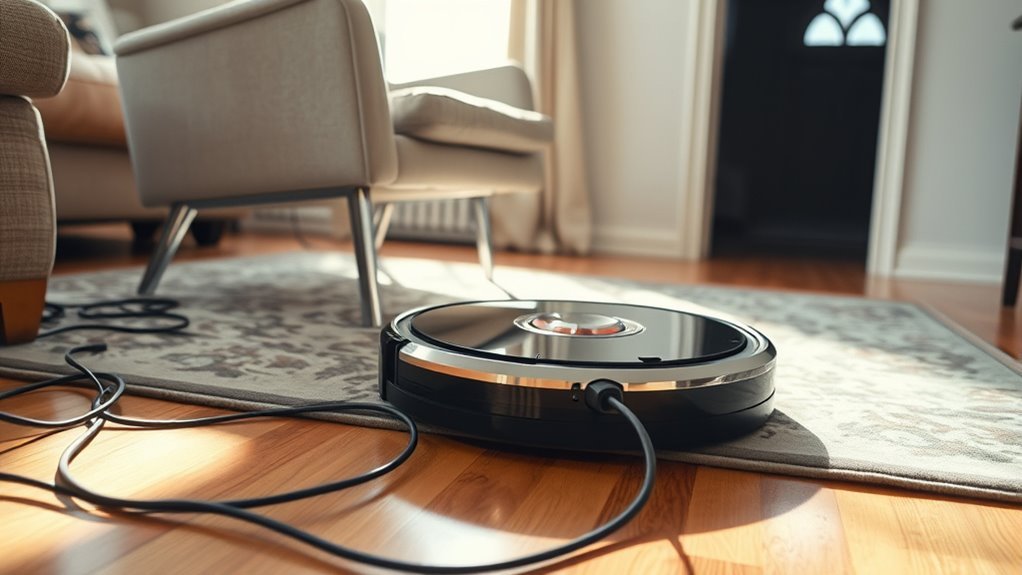
- Clear the cleaning area. Move cables, toys, low objects, and loose rugs out of the robot’s path.
- Restart the robot. Use the reboot procedure recommended for your model.
- Test it again. Run a normal cleaning cycle on an open floor and observe its movement.
If the robot moves normally in the open area but circles in its usual cleaning location, investigate that location first.
If it still spins in open space, continue with the sensor, wheel, and software checks below.
Dirty Sensors and Bad Readings
Dirty sensors can make a robot vacuum misread its surroundings. Dust, fingerprints, and residue may interfere with obstacle detection or cause false cliff warnings.
Different sensors perform different jobs:
- Cliff sensors: Detect drops such as stairs and ledges.
- Obstacle sensors: Help the robot identify objects in its path.
- Wall sensors: Help certain models maintain distance from walls and furniture.
- Camera or LiDAR sensors: Help compatible robots understand their position and build maps.
- Floor-tracking sensors: Measure movement across the floor on supported models.
If a sensor becomes obstructed, the vacuum may react to an obstacle that does not exist or struggle to recognize its position.
Inspect the front bumper as well. A bumper that remains pressed can repeatedly signal a collision.
For example, the Roomba 800-series error reference identifies Error 9 as a bumper problem. Errors 5 and 7 indicate stuck side wheels, while Error 6 relates to cliff detection.
Error codes vary between models, so use the message displayed by your particular robot rather than assuming every brand uses the same numbering.
Wheel Problems That Throw Off Turns
A robot vacuum may circle when its wheels cannot move evenly. Hair around an axle, debris inside a wheel housing, or a damaged drive mechanism can make one side move differently from the other.
The robot normally changes direction by adjusting the movement of its drive wheels. If one side becomes restricted, the vacuum may follow a curved path instead of traveling straight.
Look for these problems:
- Hair or string wrapped around a drive-wheel axle.
- One wheel that feels noticeably harder to rotate.
- A wheel that does not move smoothly in its suspension.
- A front caster that cannot turn or swivel freely.
- Scraping, grinding, or other unusual sounds during movement.
- A damaged wheel tread or loose wheel assembly.
Some models use wheel encoders to measure rotation. If the movement data becomes unreliable, the robot may struggle to calculate its position and turns.
Wheel drag can also affect navigation even when the sensors are clean. This is why mechanical inspection should come before an extensive software reset.
If one drive wheel remains stiff after cleaning, the problem may involve its motor, sensor, or internal wheel module.
Software Glitches in Robot Navigation
Software problems can cause repeated turns when the robot cannot correctly follow its planned route. Incorrect map data, temporary navigation errors, and firmware faults may all affect movement.
However, software maintenance cannot repair a stuck wheel or damaged sensor. Rule out physical problems before making major changes to the robot’s settings.
Navigation Software Errors
Navigation software combines sensor readings with movement information to guide the robot through your home.
If that information becomes inconsistent, the robot may lose its position or repeat the same route.
Possible symptoms include:
- Repeated turning without moving into the next area.
- Unexpected changes in direction.
- Failure to recognize familiar obstacles.
- Incomplete room coverage.
- A cleaning map that no longer matches the room.
A normal reboot can clear some temporary software errors without requiring a new map. If the problem began suddenly, try this before deleting stored navigation data.
Mapping Refresh Needed
An incorrect saved map can make a robot struggle to recognize its location. This may happen after significant furniture changes, dock relocation, or a failed mapping session.
Check the map in the manufacturer’s app. Look for misplaced walls, missing rooms, overlapping areas, or an incorrect dock position.
If your robot supports map restoration, try restoring a previous working version before creating a new one.
Otherwise, use its supported remapping feature. Keep the dock in its intended position and clear access to the rooms you want included.
Update Firmware Regularly
Firmware controls the robot’s hardware and navigation functions. Manufacturers may release updates to correct bugs, improve route planning, or refine obstacle detection.
Open the manufacturer’s companion app and check whether an update is available for your model.
Before installation:
- Make sure the robot has sufficient battery power.
- Keep it connected to a reliable Wi-Fi network when required.
- Follow any docking instructions shown in the app.
- Allow the update to finish without interrupting it.
After installation, run another cleaning test. If navigation remains abnormal, continue with the remaining checks rather than repeatedly installing or resetting software.
How Floors Affect Vacuum Navigation
Flooring can influence how a robot vacuum moves and interprets its surroundings. Dark rugs, glossy finishes, uneven surfaces, and thick carpets may cause problems on some models.
The effect depends on the robot’s sensors and wheel design. A floor that causes trouble for one model may work normally with another.
Reflective Surfaces
Glossy tile, laminate, mirrors, and glass furniture can sometimes interfere with optical or laser-based obstacle detection.
Strong reflections may make certain sensors misjudge the position of nearby objects. The robot may then turn, stop, or repeat an avoidance movement.
If circling happens near a reflective surface, test the robot in a different part of the room.
You can also try changing the lighting or temporarily covering the reflective object to see whether the behavior changes.
Do not assume every shiny floor is unsuitable. The problem depends on the navigation system and the surrounding conditions.
Lighting And Shadows
Lighting can affect robot vacuums that rely on cameras or optical sensors. Direct sunlight and reflections may reduce obstacle detection accuracy on certain models.
Use the following conditions to guide your inspection.
| Condition | Possible navigation effect |
|---|---|
| Shiny tile | Strong reflections may interfere with optical readings. |
| Laminate | Glossy finishes may create glare under certain lighting conditions. |
| Direct sunlight and shadows | Camera or optical obstacle detection may become less reliable on some models. |
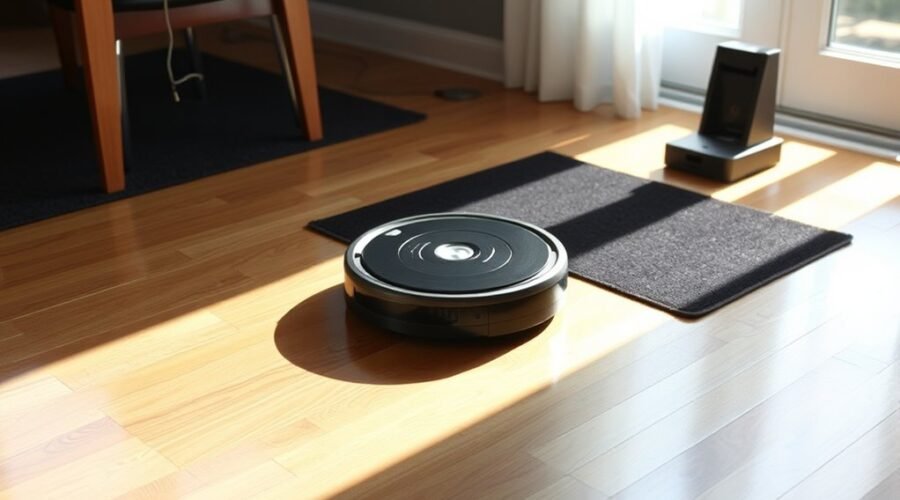
Very dark flooring presents a different problem. Some cliff sensors receive too little reflected infrared light and interpret the surface as a drop-off.
The robot may then back away, stop, or repeatedly turn at the edge of a dark rug.
This behavior is documented in iRobot’s cliff-sensor troubleshooting guidance.
Warning: Never cover, tape over, or disable cliff sensors to force a robot onto dark flooring. These sensors help prevent falls from stairs and other raised surfaces.
How Light and Reflections Confuse Sensors
Strong light and reflective objects can confuse some robot vacuum sensors by changing the signals they receive. This may affect obstacle avoidance even when the floor itself is clean.
For example, sunlight entering through a window may create glare on glossy furniture or glass panels. Some sensors may struggle to distinguish those reflections from nearby objects.
ECOVACS confirms in its obstacle-avoidance guidance that direct sunlight and highly reflective surfaces can reduce detection performance on certain models.
To identify an environmental problem, try this controlled test:
- Run the robot in the problem area under its usual lighting conditions.
- Observe where it begins turning or circling.
- Close nearby curtains or blinds to reduce direct sunlight.
- Temporarily move reflective objects where practical.
- Run the same cleaning test again.
If navigation improves after these changes, light or reflections may be contributing to the problem.
Low-profile obstacles also deserve attention. Cables, furniture legs, and narrow passages can make the robot repeatedly change direction as it attempts to find a clear route.
For persistent problem areas, use a supported no-go zone or physical barrier. Keep the path to the dock and other rooms open.
How to Clean Robot Vacuum Sensors
Cleaning the sensors is one of the simplest ways to address inaccurate navigation. Use a soft, dry microfiber cloth and follow the cleaning instructions for your model.
Most external sensor windows can be cleaned without opening the robot’s main housing.
Sensor Cleaning Basics
Before cleaning, stop the robot, turn it off when supported, and place it on a stable surface.
Then follow these steps:
- Locate the cliff sensors. Find the downward-facing sensor windows on the underside.
- Wipe each sensor. Gently remove dust and smudges with a dry microfiber cloth.
- Clean the front sensors. Remove visible dirt from the obstacle-detection windows and bumper area.
- Inspect the mapping sensor. If your robot has a camera or LiDAR sensor, clean its accessible window according to the manual.
- Remove loose debris. Use a soft brush around accessible openings when appropriate.
- Check the bumper. Confirm that it moves freely and returns to its normal position.
A slightly damp cloth may be suitable for some exterior parts, but follow the manufacturer’s instructions before using moisture or any cleaning product near sensors.
Do not spray liquid directly into sensor openings or use harsh chemicals.
The iRobot 700-series maintenance instructions recommend cleaning cliff sensors with a dry microfiber or soft cotton cloth. They also explain how to clear debris from the front caster wheel.
Maintaining Clear Sensor Surfaces
Regular inspection helps prevent dirt from building up on sensor windows. A weekly visual check is a practical routine, especially in homes with pets or heavy dust.
Check for:
- Dust or fingerprints on exposed sensor windows.
- Hair trapped around the bumper.
- Scratches or visible damage to sensor covers.
- Loose or damaged exterior components.
- New warning messages in the companion app.
If a sensor appears physically damaged or remains unreliable after cleaning, contact the manufacturer for model-specific service guidance.
Do not attempt to remove sealed sensor assemblies unless the official repair instructions specifically permit it.
Check Wheels, Brushes, and Axles
Wheel and brush maintenance can restore normal movement when hair or debris creates drag. Both drive wheels should move smoothly, and the front caster should roll and swivel without obstruction.
Turn the robot off before inspecting moving parts.
- Inspect both drive wheels. Look for hair, thread, or debris around their edges and axles.
- Compare wheel resistance. Rotate each wheel gently by hand. Check whether one feels noticeably stiffer.
- Check the wheel suspension. Press each drive wheel into its housing and release it. Look for uneven or restricted movement.
- Inspect the front caster. Remove trapped debris and clean the axle if your model allows caster removal.
- Clean the main brush. Remove tangled hair from the brush and its accessible end bearings.
- Check the side brush. Clear wrapped fibers and confirm that it is properly installed.
- Inspect attached mop parts. Make sure the pad and tray are correctly fitted and are not dragging against the floor.
Reinstall every removable component securely before starting the robot.
If one wheel still feels different from the other, inspect it for visible damage.
Some models offer diagnostic information through their app or service tools. Check for wheel-related error messages before considering replacement parts.
Persistent resistance, grinding, or failure to move may indicate a damaged wheel module or drive motor.
Reset Maps and Update Firmware
If the mechanical and environmental checks do not help, investigate the robot’s saved map and software. Start with a normal reboot before attempting anything that removes stored settings.
Rebooting and factory resetting are different operations.
A reboot restarts the robot and may clear temporary errors. A factory reset returns the device to its original settings and can remove stored data.
iRobot’s reboot and factory-reset guidance explains this distinction and describes available map-saving options for supported models.
Warning: Deleting a map or performing a factory reset may remove room divisions, schedules, no-go zones, and other settings. Save or back up your map first if your model supports it.
If the existing map is inaccurate and cannot be restored, create a new one using the manufacturer’s app.
For supported Roborock models, the official mapping guidance identifies four requirements for creating the initial map:
- Enable map saving.
- Start the robot from its dock.
- Allow it to reach the rooms you want mapped.
- Let it finish and return to the dock successfully.
Other brands may use a different mapping process. Follow the instructions for your exact model rather than assuming that every robot needs the same number of cleaning passes.
Once mapping is complete, test a normal cleaning cycle. If it circles again in the same spot, recheck the physical conditions in that area.
If the problem persists after cleaning, rebooting, updating firmware, and remapping, contact the manufacturer’s support team.
Provide the model number, any displayed error code, and a description or video of the movement pattern. This can help identify a faulty sensor, wheel motor, encoder, or navigation assembly.
Frequently Asked Questions
Why Does My Robot Vacuum Keep Spinning in Circles?
A robot vacuum often spins in circles because a wheel is restricted, its bumper is stuck, or its sensors are giving incorrect readings. Mapping errors can also cause repeated turns. Clean the sensors, inspect both drive wheels, check the bumper, and test the robot on an open floor before resetting its map.
Why Is My DEEBOT Driving in Circles?
A DEEBOT may drive in circles because its laser sensor is dirty, the wheels are obstructed, or nearby objects interfere with navigation. Clean the accessible sensor windows and wheels, remove clutter, and restart the robot. If it continues circling in open space, check the app for errors and contact ECOVACS support.
Why Is My Roborock Going in Circles?
A Roborock may circle because of a stuck wheel, dirty cliff sensor, blocked laser unit, or navigation error. Check the error message shown in the app. Clean accessible components and restart the robot. If the laser unit or drive wheel remains faulty, follow the manufacturer’s service guidance.
What Are the Most Common Problems With Robot Vacuums?
Common robot vacuum problems include dirty sensors, tangled brushes, blocked wheels, battery issues, docking failures, and navigation errors. Hair and debris can restrict movement, while incorrect maps may affect cleaning coverage. Regular maintenance, suitable floor conditions, and firmware updates help reduce these problems.
Conclusion
A robot vacuum that keeps circling usually needs a systematic check of its sensors, bumper, wheels, and navigation system. Start with cleaning and mechanical inspection, then investigate flooring and software if the problem continues.
If the robot still cannot move normally on an open floor after these checks, a damaged sensor or drive component may need professional service.
Sources
- ECOVACS: Why Robot Vacuums Go in Circles: Common causes and troubleshooting methods.
- iRobot: Roomba 800-Series Error Messages: Wheel, bumper, and cliff-sensor error identification.
- iRobot: Essential Care and Maintenance: Sensor, brush, and caster-wheel cleaning procedures.
- iRobot: Error 6 Troubleshooting: Dark flooring, cliff sensors, and false drop-off detection.
- ECOVACS: Obstacle-Avoidance Troubleshooting: Effects of sunlight and reflective surfaces on supported models.
- Roborock: Error 1 Troubleshooting: Laser-unit inspection and navigation faults.
- iRobot: Rebooting and Factory Resetting: Reset procedures and stored-data considerations.
- Roborock: Preparing Your Home for Mapping: Initial map creation and dock requirements.