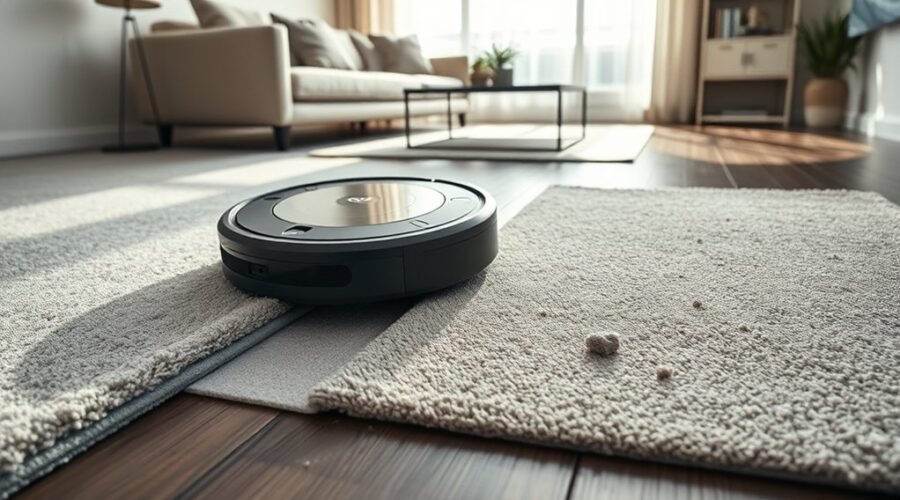
When your robot vacuum misses carpet, the problem may come from dirty sensors, incorrect app settings, or a poorly saved map. Low-pile rugs, dark carpets, and blocked wheels can also prevent proper cleaning. The right fix depends on whether your robot avoids the rug, fails to recognize it, or crosses it without picking up dirt.
Quick Answer
If your robot vacuum misses carpet, first clean its sensors, brushes, wheels, and filter. Next, check whether carpet avoidance is enabled in the app. Correct missing or false carpet areas in the map, enable carpet boost if supported, and install available firmware updates. Test the carpet again after each change.
Key Takeaways
- A robot that avoids carpet has a different problem from one that crosses it without increasing suction.
- Very thin rugs and dark carpet fibers can cause recognition errors, even with clean sensors.
- A no-go zone blocks cleaning, while a no-mop zone controls mopping access. Their behavior depends on the model.
- Some robots update detected carpet areas only after finishing a cleaning session.
- Never cover cliff sensors to force a robot onto dark carpet. Doing so can disable fall protection.
Why Does Your Robot Vacuum Miss Carpet?
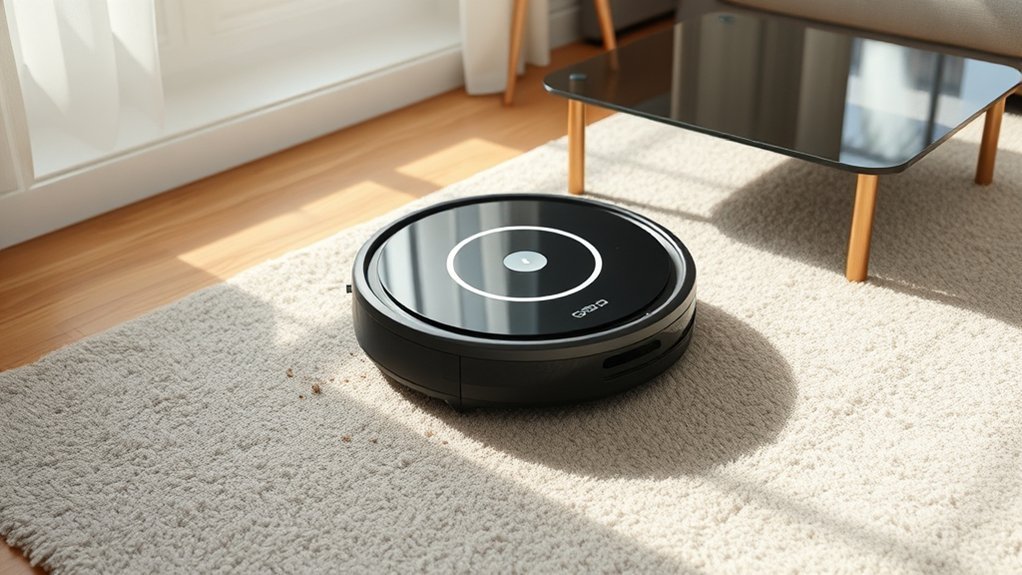
A robot vacuum can miss carpet because it does not recognize the surface, cannot reach it, or has been told to avoid it. These problems may look similar, but they require different fixes.
Some models use ultrasonic sensors to recognize carpets and adjust suction or mopping behavior. Other sensors help the robot navigate and avoid obstacles.
When carpet detection fails, the machine may treat a rug like hard flooring. It might continue cleaning without activating carpet boost, or its mop may fail to lift.
Several conditions can cause these errors:
- Low-pile carpet: Very thin fibers may not produce a clear carpet-detection signal.
- Dark carpet: Some infrared cliff sensors mistake dark flooring for a drop-off.
- Dirty sensors: Dust can interfere with surface detection or navigation.
- Incorrect mapping: False carpet spots or missing zones may change cleaning behavior.
- Carpet avoidance settings: The robot may deliberately skip rugs.
- Thick rugs and thresholds: Limited wheel clearance or tangled fibers can prevent access.
- Brush or filter problems: The robot may travel over carpet but leave debris behind.
For example, eufy’s Omni C30 Edge support guidance identifies very thin carpets under 5 mm, dark colors, and irregular edges as possible recognition problems. These limits apply to that model, not every robot vacuum.
First determine whether the robot avoids the carpet, fails to identify it, or cleans it poorly. Each symptom points to a different cause.
Dark rugs require special attention. A cliff sensor uses reflected light to identify dangerous edges. If a dark surface reflects too little light, some robots back away because they interpret it as a drop.
This behavior is documented in iRobot’s Roomba cliff sensor troubleshooting guide.
Clean Sensors, Brushes, and Wheels
Cleaning the robot’s sensors and moving parts is the easiest place to start. Dust, hair, and thread can interfere with movement, detection, and suction.
Turn the robot off before removing brushes or inspecting its underside. Use the manufacturer’s cleaning instructions for your model.
- Clean the carpet-detection sensor. Locate the sensor using your model’s manual. Gently remove dust with a soft, dry cloth or cotton swab.
- Wipe the cliff sensors. Clean their exposed windows without scratching or covering them.
- Check cameras and navigation sensors. Remove dust that may interfere with room recognition.
- Remove tangled hair. Inspect the main roller, side brushes, and brush ends.
- Check both drive wheels. Remove trapped debris and make sure the wheels move freely.
- Empty the dustbin and inspect the filter. Clean or replace the filter according to its instructions. Check the suction inlet for blockages.
These checks also help when the robot reaches carpet but leaves dirt or pet hair behind.
| Component | Action |
|---|---|
| Sensors and cameras | Wipe gently to remove dust and restore clearer readings. |
| Vacuum brushes and wheels | Remove hair, threads, and debris that restrict cleaning or movement. |
A maintenance check every 1–2 weeks is a useful starting point, especially in homes with pets or thick carpets. Heavy use may require more frequent cleaning.
Manufacturer guidance also supports replacing worn brushes and maintaining filters. See eufy’s E20 cleaning performance troubleshooting instructions.
After cleaning the parts, run the vacuum over the problem rug. If it still avoids or misidentifies the carpet, move on to the app settings.
Adjust Carpet Detection in the App
Incorrect carpet settings can make a working robot skip rugs. Open the robot’s app and check the selected carpet cleaning mode, saved map, and suction preferences.
The controls vary by model. Some vacuums provide a carpet editor, while others offer only room settings, cleaning zones, or restricted areas.
Look for these behaviors:
- Carpet avoidance: The robot detects carpet but deliberately refuses to clean it.
- Vacuum only: The robot vacuums carpet without wet mopping.
- Carpet boost: Suction increases when the robot detects carpet, provided the feature is enabled and supported.
- Normal cleaning: The robot follows its regular cleaning behavior, which varies by model.
If you want the robot to clean a low-pile rug, select a compatible vacuuming mode instead of carpet avoidance.
Also check whether carpet boost is enabled. On supported eufy models, the BoostIQ feature raises suction automatically when stronger cleaning is needed.
Carpet Editor Adjustments
A carpet editor lets you correct the areas that your robot identifies as carpet. It is particularly useful when the map contains false spots or misses a real rug.
For example, the eufy S2 supports the following path:
- Open Edit Map in the app.
- Select Carpet Editing.
- Choose Add Carpet.
- Mark the carpet’s location on the map.
- Save the change and test cleaning.
These steps follow eufy’s official S2 carpet troubleshooting guide.
If the app allows you to delete incorrect carpet spots, remove any markings that appear on bare flooring.
Manual editing changes how supported models interpret their cleaning map. It does not physically repair a faulty carpet sensor.
Zone Cleaning Setup
Zone cleaning sends your robot to a selected part of the floor. It helps you test carpet coverage without repeating a full-house cleaning session.
Draw the zone around the rug, choose an appropriate vacuuming mode, and start a cleaning task. Use stronger suction if the model supports it.
| Action | Effect |
|---|---|
| Draw precise zone | Targets the carpet for cleaning; does not itself repair automatic detection. |
| Set No-Mop Zone | Helps prevent unwanted mopping, with behavior depending on the model. |
| Schedule carpet tasks | Repeats the selected cleaning routine; boost must be supported and enabled. |
| Update app regularly | Provides available fixes and supported cleaning controls. |
On compatible models, you can save carpet-focused tasks with custom suction settings. For example, eufy’s X10 Pro Omni Zone-Carpet guidance explains how to select carpet areas, adjust cleaning settings, and save recurring tasks.
Remember that a no-mop zone is not the same as a carpet cleaning zone. Depending on the robot, it may also prevent entry while the mopping attachment is installed.
Draw Manual Carpet Zones in the App
Manual carpet zones help when automatic detection repeatedly misses the same area. You can use them to identify where the carpet lies and apply supported cleaning behavior.
Before editing, make sure the correct floor map is active and the carpet appears in its actual location.
- Open the saved map. Select the floor where carpet detection fails.
- Remove false carpet markings. Delete incorrect spots if your app supports that feature.
- Add the missing carpet. Use the carpet editing tool to mark the rug’s position.
- Adjust the outline. Follow the actual carpet edges and correct any gaps or excessive overlap.
- Select the cleaning behavior. Choose vacuum-only cleaning or a suitable carpet setting.
- Save your changes. Confirm that the new zone appears on the map.
- Run a test. Watch whether the vacuum enters the area and cleans it as expected.
On models without a carpet editor, a normal zone-cleaning task may provide a workaround. However, selecting a zone does not guarantee automatic carpet recognition or suction boost.
Pro Tip: If a rug has moved since the original mapping session, correct its location before testing carpet detection. Otherwise, the robot may follow an outdated carpet boundary even when its sensors are working.
Some users suggest covering a carpet sensor with tape or cardboard to stop incorrect readings. This can interfere with the robot’s sensing system and is not a substitute for accurate map editing.
If the carpet still causes trouble, use the supported cleaning settings or contact the manufacturer for model-specific instructions.
Update Firmware for Better Carpet Detection
Firmware controls how a robot interprets sensor readings and follows its cleaning instructions. A manufacturer update may fix software-related carpet recognition problems.
Open the robot’s official app and look for the firmware update option. Install an available update that applies to your specific model.
There is one important model-specific example: eufy’s S1 Pro carpet detection guidance identifies firmware version V6.9.79 as a fix for incorrect carpet detection on that device.
Firmware V6.9.79 is a documented fix for the eufy S1 Pro. It should not be treated as the required version for other robot vacuums.
To update safely:
- Charge the robot sufficiently and keep it connected to its normal network.
- Open the manufacturer’s app and select the robot.
- Look for an available firmware update.
- Follow the displayed installation instructions without interrupting the process.
- Restart the robot if the manufacturer instructs you to do so.
- Run a cleaning session to check whether detection has improved.
Also check for app updates, since mapping controls and cleaning options may change between app versions.
Some robots update carpet markings only after a session finishes. For example, eufy states that its E25/E28 models update carpet zones after task completion rather than showing every detection immediately.
The manufacturer’s E25/E28 carpet detection instructions also recommend checking BoostIQ, the carpet cleaning mode, and the ultrasonic sensor.
If cleaning the sensors, correcting the map, and updating firmware do not help, contact support. Record the model, cleaning error, and affected area so the manufacturer can investigate the problem.
Prevent Carpet Detection Problems
Preventing missed carpet cleaning requires accurate maps, clean components, and appropriate cleaning modes. Regular checks help stop small errors from affecting repeated cleaning sessions.
The most important habit is to review the saved carpet areas after changing rugs or rearranging furniture.
Warning: Do not cover cliff sensors with tape or cardboard to make a robot cross a dark rug. These sensors help prevent falls near stairs and ledges. Blocking them can disable an important safety feature. Use manufacturer-approved settings and physical barriers where needed.
| Action | Effect |
|---|---|
| Tape or cardboard over sensor | Not recommended; may interfere with detection and disable safety functions. |
| Manual editing in app | Removes incorrect carpet markings where supported. |
| Drawn carpets | Aligns supported carpet maps with actual flooring. |
| Zone cleaning over carpet | Targets the rug; supported boost features depend on settings and model. |
Also secure loose rug corners and fold fringes underneath where possible. A lightweight rug can bunch up or become caught in the roller brush.
Check the difference between restricted areas before saving them. A no-go zone tells the robot to avoid an area, while a no-mop zone is intended to restrict mopping.
Eufy explains these behaviors in its guide to virtual boundaries, no-go zones, and no-mop zones.
If your app does not provide a switch to disable automatic carpet recognition, use the available map-editing and cleaning-mode controls. Feature availability varies across models and app versions.
Finally, observe a complete cleaning run after changing important settings. This helps you confirm that the robot reaches its carpeted areas and follows the intended routine.
Frequently Asked Questions
What Are the Most Common Problems With Robot Vacuums?
The most common robot vacuum problems include navigation errors, weak suction, noisy brushes, battery issues, and missed cleaning areas. Dirty sensors, clogged filters, tangled hair, and incorrect app settings can contribute to these problems. Regular maintenance and software updates help keep the robot working reliably.
What Is the Average Lifespan of a Robot Vacuum?
A robot vacuum is often estimated to last around 5–7 years, although actual lifespan varies by model, usage, and maintenance. Batteries, brushes, filters, and wheels may need replacement sooner. Regular cleaning, proper charging, and replacing worn parts can help extend its useful life.
Why Is My Roomba Not Working on My Carpet?
Your Roomba may avoid carpet because of dirty cliff sensors, dark flooring, thick rug fibers, or navigation problems. Clean the sensors and brushes, inspect the wheels, and check for error messages. If the robot enters the carpet but cleans poorly, also inspect the filter and suction settings.
How Do I Clean the Sensors on My Robot Vacuum?
Turn off the robot vacuum and locate its sensors using the user manual. Gently wipe exposed sensor windows with a soft, dry microfiber cloth. Remove dust without scratching the surfaces or spraying liquid into openings. Restart the vacuum and test whether its navigation or carpet detection has improved.
Why Does My Robot Vacuum Detect Carpet in the Wrong Place?
A robot vacuum may mark carpet in the wrong place because of sensor errors, an outdated map, or changes to the room layout. If your app supports carpet editing, remove incorrect markings and add the real carpet area. Run another cleaning session to confirm the saved map is accurate.
Conclusion
If your robot vacuum misses carpet, start with basic maintenance before changing advanced settings. Dirty sensors, tangled brushes, incorrect maps, and carpet avoidance modes are common causes of poor coverage.
The original industry-testing claim that robots may miss up to 30% of low-pile rugs still needs a verifiable source. Actual detection performance depends on the model, flooring, and conditions.
For better results, clean the robot’s components, correct carpet zones, enable supported cleaning features, and install appropriate firmware updates. Then run a complete cleaning session to confirm that the problem has been resolved.
Sources
- eufy Support: Omni C30 Edge Carpet Detection: Thin carpets, dark surfaces, and recognition limitations.
- iRobot Support: Roomba Error 6: Cliff sensor errors, dark carpet behavior, and troubleshooting.
- eufy Support: E20 Cleaning Performance: Brush maintenance, filters, suction, and carpet boost.
- eufy Support: S2 Carpet Troubleshooting: Manual carpet editing and rug handling.
- eufy Support: X10 Pro Omni Carpet Cleaning: Zone-Carpet settings, suction adjustments, and saved tasks.
- eufy Support: S1 Pro Carpet Detection: Firmware V6.9.79 and model-specific cleaning settings.
- eufy Support: E25/E28 Carpet Detection: Sensor cleaning, BoostIQ checks, and carpet map updates.
- eufy Support: Virtual Boundary and Cleaning Zones: Differences between no-go and no-mop restrictions.