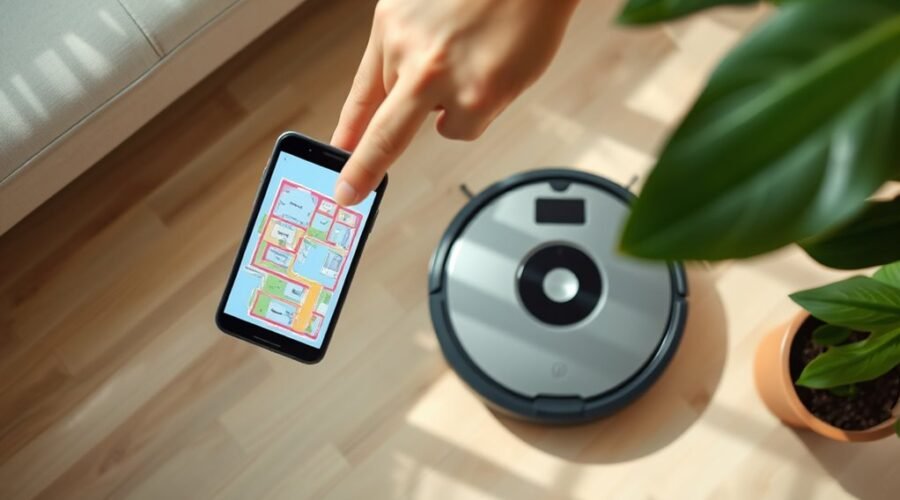
Adding rooms to a robot vacuum map begins with simple conditions that affect sensor accuracy. The door to the target room should be fully open, and the vacuum should be started near that space before a complete cleaning cycle runs. Once mapping is finished, the saved layout can be checked in the app and adjusted if needed. Some rooms appear correctly on the first pass, while others require further refinement.
Open the Door to the Room
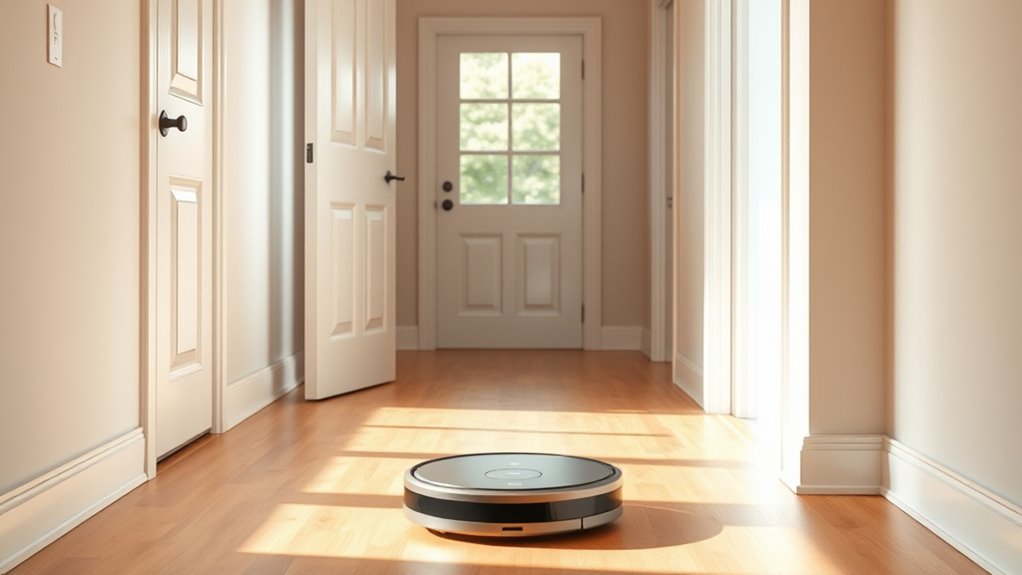
To add a new room to the robot vacuum map, the door to that room should be fully open during the mapping process. This removes a physical boundary that could prevent the robot from sensing the adjoining space and allows it to move with operational freedom.
For effective setup, place the vacuum in the already mapped room, positioned close to the open doorway. From there, it can briefly cross the threshold and detect the unmapped area, which helps it register the room and reduce the effect of any virtual wall barriers.
This step is essential to add a room without forcing unnecessary restrictions on navigation. The instruction is simple: open the door, keep the path clear, and let the machine identify the new zone.
During this stage, the vacuum’s movement should be observed to confirm that it recognizes the space correctly and proceeds without obstruction.
Run a Full Clean to Map It
Run a full cleaning cycle across the entire accessible area so the robot vacuum can navigate every room and update its map with newly discovered spaces.
During this full clean, all doors to unmapped rooms should remain open, allowing the LiDAR sensor to trace boundaries and merge them into the current map.
Keep doors to unmapped rooms open so the LiDAR can trace boundaries and add new spaces to the map.
The robot must move through each passage without interruption, since incomplete coverage can prevent accurate room detection. If the unit passes through the new area, it can register walls, openings, and room geometry for later use.
A successful pass expands the current map and supports cleaner scheduling across the home. If the new rooms do not appear, the procedure should be repeated with complete access and fewer obstacles.
Firmware updates should also be applied regularly, because improved navigation software can strengthen mapping precision and help the device identify spaces more reliably.
Save the New Room on Your Robot Vacuum Map
After the robot vacuum completes a full clean of the newly accessible area, the added room should be saved automatically in the map. The system then records the new room for later access inside the iRobot Home App.
To confirm successful mapping, the user should inspect the floor plan and verify that the boundary appears intact. This step supports a liberated workflow, because the robot can later be directed without manual repetition.
- Open the app after cleaning ends.
- Check that the new room appears on the map.
- Assign a clear name to the space.
- Use the saved layout to customize cleaning schedules and zones.
If the room is missing, the mapping run may have been interrupted, so the vacuum should be monitored during future passes.
Firmware updates should also be installed regularly, since they improve detection and saving performance.
Rename and Divide Rooms Cleanly
Room names can be updated through the map settings in the iRobot Home App by selecting the target room and entering a clear label for easier identification. This rename process supports swift navigation across the map and reduces dependence on vague labels. To divide rooms, the robot should be placed at the doorway, then the app’s Divide Room feature should be activated to split one area into two precise sections. Afterward, verify that both sections keep the same color on the map, confirming coherent visual alignment. If a split no longer serves the layout, the Merge Room tool restores one continuous space.
| Action | App Control | Result |
|---|---|---|
| rename | Map settings | Clear room label |
| divide rooms | Divide Room | Two sections |
| verify | Map view | Same color |
| merge | Merge Room | Unified space |
| update | Settings review | Accurate layout |
Regular updates preserve map accuracy and support efficient, liberated cleaning routines.
Troubleshoot Missed Rooms
When a robot vacuum misses a room during mapping, doors should be left open so the unit can detect adjoining areas without obstruction. To troubleshoot missed rooms, the operator should verify that the vacuum completes a full clean; partial passes often record only fragments, leaving the room unsaved.
On models such as the 930 and lower, post-mapping room additions are not available, so accurate initial coverage becomes essential for autonomy.
- Open every connecting door before the run.
- Place the vacuum in the adjacent mapped room.
- Launch a quick map to remove virtual wall barriers.
- Update firmware to improve detection and map persistence.
If the room still does not appear, repeat the clean from the boundary where the gap occurs. Clear floor edges, dock the unit, and confirm the map saves after completion.
This method preserves user control while expanding the map with minimal restriction.
Frequently Asked Questions
How Do I Add Rooms to My Roomba Map?
Open the room door, then run a full-home Roomba mapping cycle so the vacuum detects and saves the new area. Room customization follows in the app; Room Clean alone will not update maps.
How Do I Add a Room to a Roborock Map?
He should open the door, place the Roborock in an adjacent mapped room, run a full clean, then use Edit Map for room customization and naming; updated firmware improves mapping accuracy and autonomous household liberation.
How Do I Add a Room to a Deebot Map?
A Deebot map updates when the robot cleans through an open doorway by coincidence, discovering the new room. Afterward, they check the app for room customization, save the layout, and update firmware regularly for accuracy.
How to Do Mapping for Robot Vacuum?
Mapping techniques require opening doors, running a full clean, and letting robot navigation learn each area via LiDAR or camera sensors. Firmware should stay updated, and mapped spaces can be named afterward for organized control.
Conclusion
As the saying goes, “A stitch in time saves nine.” By fully opening the door, running a complete clean, and confirming the result in the app, new rooms can be added to a robot vacuum map with minimal correction later. Saving, naming, and dividing rooms as needed keeps navigation accurate and cleaning efficient. If a room is missed, checking doors, placement, and mapping conditions usually resolves the issue quickly and preserves a reliable floor plan.