A robot vacuum that keeps dropping Wi‑Fi usually points to a band mismatch, weak signal, or mesh network handoff problem. Most units prefer 2.4 GHz, and poor dock placement can make the link unstable even when the app appears connected. Reboots, firmware updates, and network changes often resolve it, but some cases require a full reset. The next steps separate quick fixes from deeper faults.
Check Your Robot Vacuum’s Wi‑Fi Band
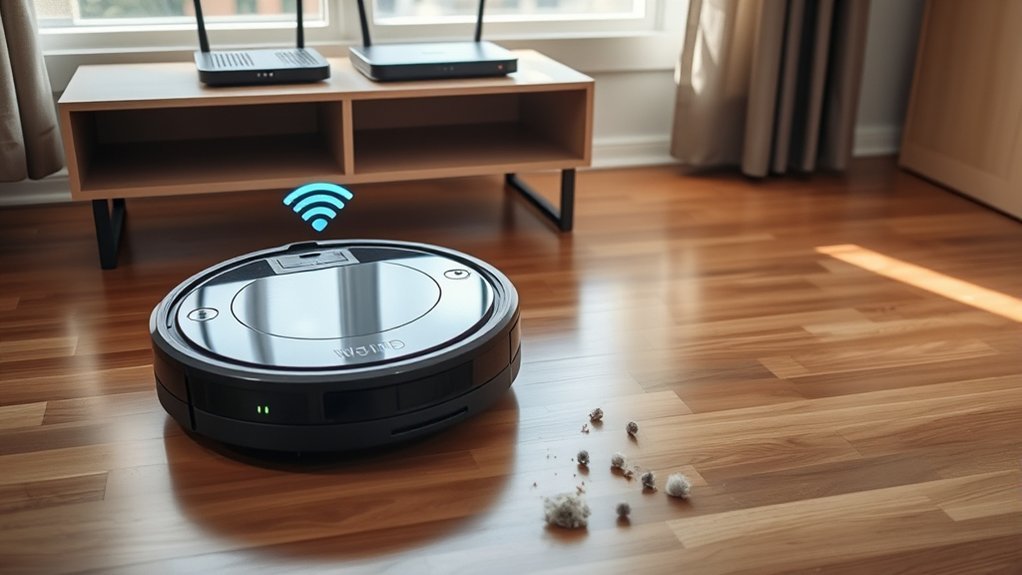
Robot vacuums generally require a 2.4 GHz Wi‑Fi band, since it provides greater range and better wall penetration than 5 GHz. A Robot vacuum should be verified on the 2.4 GHz network before other diagnostics proceed.
Many models reject 5 GHz entirely, so a stable Wi-Fi connection depends on selecting the correct band. If the router uses a combined SSID, the device may attach to the wrong frequency or fail during handoff.
Separate SSIDs for 2.4 GHz and 5 GHz, each with distinct passwords, reduce ambiguity and improve control. Where disconnects persist, the 5 GHz band can be disabled temporarily to confirm whether the vacuum maintains contact on 2.4 GHz.
This test isolates band incompatibility from other causes. Confirm the status in the app or router admin panel.
Precise band selection restores network autonomy and limits needless troubleshooting.
Reboot the Vacuum, Router, and App
A controlled reboot sequence often clears temporary connectivity faults in the vacuum, router, and control app. First, the robot vacuum should be rebooted by holding the prescribed buttons until the reset action begins. This interrupts minor software stalls and restores normal wireless negotiation.
- Power down the router, wait about 10 seconds, then restore power; this refreshes network state and may improve signal stability.
- Close the smartphone app fully, then reopen it so cached errors and transient session faults are removed.
- Check for firmware updates inside the app; updated code can improve compatibility, reduce disconnects, and strengthen device communication.
If the link still fails, a dedicated Wi-Fi reset on the vacuum may be required, often confirmed by a beep or voice prompt.
This step should be treated as a controlled recovery measure, not a routine habit, because it reinitializes stored network credentials and can restore user control.
Fix Mesh Network Steering and Node Handoffs
Mesh steering can force a robot vacuum to roam between nodes, causing brief disconnects during cleaning.
Disabling band steering and limiting handoffs helps keep the device on a stable 2.4 GHz link, which avoids incompatible 5 GHz shifts.
To isolate the fault, it is practical to test the vacuum on one mesh node only and observe whether the connection remains stable.
Disable Band Steering
Band steering can disrupt robot vacuum connectivity by moving the device between 2.4 GHz and 5 GHz bands, which often triggers disconnections during node handoffs.
When band steering is enabled, the robot may experience connectivity issues because it cannot remain fixed on the 2.4 GHz band. This setting should be disabled in the router’s admin interface so the vacuum can stay on the more stable 2.4 GHz network, which offers broader coverage and better wall penetration for autonomous operation.
- Log in to the router and locate wireless steering controls.
- Disable band steering for the vacuum’s SSID or device group.
- Test the connection temporarily before making the change permanent.
A stable 2.4 GHz link supports reliable navigation and greater device autonomy.
Reduce Node Handoffs
Frequent node handoffs in a mesh network can interrupt a robot vacuum’s connection as it moves between access points, causing brief drops in control and cloud communication. To reduce node handoffs, the router should present separate SSIDs for 2.4 GHz and 5 GHz, keeping the vacuum on 4 GHz. This limits steering and preserves a stable link. The dock should sit where thick walls and metal objects do not attenuate signal quality. Monitoring the mesh network app can reveal whether the device is being pushed between nodes.
| Setting | Effect |
|---|---|
| Separate SSIDs | Locks band choice |
| 4 GHz only | Improves compatibility |
| Fewer obstructions | Strengthens signal |
| App monitoring | Exposes switching |
| Stable attachment | Reduces drops |
Test One Node Only
If node handoffs still interrupt the robot vacuum after band separation and signal placement checks, the mesh can be tested with only one node powered on. This test one node only approach isolates whether Wifi issues arise from steering logic, roaming rules, or a defective access point.
In the network settings, disable all but one node and observe whether the vacuum holds a stable link.
- Keep the vacuum near the active node and note any drops.
- Restore nodes one at a time to identify the failing handoff point.
- If stability returns on a single node, adjust steering or roaming thresholds.
A steady connection suggests the problem is not the vacuum itself but node switching behavior, obstructions, or distance. This method gives the user clearer control.
Move the Dock for Better Signal
Relocating the charging dock closer to the router can substantially improve Wi‑Fi signal strength for the robot vacuum. When users move the dock, the reduced path loss often yields a more stable link and fewer disconnects. Setup should occur on the same floor as the router, with a clear line of sight when possible. Large metal objects, refrigerators, and dense appliances can attenuate the Wi‑Fi signal and should be avoided.
| Placement Factor | Effect | Action |
|---|---|---|
| Dock near router | Stronger signal | Relocate dock |
| Same floor | Less attenuation | Keep setup aligned |
| Clear line of sight | Stable connection | Remove obstructions |
| Metal appliances | Interference risk | Reposition dock |
| Weak coverage persists | Limited range | Add mesh or booster |
A liberated network arrangement minimizes dependence on barriers and expands reliable coverage. If repositioning does not resolve the fault, a mesh node or signal booster may extend access without constraining the robot vacuum.
Update the App and Firmware
The app version should be checked first to confirm compatibility with the vacuum’s current firmware.
Available robot firmware updates should then be applied through the app, as they often correct Wi-Fi connectivity faults and improve network stability.
After updating, both the vacuum and the app should be restarted to guarantee the changes are fully applied.
Check App Version
Keeping the robot vacuum’s companion app current is a primary step in resolving Wi‑Fi instability. The app should be checked in the official store and brought to the latest version to improve compatibility, stability, and connectivity. Outdated releases can interrupt pairing logic, obscure status data, and limit control.
- Verify the app version in the store and compare it with the installed build.
- Install any update, then reopen the app to confirm normal operation.
- Restart the smartphone and robot vacuum to clear transient faults.
If the app still behaves poorly, reinstalling may remove corrupted files or stale data. Maintaining current app software supports reliable control and reduces disconnections, giving the user greater technical autonomy over the device.
Update Robot Firmware
With the app current, the next step is to check the robot vacuum’s firmware inside the companion app and install any available update.
To update robot firmware, the user should verify that the Smart Device is connected to the correct Wifi router and then trigger the firmware package from the app menu. Updated firmware can improve radio stability, pairing logic, and cloud sync behavior.
The smartphone app should also be kept current through the app store to preserve compatibility. After installation, the robot should reboot, followed by a Wi-Fi reset to refresh network credentials.
If disconnects persist, force-close the app and restart the phone. When failures continue, reinstall the app to remove software conflicts and restore control.
Reset Wi‑Fi Only If Nothing Else Works
If connectivity problems persist after confirming a 2.4 GHz network connection, strong Wi‑Fi signal, ideal dock placement, and updated app software, a factory reset may be the last resort.
This step clears persistent connectivity issues and restores the robot to default settings. It also erases saved maps, room labels, cleaning schedules, and custom preferences, so it should be used only after all other diagnostics fail.
On a stable 4 GHz network, the vacuum may still disconnect if its stored network profile is corrupted, but the reset removes that fault.
Even on a stable 4 GHz network, a corrupted network profile can still cause disconnects.
- Verify that troubleshooting steps are exhausted.
- Use model-specific reset instructions.
- Reconfigure Wi‑Fi and maps after reset.
Reset methods vary by brand; for example, some iRobot Roomba J Series units require holding Home, Spot Clean, and Clean for seven seconds.
Following the correct sequence prevents complications and supports a clean recovery of control.
Frequently Asked Questions
What Are the Common Reasons Why My Wi-Fi Keeps Disconnecting?
Common reasons include Wi Fi interference, poor router placement, outdated firmware updates, crowded channels, weak signal, incompatible security settings, overloaded networks, and device limits. These conditions destabilize connections and reduce reliable access across a home.
Why Does My Roomba Keep Losing Wi-Fi Connection?
A Roomba usually loses Wi‑Fi because it prefers 2.4 GHz, suffers Wi Fi interference, or is hindered by poor Router placement; Firmware updates and power cycling can also disrupt pairing, contrary to common assumptions.
What Is the Average Lifespan of a Robot Vacuum?
A robot vacuum typically lasts 3–5 years. With robot vacuum maintenance, battery longevity, and cleaning efficiency managed well, premium models can exceed that range, though heavy use and harsh environments shorten service life.
Why Does My 2.4 GHZ Keep Dropping?
The 2.4 GHz link drops when Wi Fi interference, Router placement, or Device compatibility degrade signal quality; like a weak bridge, congestion, walls, and dual-band misconfiguration fracture stability, especially under crowded channels and outdated firmware.
Conclusion
In the end, a robot vacuum that keeps disconnecting from Wi‑Fi usually reflects a mismatch, not a mystery. The 2.4 GHz band, a stable dock location, clean mesh handoffs, and current firmware often restore reliable service. When a reboot or app update succeeds just as a signal fades, the coincidence underscores the point: small network conditions can govern automated convenience. If all else fails, resetting Wi‑Fi provides a final, controlled return to baseline.