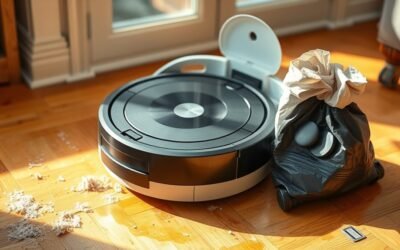
If your Roomba keeps bumping into furniture, stops cleaning, or displays Error 9, the front bumper may be stuck. Dust, trapped hair, or a bumper that has slipped out of place can cause the problem. Learning how to clean a Roomba bumper can help you restore normal movement without damaging its sensors or housing.
Quick Answer
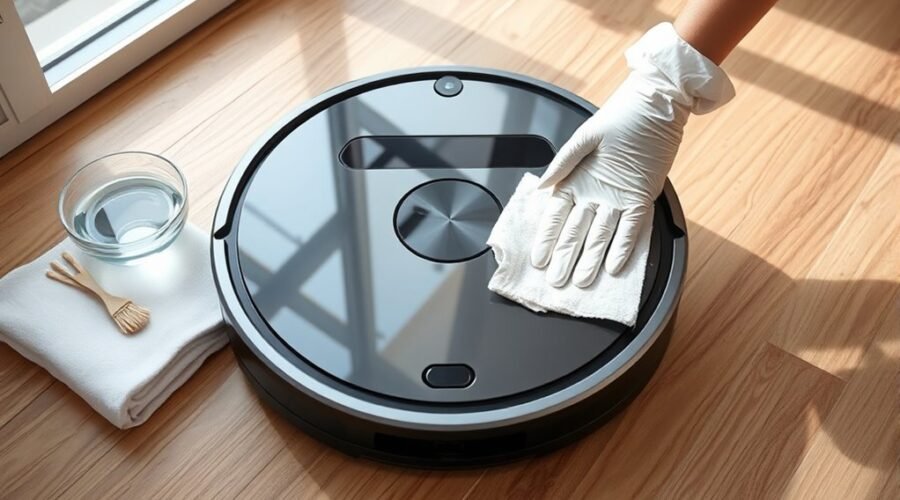
To clean a Roomba bumper, turn off the robot and remove it from the dock. Gently tap the front and sides to loosen trapped debris. Wipe the bumper with a dry microfiber cloth and clean its edges with a soft brush. Check that both sides move freely and return after pressing.
At a Glance
| Difficulty | Easy for exterior cleaning; model-dependent for bumper refitting |
| Tools Needed | Dry microfiber cloth, soft brush, tweezers, optional disposable gloves, and a Phillips screwdriver if disassembly is required |
What Causes a Roomba Bumper to Stick?
)
A Roomba bumper can stick when dust, hair, or other debris gets trapped between the bumper and the robot’s body. Repeated contact with furniture can also shift the bumper out of position. In some cases, worn or damaged internal parts prevent it from moving normally.
The front bumper helps the robot detect physical contact with obstacles. When something presses against it, the robot uses that information to change direction.
Common causes of bumper problems include:
- Dust buildup: Fine dirt collects around the bumper edges and increases friction.
- Trapped hair or fibers: Hair, string, and carpet fibers can interfere with bumper movement.
- Misalignment: Repeated collisions may leave one side of the bumper sticking out.
- Internal obstruction: Debris behind the bumper can interfere with its sensors or moving parts.
- Impact damage: Cracked plastic, damaged clips, or worn components can prevent the bumper from returning to position.
A healthy Roomba bumper should move inward when pressed and return smoothly when released.
You may notice the robot stopping after touching furniture, repeatedly turning in place, or reporting a bumper error. A visual inspection helps distinguish a simple dirt problem from physical damage.
Power Off and Gather Safe Tools
Before cleaning your Roomba bumper, turn off the robot and remove it from its charging dock. This prevents unexpected movement while your hands are near the bumper or brushes.
Prepare your cleaning supplies before starting. Most surface dirt can be removed without taking the robot apart.
Power Off First
Stop any active cleaning job and power down the Roomba using the method specified for your model. Place it on a clean, stable surface with enough room to inspect the front and sides.
Follow this preparation sequence:
| Step | Purpose | Result |
|---|---|---|
| Power off and undock | Prevent accidental movement | Safer handling |
| Inspect the bumper | Identify visible obstructions | Targeted cleaning |
| Prepare a soft brush | Remove loose dust and hair | Less risk of scratching |
Keep the robot away from water during maintenance. If you turn it upside down, support its body carefully and avoid putting pressure on the camera or raised sensors.
Gather Safe Tools
You only need a few basic tools for routine bumper maintenance. Choose materials that will not scratch plastic surfaces or push debris deeper into the robot.
- Dry microfiber cloth: Wipes dust and fingerprints from exposed surfaces.
- Soft cleaning brush: Removes dirt from seams and narrow gaps.
- Tweezers: Helps remove visible strands of hair or string without pulling on internal parts.
- Disposable gloves: Optional protection when handling dusty components.
- Phillips screwdriver: Needed only when your model’s approved repair procedure requires opening the bumper assembly.
Avoid sharp metal tools, rough scrubbing pads, and excessive pressure. Keep screws and removable parts organized if you need to open the housing.
How to Clean a Roomba Bumper and Its Sensors
Cleaning the bumper starts with removing loose dirt from the outside. Work around the front edge and both sides before checking for debris beneath the bumper.
You should not need to remove the bumper for ordinary surface cleaning.
Warning: Never spray water, vinegar, or cleaning solution directly into the bumper gaps or sensor openings. Liquid can reach sensitive internal components. Do not force tools into narrow openings or attempt to pry the bumper loose.
- Wipe the bumper surface. Use a clean, dry microfiber cloth to remove dust from the front and sides.
- Brush the edges. Gently run a soft brush along the gaps where the bumper meets the robot’s housing.
- Remove trapped strands. Use tweezers to lift visible hair or string from accessible spaces. Avoid pulling anything connected to the bumper mechanism.
- Loosen hidden debris. Gently tap the front and both sides of the bumper several times. This can release dirt caught underneath.
- Inspect nearby sensors. Wipe accessible sensor windows with a dry microfiber cloth. Clean the underside cliff sensors separately if they appear dusty.
- Check movement. Press each side of the bumper lightly and release it. Both sides should move and spring back without sticking.
If the robot still bumps into objects too hard or reacts when nothing is nearby, the light-touch bumper sensors may need additional cleaning.
According to iRobot’s bumper sensor cleaning guidance, compressed air can help remove debris from the sensor area on supported models. Follow the manufacturer’s illustrated instructions for the correct direction and location.
Do not confuse bumper sensors with cliff sensors or LiDAR navigation sensors. Each serves a different purpose and may have different cleaning requirements.
How to Re-seat a Dislodged Roomba Bumper
A dislodged bumper may stick out farther on one side or sit unevenly against the robot’s body. If tapping and cleaning do not solve the problem, inspect the bumper from underneath.
Do not simply force it inward until you hear a click. The correct refitting method depends on the Roomba series.
iRobot provides separate instructions in its official dislodged bumper repair guide for e/i, 600–900, and j7 series models.
For Roomba e and i Series
On supported e and i Series models, the bumper can be repositioned through the underside housing.
- Turn off the Roomba and place it upside down.
- Remove the Edge Sweeping brush with a Phillips screwdriver.
- Loosen the five screws holding the bottom cover and remove the cover.
- Locate the dislodged side of the bumper.
- Remove the three screws securing that side of the bumper assembly.
- Lift the lower bumper section and position it inside its designated slots.
- Secure the bumper screws and reinstall the bottom cover.
- Reattach the side brush and test bumper movement.
For Roomba 600, 700, 800, and 900 Series
These older series use a similar approach, but the bottom cover is normally secured by four screws rather than five.
Remove the side brush and bottom cover according to your model’s instructions. Then remove the three screws on the dislodged bumper side, lift the lower bumper section, and return it to its mounting slots.
Reinstall the screws, bottom cover, and side brush before testing.
For Roomba j7 and Other Models
The Roomba j7 uses a different adjustment method. After removing its side brush and bottom cover, iRobot instructs you to push the lower bumper inward and upward, followed by the upper bumper inward and downward.
Check that the bumper moves freely before reinstalling the cover and brush.
Newer Roomba models may use different clips and mounting systems. For example, the Max 700 Series has a model-specific procedure that aligns the upper bumper with its mounting tabs before securing the lower section.
Use the instructions for your exact model. If you cannot identify the mounting points or see damaged clips, stop rather than forcing the bumper into position.
Check for Roomba Error 9 or 16
Roomba Error 9 usually indicates a stuck bumper. Error 16 can indicate a tilted robot, a dislodged bumper, or a navigation problem, depending on the model.
Understanding the difference helps you avoid unnecessary repairs.
What Does Roomba Error 9 Mean?
Error 9 means the bumper is not moving freely. Dirt beneath the bumper, a jammed sensor mechanism, or physical misalignment can trigger it.
iRobot’s Error 9 troubleshooting instructions recommend tapping the bumper several times to dislodge trapped debris, then restarting the cleaning job.
Look for these signs:
- The front bumper stays pressed inward.
- One side sticks out farther than the other.
- The robot stops or refuses to begin cleaning.
- The bumper does not spring back after being pressed.
If cleaning and proper alignment do not resolve the problem, the bumper sensor or mechanical assembly may need professional inspection or replacement.
What Does Roomba Error 16 Mean?
Error 16 does not always mean the bumper is dirty. On certain older and j Series models, it can appear when the robot is tilted or the bumper has been dislodged.
On newer Roomba series, Error 16 can instead indicate that the robot was lifted during cleaning or failed to navigate correctly.
| Check | Action |
|---|---|
| Bumper position | Look for an uneven or protruding edge |
| Older and j Series | Check for tilting or a dislodged bumper |
| Newer series | Check whether the robot was lifted or became stuck |
| Obstructions | Remove obstacles and place Roomba on a flat surface |
| Result | Restart cleaning and check whether the error returns |
For newer models, iRobot’s Error 16 guidance explains that lifting the robot during an active cleaning job can trigger the warning.
If the robot is already on a flat surface and its bumper is aligned, check for surrounding obstacles. Restart or reboot the robot using the instructions for its specific series.
A persistent error after cleaning, alignment checks, and a restart may indicate a sensor or internal hardware fault.
Dry, Refit, and Test the Bumper
After cleaning or refitting the bumper, confirm that all components are dry and properly seated before using the Roomba again. A bumper that still catches or moves unevenly may not be fully aligned.
Use this checklist:
- Check for moisture. If you used a manufacturer-approved lightly dampened cleaning material, allow the cleaned surfaces to dry completely.
- Inspect the fit. Confirm that the bumper sits evenly against both sides of the robot’s housing.
- Test the movement. Press the center and each side gently. The bumper should return to its resting position.
- Check other components. Ensure any removed screws, covers, brushes, and other parts are securely reinstalled.
- Run a cleaning test. Place the Roomba on a clear, level floor and start a short cleaning job. Watch for normal turning and obstacle response.
A successful repair should leave the bumper moving smoothly without sticking, rattling, or remaining compressed.
If the robot still drives into obstacles, stops repeatedly, or reports the same error, do not keep forcing the bumper. Contact iRobot Customer Care or a qualified repair technician for further diagnosis.
How to Prevent Roomba Bumper Problems
Regular cleaning and fewer unnecessary collisions can help prevent bumper problems. Dust, pet hair, and repeated impacts are easier to manage before they cause sticking or damage.
Follow these simple maintenance habits:
- Inspect the bumper regularly. Check for dust, loose hair, and visible misalignment during routine vacuum maintenance.
- Keep floors clear. Remove loose cords, toys, clothing, and other objects that can catch the robot.
- Reduce repeated impacts. Adjust obstacles or furniture placement where the Roomba frequently gets trapped.
- Clean nearby sensors. Wipe accessible sensor windows with a suitable soft cloth to reduce navigation problems caused by dirt.
- Handle the bumper gently. Avoid pulling, twisting, or pressing it beyond its normal movement.
Keep the bumper free of debris and reduce repeated collisions to help maintain smooth movement and reliable cleaning.
On compatible models, the iRobot Home App supports virtual restricted areas called Keep-Out Zones. These prevent the robot from entering selected spaces.
According to iRobot’s Keep-Out Zone guidance, you can use them around clutter, pet bowls, and locations where the robot repeatedly gets stuck. Not every Roomba model supports this feature.
If the bumper begins sticking after a collision, inspect it before running another cleaning cycle. Early attention can prevent the robot from repeatedly pressing against a damaged or jammed part.
Key Takeaways
- Error 9 usually points to a stuck bumper, while Error 16 has different meanings across Roomba series.
- A bumper that protrudes on one side may need mechanical realignment rather than more cleaning.
- Roomba e/i, 600–900, and j7 models use different bumper-refitting procedures.
- Avoid spraying liquid into sensor openings or forcing a bumper that will not move.
- Persistent faults after cleaning and refitting may require professional repair.
Frequently Asked Questions
How to Clean a Roomba Bumper?
Turn off your Roomba and wipe the front bumper with a dry microfiber cloth. Use a soft brush to clear dust and hair from the edges, then gently tap both sides to loosen hidden debris. Press the bumper to confirm it moves freely and returns to position.
What Are the Downsides of Using a Robotic Vacuum Cleaner?
Robot vacuums can miss corners, struggle with thick carpets, get tangled in pet hair, and become stuck on obstacles. They also require brush cleaning, filter maintenance, and occasional part replacement. Battery wear, operating noise, and the purchase price are other factors to consider before buying one.
Can I Use Vinegar in My Robot Vacuum?
No, do not put vinegar in a Roomba’s water tank or use it to clean bumper sensors. iRobot warns that vinegar mixtures can cause corrosion and affect warranty coverage. Use water or an approved product only where your model allows it. Refer to iRobot’s approved cleaning solutions for compatible options.
What Is the Average Lifespan of a Robot Vacuum?
Robot vacuum lifespan varies, but European consumer survey data suggest an average of about five and a half years. The European Environment Agency’s appliance lifespan review covers consumers in four countries, so individual results can differ. Regular cleaning, careful battery use, and timely replacement of worn parts can help extend service life.
Conclusion
A stuck Roomba bumper often needs nothing more than careful cleaning and a movement check. Remove trapped dust and hair, inspect both sides for misalignment, and use the correct repair procedure if the bumper has become dislodged.
Before starting another cleaning job, make sure the bumper moves freely and the robot responds normally to obstacles. If sticking or error messages continue, seek model-specific repair support rather than forcing the mechanism.
Sources
- iRobot, Roomba 600–900 Series Error 9: bumper sticking symptoms and initial troubleshooting.
- iRobot, Why Is My Roomba Bumping Into Obstacles Harder Than Before?: bumper sensor cleaning and compressed-air guidance.
- iRobot, How Do I Fix a Dislodged Bumper?: model-specific bumper inspection and refitting procedures.
- iRobot, Error 16 for Newer Roomba Series: lifted robot and navigation-related error guidance.
- iRobot, What Are Keep-Out Zones?: using compatible mapping features to avoid troublesome areas.
- iRobot, Approved Cleaning Solutions for Mopping and Combo Robots: vinegar restrictions and approved cleaning liquids.
- European Environment Agency, Evolution in Average Lifespans of Household Appliances: robot vacuum lifespan estimates from European consumer surveys.