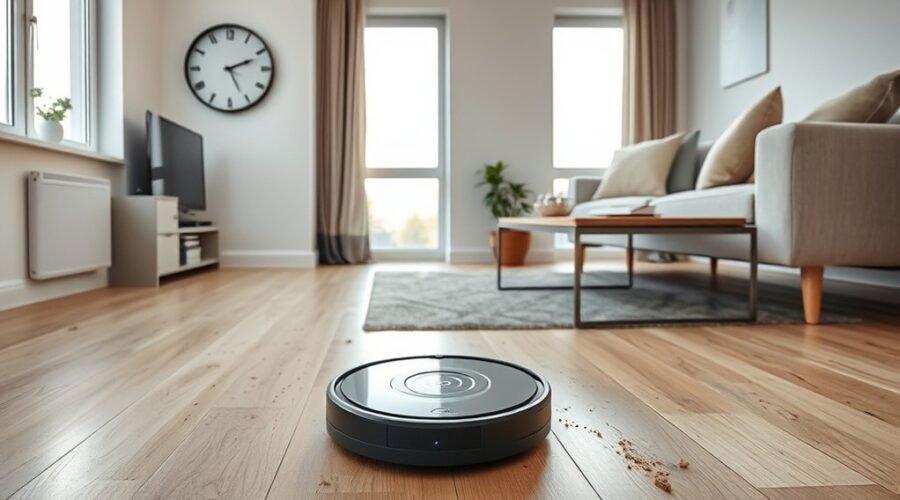
A robot vacuum schedule can stop working for several reasons, from weak battery health and dock issues to Wi‑Fi drops and outdated firmware. Simple setup errors, blocked sensors, or a stray error code can also disrupt timed cleaning cycles. Most faults are easy to isolate with a few checks, but the real cause is not always obvious at first, which makes the next step worth considering.
Why Your Robot Vacuum Schedule Stops Working
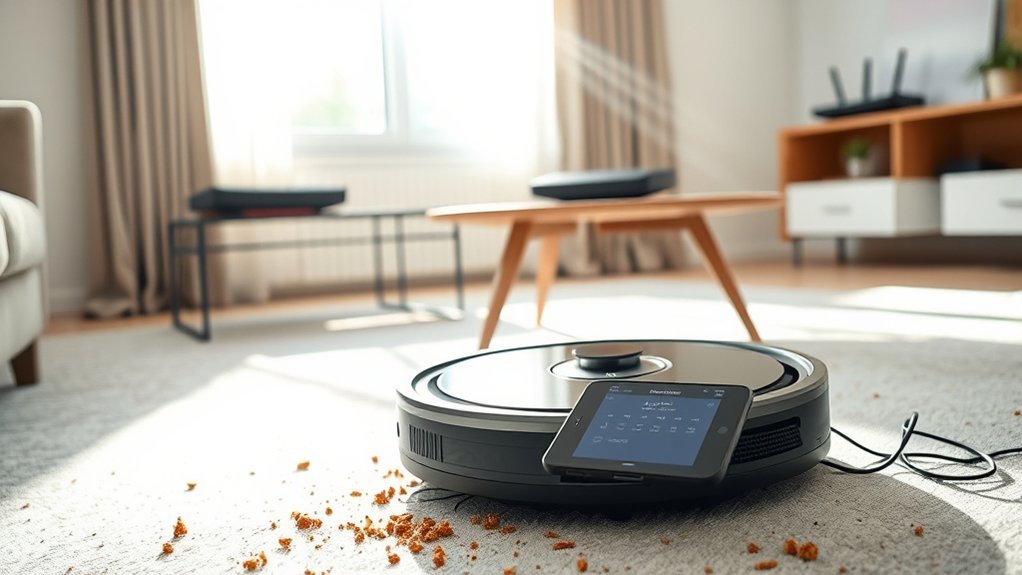
A robot vacuum schedule may stop working when firmware is outdated, the app loses Wi‑Fi connectivity, or software bugs interrupt scheduled commands. These robot vacuum problems often begin with firmware issues that block routine execution until updates are installed.
App connectivity also matters: unstable links or app faults can prevent the robot vacuum schedule from syncing correctly. Battery health is another constraint; a weak pack can end runs early or skip them entirely, reducing autonomous cleaning.
Clogged components, including a full dustbin or blocked filters, can stop motion at the appointed time and signal poor maintenance. Scheduling conflicts arise when cleaning windows overlap with other routines, causing missed starts or delayed launches.
Each fault narrows freedom from manual intervention, so a systematic review of software, power storage, maintenance, and calendar settings is the practical path to restoring reliable operation.
Check Power, Docking, and Wi‑Fi
Power and battery status should be verified first, because insufficient charge can prevent a scheduled run from starting or finishing.
The charging dock should be plugged into a working outlet, placed on a flat unobstructed surface, and kept clean at the contacts to maintain reliable docking and power transfer.
Wi‑Fi stability also matters, since an unreliable connection can interrupt app communication and stop scheduled operations.
Power And Battery Check
The charging dock should be connected to a functioning power outlet and kept clear of obstructions so the robot vacuum can dock and charge properly.
Power continuity matters: a weak or interrupted supply can leave the battery too low for scheduled cleaning to begin. The battery level should be checked in the app before each run, since depleted cells often block start commands.
Charging contacts on both the vacuum and dock need periodic cleaning; dust or corrosion can reduce current flow and create power issues.
If the unit remains unable to hold charge, inspect the dock’s indicator lights and the vacuum’s battery status for fault patterns.
Consistent charging restores autonomy, reduces dependence on manual intervention, and supports reliable scheduling.
Dock And Wi-Fi Connection
Check that the charging dock is connected to a functioning power outlet, since insufficient power can prevent proper charging and disrupt scheduled cleaning.
The dock and wi-fi connection should then be verified: the robot must sit squarely on the charging station, with no misalignment blocking recharge.
A stable Wi-Fi connection near the dock is essential; weak signal or poor connectivity can break communication with the app and stop scheduling properly.
Cleaning contacts on both the robot and dock reduces resistance and prevents intermittent charging faults.
If the system still fails, restart the vacuum and app to clear temporary glitches.
This simple sequence restores control without dependence on guesswork, helping the device return to reliable, autonomous operation and preserving the user’s time and freedom.
Fix Schedule Settings and Do Not Disturb Mode
The schedule settings in the app should be checked for correct cleaning times, day restrictions, and any overlapping entries that could block execution.
Do Not Disturb mode should be reviewed and disabled if it is preventing runs during the programmed window.
App and Wi‑Fi synchronization should be verified so the robot vacuum receives the latest schedule updates.
Check Schedule Settings
Proper schedule configuration in the app is essential for reliable operation, with cleaning days and start times set exactly as intended. A user should inspect the cleaning schedule, confirm Do Not Disturb is off, and check the battery,software updates,Wi-Fi connection, and app sync status before blaming hardware.
| Check | What to verify | Result |
|---|---|---|
| Days | Selected weekdays match the plan | Correct or reset |
| Time | Start time uses the right hour and zone | Accurate |
| Mode | Do Not Disturb is disabled | Ready to run |
| Support | user manual guidance matches model | Confirmed |
If failures persist, review robot vacuum troubleshooting steps in the app and compare settings against the user manual. Stable Wi-Fi connection and current software updates often restore scheduled autonomy without extra intervention.
Adjust Do Not Disturb
Disabling Do Not Disturb is essential when a robot vacuum must run on a set schedule, since this mode blocks operation during designated hours. Users should adjust do not disturb in the app and confirm it is off for all days that should allow scheduled cleaning.
The cleaning schedule should then be reviewed for correct start times and active days. If robot vacuum issues persist, check time zone settings so the programmed timetable matches local time.
Firmware updates should also be installed, because outdated software can disrupt scheduling logic. Auto Recharge mode should be monitored as well; when battery levels are low, it may override scheduled cleaning and delay a run.
Clear settings restore control, letting the vacuum work on time without avoidable restrictions.
Verify App Sync
Once Do Not Disturb is confirmed off, schedule problems often come down to app sync or saved settings.
To verify app sync, the user should confirm the vacuum app runs on the latest versions and the robot stays on a stable Wi-Fi network. If either link fails, scheduling functionalities can drift out of alignment and cleaning times may not save correctly.
- Open the app and confirm Do Not Disturb mode is disabled.
- Review schedule settings for the correct days and cleaning times.
- Refresh the app by logging out, then back in.
- Recheck Wi-Fi and resave the schedule to force sync.
These steps restore control, reduce silent errors, and keep automated cleaning working without dependence on constant intervention.
Update Firmware to Stop Scheduling Glitches
Keeping the robot vacuum’s firmware current helps prevent scheduling glitches and erratic cleaning behavior. Users should update firmware through the mobile app and check for new firmware updates regularly, since outdated software can disrupt cleaning cycles and reduce scheduling reliability.
Manufacturers often release fixes that address bugs, improve app commands, and restore predictable timing. If the device fails to follow set schedules or ignores app commands, firmware should be reviewed before assuming a hardware fault.
Automatic updates, when available, should be enabled to keep the system aligned with the latest corrections without added effort. This approach supports stable operation and reduces dependence on manual troubleshooting.
A current firmware base gives the vacuum the best chance to execute planned tasks on time and respond correctly to remote instructions. For people who want dependable, low-maintenance cleaning, software maintenance is a practical form of control, not an optional extra.
Clean Sensors, Brushes, and Dustbin
Routine cleaning of sensors, brushes, and the dustbin helps prevent scheduling failures and unexpected stops. A robot vacuum performs best when each component is kept free of debris, allowing its navigation and power systems to work without interference.
- Clean sensors with a soft cloth every few weeks so navigation and timed starts remain accurate.
- Maintain brushes weekly by removing hair and fibers that can create clogs and poor suction.
- Empty the dustbin after each run to preserve airflow and reduce sudden shutdowns.
- Inspect filters monthly; cleaning or replacing them supports stable suction and protects the robot vacuum battery from extra strain.
A disciplined regular maintenance routine gives the machine more autonomy and less dependence on corrective resets.
When sensors, brushes, filters, and the dustbin stay clear, scheduling remains reliable, cleaning cycles finish as intended, and the device keeps working with greater efficiency and freedom.
Remove Obstacles That Interrupt Cleaning
Small objects, loose cables, and other debris should be removed from the floor before a cleaning cycle begins, since they can tangle in the brushes and interrupt operation.
To remove obstacles effectively, the entire cleaning area should be inspected for toys, cords, shoes, and pet items. Large furniture shifts and thick rugs can interfere with navigation, so the route should remain open and predictable.
A clutter-free path to the dock is also necessary; otherwise, the robot may fail to return for recharge. Any tangled hair or debris in the brushes and wheels should be cleared regularly to preserve smooth operation and reduce unexpected stops.
If certain spaces remain problematic, no-go zones or virtual walls can be set in the app. This limits access to congested areas without restricting the rest of the home.
With a clear floor plan, the machine can work freely and complete scheduled runs efficiently.
Reset the Robot Vacuum Schedule
Open the associated mobile app, go to the settings menu, and clear or reset the robot vacuum’s cleaning schedule if recurring runs are failing or behaving unpredictably. This step can resolve common problems without forcing unnecessary manual control.
- Use the app to reset the robot vacuum schedule, then save the change.
- Confirm firmware updates are installed, since outdated software can trigger scheduling issues.
- If a smart home system is linked, review it for duplicate routines or commands that override the vacuum.
- Verify time and timezone settings on both app and device, then restart the robot vacuum.
A clean reset restores control to the user and reduces hidden conflicts. When the schedule is rebuilt from scratch, it is easier to isolate faulty automation, mismatched clocks, or stale firmware.
If the vacuum still misses runs after these checks, the schedule itself is likely not the only cause, and further diagnosis should continue.
Check for Error Messages
Any error messages in the vacuum’s app should be checked first, as they often point directly to scheduling or connectivity faults.
Common error messages such as “Unable to Connect” or “Scheduling Error” indicate where troubleshooting steps should begin. The user manual should be reviewed for exact error codes, since manufacturers map each code to a specific fault and fix.
If scheduling problems persist, the firmware should be checked and updated, because outdated software can interrupt routine commands and app communication.
The dustbin should also be inspected for a full or improperly seated condition, and the filters should be cleaned or replaced if the app reports a blockage or airflow fault.
These checks restore control without guesswork and help remove barriers that keep the vacuum from following its schedule.
Prompt attention to error messages gives the user a direct path back to reliable, self-directed cleaning.
Prevent Robot Vacuum Schedule Problems
To prevent robot vacuum schedule problems, the unit should remain connected to a stable Wi-Fi network, since weak or intermittent connectivity can stop scheduled cleanings from starting. This keeps robot vacuum running on command, not on delay.
A disciplined cleaning schedule also depends on basic maintenance and app verification.
- Confirm the cleaning schedule in the app, including exact days and times, so the automation matches the desired routine.
- Inspect charging contacts and battery life, because poor charging can leave the machine underpowered before scheduled cleaning begins.
- Apply every firmware update promptly; outdated software can trigger connectivity issues and disrupt scheduling functions.
- If faults continue, reset settings through the app or device menu, then re-enter the schedule cleanly.
These steps reduce failure points and preserve autonomous operation.
With stable connectivity, current firmware, and correct timing, the vacuum can work as intended with minimal intervention and greater independence.
Frequently Asked Questions
What Are the Most Common Problems With Robot Vacuums?
Battery issues, Navigation problems, Dustbin errors, Sensor malfunctions, Software glitches, Connectivity troubles, and Maintenance neglect are the most common robot vacuum failures; each can halt cleaning, reduce autonomy, and demand regular inspection, firmware updates, and component care.
Why Is My Roomba Not Running on Schedule?
It usually fails due to battery issues, scheduling errors, app connectivity, sensor malfunctions, or overdue firmware updates. Checking cleaning preferences, confirming Wi‑Fi, and applying maintenance tips typically restores scheduled operation with minimal intervention.
What Is the Average Lifespan of a Robot Vacuum?
A robot vacuum typically lasts 4–6 years. Battery lifespan often limits service sooner. With robot vacuum features, maintenance tips, smart home integration, and troubleshooting guides, popular brands can preserve cleaning performance and extend operation.
Why Does My Roomba Keep Stopping After a Few Minutes?
A Roomba stopping after minutes usually signals battery issues, sensor malfunctions, brush obstructions, or a full dust bin. Different floor types can worsen load; verify the charging dock, then apply software updates and inspect aging components.
Conclusion
In conclusion, a robot vacuum schedule usually fails because one small link in the chain is loose, like a clock with a single bent gear. Power issues, weak Wi‑Fi, outdated firmware, dirty sensors, or blocked paths can all derail automated cleaning. By checking the dock, updating software, cleaning components, and reviewing schedule settings, the system can return to steady operation. Routine maintenance helps keep the vacuum’s schedule running like a well-tuned machine.