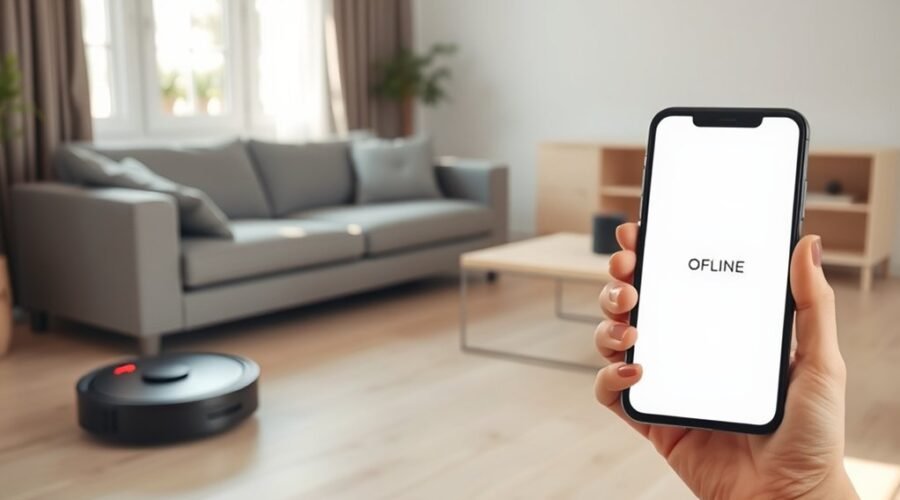
When a robot vacuum app cannot find the device, the cause is often simple but easy to miss. A weak connection, the wrong Wi‑Fi band, missing app permissions, or a failed sync can all keep it offline. The fix may start with a restart, but that is rarely the whole story. A few specific checks can save time and reveal why the vacuum still will not appear.
Confirm Your Wi-Fi Band and App Setup
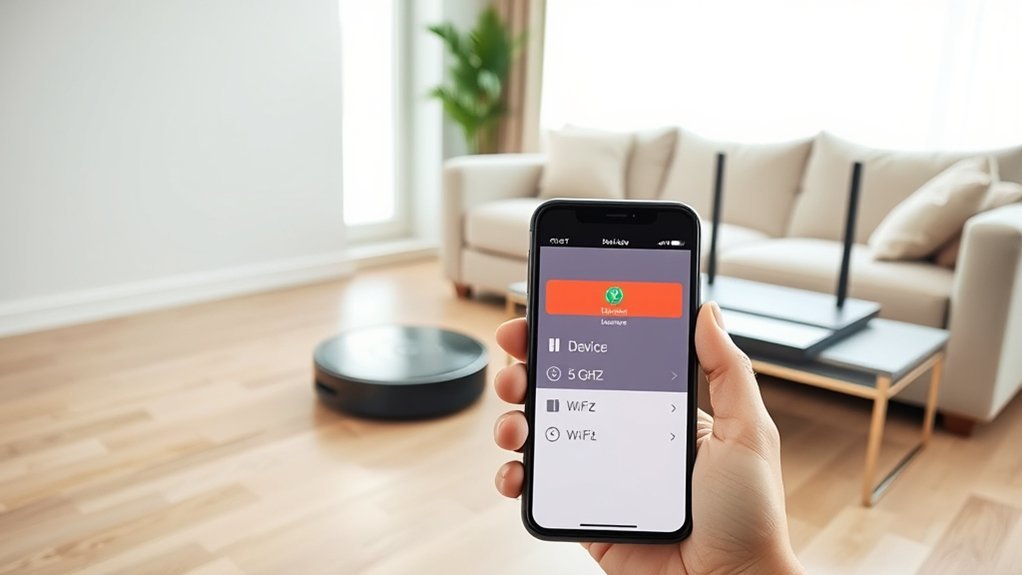
To begin setup troubleshooting, the robot vacuum should be connected to a 2.4GHz Wi-Fi network, since most models do not support 5GHz.
From there, it is wise to confirm your wi-fi band in the router settings before continuing in the app. The vacuum should be powered on and kept within 10 feet of the router during setup, giving discovery a stronger chance to succeed.
The mobile app also needs the right permissions, especially location services and local network access, so the device can be found without obstruction.
Network names and passwords should be checked for special characters, because those symbols can interrupt pairing.
If the setup still stalls, both the robot vacuum and router should be restarted to clear temporary faults.
These steps help restore control, reduce dependence on guesswork, and make the connection process more direct and accessible.
Why Is Your Robot Vacuum Offline?
A robot vacuum may appear offline when its Wi-Fi connection drops, especially if it is still trying to use a 5GHz network instead of the required 2.4GHz band. Once offline, the robot cannot connect to the app, even if the device itself seems active.
Power outages, app updates, or router setting changes can also disrupt pairing and block access. The Wi-Fi password should be checked carefully, since one wrong character can stop the robot from joining the network.
Power outages, app updates, or router changes can disrupt pairing, while one wrong password character can block connection.
Special characters in the Wi-Fi name may also cause problems during setup, leaving the vacuum invisible to the app. These issues are common and usually reflect a broken link, not a failed machine.
When the network is stable and the details are correct, the robot is more likely to connect again and return online. If the problem persists, the manufacturer’s support pages or community forums can offer specific guidance and help restore reliable, independent cleaning.
Restart the Vacuum, App, and Router
A simple restart often clears temporary connection problems.
The vacuum should be powered off for about 10 seconds and turned back on, while the app is fully closed and reopened to refresh the pairing attempt.
If needed, the router can be power cycled as well, since rebooting the device and network often restores a stable connection.
Restart Vacuum And App
Restarting the robot vacuum, the app, and the Wi-Fi router can clear temporary glitches and refresh the connection. A practical reset helps the system return to a clean state, free from small errors that block discovery. To restart vacuum, switch it off, wait briefly, then power it back on. Close the app fully, then reopen it so the app can rebuild its session. Keep the vacuum within router range during this process.
| Action | Purpose |
|---|---|
| Power cycle vacuum | Refreshes status |
| Close app | Removes glitches |
| Reopen app | Rebuilds connection |
| Check range | Supports signal |
| Update app | Improves performance |
Afterward, confirm whether updates are available, since newer versions may improve device communication.
Reboot Router And Device
If the app still fails to connect after a simple restart, rebooting the Wi-Fi router and the device can clear broader connectivity problems. A full reboot router cycle often restores a cleaner signal path and removes temporary glitches that keep the vacuum offline. The process should be simple and deliberate, giving the system a fresh start.
- Power off the vacuum, then turn it back on.
- Close the app completely and reopen it.
- Reboot router and wait for the network to fully return.
- Keep the vacuum within 10 feet of the router during setup.
After both devices restart, the app should be checked for error messages. Those clues may point toward the next fix and help restore dependable control.
Fix 2.4GHz and Network Settings
A robot vacuum often connects only to a 2.4GHz Wi-Fi network, so the app should be checked against the router’s band settings first.
The network name and password should also be free of special characters, and any old Wi-Fi profile should be forgotten before trying again.
If connection problems continue, router settings such as MAC address binding should be adjusted, then both the vacuum and router should be restarted.
4GHz Network Check
Most robot vacuums require a 2.4GHz Wi-Fi network to connect, so the router band should be checked first. This ghz network check helps eliminate a common barrier and restores access with less friction. A quick review can reveal simple setup issues before deeper troubleshooting begins.
- Confirm the vacuum is on 2.4GHz, not 5GHz.
- Remove special characters from the Wi-Fi name or password.
- Place the vacuum within 10 feet of the router during setup.
- Turn off MAC address binding if the router uses it.
If the device still cannot connect, reboot both the vacuum and router to refresh the link. These steps keep the path open and support a cleaner, more independent setup.
Router Setting Adjustments
Router settings should be reviewed next to confirm the vacuum can join the correct 2.4GHz band and use compatible network security.
These router setting adjustments often restore access when a robot vacuum disappears from the app. The network should broadcast 2.4GHz, since many models reject 5GHz signals.
Wi-Fi names and passwords should avoid special characters that may block pairing. Security should be set to WPA or WPA2; WEP is usually unsupported.
MAC address filtering should be disabled, because it can silently deny the robot vacuum. If the device still cannot connect, DNS can be changed to Google’s public 8.8.8.8 for broader compatibility.
These steps reduce obstacles and help keep the system open, reliable, and under the user’s control.
Enable Location and Network Permissions
Before setup can begin, the mobile device should have location services enabled, since many robot vacuum apps need precise location access to discover and connect to the vacuum. This permission is not a luxury; it is a basic requirement for clean setup and steady control.
- Turn on location services in the device settings.
- On iOS 14 or later, allow local network access for the app.
- Confirm the phone is on the same Wi‑Fi, preferably 2.4GHz.
- Disable VPN and cellular data during setup.
These steps help the app see the vacuum on the network and complete pairing without unnecessary barriers.
These steps help the app detect the vacuum on the network and complete pairing smoothly.
The app should also be updated to its latest version, since older releases may fail to communicate properly.
When permissions, network choice, and app version are aligned, the path to connection becomes clearer and more reliable.
Reset the Robot and Re-pair It
A full reset often clears pairing faults that simple permission fixes cannot resolve. To reset the robot, press and hold the designated reset button for about 5 to 10 seconds until the indicator lights change. This break from stale settings gives the vacuum a clean path back to the app.
After the reset, the mobile device should be on a 2.4GHz Wi‑Fi network, since most robot vacuums do not support 5GHz connections. Then open the companion app and follow the on-screen prompts to re-pair the device.
During setup, keep the vacuum within 10 feet of the router so the signal stays steady and the connection can form without friction.
If pairing still fails, forget the robot’s previous Wi‑Fi entry in app settings, then restart both the vacuum and the router.
Also confirm that location and local network permissions remain enabled. These steps restore control and help the robot return to service.
Update the Firmware and App
Keeping the robot vacuum’s firmware and the companion app current can resolve many connectivity problems. To update the firmware, open the manufacturer’s app and check whether the robot is offered a newer version. Outdated software can block detection and weaken communication.
- Update the firmware through the official app.
- Check the app store for the latest app version.
- Confirm location and network permissions are enabled.
- Restart the vacuum and app after updating.
App updates often include bug fixes and communication improvements, so they should be installed promptly. After each update, both devices should be restarted to let the changes take effect.
If the model’s update path is unclear, the manufacturer’s support pages usually provide step-by-step instructions tailored to that device. A current firmware and app combination gives the robot cleaner access to the network and reduces avoidable barriers.
Fix Cloud Sync and Login Issues
Even with current firmware and an updated app, cloud sync and login problems can still keep the robot vacuum from appearing online.
The first step is to confirm that the vacuum is on a 2.4GHz Wi‑Fi network, since many models will not complete setup on 5GHz. The app should also have the proper permissions enabled, including location services and local network access on iOS 14 or later.
If login data seems correct but the device stays hidden, the user should reenter the Wi‑Fi password exactly as the router stores it; special characters can break syncing. A simple reboot of both the robot and the router can clear temporary faults that block cloud connection.
If the app still reports offline status, a factory reset may be necessary before repeating setup. This process restores control by removing stale sync data and allowing a clean connection path.
Contact Customer Support for Help
When the robot vacuum app still cannot find the device, the user should first confirm that the Wi‑Fi network is working and that the vacuum is within range. If the problem continues, customer service can provide model-specific guidance and help remove barriers to connection. A clear report speeds resolution and keeps the user from wasting time on guesswork.
- Note any error messages shown in the app.
- Describe symptoms, such as failed pairing or offline status.
- Ask customer service whether the device or router should be reset.
- Confirm that app permissions and the app version are current.
Support agents often know common connectivity issues tied to specific models. They may also recommend updating the app, since outdated software can block device discovery.
Frequently Asked Questions
How Do I Get My Robot Vacuum Back Online?
Check Device Settings first: connect the vacuum to 2.4GHz Wi-Fi, restart vacuum and router, grant app permissions, review troubleshooting messages, then factory reset and set up again if needed for a fresh, liberated reconnection.
My iRobot Robot Isn’t Connecting to the Wi-Fi. What Can I Do?
They should check the 2.4GHz network first, even if the router seems fine. Connection Troubleshooting means verifying password, removing special characters, restarting vacuum and router, and enabling app permissions; then consult iRobot support.
How Do I Get My Roborock Back Online?
To reconnect, it should use 2.4GHz Wi‑Fi, verify app permissions, and try Connection Troubleshooting: restart the vacuum and router, confirm the password, disable VPN or cellular data, then factory reset if needed.
Why Is My Robot Vacuum Not Connecting to Wi-Fi?
It is usually a 2.4GHz compatibility problem, wrong password, or blocked app permissions causing Connection Issues. Restarting the vacuum and router often helps. If problems continue, the manual or support can provide device-specific guidance.
Conclusion
In most cases, a robot vacuum app that cannot find the device can be restored with a few practical checks. Since 2.4GHz networks still support the majority of smart-home devices, verifying the Wi‑Fi band, permissions, and app setup often solves the issue quickly. If restarting, re-pairing, and updating do not help, the problem is more likely to be a cloud or firmware issue, making customer support the best next step.