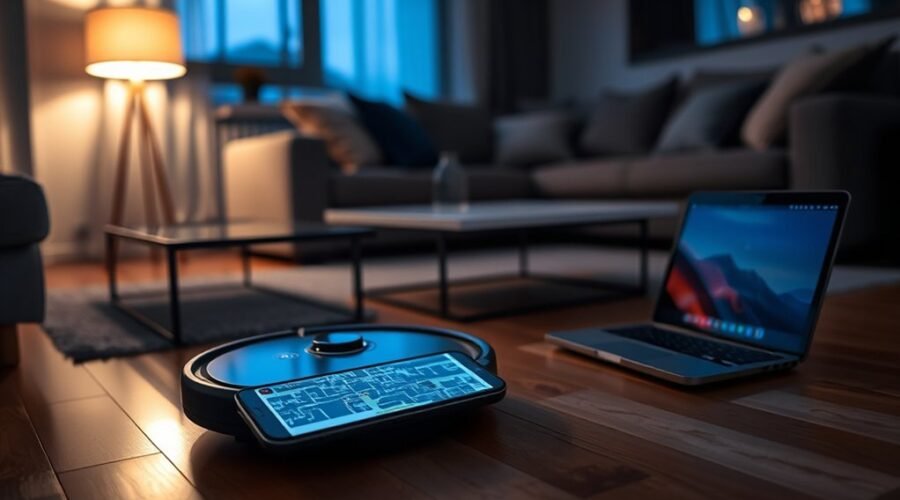
Robot vacuum maps help your cleaner remember rooms, plan routes, and avoid restricted areas. But where are robot vacuum maps stored, and who can access them? The answer depends on your vacuum’s storage system. Some maps stay on the robot, others are saved in the cloud, and some use both locations.
Quick Answer
Robot vacuum maps can be stored in the robot’s internal memory, the manufacturer’s cloud servers, or both. The companion app usually displays and edits maps but may not store the permanent copy. For example, Roomba Imprint Smart Maps use cloud storage, while eufy X8 storage depends on its Multi-map Saving setting.
Key Takeaways
- Removing a vacuum app from your phone does not necessarily delete cloud-stored maps.
- Some models offer local-only map storage, while multi-floor saving may require cloud syncing.
- Shared accounts can expose room names, cleaning schedules, and saved floor layouts.
- Deleting a map, resetting the robot, and deleting a cloud account are different actions.
- Turning off cloud mapping may disable app features such as room selection and no-go zones.
Where Robot Vacuum Maps Are Stored
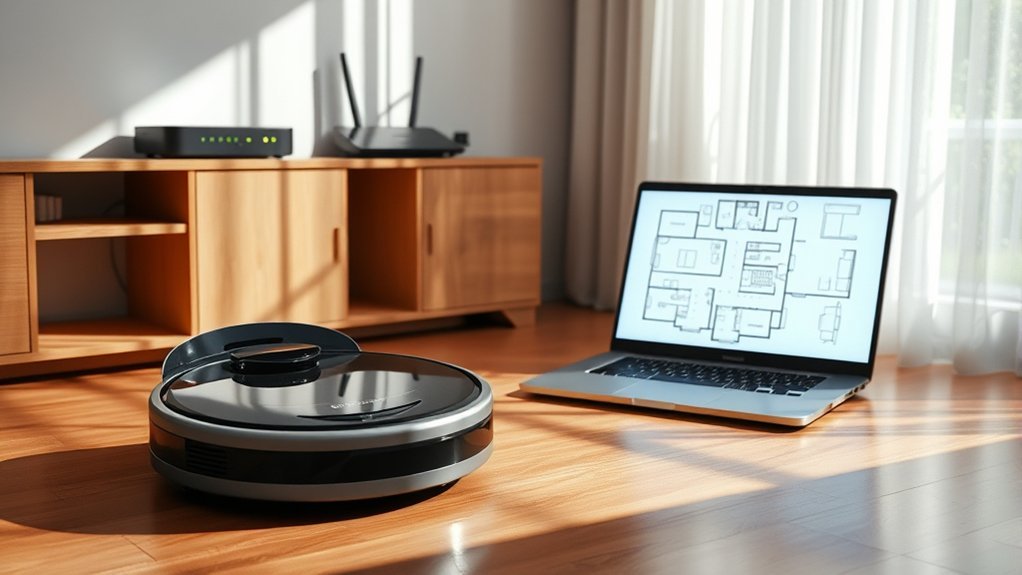
Robot vacuum maps are stored in different places depending on the manufacturer, model, and enabled features. A robot may save navigation data in its internal memory, upload a usable map to cloud servers, or maintain copies in both places.
Onboard storage helps the vacuum recognize its surroundings and follow cleaning routes. Saved mapping data may include room boundaries, walls, doorways, no-go zones, and locations used for navigation.
Cloud storage can support app-based map viewing, remote access, and retrieval. However, displaying a map in an app does not mean the map is permanently stored on your phone.
Local Storage vs. Cloud Storage
The following examples show why you should not assume all robot vacuums handle mapping data the same way.
| Robot or setting | Map storage | What it means |
|---|---|---|
| Roomba Imprint Smart Maps | Cloud storage | Saved Smart Maps remain associated with the cloud account when the app is uninstalled. |
| eufy RoboVac X8 with Multi-map Saving off | Local storage | One valid map is saved on the robot without uploading that map to the cloud. |
| eufy RoboVac X8 with Multi-map Saving on | Local and cloud storage | Up to five valid maps can be saved on the robot and in the cloud. |
These differences come from Roomba’s official Smart Map privacy guidance and eufy’s explanation of X8 map storage.
These examples do not establish how every newer or older model stores its maps. Storage behavior can change with the product’s features and software.
Data security depends on implementation, and stronger systems use encryption while firmware updates may affect map retention.
How Your Vacuum App Stores Maps
Your vacuum’s companion app acts as the main interface for viewing and managing its maps. However, the app may retrieve mapping information from the robot or a cloud service instead of keeping the permanent map in phone storage.
On supported models, you can use the app to:
- View saved floor plans and room boundaries.
- Rename rooms or adjust room divisions.
- Create no-go zones, virtual boundaries, or no-mop areas.
- Review cleaning history, routes, and schedules.
- Save or switch between maps for different floors.
- Delete, reset, or replace maps.
Map storage and cleaning history are not necessarily the same data. A saved map describes the layout, while cleaning history may record which areas were cleaned and when.
For example, removing the Roomba app from your phone does not automatically erase a cloud-stored Imprint Smart Map. The map remains associated with the supported robot and account.
Likewise, a software update can change how the app displays or manages maps without necessarily changing the robot’s underlying navigation system.
Multi-map saving also varies. Some models preserve several floor plans, while others can replace a previous map when you clean a new area or reach a storage limit.
For better control, identify whether your app is displaying an onboard map, accessing cloud data, or using both. Then review the available storage and deletion settings.
What Robot Vacuum Maps Can Expose?
Robot vacuum maps can reveal the layout of your home and the areas your cleaner visits. When combined with cleaning history, schedules, or shared account access, they may reveal more about your household than a simple floor plan.
The information can include:
- Home layout: Room boundaries, hallways, doorways, and the positions of large obstacles or furniture.
- Private areas: Room labels, excluded spaces, no-go zones, bedrooms, or home offices.
- Cleaning patterns: Saved schedules, frequently cleaned areas, and past cleaning routes when the app records them.
- Multiple properties or floors: Additional saved maps that describe other levels, separate homes, or business spaces.
- Connected information: Device names, account access, and integrations with supported smart home services.
These records can become sensitive if someone gains unauthorized access to your account. For example, a map showing a home office or restricted room could expose details you would prefer to keep private.
Repeated cleaning records may also suggest which areas receive frequent attention. However, a robot vacuum map alone cannot prove whether someone is home or establish a household’s exact daily routine.
The concern is not that every robot vacuum constantly monitors its owners. It is that stored layouts and related records can reveal personal information when combined with other data.
Privacy Risks of Shared Cleaning Maps
Shared cleaning maps introduce privacy risks when cloud services, connected apps, or additional user accounts expose household information beyond its intended audience.
The main concerns are unauthorized access, unnecessary sharing, weak account protection, and data that remains available after permissions or ownership change.
Map Data Exposure
Map data can be exposed if a device, app account, or cloud service is compromised. The risk depends on the information stored, who can access it, and the security measures used by the manufacturer.
Common protections include encryption, access controls, authentication, and regular software updates.
Encryption protects information by making it unreadable without the correct key. It is especially useful when data travels between a robot and cloud servers or remains in storage.
For example, iRobot’s published security information states that its customer data is encrypted during transmission and while stored. The company also describes controls on access to mapping information.
These protections reduce risk, but they cannot guarantee that an account or connected device will never be compromised.
Users should also consider what happens when a cloud service stores maps for long periods. Retention rules and deletion procedures may differ from the settings used to remove a map from the app’s display.
Shared App Access
Sharing access to a robot vacuum may also expose saved maps and related cleaning information. If several people can use the same device through connected accounts, control over its mapping data becomes harder to manage.
For example, eufy supports household device sharing through its companion app. Its official RoboVac sharing instructions explain how an owner can invite another account.
| Risk | Effect | Control |
|---|---|---|
| Broad access | More users may see household information | Limit shared access |
| Weak authentication | Account compromise becomes easier | Use unique passwords and stronger sign-in protection |
| Stale settings | Former users may retain access | Review and revoke permissions |
Shared access should be limited to people who need it. Review connected users after changes in your household, and remove permissions that are no longer necessary.
A separate user account is generally preferable to sharing your main account password when the manufacturer provides proper device-sharing controls.
How to Keep Robot Vacuum Maps Private
You can improve robot vacuum map privacy by controlling storage options, restricting app access, and protecting your home network. The most useful settings depend on your model and the features you want to keep.
Follow these steps to reduce unnecessary exposure.
- Check where your map is saved. Open the vacuum’s map-management or privacy settings. Look for cloud syncing, multi-map saving, stored maps, and data-sharing options. Compare these features with the manufacturer’s documentation.
- Limit unnecessary cloud syncing. If your model offers local-only storage, consider using it when remote access and cloud backups are not essential. Confirm which features will stop working before changing the setting.
- Review app permissions. Check whether the companion app needs access to your location, camera, microphone, or other phone features. Disable permissions that are optional and unnecessary for your use.
- Protect your account. Use a unique password and enable two-factor authentication if the service offers it. Review shared access regularly and remove accounts you no longer trust.
- Update the robot and app. Install available firmware and companion-app security updates. Updates may fix vulnerabilities, improve reliability, and change how mapping features work.
- Secure your Wi-Fi network. Use WPA3 or WPA2 encryption, protect the router with a strong administrator password, and consider a separate network for smart home devices.
- Remove unnecessary stored data. Review old maps, cleaning history, unused integrations, and sharing settings. Delete information you no longer need using the controls provided by your manufacturer.
The Federal Trade Commission’s connected-device security guidance also recommends strong passwords, software updates, two-factor authentication where available, and disabling unused features.
Disconnecting Wi-Fi can reduce some network exposure, but it may also prevent app controls, map editing, remote cleaning, and software updates.
For Roomba models covered by Imprint Smart Map privacy settings, disabling Mapping Features stops spatial data uploads to the manufacturer’s cloud servers. However, it also disables related app features, including some cleaning zones, schedules, and room-specific controls.
Similarly, local-only storage is not universal. Avoid assuming that a setting described for one vacuum also works on another.
Some apps may offer controls for anonymizing or limiting shared data. Where those options exist, review what they actually change. Anonymizing a record is not necessarily the same as deleting it.
When to Delete or Reset a Map
Delete or reset a robot vacuum map when it becomes inaccurate, is no longer needed, or creates an unnecessary privacy concern. A full reset is not always required after minor furniture changes, since some robots can adjust their existing maps.
Consider map management in these situations:
- Major renovations: Walls, room boundaries, or doorways have changed significantly.
- Repeated mapping errors: The robot displays overlapping rooms, incorrect paths, or misplaced boundaries.
- New floors or layouts: You need to create a different map without confusing an existing one.
- Privacy changes: You want to remove an old map or reduce stored household information.
- Ownership transfers: You are selling, donating, or giving away the vacuum.
How to Delete or Reset a Saved Map
Most compatible robot vacuums provide map controls through their companion apps. The exact procedure varies by model.
- Open the companion app and select your robot vacuum.
- Find the saved map or map-management section.
- Select the map you want to remove or replace.
- Choose the available delete or reset option.
- Review the confirmation message and complete the action.
- Run a new mapping or cleaning cycle if you need to rebuild the floor plan.
On supported Roomba models, the official Smart Map management guide describes selecting a saved map and using Delete Map.
For the eufy X8 series, the manufacturer provides separate map-deletion instructions. These explain why resetting the map may not fully clear its saved details.
Warning: Deleting or resetting a map may erase room labels, virtual boundaries, no-go zones, and other custom settings. Check whether your model supports backups or restoration before removing a map you may still need.
Does a Factory Reset Delete Everything?
A factory reset generally removes saved device settings and disconnects the robot from its existing configuration. However, it does not automatically prove that every cloud-stored record has been permanently erased.
Some Roomba models offer a map-saving option during factory reset. The manufacturer’s Smart Map backup and retrieval instructions describe this feature for compatible products. Newer LiDAR-based Roomba models listed in that guidance do not support the same map-copy and retrieval feature.
If you are transferring ownership, remove saved maps and account associations as appropriate, then follow the model’s factory-reset procedure.
For permanent cloud-data removal, distinguish deleting a map from requesting deletion of account data. Manufacturer retention policies may apply to backup, diagnostic, or service records.
Frequently Asked Questions
Where Did My Roomba Map Go?
A Roomba map may be missing because of an app syncing problem, a reset, or a change in the connected robot. Check your account and connection first. Some compatible models can retrieve saved Smart Maps, but newer LiDAR-based models do not support that retrieval feature.
Do All Robot Vacuums Map Your House?
No. Basic robot vacuums may use bump sensors or simple navigation without saving an editable floor plan. Mapping models use sensors to build a layout, but features such as room naming, multi-floor maps, and no-go zones depend on the model and companion app.
My Eufy Robovac Map Has Disappeared. How Can I Recover It?
First, check Multi-map Saving on models that support it, then restart the robot and try another complete cleaning cycle. Recovery depends on the model. For the L70 Hybrid, eufy says a removed map cannot be retrieved, so you must create a new map and set up your zones again.
How Do I Delete a Map on a Robot Vacuum?
Open the companion app, find map management, select the saved map, and choose Delete Map where available. The exact steps vary by model. Some eufy X8 setups have separate reset and deletion controls, so check that the map has actually been removed.
Does Uninstalling the App Delete Robot Vacuum Maps?
Not necessarily. Roomba Imprint Smart Maps remain in the manufacturer’s cloud account after you uninstall the phone app. To remove a stored map, use the product’s map-deletion controls and check whether cloud or account data requires a separate deletion process.
Can a Robot Vacuum Map Without Wi-Fi?
Many mapping robots can navigate using onboard sensors without Wi-Fi. However, remote controls, app-based map editing, and some schedules may stop working. Disconnecting Wi-Fi also does not erase existing cloud copies. Check your model’s offline capabilities before disabling its connection.
For additional model-specific troubleshooting, eufy provides official instructions for missing RoboVac maps.
Conclusion
Robot vacuum maps may stay on the device, be stored in the cloud, or exist in both places. Knowing which system your vacuum uses helps you balance smart cleaning features with household privacy.
Start by reviewing map storage, shared accounts, and cloud permissions. Keep software updated, remove maps you no longer need, and check the consequences before resetting your robot. These steps help protect your home’s information without giving up useful cleaning features.
Sources
- Roomba Smart Map Data Privacy: Cloud map storage, app removal, and mapping privacy controls.
- eufy X8 Multi-map Saving: Local and cloud storage behavior and five-map capacity.
- iRobot Data Security: Encryption, data protection, and access controls.
- eufy RoboVac Sharing Guide: Household account sharing and app permissions.
- Federal Trade Commission Device Security Guide: Passwords, authentication, updates, and network protection.
- Roomba Smart Map Management: Map customization, troubleshooting, and deletion.
- eufy X8 Map Deletion: Differences between resetting and deleting saved maps.
- Roomba Smart Map Backup and Retrieval: Compatible models, factory resets, and saved-map recovery.
- eufy Lost-map Troubleshooting: Map disappearance, recovery limitations, and rebuilding maps.