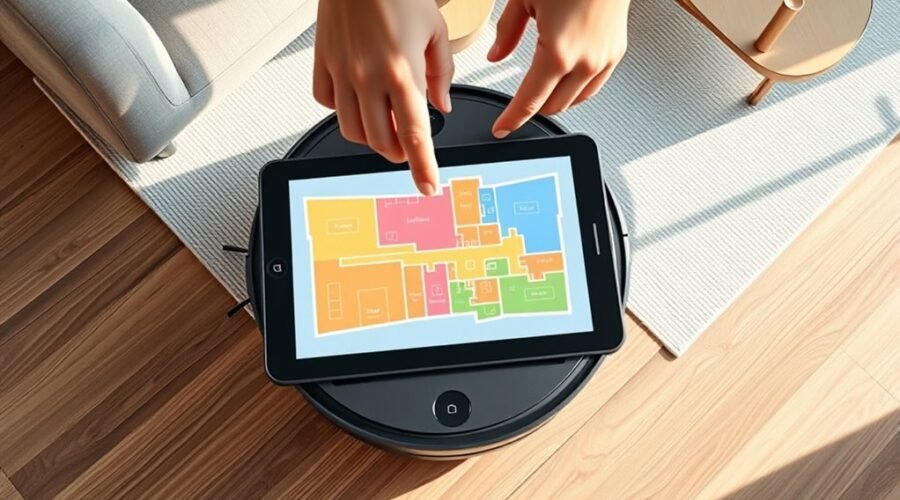
Naming rooms on a robot vacuum map starts with opening the iRobot Home app and viewing the Smart Map. From there, a room can be selected and given a clear label, such as Kitchen or Living Room. The change is then saved and checked on the map. If the layout is not right yet, the room may need to be split or merged first, and that is where the process gets more useful.
Open the Map in iRobot Home
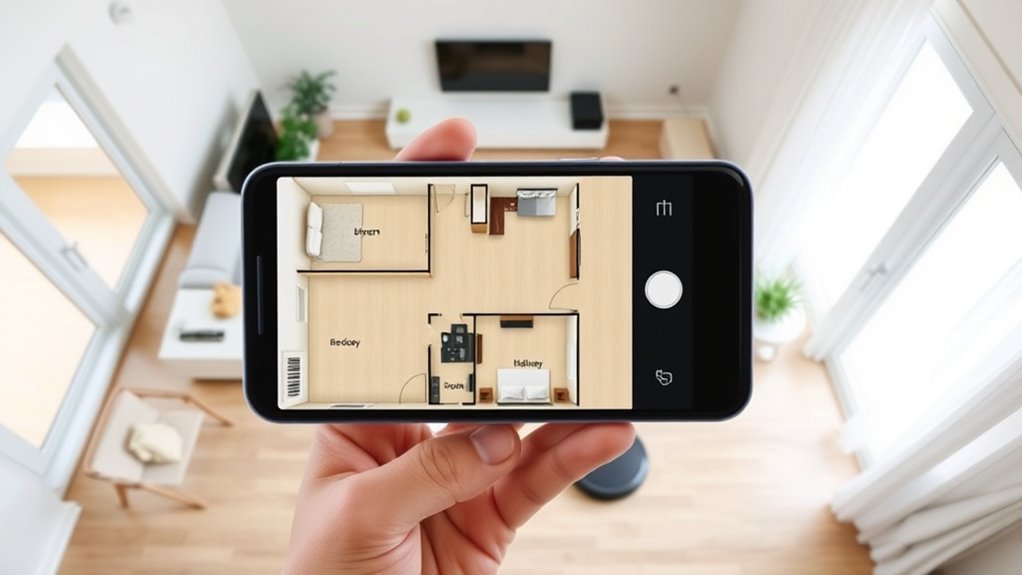
To begin renaming rooms, the user should open the iRobot Home app on a smartphone and tap the Map icon on the home page to view the current smart map. This step gives direct access to the robot vacuum’s layout controls without unnecessary friction.
In the iRobot HOME app, the map display shows the home as the system currently understands it, which is necessary before any room label can be changed. The user should confirm that the correct map is visible, since room names are tied to that specific layout.
The map shows the home as the system understands it, and room names depend on that layout.
From there, the Edit Map function becomes available for later adjustments, including naming changes. At this stage, no room should be edited yet; the task is only to open the map and prepare for the next action.
A clear map view helps the user move with confidence and reclaim control over the home cleaning system.
Select the Room You Want to Rename
In the iRobot HOME app, the user should select the specific room on the Smart Map that needs a new name.
Tapping the room highlights it and brings up the editing options. From there, the user can open Edit Map to begin renaming.
Choose the Room
With the iRobot HOME app open to the map section, the user can view the robot’s saved maps and choose the specific room they want to rename. The room should appear clearly on the screen and be fully mapped before any change is made.
From there, the user may select the room directly, then tap its current room names label or the edit icon to edit the map. This simple action opens the path to clearer control and more freedom over the home layout.
If the app offers Customize my Imprint™ Smart settings, the chosen room can be aligned with those preferences. After entering a new name, saving confirms the update so the robot’s cleaning schedule reflects the change without delay or confusion.
Open Edit Map
After opening the iRobot HOME app and going to the Map section, the user can tap Edit Map to enter the map management screen.
From there, Edit Map opens tools that let the user choose the room to adjust. The displayed layout should be scanned carefully, and the specific area needing a new room name should be selected.
This step gives the user control to customize the map without unnecessary effort. Once the room is highlighted, the app usually provides a text field for naming.
The new room label should be clear, practical, and easy to recognize, supporting smoother cleaning routines and a more liberated, organized home. After entering the name, the user can save the change to confirm it.
Enter a Clear Room Name
A clear room name should use a descriptive label that matches the room’s purpose or location, such as “Kitchen” or “Guest Bedroom.”
Simple names are easier to recognize later and reduce confusion when adjusting cleaning settings.
After the name is entered, saving it updates the map and helps the robot clean more efficiently.
Choose Descriptive Labels
Clear room names make a robot vacuum map easier to use and improve cleaning efficiency. Descriptive labels help each robot vacuum understand where to go, reducing mistakes and supporting directed cleaning with less effort from the user.
Distinct room names also make it easier for everyone in the home to choose the right area without confusion.
- Label spaces by function, such as Living Room or Kitchen.
- Keep room names distinct so selections stay clear in the app.
- Use the iRobot HOME app after mapping to assign or edit labels quickly.
- Review room names regularly so the map matches the home’s current layout.
This approach gives users more control, keeps cleaning organized, and supports a smoother, more liberated daily routine.
Keep Names Simple
Simple room names make robot vacuum mapping easier to manage. In smart map naming, concise labels like Living Room, Kitchen, or Hallway reduce confusion and speed up editing.
Common terms should be used so every household member understands each name without guessing. Special characters, symbols, and long phrases should be avoided, because they can complicate entry and trigger app errors.
When two spaces are similar, consistent naming such as Bedroom 1 and Bedroom 2 gives clear separation while keeping the map organized. The app’s room tools should also be reviewed to confirm that each name matches the actual layout and use of the space.
Clear naming supports easier control, fewer mistakes, and a more independent cleaning routine.
Save Your Changes
- Tap Save after every change.
- Check the map for updated room labels.
- Restart the app if saving fails.
- Keep the app updated for better save options.
Clear saving habits reduce confusion and support a more autonomous cleaning routine.
When changes are preserved, the robot vacuum can respond to the named spaces with greater precision, helping the user manage the home with less friction and more freedom.
Rename Rooms in iRobot Home
After saving map updates, the next step in the iRobot Home app is renaming individual rooms on the Smart Map.
Open the app and tap the map icon to view the home where your robot cleans. From there, select the room that needs a new label and choose the edit option for room names. Enter a clear, unique name so each space is easy to recognize at a glance.
This simple step helps create a more orderly Smart Map and makes future cleaning commands more precise. Once the new name is entered, save the change to apply it immediately.
Repeat the same process for any other rooms that need updated labels. By taking a few focused moments to rename rooms, the map becomes easier to manage, and daily cleaning feels more independent and efficient.
Split or Merge Rooms First
Before assigning room names, the map should be shaped to match the home’s actual layout. A robot vacuum works better when each area reflects how the space is truly used. If two adjacent spaces function as one, the merge tool should be used first.
If one large room serves different purposes, the split tool can divide it into clearer sections. Accurate boundaries reduce confusion and support cleaner directed cleaning.
- Merge spaces that should share one room name.
- Split oversized areas into distinct zones for easier traversal.
- Adjust room edges before naming to prevent errors.
- Update room names after every change, then revisit the map as the home changes.
This approach gives the owner more control and frees the vacuum from maneuvering through a confused layout. Clear room structure leads to better cleaning, simpler app management, and room names that actually match daily life.
Fix Missing Room Names After Mapping
When a room still does not show up with a name after the map has been shaped correctly, the next step is to check the mapping run itself and the app view. A complete mapping run should finish without furniture, cords, or other barriers that could interrupt room detection.
Afterward, the iRobot Home App should be opened, and the map management section should be reviewed to confirm that the new space appears. If the room is present, it can be named there. If it is absent, the app may need a restart or an update so the latest version can display the map properly.
The robot should also be given access to the cleaned area during the next mapping session, allowing clearer room detection. If the room still refuses to appear, deleting the existing map and starting a fresh mapping run may be the most direct path to complete map management and accurate room naming.
Keep Room Names Organized for Directed Clean
Clear room labels help Directed Clean run smoothly in the iRobot HOME app. A well ordered map gives the robot clear direction, reduces mistakes, and supports cleaner decisions.
Clear room labels help Directed Clean run smoothly, giving the robot clear direction and fewer mistakes.
When room names are simple, distinct, and current, Directed Clean can target spaces without confusion, helping a household manage cleaning on its own terms.
- Open the iRobot HOME app and review every room name.
- Select a room on the map, then use the edit function to rename it.
- Choose unique, descriptive labels, such as “Guest Bath” or “Front Office,” instead of vague terms.
- Revisit room names regularly so changes in layout or use stay reflected in the map.
This routine keeps the robot aligned with the home’s real structure. It also makes future Directed Clean sessions faster, more reliable, and easier to guide.
Frequently Asked Questions
How to Do Mapping for Robot Vacuum?
To do mapping for a robot vacuum, one should clear floors, open lights, and run the mapping mode through the app. The robot learns the room layout, improving cleaning efficiency with mapping techniques and later adjustments.
Can You Add Rooms to a Roomba Map?
Yes; like a cartographer with a lantern, one can add rooms to a Roomba map through mapping runs and map editing features. Clear space, then use room classification techniques to reduce room recognition challenges and gain control.
How Does Roomba Know Which Room Is Which?
Roomba knows each room through room recognition technology, using mapping algorithms explained by vSLAM and vacuum navigation systems. It scans landmarks, walls, and obstacles, then matches boundaries to distinct spaces for practical, efficient cleaning.
How to Customize Roomba Smart Map?
Customize Roomba Smart Map by opening iRobot HOME, selecting a map, and using Smart Map Features to rename rooms, adjust boundaries, and merge or split spaces. Room Naming Tips and Customization Options save easily.
Conclusion
In the end, naming rooms on a robot vacuum map is a simple step that can make cleaning far more precise. Open the map, choose each room, assign a clear label, and save the update. If the layout changes, split, merge, or rename rooms as needed. What is a map without names, after all, but a guide with missing directions? With organized room names, the vacuum can clean smarter, and the home stays easier to manage.