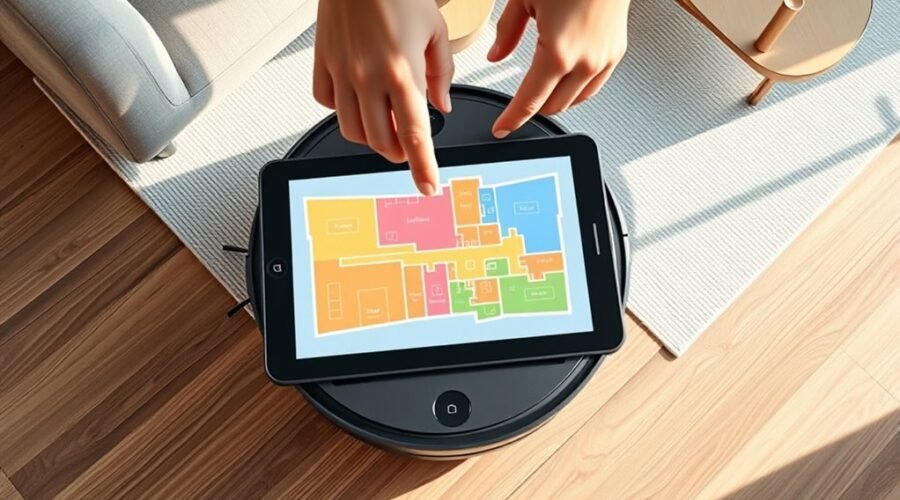
Learning how to name rooms on a robot vacuum map makes it easier to send your Roomba to the right area without cleaning the whole house. You can label spaces such as the Kitchen, Living Room, and Bedroom once your robot has created a saved map. The exact steps depend on whether you use the classic iRobot HOME app or the newer Roomba Home app.
Quick Answer
To name rooms on a robot vacuum map, open your saved Smart Map, choose the room-label editing option, and select the room you want to name. Choose a suggested label or enter a custom name, then save it. If the room boundaries are wrong, adjust them before assigning names.
At a Glance
| Difficulty | Beginner |
| Tools Needed | Smartphone, compatible iRobot app, and a saved Smart Map |
Open the Map in iRobot Home
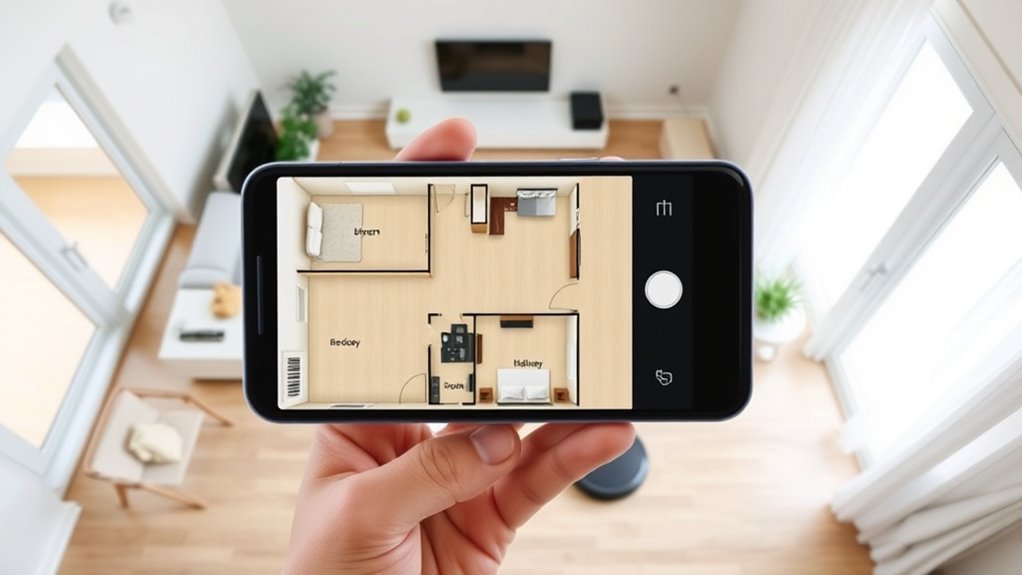
Open the iRobot HOME app and select the Map icon on the home screen. Choose the saved map that contains the room you want to rename.
A Smart Map is the floor plan your compatible Roomba creates and saves after exploring your home. It shows the spaces the robot has learned and lets you organize them for room-based cleaning.
Before editing, confirm that you selected the correct floor plan. If your robot has several saved maps, changing a label on one map does not rename a room on another.
According to iRobot’s Smart Map customization guide, compatible robots can suggest room names automatically. You can accept those suggestions or customize the layout yourself.
If you do not have a saved map yet, complete a mapping run before continuing. The app needs a recognized room layout before you can assign individual room labels.
Select the Room You Want to Rename
Choose the room that needs a new label and open the map’s room-editing controls. Check that the highlighted area matches the physical room you intend to name.
For example, if the map shows your Kitchen and Dining Room as one large area, correct that division before naming either room.
Choose the Room
Look at the saved map and identify the space you want to rename. The room may already have a suggested name, a generic label, or a name you assigned earlier.
Use the room-label controls to select that space. You can then replace its current name with one that better describes its location or purpose.
Remember that a room name identifies an existing mapped area. Changing the label does not change the room’s physical boundaries.
If the selected area includes parts of another room, correct the divider first. Otherwise, a label such as Kitchen may still refer to part of your Dining Room.
Open Edit Map
In the classic iRobot HOME app, open your saved Smart Map and select Room labels from the editing options at the bottom of the screen.
iRobot’s official Smart Map editing instructions identify three main controls:
- Room dividers: Change how the floor plan is divided into rooms.
- Room labels: Assign or change individual room names.
- Zones: Manage supported cleaning and avoidance areas.
Choose Room labels when your goal is simply to rename an existing room.
The menu in the top-right corner serves a different purpose. Its options include renaming the entire map, deleting the map, and saving the map orientation.
For example, renaming a map to Main Floor does not rename an individual room to Kitchen.
Enter a Clear Room Name
Select a name that matches the room’s actual purpose. You can choose a suggested label or enter a custom name when the app provides that option.
Kitchen, Living Room, Hallway, and Guest Bedroom are useful examples. The goal is to make each room easy to recognize when choosing where the robot should clean.
Choose Descriptive Labels
Descriptive labels make your Smart Map easier to understand. They also help household members select the correct space without checking the floor plan every time.
Use these naming guidelines:
- Name rooms by their purpose, such as Kitchen or Office.
- Use distinct names for rooms with similar functions.
- Choose a familiar label that everyone in the household understands.
- Keep the name consistent with the room’s current use.
For example, a spare bedroom used as an office may be easier to identify as Home Office than Bedroom 3.
iRobot requires unique room names within the same Smart Map. If you have two bedrooms, use different labels rather than assigning both the same name.
Keep Names Simple
Short names are easier to read on a small phone screen. They also make it easier to find a room when setting up a cleaning job.
Use labels such as Bedroom 1 and Bedroom 2 when two rooms have similar functions. Alternatively, choose names such as Main Bedroom and Guest Bedroom.
Avoid unnecessarily long phrases. If the app rejects a custom name, try a shorter label without unusual symbols.
Once every room has a distinct name, your map becomes easier to use for directed cleaning and future schedule changes.
Save Your Changes
Save the room name after selecting or entering it. Then return to the map and confirm that the new label appears in the correct location.
Use this short checklist:
- Choose the room name you want.
- Tap Save or the app’s confirmation control.
- Return to the saved map.
- Check that the room displays the updated label.
- Repeat the process for other rooms.
If the name does not appear, reopen the room-label controls and check whether your selection was saved.
Also make sure you are viewing the same Smart Map. A room label may appear missing if you switch to another saved floor plan.
If the app fails to save repeatedly, close and reopen it, check the robot’s connection, and install any available app updates.
Rename Rooms in the Newer Roomba Home App
Newer Roomba models use the Roomba Home app, which has a different interface from the classic iRobot HOME app. Its map-editing features include renaming rooms, changing boundaries, and managing supported zones.
In the newer app, you can access map customization through the My Home area after your robot has created a map.
Follow these steps:
- Open the Roomba Home app.
- Go to My Home and open the saved map.
- Open the map customization options.
- Choose the room you want to rename.
- Select the available room-naming control.
- Enter or choose the new name.
- Save the change and check the updated map.
The newer app can also suggest room names after creating a map. If those labels match your home, you can keep them rather than rename every room manually.
iRobot’s ClearView LiDAR mapping guide explains the room-naming and customization options for supported newer models.
Menu placement may vary with your app version. If your screen looks different, use the map customization controls shown in your installed app rather than following an older screenshot exactly.
Recommended Products

Please check your vacuum model instruction carefully before purchasing. Compatible with some older / classic models only. Not compatible with robots that use App mapping, SLAM or Lidar navigation robot vacuums.

【Wide Compatibility】Our magnetic tape strip is compatible with Neato Botvac Series, Botvac D Series, Botvac Connected and Neato XV Series robots. Compatible with GOOVI by ONSON J10C, F007C Robot Vacuum,Bagotte BG700, Coredy R650, R750 robotic vacuum.

CLEAN FLOORS EVERY DAY—WITHOUT THINKING ABOUT IT. The Roomba Plus 415X vacuums and mops in one run, stopping crumbs, dust, and spills before they turn into stuck‑on messes. With 20,000 Pa and DualClean mop pads, your floors stay visibly clean from morning and night.
Split or Merge Rooms First
Room boundaries should match your actual floor plan before you assign names. Otherwise, the robot may treat two separate spaces as one room or divide a single space into unnecessary sections.
The available editing method depends on your Roomba model and app.
Split a Room Into Separate Areas
Use the room-divider controls when one mapped area contains spaces that you want to clean separately.
For example, an open-plan Kitchen and Dining Room may initially appear as one large room.
On supported classic Smart Maps, you can add or adjust a divider to separate those spaces. The newer app provides a Split option for dividing a room into smaller areas.
After making the division, save the layout and assign a suitable name to each resulting room.
Merge Rooms That Belong Together
Merge rooms when the robot has divided one functional space into multiple areas.
For example, if the map separates one Living Room into two sections, combining them may make room-based cleaning easier.
In the newer Roomba Home app, select neighboring rooms and use Merge to combine them.
In the classic app, you can remove or adjust the divider between the spaces.
After merging, check the resulting room label and rename it if needed.
Note: On supported newer Roomba models, merging or splitting rooms resets their cleaning settings to the defaults. Review those settings before starting your next customized cleaning routine.
For the newer app, moving an existing room boundary may involve merging the affected rooms and splitting them again at the desired position.
Once the boundaries match your home, room names become more useful for selecting specific cleaning areas.
Fix Missing Room Names After Mapping
If a room name is missing, first determine whether the room itself appears on the saved map. An unlabeled room and a room that was never mapped require different fixes.
Recommended Products

✅ !!! CHECK YOUR VACUUM MODEL BEFORE ORDERING !!! ✅

【𝐂𝐨𝐦𝐩𝐚𝐭𝐢𝐛𝐥𝐞 𝐌𝐨𝐝𝐞𝐥𝐬】Our BR151 robot vacuum replacement parts perfectly fits for iMartine BR151, for XIEBro Life BR151, for MAMNV BR151, for ZCWA BR151, for ONSON BR151, for MANVN BR151, for ZC WAS BR151, for GOOVI BR151, for GTTVO BR151,for Tuya BR151, for bObsweep Leaf 000-BR-150, for bObsweep Charlotte, for Kilgone G20, for MANVINS G20. NOT compatible with other models. Please double-check your model before ordering

🥇 Compatible Models: This kit Compatible with MAMNV, ZCWA, MANVN, iMartine, GTTVO, ONSON, XIEBro Life, SHELIKI, Tuya BR150 BR151 Robot Vacuum, Compatible with MANVINS G20, Kilgone G20, ROBOEVO Robot Vacuum G20, Please make sure you know the model of your robot before purchasing.
If the Room Appears but Has No Name
Open the room-label editing controls and assign a name to the existing area.
If the app has grouped two rooms together, correct the divider before naming them separately.
Also check that your new label is unique. A name already assigned to another room on the same map may prevent you from using it again.
If the Entire Room Is Missing
A missing room usually means the robot did not map that space successfully or could not access it during its mapping run.
Try these steps:
- Open the door to the missing room.
- Remove cords, clothes, and other items that could block the robot.
- Turn on the lights if your robot needs them for navigation.
- Start a mapping run or a full-home cleaning mission supported by your model.
- Allow the robot to explore the entire accessible area.
- Review the saved map after the mission finishes.
For compatible classic Smart Map models, another complete mapping run can help the robot discover additional space.
Newer LiDAR models can also update their maps after exploring new areas during supported cleaning missions.
Do not place the robot directly inside the missing room when trying to expand an existing map. Let it travel through the connected space so it can recognize the new area in relation to the saved layout.
If the Map Still Does Not Update
Check whether your Roomba model supports updating its existing Smart Map.
The i3, i4, and i5 series have an important limitation: their Smart Maps do not update during cleaning. Major layout changes may require deleting the existing map and creating another one.
These models also support only one Smart Map. The official i3/i4/i5 mapping instructions explain this behavior.
Before deleting a map on any model, check whether the app offers a way to restore an earlier saved map or correct the current layout.
Warning: Deleting a Smart Map removes the saved layout and its room customization. You may need to map your home again and recreate room labels and other map settings. Use Delete Map only after trying less disruptive fixes.
If the map exists but will not load or save correctly, an app update may help. iRobot has documented fixes for map-loading and map-editing problems in its Roomba Home app release notes.
Keep Room Names Organized for Directed Clean
Clear room labels let you choose specific areas instead of starting a full-home cleaning job. Once your map is organized, you can direct a compatible Roomba to clean individual rooms in the order you prefer.
In the classic iRobot HOME app, compatible models offer room selection when starting a new cleaning job.
In the newer Roomba Home app, you can choose rooms through its cleaning routines.
For example, you might select the Kitchen after preparing a meal or schedule the Living Room for regular cleaning.
Use this routine to keep room-based cleaning organized:
- Check that each room has a distinct, recognizable name.
- Select the rooms you want to clean.
- Review the selected cleaning order and available settings.
- Start or save the cleaning job.
- Update the room labels if the use of your rooms changes.
On compatible i3, i4, and i5 models, directed room cleaning must start from the charging station. These robots use the dock as a reference point for navigation.
Room names also help when using supported voice commands. However, the robot needs a compatible Smart Map and a correctly labeled room before it can respond to a room-specific request.
Finally, remember that room names and cleaning zones are different. A room label identifies a mapped section, while a Clean Zone lets supported robots focus on a smaller area within the map.
Recommended Products

COMPATIBILITY: Compatible with a range of popular robot vacuum models including Roomba, Robot, Ilife, Goovi, Bissell, Shark, Eufy, and others with similar shapes.

Creates No-Go Zones – Only compatible with Neato robotic vacuums. Prevents your robot from entering restricted areas such as under furniture, kids’ play zones, or pet feeding spots.

Compact Body Design & Flexible Obstacle Avoidance: Lefant M210P has only an 11'' diameter and 2.99" Height. It's designed for narrow spaces such as beds, sofas, corners, etc. to avoid tangles, clean thoroughly, and achieve high coverage
Frequently Asked Questions
How to Do Mapping for Robot Vacuum?
To map your home, clear the floors, open interior doors, and start a mapping run through your robot’s app. Allow the robot to explore the accessible space and finish its mission. Once the map is saved, you can adjust room boundaries and add labels if your model supports those features.
Can You Add Rooms to a Roomba Map?
Yes, compatible Roomba models can discover additional rooms during supported mapping or full-home cleaning runs. Make sure the robot can reach the new area and allow it to complete the mission. Some models, including the i3, i4, and i5 series, require a new map when the existing layout needs major changes.
How Does Roomba Know Which Room Is Which?
Roomba identifies rooms through its mapping and navigation system. Compatible classic models use visual landmarks, while newer LiDAR models measure surrounding distances to build a floor plan. The app then divides the layout into rooms. You can correct those boundaries and assign names that match your home.
How to Customize Roomba Smart Map?
Open your saved Smart Map and select its customization controls. Depending on your model, you can rename rooms, adjust dividers, merge or split spaces, and manage supported cleaning zones. Save the changes and confirm that the layout matches your home before creating room-based cleaning jobs.
Is Renaming a Map the Same as Renaming a Room?
No. Renaming a map changes the name of the saved floor plan, such as Main Floor or Upstairs. Renaming a room changes the label of one area within that map, such as Kitchen or Bedroom. Use the room-label controls when you want to change an individual room name.
Why Can’t I Rename a Room on My Roomba Map?
You may be using an incomplete map, selecting the wrong editing menu, or entering a name already assigned to another room. Make sure the mapping run has finished and the room appears on the saved layout. Then open the room-label controls, choose a unique name, and save the change.
Conclusion
Naming rooms on your robot vacuum map starts with a complete, correctly divided floor plan. Choose clear, unique labels and save each change so your Roomba can use those rooms for directed cleaning. If a room is missing, try a complete mapping run before considering a map reset.
Sources
- iRobot: How Do I Edit an Imprint Smart Map? — Classic app navigation and map editing controls.
- iRobot: Guide to Imprint Smart Maps — Mapping, room labels, dividers, and directed cleaning.
- iRobot: Guide to ClearView LiDAR Maps — Newer Roomba mapping, room customization, and cleaning routines.
- iRobot: Smart Maps for i3/i4/i5 Roombas — Model-specific mapping limitations and room-label requirements.
- iRobot: Roomba Home App Software Release Notes — Documented app improvements and map-related fixes.